
Introduction
This manual provides detailed instructions for the setup, operation, and maintenance of your National Geographic 7-in-1 Smart Tuya Weather Station. This device integrates seamlessly with your existing Tuya smart home system, offering comprehensive weather forecasts and environmental data, including atmospheric pressure, temperature, precipitation, and air quality.
The weather station consists of a base station and a 7-in-1 outdoor sensor, designed to provide accurate and reliable environmental monitoring.
Package Contents
Before beginning installation, please verify that all components are present:
- Base Station (Display Unit)
- Power Adapter for Base Station
- 7-in-1 Wireless Outdoor Sensor
- Instruction Manual (this document)
Note: A CR2032 backup battery for the base station and 3 AA batteries for the outdoor sensor are not included and must be purchased separately.
Setup
1. Base Station Installation
- Power Connection: Connect the included power adapter to the base station and plug it into a wall outlet.
- Backup Battery (Optional): For power outage protection, insert one CR2032 battery (not included) into the battery compartment on the back of the base station. Ensure correct polarity.
- Initial Display: The display will light up, and the base station will begin searching for the outdoor sensor and Wi-Fi connection.
2. 7-in-1 Outdoor Sensor Installation
The outdoor sensor measures temperature, humidity, wind speed and direction, precipitation, UV level, and light intensity.
- Battery Installation: Open the battery compartment on the outdoor sensor. Insert 3 AA batteries (not included), observing correct polarity. These batteries serve as a backup power source when solar power is insufficient.
- Mounting Location: Choose an open location outdoors, free from obstructions, to ensure accurate readings for wind, rain, and sunlight. The sensor should be mounted securely on a pole or similar structure.
- Solar Panel Orientation: Ensure the large mobile solar panel is oriented to receive maximum sunlight throughout the day for optimal power generation.
- Range: The sensor has a wireless range of up to 150 meters from the base station. Avoid placing it too far or with significant obstacles between the sensor and base station.
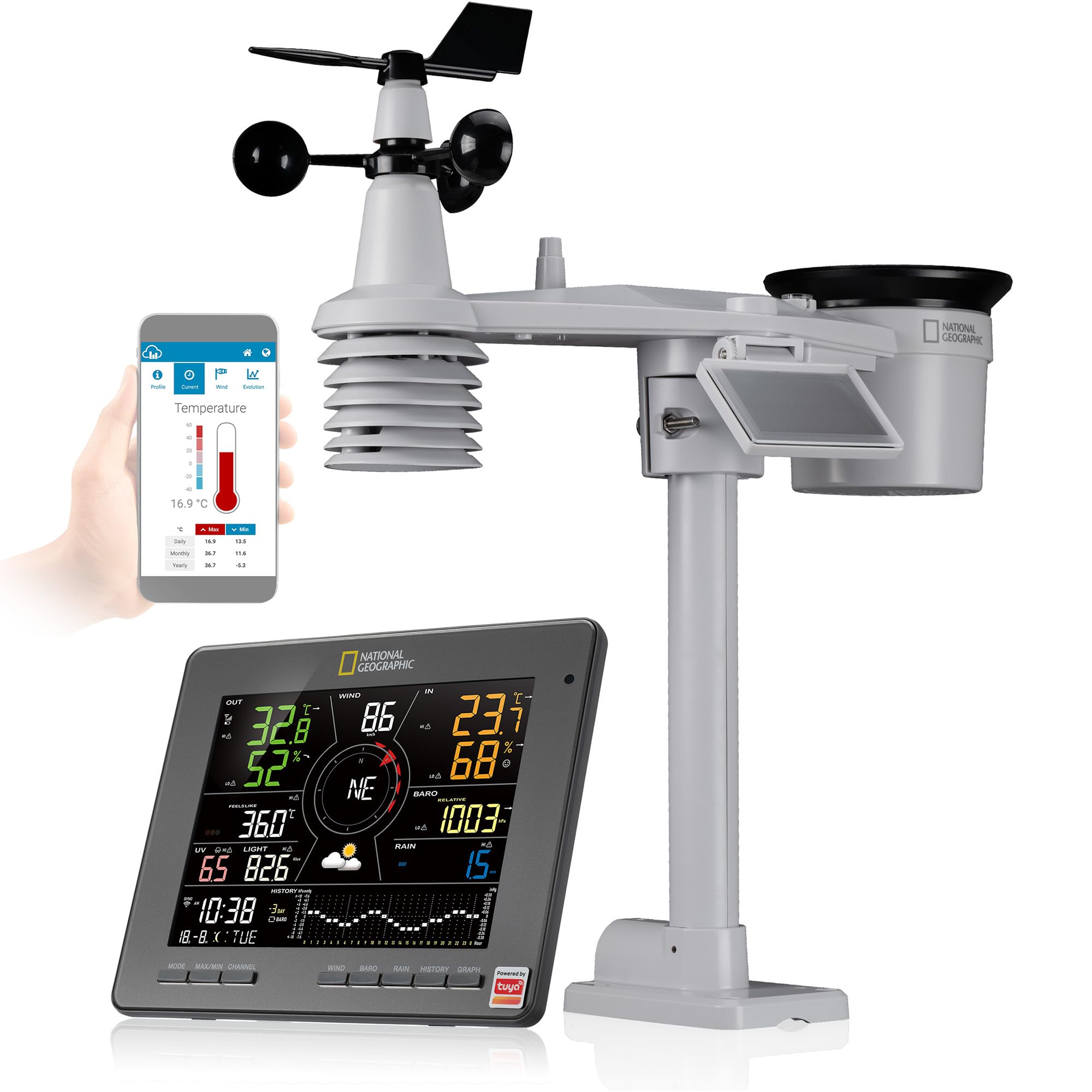
Image: The National Geographic 7-in-1 Smart Tuya Weather Station, showing both the indoor base unit and the outdoor multi-sensor array. The outdoor sensor is designed for pole mounting and features a solar panel for power.
3. Wi-Fi and Tuya Smart Life App Connection
- Download App: Download the "Tuya Smart Life" app from your smartphone's app store (iOS or Android).
- Register/Login: Open the app and register a new account or log in with an existing one.
- Add Device: Follow the in-app instructions to add a new device. Select the weather station category or use the auto-scan feature.
- Wi-Fi Pairing: The base station will enter pairing mode (indicated by a flashing Wi-Fi icon). Enter your Wi-Fi network credentials into the app. Ensure your Wi-Fi network is 2.4 GHz.
- Confirmation: Once connected, the Wi-Fi icon on the base station display will become solid, and the weather station data will appear in the Tuya Smart Life app.
Operating Instructions
1. Base Station Display Overview
The base station display provides a comprehensive overview of current and forecasted weather conditions:
- Indoor Climate: Displays indoor temperature and humidity.
- Weather Forecast: Provides a 6-day weather forecast.
- 7-in-1 Sensor Data: Shows outdoor temperature, humidity, wind speed/direction, precipitation, UV level, and light intensity.
- Atmospheric Pressure: Current atmospheric pressure and barometric pressure trend.
- Air Quality Data: Displays internet-sourced air quality index (AQI) and various pollutant values (PM2.5, PM10, CO2, CO, HCHO, VOC) if optional sensors are connected.
- Max/Min Values: Records and displays maximum and minimum values for various measurements.
- Time & Date: Automatic display of time and date via Wi-Fi.
- Astronomical Data: Moon phases, sunrise, and sunset times.
- Alarm Clock: Built-in alarm clock function.
2. Tuya Smart Life App Functions
The Tuya Smart Life app extends the functionality of your weather station:
- Remote Monitoring: View all weather and environmental data from anywhere, anytime.
- Smart Scenarios: Create automated scenarios with other Tuya-compatible smart devices. For example, turn on a heater if the indoor temperature drops below a certain threshold.
- Data Logging: Access historical data and trends for various measurements.
- Alerts: Set custom alerts for high/low values (e.g., high wind, low temperature).
- Online Weather Platforms: Configure the station to publish local weather data to online platforms like Weather Underground and Weathercloud.
3. Optional Sensors
The system is expandable with additional sensors (not included) for enhanced monitoring:
- Up to 3 thermo-hygrometric, soil, and/or pool sensors.
- Up to 3 water leak detectors.
- 1 x PM2.5/10 sensor.
- 1 x CO2 sensor.
- 1 x HCHO and VOC sensor.
Maintenance
1. Cleaning
- Base Station: Wipe the display and casing with a soft, dry cloth. Avoid abrasive cleaners or solvents.
- Outdoor Sensor: Periodically check the rain collector for debris (leaves, insects) and clean as necessary. Ensure the wind cups and wind vane spin freely. Gently wipe the solar panel to maintain efficiency.
2. Battery Replacement
- Base Station (CR2032): If the display loses settings during a power outage, the CR2032 backup battery may need replacement. Open the battery compartment on the back, replace the battery, and ensure correct polarity.
- Outdoor Sensor (AA Batteries): If the outdoor sensor data becomes intermittent or stops transmitting, the AA backup batteries may be low. Open the battery compartment, replace the 3 AA batteries, and ensure correct polarity.
Troubleshooting
- No Outdoor Sensor Data:
- Check if the outdoor sensor batteries are installed correctly and are not depleted.
- Ensure the outdoor sensor is within the 150m range of the base station and there are no major obstructions.
- Try resetting both the base station and the outdoor sensor by removing and reinserting batteries/power.
- Wi-Fi Connection Issues:
- Ensure your Wi-Fi network is 2.4 GHz. The station does not support 5 GHz networks.
- Verify your Wi-Fi password in the Tuya Smart Life app.
- Move the base station closer to your Wi-Fi router during setup.
- Restart your router and the base station.
- Inaccurate Readings:
- Temperature/Humidity: Ensure the outdoor sensor is not in direct sunlight (unless designed for it) or near heat sources/vents.
- Wind: Ensure the wind cups and vane are free from obstructions and can rotate freely.
- Rain: Check the rain collector for debris.
- Display Not Working:
- Check the power adapter connection.
- Ensure the power outlet is functional.
Specifications
| Feature | Detail |
|---|---|
| Brand | National Geographic |
| Model Number | 9080700 |
| Manufacturer | Bresser |
| Connectivity Technology | Wi-Fi (2.4 GHz) |
| Material | Plastic |
| Color | Anthracite |
| Display Type | Digital Display |
| Feature | Detail |
|---|---|
| Power Source | Mains Adapter (included), CR2032 Backup Battery (not included) |
| Indoor Temperature/Humidity | Measurement and display |
| Weather Forecast | 6-day forecast |
| Atmospheric Pressure | Measurement and display with bar chart |
| Air Quality Data | Internet data (AQI, PM2.5, PM10, CO2, CO, HCHO, VOC) |
| Special Features | Tuya Smart Life App control, Max/Min value alarm/memory, Internet time, Alarm clock, Moon phases, Sunrise/Sunset |
| Feature | Detail |
|---|---|
| Measurements | Temperature, Humidity, Wind Speed/Direction, Precipitation, UV Level, Light Intensity |
| Power Source | Large Mobile Solar Panel, 3 AA Batteries (not included) for backup |
| Wireless Range | Up to 150 meters |
| Dimensions | 390 x 174 x 465 mm |
| Temperature Accuracy | 0.1 ℃ (reading accuracy ±1 ℃) |
| Upper Temperature Limit | 60 ℃ |
Warranty and Support
Warranty information for your National Geographic 7-in-1 Smart Tuya Weather Station is typically provided with the product packaging or can be found on the manufacturer's official website. Please retain your proof of purchase for warranty claims.
For technical support, troubleshooting assistance, or inquiries about optional sensors, please refer to the support section of the National Geographic or Bresser website, or contact their customer service directly.


