
1. Introduction
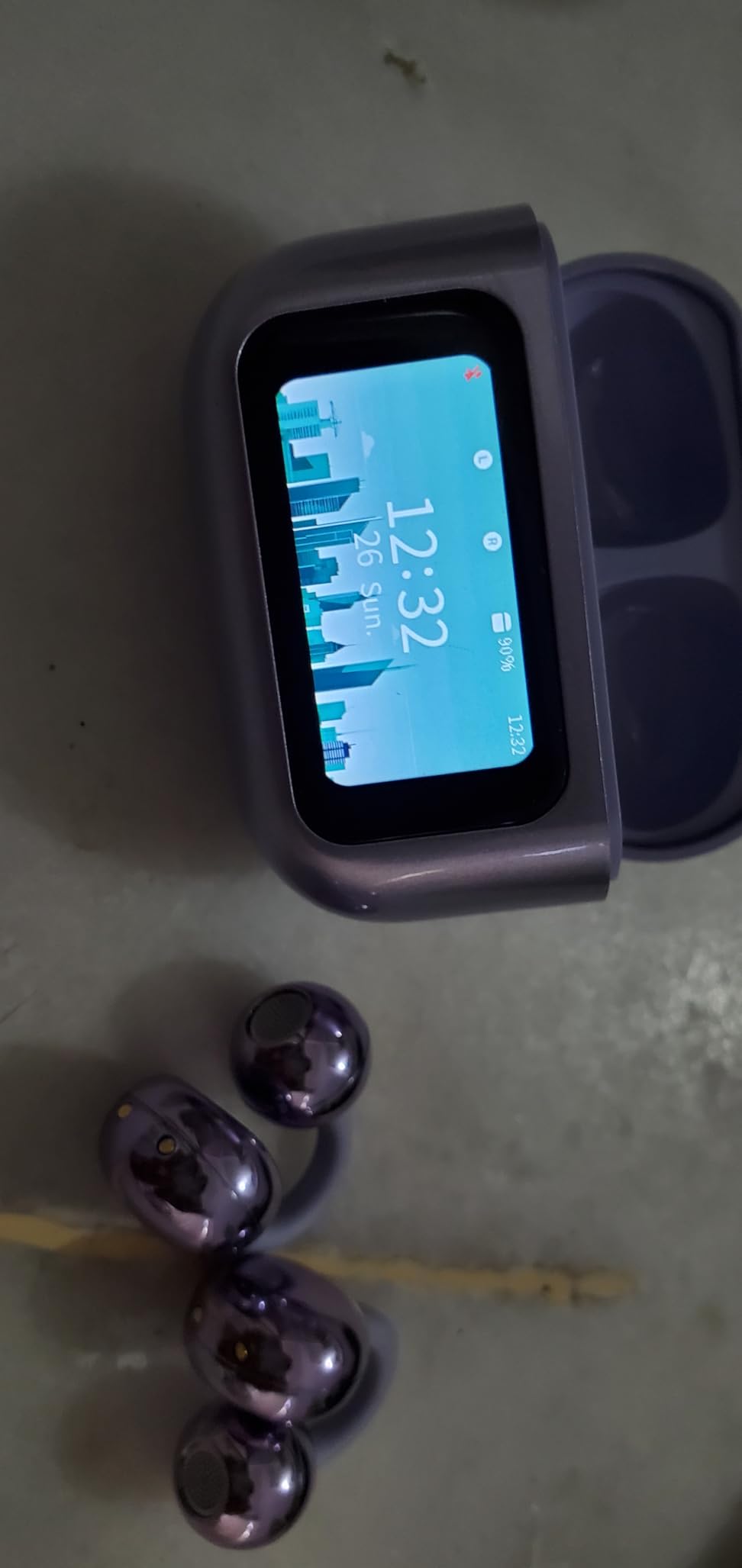
Thank you for choosing the MAcnas M100 Open Ear Clip Headphones. These wireless earbuds feature Bluetooth 5.4 connectivity, an LED touch screen charging case, and an ergonomic open-ear design for comfortable wear. This manual provides essential information for the proper use and maintenance of your device.
2. Safety Guidelines
Before using this product for the first time, please fully charge it. Adhere to the following safety precautions to prevent damage to the device or personal injury:
- Do not expose the device to extreme temperatures or direct sunlight.
- Avoid dropping or subjecting the device to strong impacts.
- Keep the device away from water and moisture, despite its waterproof rating, to ensure longevity.
- Do not attempt to disassemble or repair the device yourself. Contact qualified service personnel.
- Use only the provided charging cable or a certified equivalent.
- Avoid listening at high volumes for extended periods to prevent hearing damage.
3. What's in the Box
The MAcnas M100 package includes the following items:
- A pair of MAcnas M100 Open Ear Clip Headphones
- Charging Box with LED Touch Screen
- USB Charging Cable
- User Manual (this document)
4. Product Overview
The MAcnas M100 headphones are designed for comfort and high-quality audio, featuring an innovative open-ear clip design and a smart charging case.


5. Setup
5.1. Initial Charging
Before first use, fully charge the MAcnas M100 headphones and charging case. Connect the provided USB charging cable to the charging case and a power source. The LED touch screen will display the battery level and charging status. A full charge takes approximately 3 hours.

5.2. Pairing with Your Device
- Ensure the earbuds are in the charging case and the case is open.
- On your mobile device, enable Bluetooth and search for available devices.
- Select "MAcnas M100" from the list of devices.
- Once paired, the earbuds will automatically connect to your device when removed from the charging case.
The MAcnas M100 uses Bluetooth 5.4 for a fast and stable connection, with a range of up to 10 meters.
5.3. Wearing the Earbuds
The M100 features an open-ear clip design for comfort and awareness of your surroundings. Gently clip each earbud onto your ear, ensuring a secure yet comfortable fit. The design prevents complete sealing of the ear canal, reducing discomfort during extended wear.
6. Operation
6.1. Earbud Touch Controls
The earbuds feature touch-sensitive controls for managing audio and calls:
- Play/Pause: Single click on either earbud.
- Next Song: Double click the right earbud.
- Previous Song: Double click the left earbud.
- Volume Up: Triple click the right earbud.
- Volume Down: Triple click the left earbud.
- Answer/End Call: Double click on either earbud.
- Reject Call: Long press either earbud for 2 seconds.
- Activate Voice Assistant: Long press either earbud for 3 seconds.
- Toggle Language: When not connected to a device, tap any earbud 4 times.
- Toggle Music/Game Mode: When connected, tap the left and right earbud touch buttons 4 times in a row.
6.2. Smart LED Touch Screen Charging Case Functions
The charging case features a multi-functional LED touch screen. Swipe left/right or up/down to navigate through functions. Tap icons to select.

| Interface | State | Operation |
|---|---|---|
| Boot | Shutdown Status | Press and hold the button for 5 seconds or charge the charging case. |
| Shutdown | Power-on Status | Press and hold the button for 5 seconds to shut down, restart, and restore. |
| On-screen controls | The screen is lit up | Use your fingers to slide the screen in four directions (left, right, up, down) or tap within the active area of the screen. You can select or open the corresponding function. Click the icon to open the function, and after the function is opened, swipe from right to left to exit the function, and swipe from bottom to top to return to the time interface. When the function icon screen is displayed, swipe from right to left on the time interface page to switch between the music remote control and the equalizer shortcut icon. |
| Restore factory settings | Power-on Status | Press and hold the button for 5 seconds. |
| Photo controls | Connection status with mobile phone | Tap the on-screen interface (photo control) icon and then turn on your phone. The camera takes a picture interface, and you can click the "camera" icon on the warehouse screen to control. Make a mobile phone to take pictures. |
| Flashlight | Power-on Status | Tap the on-screen interface (flashlight) icon to turn the hand on and off. |
| Voice assistant | Connect the phone and BLE status | Click on the screen interface (voice assistant) icon to enter the voice assistant function, and then click on the icon to turn on or off the voice assistant. |
| Background wallpapers | Power-on Status | After clicking the icon on the screen interface (time setting), you can modify the time, year, month, day, hour, minute, and second. |
| Lock screen wallpapers | Power-on Status | Tap the screen interface (background wallpaper) icon and then click the toggle button to change the background wallpaper. |
| Language switching | Power-on Status | Tap the screen interface (lock screen wallpaper) icon, and then tap the toggle button to switch the lock screen wallpaper. |
| Screen brightness | Power-on Status | Click on the screen interface (screen brightness) icon and then click the left/right "triangle" button to adjust the screen brightness. |
| Mode selection | Connection status with mobile phone | Tap the screen interface (mode selection) icon, and then click to select the music/game model Formula to switch modes. The default state is "Music Mode". |
| Timer | Power-on Status | Tap the screen interface (timer) icon, and then tap the left/right "triangle" press button to select the duration of 5S-1H to count down. |
| Equalizer | Connection status with mobile phone | Tap the on-screen interface (equalizer) icon and then tap the Open button. Then click the left/right "triangle" button to select the corresponding scenario EQ handoff. |
| Volume adjustment | Connection status | Tap the on-screen interface (music adjustment) icon and click Add/Subtract Function button to adjust the volume. |
| Music remote | Connection status | Tap the icon on the screen interface (music remote) and then tap left/right button switches songs, and the middle button is clicked to play and pause. (Note: The lyrics displayed on the music remote interface must be corresponding on the mobile phone. Turn on the Bluetooth lyrics APP). |
| Game | Power-on Status | Tap the screen interface (game) icon and click the icon to enter game, click on the left/right "triangle" button to select your favorite game entertainment. |
| The time display interface is switched | Power-on Status | Press and hold the time display interface for 1.5 seconds, and three pictures will pop up on the screen, and then click the corresponding picture to switch. |
7. Maintenance
Proper maintenance ensures the longevity of your MAcnas M100 headphones:
- Cleaning: Use a soft, dry cloth to clean the earbuds and charging case. Avoid using abrasive materials or harsh chemicals.
- Storage: When not in use, store the earbuds in their charging case to protect them from dust and damage.
- Battery Care: To preserve battery life, avoid fully discharging the battery frequently. Charge the device regularly, even if not in constant use.
8. Troubleshooting
If you encounter issues with your MAcnas M100 headphones, refer to the table below for common problems and solutions:

| Fault | Cause | Resolution |
|---|---|---|
| Doesn't turn on | The headphones are low on battery. | Charge the headphones. |
| The headphones flash red | The headphones are low on battery. | Charge the headphones. |
| Charging is silent | The headphones were not put away. | Adjust the position where the headphones are placed. |
| Automatic power off | Automatic low battery. | Charge the headphones. |
| The headphones have an echo | The volume is too loud or the environment is too noisy. | Adjust the volume or change the environment. |
| There is a murmur from the headphones | Serious external interference or too far away from the phone. | Change the location or be close to your phone. |
| The other party's voice is quiet | The headphones are worn incorrectly or the volume is too low. | Adjust the headset wear or volume. |
| The signal is intermittent | Serious external interference or too far away from the phone. | Choose a distraction-free environment or be close to your phone. |
9. Specifications
| Feature | Detail |
|---|---|
| Model Name | M100 |
| Brand | MAcnas |
| Connectivity Technology | Bluetooth |
| Wireless Communication Technology | Bluetooth, Wireless |
| Bluetooth Version | 5.4 |
| Bluetooth Range | 10 Meters |
| Ear Placement | Open Ear |
| Form Factor | Open Ear |
| Control Type | Volume Control, Touch |
| Noise Control | Adaptive Noise Cancellation, Hybrid Noise Cancellation, Sound Isolation |
| Sensitivity | 115 dB |
| Impedance | 32 Ohms |
| Battery Life | 5 Hours |
| Charging Time | 3 Hours |
| Water Resistance Level | Waterproof |
| Material | Acrylonitrile Butadiene Styrene (ABS) |
| Item Weight (Earbuds) | 46.7 Grams (total for earbuds) |
| Carrying Case Weight | 94 Grams |
| Carrying Case Dimensions | 2.4 x 1.85 x 1.08 Inches (Length x Width x Height) |
| Compatible Devices | Car Audio Systems, Cellphones, Laptops, Music Production Equipment, Smart Speaker |
| Special Features | Smart LED Touch Screen Charging Case, Noise Reduction, Auto Quick Pairing, Touch Control, Ergonomic Open Ear Clip Design |
| UPC | 607995103954 |
10. Warranty & Support
For warranty information and customer support, please refer to the documentation included with your purchase or visit the official MAcnas website. Keep your proof of purchase for any warranty claims.
If you experience any issues not covered in the troubleshooting section, please contact MAcnas customer service for assistance.