
1. Introduction
This manual provides detailed instructions for the setup, operation, maintenance, and troubleshooting of your VIZONY DP04 Pro Smart Projector. Please read this manual thoroughly before using the product to ensure proper function and to maximize your viewing experience.

Image: The VIZONY DP04 Pro Smart Projector, its remote control, and a display showing various streaming application interfaces like Netflix, Disney+, Prime Video, and YouTube.
2. What's in the Box
Please check the contents of your package. If any items are missing or damaged, contact customer support.
- 1 x VIZONY Netflix Projector
- 1 x HDMI Cable
- 1 x AV Cable
- 1 x Remote Control
- 1 x Projector Lens Cover
3. Product Overview
3.1 Key Features
- Officially Licensed Streaming Apps: Integrated Smart TV OS with pre-installed and licensed Netflix, YouTube, Prime Video, Hulu, and Disney+.
- High-Quality Display: Native 1080P resolution, HDR10 support, 500 ANSI lumens brightness, and 10000:1 contrast ratio for clear and vibrant images.
- Immersive Audio: Dolby Digital support with 10W Hi-Fi stereo speakers for 360° surround sound.
- Advanced Connectivity: Ultra-fast Dual-Band WiFi 6 (5G + 2.4G) and Bluetooth 5.2 for seamless wireless connections.
- Easy Image Adjustment: Advanced focus, intelligent 4D/4P keystone correction, and 50%-100% digital zoom.
- Compact and Portable Design: Measures 8 x 6.6 x 3.5 inches and weighs 2.4 lbs, making it easy to transport.
- Extensive Compatibility: Equipped with HDMI, USB, and 3.5mm audio ports for connecting various devices.
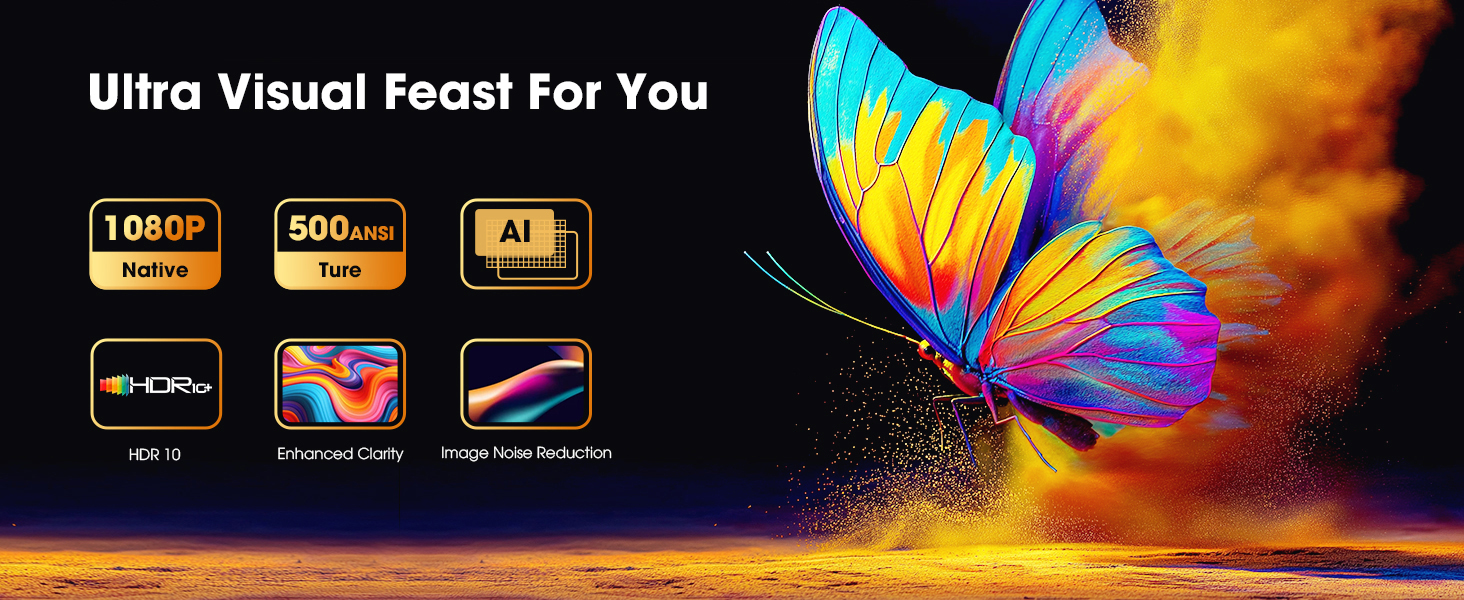
Image: A visual representation of the Netflix certification for the VIZONY DP04 Pro projector, highlighting its official licensing.
3.2 Projector Components (Refer to product images for visual identification)
- Lens: Main projection lens.
- Focus Wheel: For manual image sharpness adjustment.
- Control Panel: On-device buttons for basic navigation.
- Input Ports: HDMI, USB (x2), 3.5mm Audio Out.
- Ventilation Grilles: For heat dissipation.
- Power Input: For connecting the power adapter.

Image: The VIZONY DP04 Pro projector shown with various connected devices including a laptop, game console, smartphone, headphones, and a portable speaker, illustrating its wide compatibility.
4. Setup
4.1 Initial Placement
- Place the projector on a stable, flat surface or mount it using the built-in M4 mounting hole (ceiling, tripod, or wall).
- Ensure the projector lens is facing the desired projection surface (screen or plain wall).
- Maintain an appropriate distance from the projection surface to achieve the desired screen size (e.g., 5.6ft for 60", 9.2ft for 100").
4.2 Power Connection
- Connect the power adapter to the projector's power input port.
- Plug the power adapter into a wall outlet.
- Press the power button on the projector or remote control to turn it on.
4.3 Network Connection (WiFi 6)
- Navigate to the Settings menu on the projector's Smart TV OS.
- Select 'Network' or 'WiFi'.
- Choose your desired WiFi network from the list of available networks.
- Enter the WiFi password using the on-screen keyboard and confirm.
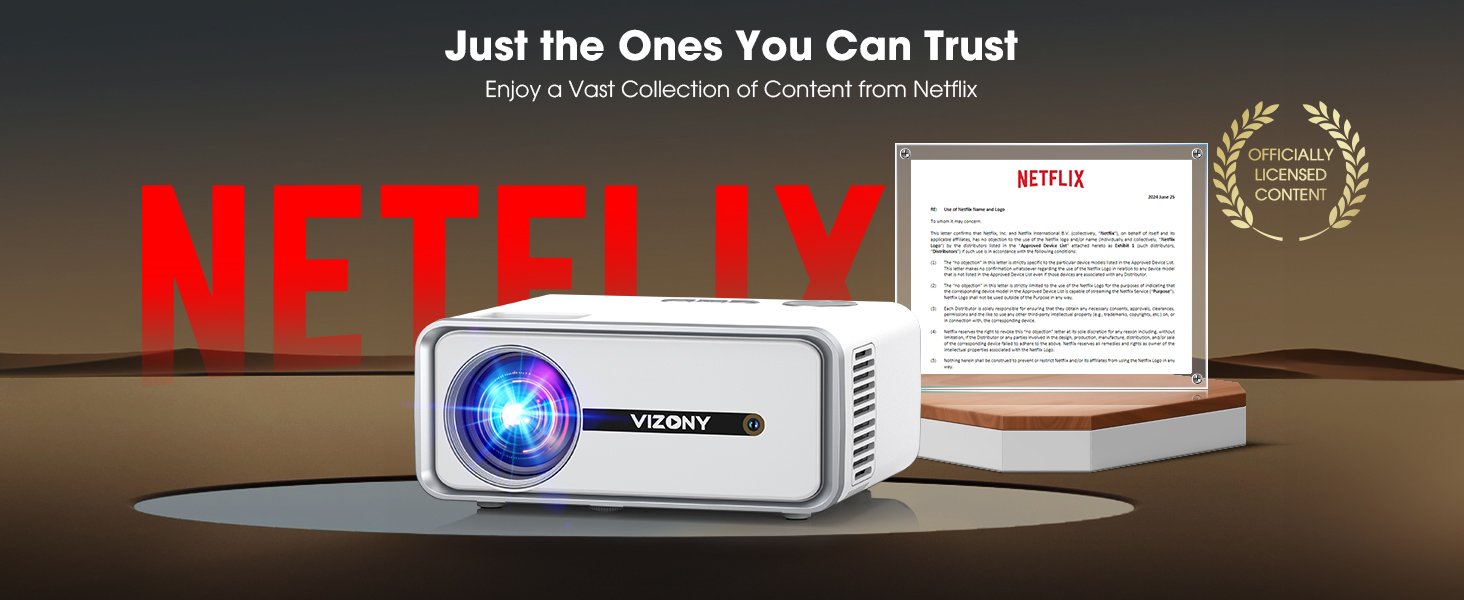
Image: The VIZONY DP04 Pro projector displaying a movie, with illustrations of a smartphone using AirPlay and another using Miracast, highlighting its WiFi 6 and screen mirroring capabilities.
5. Operating Instructions
5.1 Remote Control
Use the included remote control to navigate the Smart TV OS, select apps, adjust volume, and control playback. Ensure batteries are correctly inserted.
5.2 Smart TV OS and Apps
- From the home screen, use the remote to select pre-installed applications like Netflix, YouTube, Prime Video, Hulu, or Disney+.
- Log in to your respective accounts to access content.
- Additional apps can be downloaded from the integrated App Store.
Image: A screenshot of the VIZONY DP04 Pro's Smart TV OS interface, showing the Netflix app prominently along with other streaming services and system options.
5.3 Screen Mirroring
The projector supports screen mirroring from iOS (Screenshare) and Android (Screencast) devices. Ensure your device and the projector are connected to the same WiFi network.
- For iOS: Select 'Screenshare' on the projector. On your iOS device, open Control Center and tap 'Screen Mirroring', then select the projector from the list.
- For Android: Select 'Screencast' on the projector. On your Android device, enable 'Wireless Display' or 'Smart View' (names may vary) and select the projector.
5.4 Connecting External Devices
- HDMI: Connect laptops, game consoles (PS5, Switch), Blu-ray players, or TV sticks using an HDMI cable. Select the HDMI input source from the projector's menu.
- USB: Insert USB drives to play local media files (photos, videos, music). Select the USB input source.
- 3.5mm Audio Out: Connect external speakers or headphones for enhanced audio.
- Bluetooth: Pair Bluetooth headphones or speakers for wireless audio. Navigate to Bluetooth settings in the projector's menu, enable Bluetooth, and select your device to pair. Note: Bluetooth transmits audio only, not video.
5.5 Image Adjustment
- Focus: Rotate the focus wheel on the projector until the image is sharp and clear.
- Keystone Correction: Use the remote control to access the keystone correction settings (4D/4P) to adjust the image shape if it appears distorted (trapezoidal).
- Zoom: Adjust the image size from 50% to 100% using the digital zoom function via the remote control.
- Color Modes: The projector offers six professional color temperature modes (Custom, Sport, Vivid, Cinema, Standard, Hi-Bright). Access these settings in the display menu to customize your visual experience.

Image: A visual guide showing how to adjust the VIZONY DP04 Pro projector's focus, 4P/4D keystone correction, and 50%-100% digital zoom for a clear and properly shaped image.
6. Maintenance
6.1 Cleaning the Lens
Use a soft, lint-free cloth or lens cleaning paper to gently wipe the projector lens. Avoid using abrasive cleaners or excessive force, as this can scratch the lens.
6.2 General Care
- Keep the projector in a clean, dust-free environment.
- Ensure proper ventilation around the projector to prevent overheating. Do not block the ventilation grilles.
- When not in use, cover the lens with the provided lens cover to protect it from dust and scratches.
- Avoid exposing the projector to extreme temperatures or humidity.
7. Troubleshooting
If you encounter issues with your VIZONY DP04 Pro projector, refer to the following common problems and solutions:
- No Picture:
- Ensure the projector is powered on and the power cable is securely connected.
- Check the input source selection (HDMI, USB, etc.) to ensure it matches your connected device.
- Verify that the connected device (laptop, game console) is powered on and outputting a signal.
- Blurred Image:
- Adjust the focus wheel until the image is clear.
- Use keystone correction to adjust the image shape if it appears distorted.
- Ensure the projection distance is within the recommended range.
- No Sound:
- Check the volume settings on both the projector and the connected source device.
- If using external speakers or headphones, ensure they are properly connected or paired via Bluetooth.
- Verify that the audio output settings on your source device are correctly configured.
- WiFi Connection Issues:
- Ensure your WiFi router is working correctly and within range.
- Re-enter the WiFi password to confirm it is correct.
- Restart the projector and your WiFi router.
- App Not Working/Buffering:
- Check your internet connection speed.
- Ensure the app is updated to the latest version. The projector supports Online Update (OTA) for software and app updates.
- Clear the app's cache or reinstall the app if issues persist.
For further assistance, please contact VIZONY customer support.
8. Specifications
| Feature | Detail |
|---|---|
| Brand | VIZONY |
| Model Number | DP04 Pro |
| Display Resolution | Native 1920 x 1080 (1080P) |
| Brightness | 500 ANSI Lumens |
| Contrast Ratio | 10000:1 |
| Special Features | Smart TV OS, Built-in Netflix, YouTube, Prime Video, Hulu, Disney+, Dolby Audio, HDR10, AI Image Enhance & Eye Protect Mode, 4P/4D Keystone Correction, 50%-100% Zoom, Ultra-fast WiFi 6, Mini Carry-On Size Design, Up to 250" Screen Display |
| Connectivity Technology | WiFi (6), Bluetooth (5.2), USB, HDMI, 3.5mm Audio |
| Recommended Uses | Home Cinema, Business, Education, Party, Sports, Gaming, Indoor, Outdoor |
| Item Weight | 2.4 lbs (3.69 pounds shipping weight) |
| Product Dimensions | 8.03 x 6.65 x 3.58 inches |
| Lamp Life | 100,000 hours |
9. Warranty and Support
VIZONY is committed to providing excellent customer service and product support.
- Warranty: The VIZONY DP04 Pro projector comes with a 3-year repair service.
- Technical Support: Lifetime technical support is provided for your product.
- Customer Service: Access to 24/7 professional Q&A service.
For any inquiries or support needs, please contact us at: support@vizonyshop.com

Image: A graphic displaying VIZONY customer support email (support@vizonyshop.com), quick reply service, lifetime technical support, and 30-day return or exchange policy.