Introduction
Welcome to the user manual for your Futuzen P30 NF-US Smart Projector. This guide provides comprehensive instructions for setting up, operating, maintaining, and troubleshooting your new device. The Futuzen P30 NF-US is a versatile smart projector featuring native 1080P resolution with 4K support, 600 ANSI lumens brightness, built-in official streaming apps like Netflix and Prime Video, WiFi6, Bluetooth connectivity, and automatic image setup capabilities including auto-focus and keystone correction.
Please read this manual carefully before using the projector to ensure optimal performance and longevity.
What's in the Box
Upon unboxing, please verify that all the following items are included:
- P30 smart projector with built-in apps x 1
- Power Adapter x 1
- User Manual x 1
- Remote Control x 1 (Requires 2 AAA Batteries, not included)
- HDMI Cable x 1
Product Overview
The Futuzen P30 NF-US projector is designed for ease of use and high-quality entertainment. It integrates advanced features for a seamless viewing experience.

Figure 1: The Futuzen P30 NF-US Smart Projector, showcasing its compact design, integrated stand, and the included remote control. The projected image illustrates the built-in streaming capabilities.
Key Features:
- Automatic Image Setup: Features AI Auto Focus, Auto Keystone Correction (6D), Auto Obstacle Avoidance, and Auto Screen Alignment for instant, perfectly framed images.
- Official Streaming Apps: Pre-installed and officially certified apps including Netflix, Prime Video, YouTube, Hulu, Disney+, and more, eliminating the need for external streaming devices.
- Superior Visuals: Native 1080P resolution with support for 4K content and 600 ANSI lumens brightness for clear, vibrant, and detailed projections up to 150 inches.
- Immersive Audio: Built-in 2x 10W speakers with advanced AI sound balancing technology. Bidirectional Bluetooth allows connection to external speakers or using the projector as a Bluetooth speaker.
- Flexible Projection: 360° rotatable stand enables projection onto walls, screens, or ceilings. Supports floor stand, ceiling mount, and table mount configurations.
- Voice Control: Integrated voice control for hands-free operation and navigation.
- Multi-Device Compatibility: Equipped with HDMI, USB, and 3.5mm headphone jack for connecting TV sticks, Roku, laptops, smartphones, gaming consoles (Switch/PS5), and more.
Setup
1. Placement
Position the projector on a stable, flat surface. Ensure there are no obstructions in front of the lens. The P30 NF-US can project onto a wall, a dedicated projector screen, or even the ceiling thanks to its 360° rotatable stand. For optimal viewing, ensure the projection surface is smooth and light-colored.
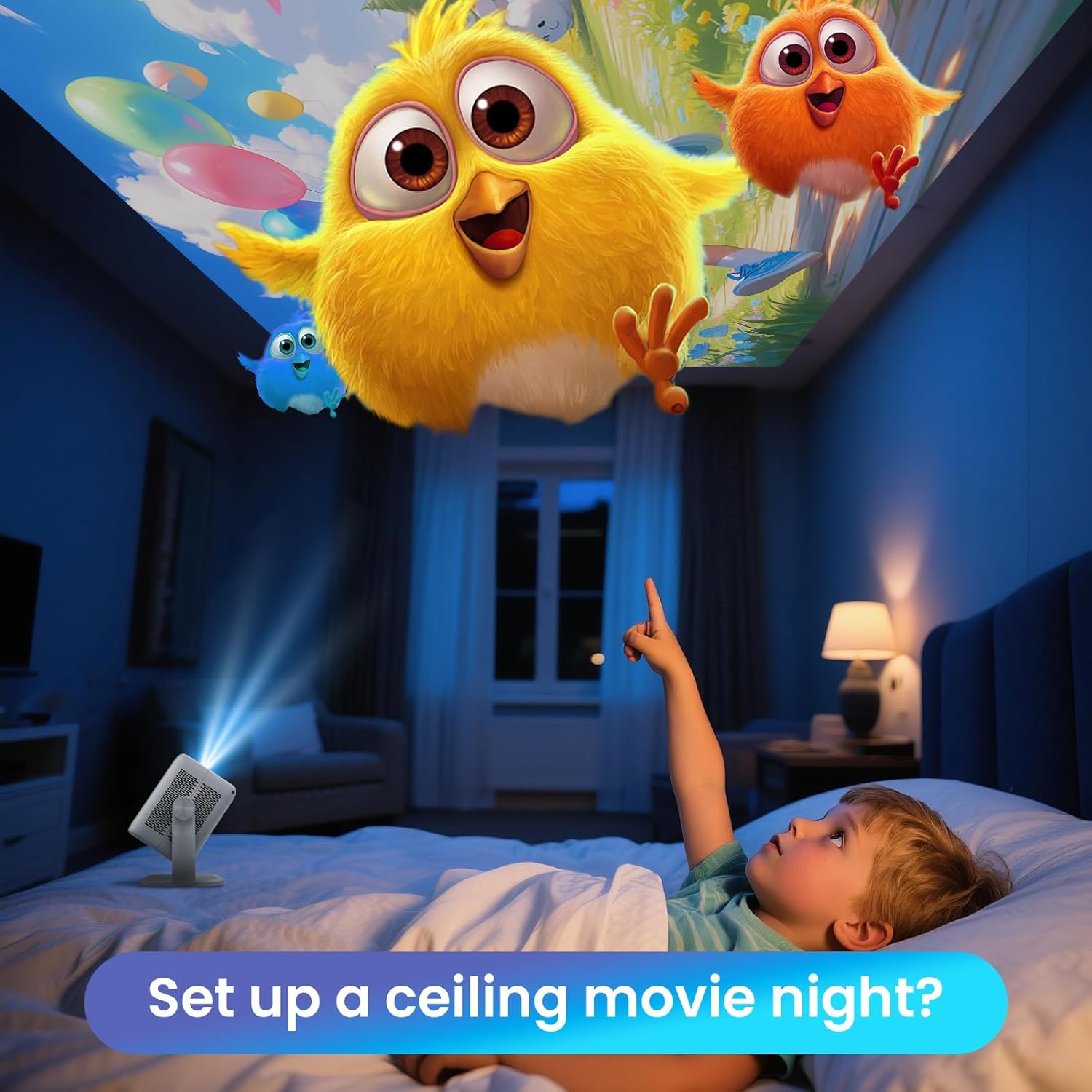
Figure 2: Demonstrating ceiling projection, a convenient feature for comfortable viewing while lying down.
2. Power Connection
Connect the provided power adapter to the projector's power input port and then plug the adapter into a standard electrical outlet.
3. Initial Power On and Automatic Setup
Press the power button on the projector or the remote control to turn on the device. The projector will automatically perform the following adjustments:
- AI Auto Focus: The image will automatically sharpen.
- Auto Keystone Correction: The image will automatically adjust to be rectangular, even if the projector is placed at an angle.
- Auto Obstacle Avoidance: The projector will detect and adjust the image to avoid obstacles on the projection surface.
- Auto Screen Alignment: If a screen is detected, the image will align itself to the screen borders.

Figure 3: Visual representation of the automatic image setup capabilities, ensuring a perfect picture with minimal user intervention.
You can manually adjust zoom (50%-100%) if needed via the settings menu.
Operating Instructions
1. Remote Control
The included remote control is your primary interface for navigating the projector's features. Insert two AAA batteries (not included) into the remote.

Figure 4: The remote control features dedicated buttons for quick access to popular streaming applications.
2. Navigating the Smart TV OS
The projector runs on Whale OS, a smart TV operating system. Use the directional pad and OK button on the remote to navigate menus and select options. The home screen provides access to installed applications, settings, and input sources.

Figure 5: The Smart TV OS interface, showing a selection of pre-installed streaming applications.
3. Streaming Apps
The projector comes with officially certified versions of popular streaming apps. Simply select the desired app from the home screen or use the dedicated buttons on the remote. Log in with your existing accounts to start streaming.
4. Connecting External Devices
The P30 NF-US offers multiple connectivity options:
- HDMI: Connect devices like TV sticks, Roku, laptops, or gaming consoles using an HDMI cable. Select the HDMI input source from the projector's menu.
- USB: Plug in USB drives to play media files directly.
- Bluetooth: Connect Bluetooth-enabled devices such as smartphones or tablets for screen mirroring or audio streaming. The projector supports bidirectional Bluetooth, allowing it to connect to external Bluetooth speakers or act as a Bluetooth speaker itself.
- 3.5mm Audio Jack: Connect wired headphones or external speakers.

Figure 6: The projector's versatile Bluetooth capabilities for audio input and output.
5. Voice Control
Activate voice control by pressing the dedicated voice button on the remote control. Speak clearly into the remote to issue commands, search for content, or adjust settings.
Maintenance
1. Cleaning
- Lens: Gently wipe the projector lens with a soft, lint-free cloth specifically designed for optical surfaces. Do not use abrasive cleaners or excessive force.
- Exterior: Clean the projector's exterior casing with a soft, dry cloth. For stubborn marks, a slightly damp cloth can be used, but ensure no liquid enters the device.
- Ventilation: Ensure the ventilation openings are clear of dust and debris to prevent overheating. Do not block the vents during operation.
2. Storage
When not in use for extended periods, store the projector in a cool, dry place, away from direct sunlight and extreme temperatures. It is recommended to use the original packaging or a protective case to prevent dust accumulation and physical damage.
Troubleshooting
If you encounter issues with your Futuzen P30 NF-US projector, please refer to the table below for common problems and their solutions.
| Problem | Possible Cause / Solution |
|---|---|
| No image projected. |
|
| Image is blurry. |
|
| Image is distorted (not rectangular). |
|
| No sound from projector. |
|
| Remote control not working. |
|
| Cannot connect to Wi-Fi. |
|
Specifications
Detailed technical specifications for the Futuzen P30 NF-US Smart Projector:
| Feature | Value |
|---|---|
| Brand Name | Futuzen |
| Model Number | P30 NF-US |
| Display Resolution | Native 1920 x 1080 (1080P), 4K Supported |
| Brightness | 600 ANSI Lumens |
| Connectivity Technology | 2.4G+5G WiFi, Bluetooth, HDMI, USB, 3.5mm Jack |
| Special Features | Automatic Image Set-up (AI Auto Focus, 6D Auto Keystone, Auto Obstacle Avoidance, Auto Screen Alignment), Voice Control, Built-in Official Apps (Netflix, Prime Video, YouTube, Hulu), Ceiling View Projection |
| Item Weight | 2.9 pounds |
| Product Dimensions | 8.66 x 7.95 x 9.37 inches |
| Color | Gray |
| Recommended Uses | Business, Education, Gaming, Home Cinema, Outdoor Camping |
Warranty and Support
Futuzen offers a 30-day return guarantee (replacement or money-back guarantee) for the P30 NF-US Smart Projector. Additionally, lifelong professional technical support is provided.
If you have any questions, require assistance, or encounter issues not covered in this manual, please contact Futuzen customer support directly. You can typically find contact information on the official Futuzen website or through your purchase platform.
For the latest updates and FAQs, please visit the official Futuzen store on Amazon: Futuzen Store.