
ATOTONA A6G110PF-S01
ATOTONA Drive Chat AI Smart Car Stereo User Manual
Model: A6G110PF-S01
1. Introduction
Thank you for choosing the ATOTONA Drive Chat AI Smart Car Stereo. This manual provides essential information for the proper installation, operation, and maintenance of your new car stereo system. Featuring a 10.1-inch QLED display, wireless CarPlay and Android Auto, advanced DSP audio processing, dual Bluetooth connectivity, and integrated AI features like DriveChat AI and TrackHU GPS tracking, this unit is designed to enhance your in-car experience. Please read this manual thoroughly before use to ensure optimal performance and safety.
2. Safety Information
- Always ensure the vehicle is parked and the engine is off before performing any installation or wiring.
- Consult a professional installer if you are unsure about any part of the installation process.
- Do not operate the device in a way that distracts you from driving. Always prioritize road safety.
- Avoid exposing the unit to extreme temperatures, direct sunlight for prolonged periods, or excessive moisture.
- Ensure all connections are secure to prevent short circuits or damage.
- This product is designed for 12V DC negative ground electrical systems.
3. Package Contents
Verify that all items listed below are included in your package:

Image: Overview of the package contents including the car stereo, rearview camera, wiring harness, USB cable, antenna, mounting brackets, screws, DIN pocket, DIN sleeves, external microphone, and RCA cable. Also shows product dimensions.
- Smart Car Stereo Unit
- AC-HD01LR-A Rearview Camera
- 20-Pin Wire Harness
- 2-in-1 USB Cable (External Storage & Phone Link)
- 2-in-1 Antenna (WiFi/GPS)
- Mounting Brackets
- Mounting Screws
- DIN Pocket
- DIN Sleeve 1
- DIN Sleeve 2
- External Microphone
- RCA Cable
- Online Resources Quick Guide
- Product Care Online Support Information
4. Setup and Installation
4.1 Pre-Installation Check
Before beginning installation, please check the unit’s size and adjustment range to ensure it fits your dashboard and will not block vents or controls. A vehicle-specific harness or dash kit may be required and is not included.

Image: Illustrates various measurements and adjustments (Left/Right Slide, Up/Down Slide, Forward/Backward Slide) to ensure the unit fits without obstructing vehicle controls or vents. Shows maximum adjustment ranges.
4.2 Flexible Display Adjustment (FlexView Pro)
The 10.1-inch QLED screen features a FlexView Pro structure, allowing for flexible angle adjustment to optimize viewing and ensure an easy fit across various dashboards. Adjustments include vertical, horizontal, front, swivel, and tilt options. Note that adjustment is primarily for installation; reattach screws firmly before driving.
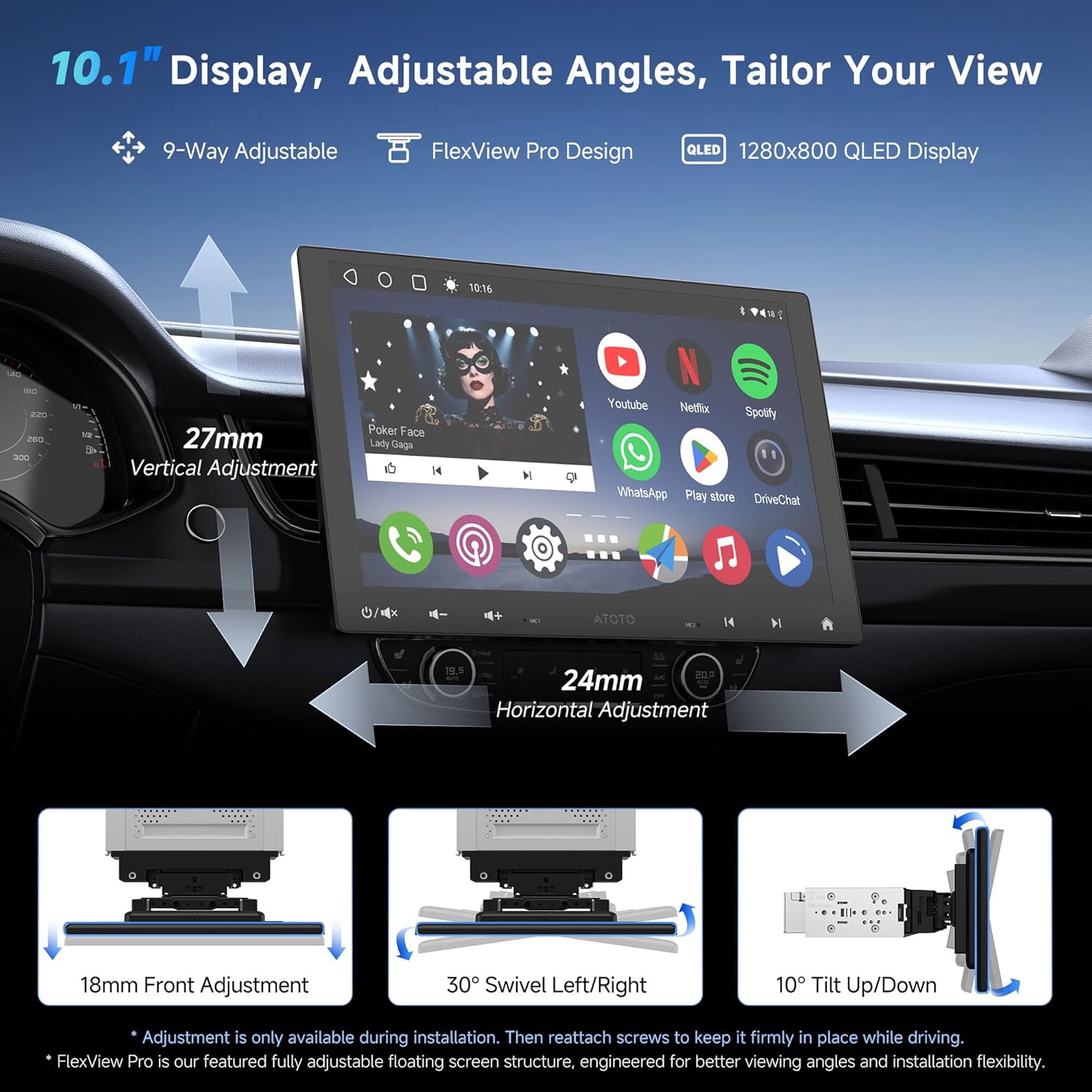
Image: Demonstrates the 9-way adjustable FlexView Pro design of the 10.1-inch QLED display, showing vertical, horizontal, front, swivel, and tilt adjustments for optimal viewing and fit.
4.3 Installation Styles
The unit supports various installation styles, including Universal Double-DIN, Single-DIN Adaptive, and Integrated Adaptive setups. Choose the style that best fits your vehicle's dashboard.

Image: Illustrates different installation styles: UDH07DT1 (Universal Double-DIN with 7-inch display), SAH10DT1 (Single-DIN Adaptive with 10.1-inch display), and IAH09DT1 (Integrated Adaptive with 9-inch display), showing how each fits into a dashboard.

Image: Shows diagrams for standard Double DIN and Single DIN opening installations, detailing the components like the car stereo, panel bracket, trim panel, DIN pocket, and DIN sleeves.
4.4 Wiring Diagram
Refer to the following diagram for proper wiring connections. Ensure all connections are secure and correctly matched to your vehicle's wiring harness. Accessories marked with an asterisk (*) are not included.
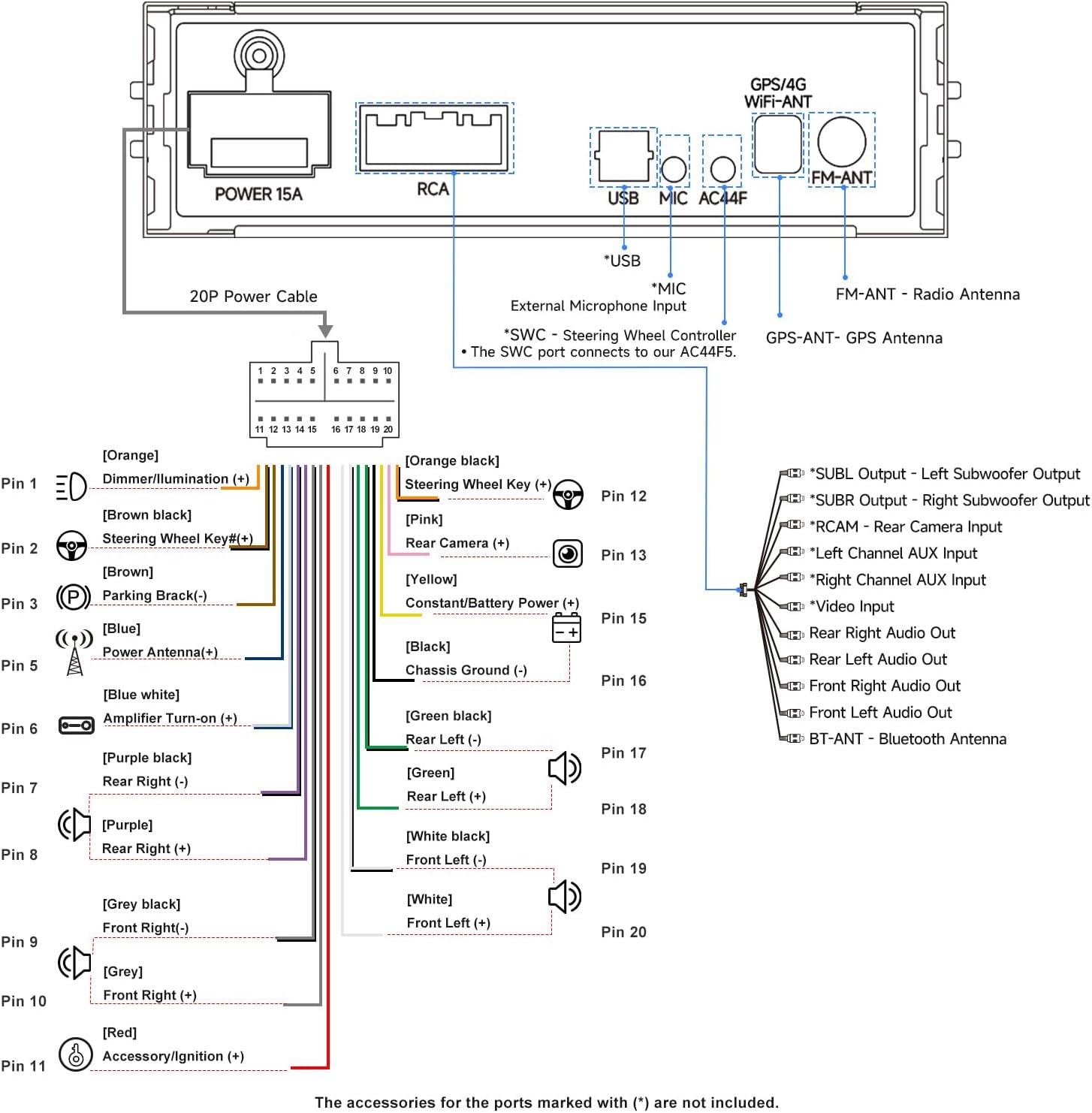
Image: Detailed wiring diagram showing connections for power, speakers, camera input, USB, microphone, FM/GPS antennas, and steering wheel controls. Pin assignments for the 20-pin power cable are clearly labeled.
5. Operating Instructions
5.1 Display and User Interface
The unit features a 10.1-inch 1280x800 QLED display, offering a brilliant view with a 178° viewing angle, strong light suppression, and brighter visuals. The Android OS provides a customizable theme and access to various applications.

Image: The main product image showing the 10.1-inch QLED display with various app icons (YouTube, Netflix, Spotify, WhatsApp, Play Store, DriveChat) and media playback controls. A rearview camera is visible at the top.

Image: Highlights the 1280x800 QLED display with features like 178° viewing angle, strong light suppression, and brighter visuals, along with phone mirroring capabilities.
5.2 Connectivity
Your car stereo offers multiple ways to stay connected:
- Wireless CarPlay & Android Auto: Connect wirelessly via Bluetooth for quick access to navigation, calls, and music.
- MirrorLink: Expand your app options by mirroring your smartphone screen to the stereo display.
- Dual Bluetooth (BT1 & BT2):
- BT1 supports hands-free calls, music streaming, and Bluetooth-based auto screen lock for privacy.
- BT2 with BLE (Bluetooth Low Energy) connects to OBD2 scanners, LED signs, ambient lights, and other compatible devices, allowing direct control from the stereo screen.
- 3-Way Internet Access: Connect to the internet via Wi-Fi Hotspot, Bluetooth Tethering, or USB Tethering (keeps apps online during CarPlay/Android Auto).

Image: Illustrates the functionality of Dual Bluetooth, showing BT1 for calls, music, and screen auto lock/unlock based on phone proximity, and BT2 for connecting to OBD scanners, AI interactive LED signs, and ambient lights.

Image: Shows the wireless CarPlay and Android Auto interface, phone mirroring capabilities, and split-screen functionality on the car stereo display.

Image: Depicts the three ways to connect to the internet: Wi-Fi Hotspot, Bluetooth Tethering, and USB Tethering, along with various streaming and app icons.

Image: Illustrates the ability to navigate on the main unit while displaying content like cartoons on rear-seat monitors using USB to HDMI or USB to CVBS RCA adapters (adapters not included).
5.3 Audio Features
Experience superior sound quality with advanced audio processing:
- DSP (Digital Signal Processor): Fine-tune your audio with 8 presets and a 36-band EQ to match your preferences and vehicle acoustics.
- Time Alignment: Ensures sound reaches your ears at the same time from all speakers, creating a balanced and immersive listening experience.
- SCVC (Speed Compensated Volume Control): Automatically adjusts volume to compensate for road noise as your vehicle speed changes.
- Built-in Amplifier & Crossover: Delivers clear highs, deep lows, and strong output for dynamic sound.
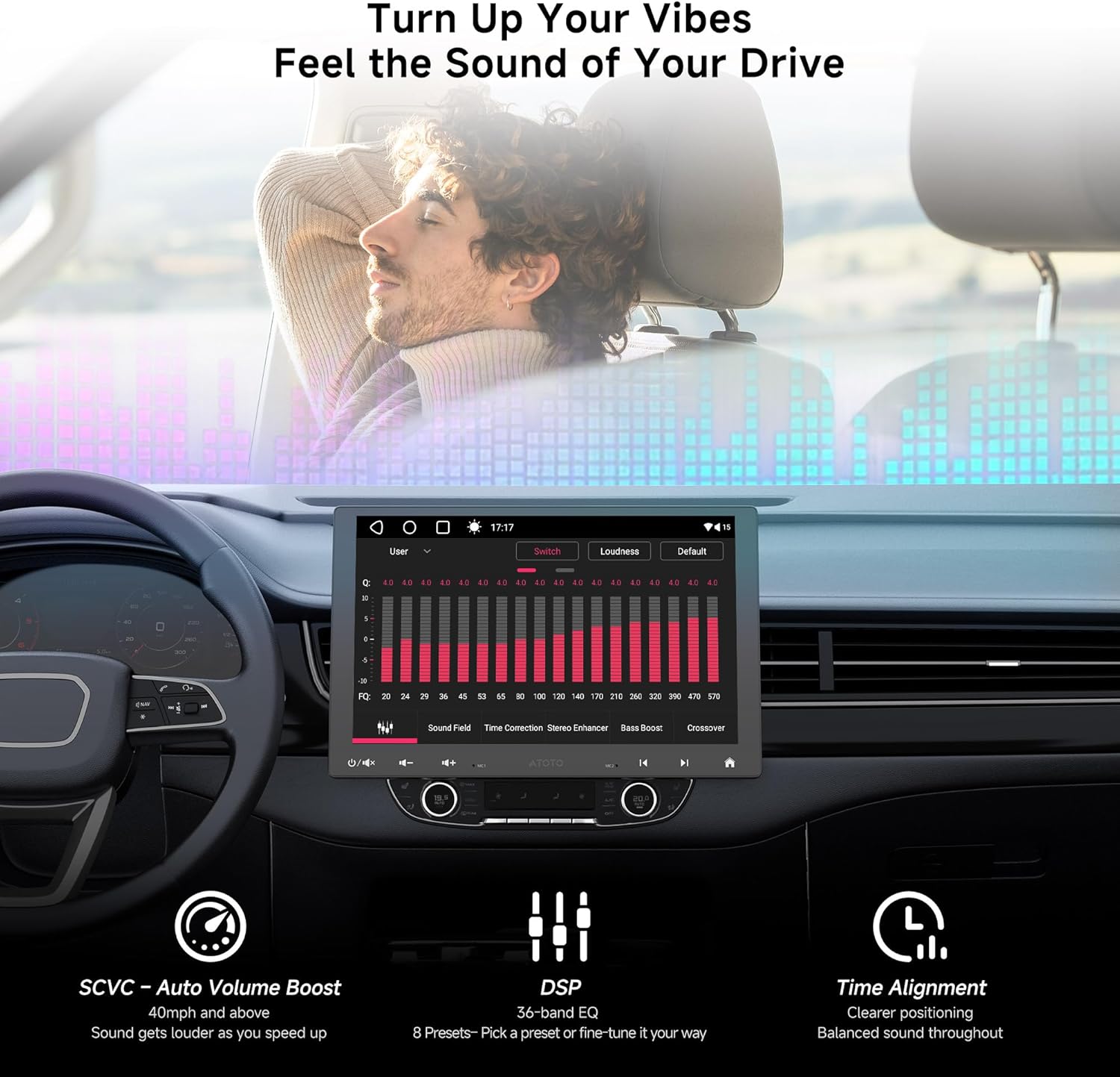
Image: Visual representation of the audio features, including the 36-band EQ interface, SCVC (Speed Compensated Volume Control) with a speedometer graphic, and Time Alignment with a car interior diagram showing sound optimization.

Image: Highlights the DSP features, including Time Alignment to center sound, SCVC for auto volume boost at speed, and a built-in amplifier for dynamic sound.
5.4 Smart Features & Navigation
- DriveChat AI: Enables voice commands and in-car chat, powered by ChatGPT for smarter responses and simpler driving.
- TrackHU GPS Tracking: Track your vehicle's location and routes with a flexible refresh rate (2min), accurate positioning (GPS, GLONASS, Galileo, Beidou), instant alerts for geofence, and track playback with speed control. No extra GPS tracker needed.
- Rear View Camera Access (RCAM app): The included AHD 720P rearview camera (AC-HD01LR-A) provides a live rear view even while driving forward, enhancing road awareness. Features include rearview guidelines, night vision, and strong light suppression.
- FindApps: Access featured apps that might not be found on Google Play, expanding your app options.

Image: Depicts the DriveChat GenAI Assistant interface, showing a chatbot interaction and various "Beyond Voice Commands" modes like Road View Mode, Cabin View Mode, and OBD Monitor Mode.

Image: Presents various AI RoleMates such as Adventure Story Time, Decision Think Tank, and Novelist, along with Agentic AI features like Driving Reminder AI and Fuel Monitor AI, indicating future developments.

Image: Shows examples of AI-powered conversations, demonstrating how the system can answer questions about engine noises, traffic, and fuel saving tips.

Image: Shows the included AHD 720P RearView Camera (AC-HD01LR-A) and its features: RearView Guideline, Live Rear View (LRV), and Night Vision. Also highlights TrackHU GPS tracking features and FindApps APK downloader.
5.5 Control Methods
Control your car stereo using various methods:
- Steering Wheel Control Buttons: Connect to your vehicle's existing steering wheel controls (requires compatible interface or adapter, not included).
- Wireless Remote: Use an optional wireless remote (e.g., AC-44F5, not included) for convenient control.
- Voice Command: Utilize DriveChat AI for voice-activated commands.

Image: Displays various control options including Data Interface & AC-ADSX10, Analog (resistive) signal-based OEM steering wheel controls, third-party SWC adapters, AC-44F5 wireless remote, and voice commands via DriveChat.
6. Maintenance
To ensure the longevity and optimal performance of your ATOTONA Smart Car Stereo, follow these maintenance guidelines:
- Cleaning the Screen: Use a soft, lint-free cloth to gently wipe the screen. For stubborn smudges, slightly dampen the cloth with water or a screen-safe cleaner. Avoid abrasive materials or harsh chemicals.
- General Cleaning: Keep the unit free from dust and debris. Use a soft brush or compressed air to clean vents and button areas.
- Temperature Control: Avoid leaving the unit in direct sunlight for extended periods, especially in hot climates, as this can affect performance and lifespan.
- Software Updates: Regularly check for firmware updates provided by ATOTONA to ensure you have the latest features and bug fixes. Updates can typically be found on the official support website.
- Cable Connections: Periodically check that all cables are securely connected and free from damage.
7. Troubleshooting
This section addresses common issues you might encounter. If the problem persists, please contact customer support.
| Problem | Possible Cause | Solution |
|---|---|---|
| Unit does not power on. | Loose power connection, blown fuse, vehicle battery issue. | Check power cable connections. Inspect vehicle's fuse box and the unit's fuse. Ensure vehicle battery is charged. |
| No sound from speakers. | Volume too low, mute activated, incorrect speaker wiring, amplifier issue. | Increase volume. Check if mute is on. Verify speaker wiring. Check external amplifier if used. |
| CarPlay/Android Auto not connecting wirelessly. | Bluetooth/Wi-Fi off on phone, incorrect pairing, software glitch. | Ensure Bluetooth and Wi-Fi are enabled on your phone. Forget and re-pair the device. Restart both phone and stereo. |
| Rearview camera not displaying. | Camera not connected, faulty camera, incorrect wiring. | Check camera video input connection. Ensure camera is receiving power. Verify wiring according to diagram. |
| GPS signal weak or inaccurate. | GPS antenna obstructed or improperly placed. | Ensure GPS antenna has a clear view of the sky and is not obstructed by metal. Reposition if necessary. |
8. Specifications
| Feature | Detail |
|---|---|
| Model Number | A6G110PF-S01 |
| Display Size | 10.1 Inches |
| Display Resolution | 1280x800 QLED |
| Operating System | Android OS |
| Connectivity Technology | Bluetooth (Dual BT1/BT2), Wi-Fi, USB |
| Special Features | Touchscreen, Wireless CarPlay/Android Auto, DSP, 36-Band EQ, Time Alignment, SCVC, DriveChat AI, TrackHU GPS Tracking, MirrorLink, Rear View Camera Access |
| Compatible Devices | Smartphone |
| Audio Output Mode | Stereo |
| Control Method | App, Touch, Voice, Steering Wheel Control (optional) |
| Item Weight | 8.05 pounds |
| Package Dimensions | 11.65 x 9.65 x 8.46 inches |
| Manufacturer | Shenzhen Yufengzhixing Electronics Tech Co Ltd |
9. Warranty and Support
Your ATOTONA Smart Car Stereo comes with a 12-month product care from the date of purchase. You can receive an additional 6 months of product care by getting in touch with us. Our customer care team is available around the clock during workdays to assist you with any inquiries or issues.
For further assistance, please refer to the online manual or contact our customer support team. Contact information can typically be found on the official ATOTONA website or through your purchase platform.
Related Documents - A6G110PF-S01
 |
TermaTech TT30 Series Wood Stove Parts Diagram and Identification Detailed parts diagrams and item numbers for TermaTech TT30, TT30G, TT30GS, and TT30S series wood stoves. Find replacement parts for your TermaTech fireplace. |
 |
TermaTech TT30 Series Wood Stoves: Parts Diagrams and Item Numbers Detailed parts diagrams and item numbers for TermaTech TT30, TT30G Classic, TT30G, and TT30S series wood stoves. Find official replacement parts and technical specifications for TermaTech fireplaces. |
 |
Mojikoo S01 User Manual - Comprehensive Guide to Alarm Clock and Bluetooth Speaker Detailed user manual for the Mojikoo S01 Alarm Clock and Bluetooth Speaker. This guide covers setup, features like alarm, Bluetooth connectivity, white noise sound machine, nightlight, sleep timer, brightness control, troubleshooting, and warranty information. |
 |
Fuyansheng Electronics FNI IOL-310-S01-K024 User Manual User manual for the Fuyansheng Electronics FNI IOL-310-S01-K024 IO-Link module, detailing connection diagrams, IO-Link interface definitions, data parameters, and error codes. |
 |
Nien Made RC-S01 Remote Control User Manual This document provides instructions for the Nien Made RC-S01 remote control, including product specifications, button functions, and pairing procedures with shades. It covers battery replacement and FCC/IC compliance information. |
 |
Video Calling Handheld Camera IP-S01 User Manual Comprehensive user manual for the IP-S01 Video Calling Handheld Camera by Dongguan Yongzhixing electronic Technology Co., LTD. Learn about device appearance, specifications, Wi-Fi setup, video calling, voice commands, device sharing, and FCC compliance. |
Ask a question about this manual
Ask about setup, troubleshooting, compatibility, parts, safety, or missing instructions. Manuals+ will review the question and use this page’s manual context to help answer it.