1. Introduction
Thank you for choosing the KurieTim 15.6 inch Laptop Computer. This manual provides essential information for setting up, operating, maintaining, and troubleshooting your new device. Please read this manual thoroughly before using the laptop to ensure proper function and longevity.

Figure 1: KurieTim 15.6 inch Laptop Computer Overview
2. What's in the Box
Upon opening your KurieTim laptop package, please verify that all the following items are included:
- KurieTim 15.6 inch Laptop Computer
- Charger and Cable
- Transparent Keyboard Cover
- Spanish Keyboard Cover
- Instruction Manual (this document)
3. Setup
3.1 Initial Power On
- Charge the Battery: Before first use, connect the charger to the laptop's charging port and a power outlet. Allow the battery to charge for at least 30 minutes.
- Power On: Open the laptop lid and press the power button, typically located on the top right of the keyboard or side panel.
- Windows Setup: Follow the on-screen instructions to complete the Windows 11 Pro setup process. This includes selecting your region, language, creating a user account, and connecting to a Wi-Fi network.
3.2 Connecting Peripherals
Your laptop offers various ports for connecting external devices. Refer to the 'Ports and Interfaces' section for a detailed diagram.
- USB Devices: Connect USB mice, keyboards, or external storage to the USB 2.0 or USB 3.0 Type-A ports.
- External Display: Use the HDMI port to connect to an external monitor or projector.
- Headphones/Microphone: Plug in headphones or a headset into the 3.5mm standard headphone jack.
- Memory Cards: Insert compatible memory cards into the memory card slot.
4. Operating the Laptop
4.1 Power On/Off and Sleep Mode
- Power On: Press the power button.
- Shut Down: Click the Windows Start button, then Power > Shut down.
- Restart: Click the Windows Start button, then Power > Restart.
- Sleep: Close the laptop lid or click the Windows Start button, then Power > Sleep.
4.2 Keyboard and Touchpad
The laptop features a full-size keyboard with a backlit function for comfortable typing in various lighting conditions. The integrated touchpad supports multi-touch gestures for navigation.
- Backlit Keyboard: Use the Fn key in combination with the appropriate function key (usually F5 or F6) to adjust or toggle the keyboard backlight.
- Touchpad Gestures: Refer to Windows settings for customizing touchpad gestures (e.g., two-finger scroll, pinch-to-zoom).

Figure 2: Keyboard and Touchpad Layout
4.3 Fingerprint Unlock
For enhanced security and quick login, your laptop includes a fingerprint unlock sensor.
- Setup: Go to Windows Settings > Accounts > Sign-in options > Fingerprint recognition (Windows Hello). Follow the prompts to register your fingerprint.
- Usage: Place your registered finger on the sensor to unlock the laptop.
4.4 Display Settings
The 15.6-inch Full HD IPS display offers clear visuals. You can adjust display settings through Windows.
- Resolution: Right-click on the desktop, select 'Display settings', and ensure the resolution is set to 1920x1080 for optimal clarity.
- Brightness: Adjust screen brightness using the function keys (usually Fn + F11/F12) or through Windows Display settings.

Figure 3: Full HD IPS Display
4.5 Connectivity (Wi-Fi and Bluetooth)
- Wi-Fi: Click the network icon in the taskbar, select your desired Wi-Fi network, and enter the password to connect. The laptop supports dual-band 5GHz Wi-Fi (802.11ac/g/n).
- Bluetooth: To pair Bluetooth devices, go to Windows Settings > Devices > Bluetooth & other devices. Ensure Bluetooth is turned on and select 'Add Bluetooth or other device'.
4.6 Ports and Interfaces
The laptop is equipped with a variety of ports for versatile connectivity:

Figure 4: Laptop Ports and Interfaces
- HDMI: For connecting to external displays.
- Type-C: A multi-functional port supporting data transfer and charging.
- 3.5mm Headphone Jack: For audio output to headphones or external speakers.
- Memory Card Slot: For reading and writing to memory cards.
- USB 3.0 Type-A: High-speed USB port for data transfer.
- USB 2.0 Type-A: Standard USB ports for peripherals.
- Security Slot: For attaching a security lock.
4.7 Webcam and Audio
The laptop features a 300K-pixel privacy webcam, dual stereo speakers, and a digital microphone for video calls and multimedia.
- Privacy Webcam: A built-in privacy switch is located beside the camera. Ensure it is open for video calls.
- Audio: Adjust volume using the function keys (usually Fn + F1/F2/F3) or through the Windows sound settings.
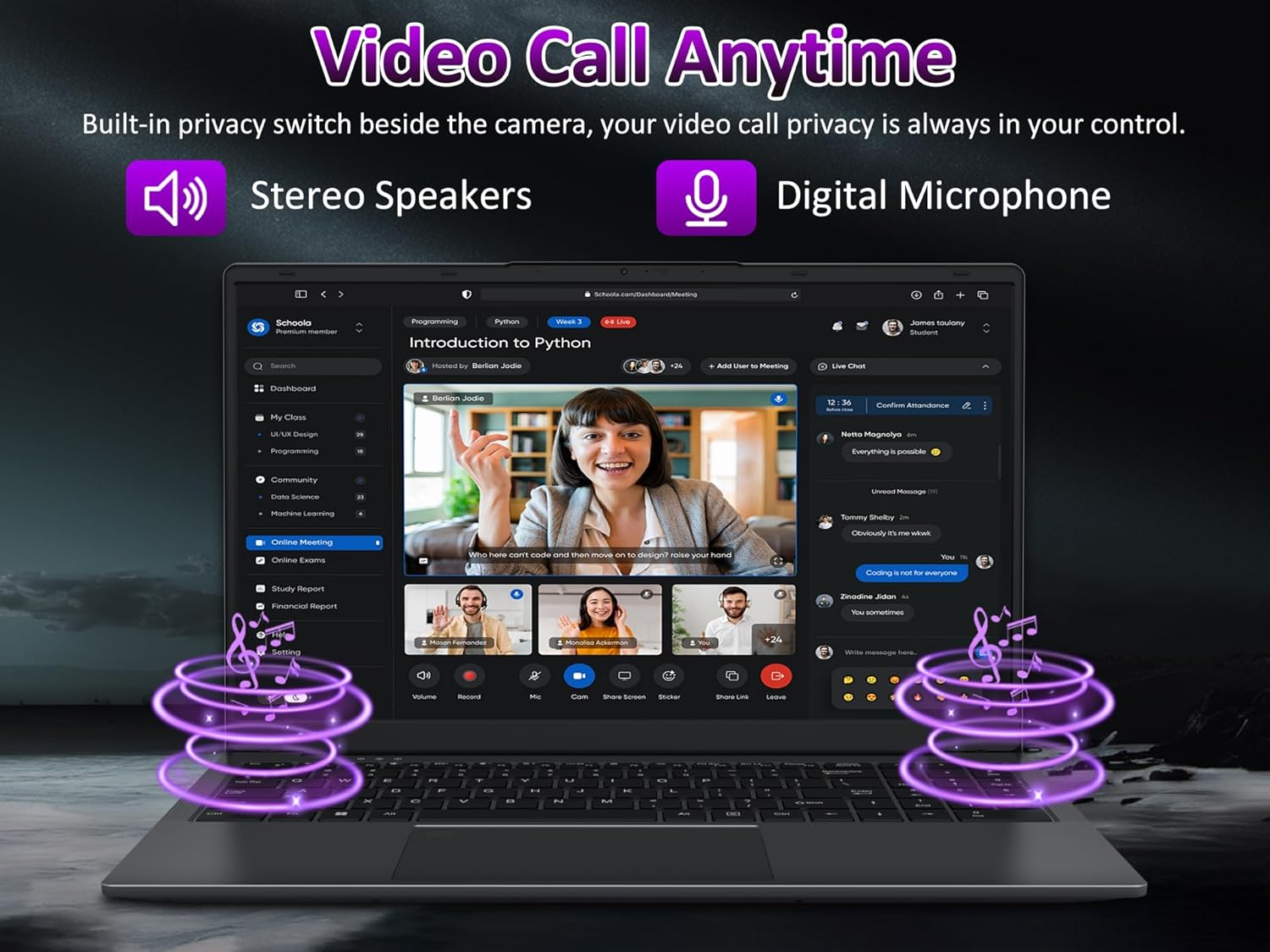
Figure 5: Webcam and Audio Features
5. Maintenance
5.1 Battery Care
To maximize battery life and performance:
- Avoid fully discharging the battery frequently.
- Do not expose the laptop to extreme temperatures.
- If storing the laptop for an extended period, ensure the battery is charged to about 50-70%.
- The laptop has an 8000mAh, 60.8Wh battery, providing approximately 5 hours of average use.

Figure 6: Battery Specifications
5.2 Cleaning
- Screen: Use a soft, lint-free cloth lightly dampened with water or a screen cleaner. Do not spray liquid directly onto the screen.
- Keyboard and Chassis: Use a soft, dry cloth. For stubborn dirt, a slightly damp cloth can be used, ensuring no moisture enters openings.
- Ports: Use compressed air to gently clear dust from ports.
5.3 Software Updates
Regularly update your Windows operating system and drivers to ensure optimal performance and security.
- Windows Updates: Go to Windows Settings > Update & Security > Windows Update.
- Driver Updates: Check the KurieTim support website (if available) for the latest drivers, or use Windows Device Manager.
6. Troubleshooting
This section addresses common issues you might encounter.
| Problem | Possible Solution |
|---|---|
| Laptop does not power on. | Ensure the charger is properly connected and the battery has sufficient charge. Try a different power outlet. |
| Wi-Fi connection issues. | Check if Wi-Fi is enabled in Windows settings. Restart your router and the laptop. Ensure drivers are updated. |
| Keyboard backlight not working. | Press Fn + F5/F6 (or the relevant function key) to toggle or adjust the backlight. |
| Fingerprint sensor not responding. | Ensure your finger is clean and dry. Re-register your fingerprint in Windows settings if the issue persists. |
| Slow performance. | Close unnecessary applications. Check for background processes. Ensure Windows and drivers are updated. Consider running a disk cleanup. |
7. Specifications
Detailed technical specifications for your KurieTim T156A-N150 laptop:

Figure 7: Intel N150 Processor Details
- Model: T156A-N150
- Processor: 12th Gen Intel N150 Quad-Core (4C/4T, 6MB cache, 15W, up to 3.6GHz)
- RAM: 16GB DDR4
- Storage: 512GB M.2 PCIe SSD
- Operating System: Windows 11 Pro
- Display: 15.6-inch IPS Full HD (1920x1080 pixels), 16:9 aspect ratio
- Graphics: Intel UHD Graphics (Integrated)
- Battery: 8000mAh, 60.8Wh Lithium Ion (Average 5 hours)
- Wireless Connectivity: Dual-band 5GHz Wi-Fi (802.11ac/g/n), Bluetooth 5.0
- Ports:
- 1x HDMI
- 1x USB Type-C (Full Function, Charging)
- 1x USB 3.0 Type-A
- 2x USB 2.0 Type-A
- 1x 3.5mm Standard Headphone Jack
- 1x Memory Card Slot
- 1x Security Slot
- Webcam: 300K-pixel with privacy switch
- Audio: Dual 8Ω/1.0W stereo speakers, Digital Microphone
- Keyboard: Backlit
- Security: Fingerprint Unlock
- Dimensions (LxWxH): 14.17 x 0.71 x 10.83 inches
- Weight: Approximately 2.68 pounds (1.22 kg)
8. Warranty and Support
For warranty information, technical support, or service inquiries, please refer to the warranty card included with your product or visit the official KurieTim support website. Keep your purchase receipt as proof of purchase.
Online Support: For the latest drivers, FAQs, and support resources, please visit the KurieTim official website.
Contact: If you require further assistance, please contact KurieTim customer service through the channels provided on their website.