1. Introduction
This manual provides comprehensive instructions for the proper installation and operation of the QSZN Android Canbus Box GM-RZ-10. This device is designed to facilitate the integration of an aftermarket Android car radio multimedia player with your vehicle's existing electrical system, ensuring functions such as steering wheel controls and vehicle data are maintained. Please read this manual thoroughly before installation and use.
2. Product Overview
The QSZN Android Canbus Box GM-RZ-10 is a specialized interface module that translates your vehicle's CAN bus signals into a format compatible with aftermarket Android head units. This enables the retention of factory features like steering wheel controls, door status, climate control information, and other vehicle data on your new multimedia system.

Image 2.1: The QSZN Android Canbus Box GM-RZ-10 and its associated wiring harness.
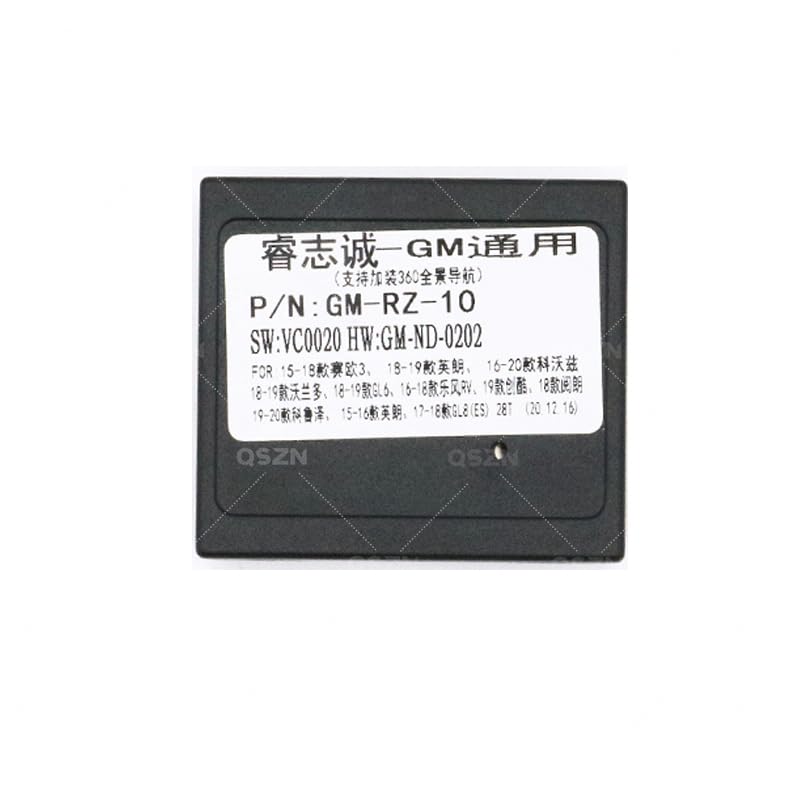
Image 2.2: Detailed view of the GM-RZ-10 Canbus Box module.
3. Compatibility
This Canbus Box and wiring harness set is compatible with the following Buick vehicle models:
- Buick EXCELLE: 2015-2017 models
- Buick GL8 2.8S: 2017 and newer models
- Buick GL6: 2018 and newer models
Ensure your vehicle's make, model, and year match the listed compatibility to guarantee proper function.
4. Package Contents
Upon opening the package, verify that all components are present and undamaged:
- 1 x QSZN Android Canbus Box (GM-RZ-10)
- 1 x Vehicle-specific Wiring Harness
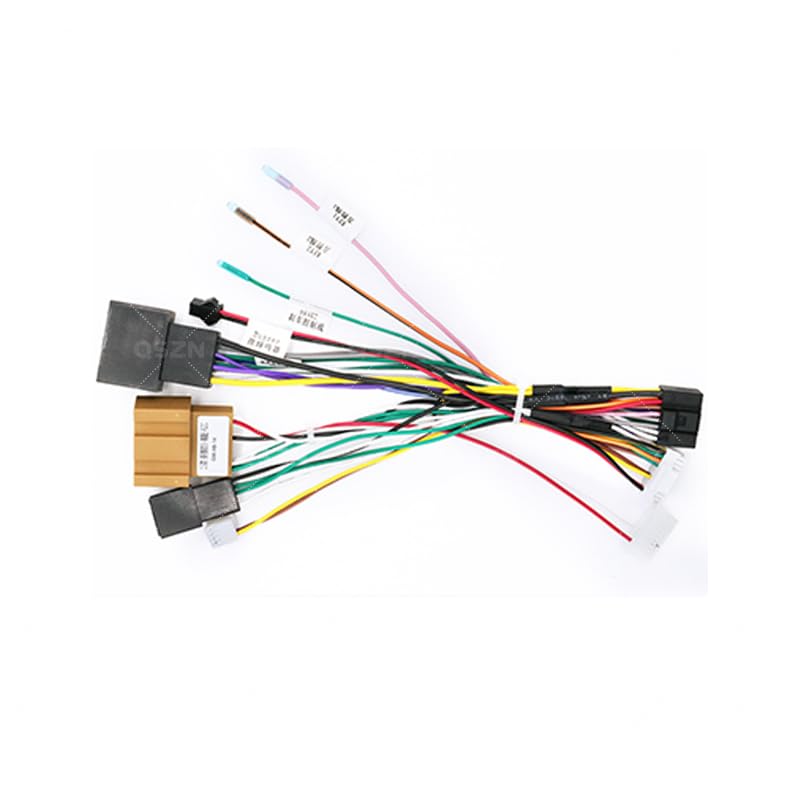
Image 4.1: The vehicle-specific wiring harness included in the package.
5. Setup and Installation
Important: Installation of this product requires technical knowledge of car audio systems and vehicle wiring. Professional installation is highly recommended to avoid damage to your vehicle or the product. Disconnect the vehicle's battery before beginning installation.
5.1 Pre-Installation Steps
- Vehicle Disassembly: Carefully remove the factory car radio and any associated trim panels to access the wiring harness. Refer to your vehicle's service manual for specific instructions.
- Identify Connectors: Locate the factory wiring harness connectors that were previously connected to your original car radio.
5.2 Wiring Connections
Connect the QSZN wiring harness as follows:
- Connect to Vehicle: Plug the vehicle-specific end of the QSZN wiring harness into the corresponding factory connectors in your dashboard. Ensure a secure fit.
- Connect Canbus Box: Connect the GM-RZ-10 Canbus Box module to the designated connector on the QSZN wiring harness. This connection is typically a multi-pin connector.
- Connect to Android Head Unit: Connect the other end of the QSZN wiring harness to your aftermarket Android car radio multimedia player. This harness will provide power, speaker connections, and data lines for the Canbus functions.
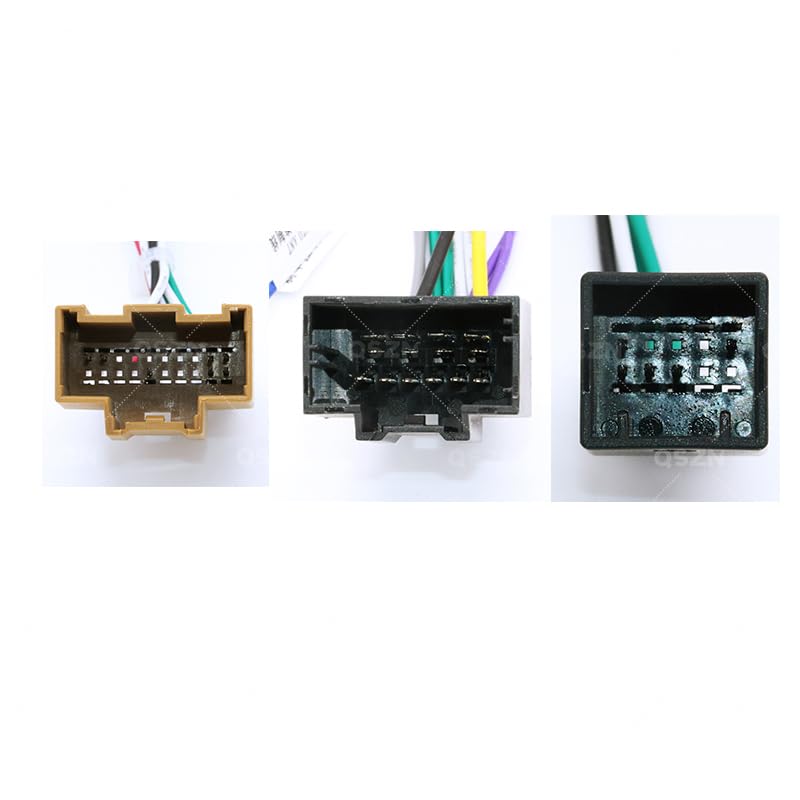
Image 5.1: Example of wiring harness connectors for proper connection.
5.3 Post-Installation Checks
- Reconnect Battery: Once all connections are secure, reconnect the vehicle's battery.
- Test Functionality: Turn on the vehicle and the Android head unit. Verify that the head unit powers on, audio plays, and all Canbus-controlled functions (e.g., steering wheel controls, reverse camera activation, door open warnings) are working correctly.
- Secure Components: Once confirmed working, carefully route and secure all wiring to prevent pinching or rattling. Reinstall trim panels and the head unit.
6. Operating Instructions
The QSZN Android Canbus Box GM-RZ-10 operates automatically once correctly installed. It acts as an interpreter between your vehicle's CAN bus system and your Android multimedia player. There are no user-adjustable settings on the Canbus box itself.
- Steering Wheel Controls: Your factory steering wheel controls should now operate the corresponding functions on your Android head unit (e.g., volume up/down, track skip, mode). Configuration may be required within your Android head unit's settings.
- Vehicle Information Display: Depending on your Android head unit and vehicle model, certain vehicle information (e.g., door status, climate control settings, parking sensor data) may be displayed on the head unit screen.
- Reverse Gear Detection: The Canbus box provides a reverse signal to the head unit, automatically switching to the reverse camera view when the vehicle is put into reverse (if a camera is installed and connected).
7. Maintenance
The QSZN Android Canbus Box GM-RZ-10 is designed for maintenance-free operation. To ensure longevity:
- Keep the module and wiring free from moisture and extreme temperatures.
- Ensure all connections remain secure and free from corrosion.
- Avoid physical damage to the module or wiring harness.
8. Troubleshooting
If you encounter issues after installation, refer to the following troubleshooting guide:
| Problem | Possible Cause | Solution |
|---|---|---|
| Android head unit does not power on. | Incorrect power connection; Blown fuse; Faulty head unit. | Check all power connections on the harness. Verify vehicle fuses. Test head unit with direct power if possible. |
| Steering wheel controls do not work. | Canbus box not connected; Incorrect Canbus box selection in head unit settings; Wiring issue. | Ensure Canbus box is securely connected. Access your Android head unit's settings to select the correct Canbus protocol (e.g., GM-RZ-10 or similar Buick option). Check Canbus data wires. |
| No sound from speakers. | Speaker wires incorrectly connected; Amplifier issue (if applicable); Head unit settings. | Verify all speaker wire connections. Check head unit's audio output settings. |
| Vehicle information (e.g., door status) not displayed. | Canbus data not being read; Head unit software limitation. | Ensure Canbus box is correctly connected and recognized by the head unit. Some head units may require specific apps or firmware updates to display all vehicle data. |
If problems persist after following these steps, contact a qualified car audio technician or the product vendor for further assistance.
9. Specifications
- Model: GM-RZ-10
- Item Type: Cables, Adapters & Sockets
- Material: Plastic
- Color: Black (Canbus Box), Multi-color (Wiring Harness)
- Origin: Mainland China
- Manufacturer: HUNTAN
- Manufacturer Part Number: HUNT9EC69432935825074F207C2C648B4873
- Compatible Vehicles: Buick EXCELLE (2015-2017), Buick GL8 2.8S (2017+), Buick GL6 (2018+)
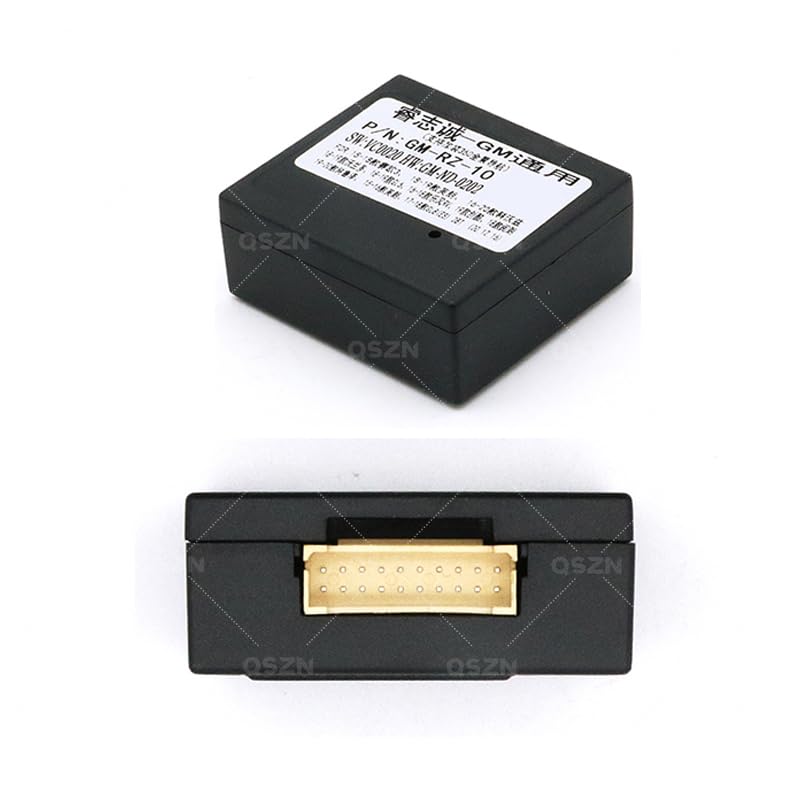
Image 9.1: Bottom view of the Canbus Box, showing the multi-pin connector.
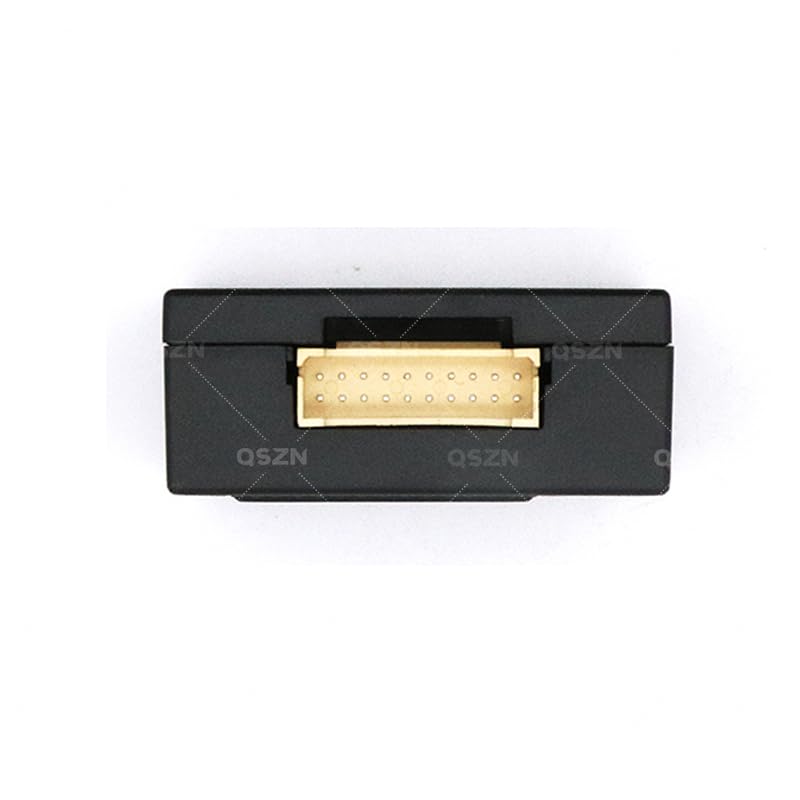
Image 9.2: Top view of the Canbus Box, displaying model and software information.
10. Warranty and Support
Specific warranty information is not provided in the product details. For warranty claims or technical support, please contact the retailer or manufacturer directly. Keep your purchase receipt as proof of purchase.
When contacting support, please provide the following information:
- Product Model: GM-RZ-10
- Date of Purchase
- Description of the issue
- Your vehicle's make, model, and year