
Introduction
The HP K270 Wireless Keyboard is designed to provide a comfortable and efficient typing experience. This keyboard features a reliable 2.4 GHz wireless connection, vintage round keycaps, and integrated multimedia controls, making it suitable for various computing tasks. This manual provides essential information for setting up, operating, maintaining, and troubleshooting your keyboard.

Image: HP K270 Wireless Keyboard, showcasing its full layout.
Setup Instructions
Follow these steps to set up your HP K270 Wireless Keyboard:
- Insert Batteries: Open the battery compartment on the underside of the keyboard. Insert the required batteries (typically AA or AAA, not specified in product data, assume standard for wireless keyboards) ensuring correct polarity.
- Connect the USB Receiver: Locate the 2.4 GHz USB receiver, usually stored within the battery compartment or a dedicated slot on the keyboard. Plug this receiver into an available USB port on your computer.
- Power On: Ensure the keyboard's power switch (if present) is in the 'ON' position.
- Automatic Connection: The keyboard should automatically connect to your computer. No additional drivers are typically required for basic functionality.

Image: Visual representation of the 2.4 GHz wireless connection setup.
Operating the Keyboard
The HP K270 keyboard offers standard typing functionality along with several convenient features:
- Standard Keys: All standard alphanumeric, symbol, and navigation keys function as expected.
- Function (Fn) Key Combinations: The keyboard integrates 12 shortcut combinations using the Fn key. These allow quick access to functions such as music control, movie playback, volume adjustment, homepage access, bookmark management, and email client launch. Refer to the key legends for specific combinations.
- Numeric Keypad: A dedicated numeric keypad is included for efficient data entry.
- Indicator Lights: The keyboard features illuminated indicators for Num Lock, Caps Lock, and Scroll Lock, providing clear visual feedback on their status.
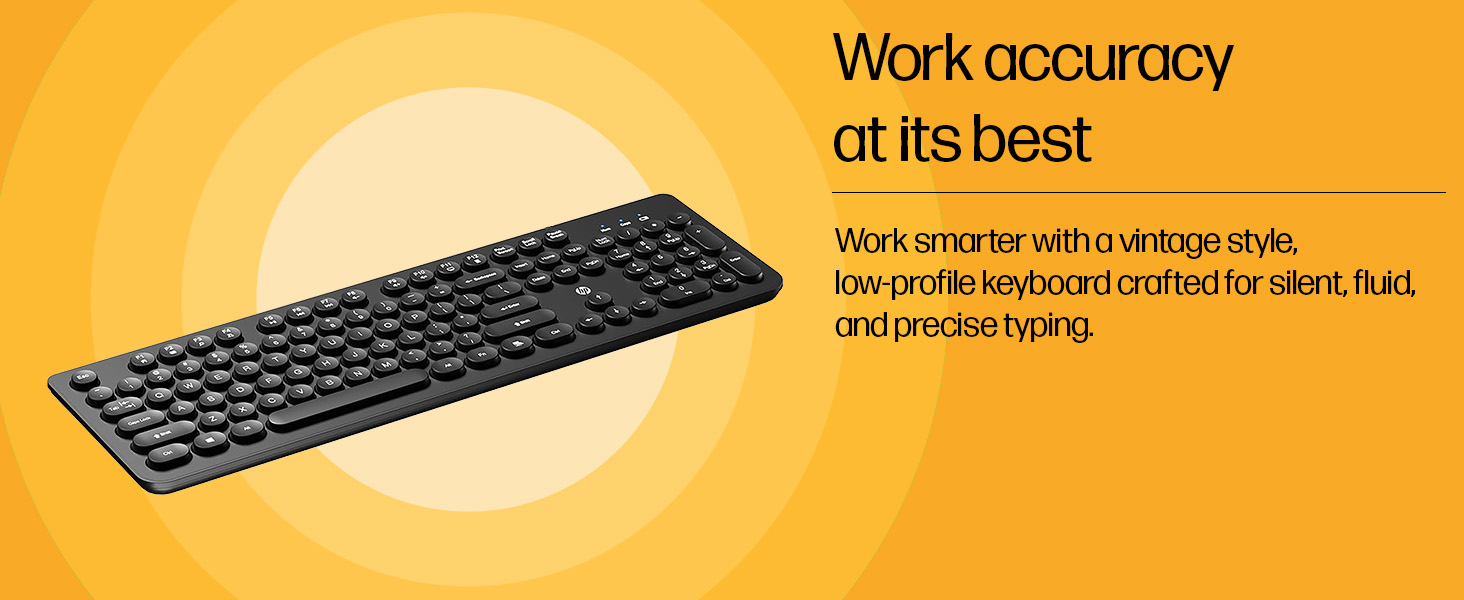
Image: Close-up of the keyboard highlighting the function keys and their shortcuts.
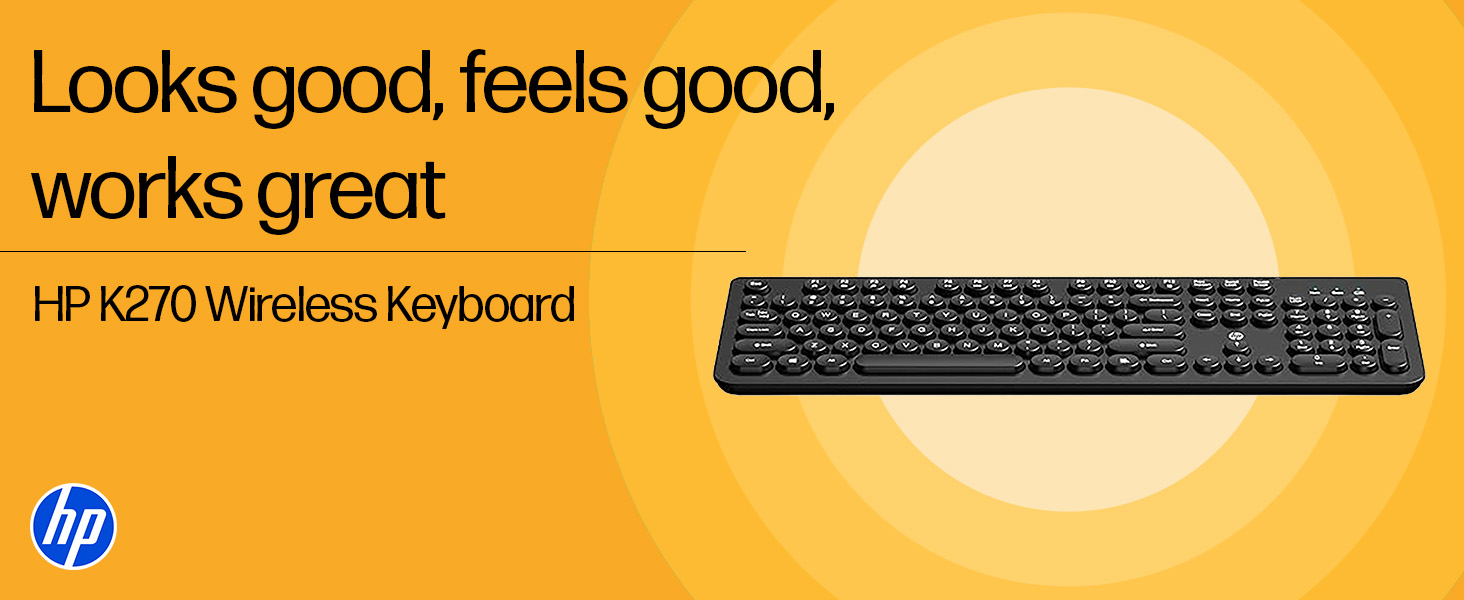
Image: Detail of the keyboard showing the illuminated status indicators.
Maintenance
To ensure the longevity and optimal performance of your HP K270 Wireless Keyboard, follow these maintenance guidelines:
- Cleaning: Use a soft, dry cloth to wipe the keyboard surface. For deeper cleaning, a slightly damp cloth with mild soap can be used, ensuring no liquid enters the key mechanisms. Avoid abrasive cleaners or solvents.
- Battery Replacement: When the keyboard's performance degrades or it stops responding, replace the batteries. Always use fresh batteries of the specified type. Dispose of old batteries responsibly.
- Storage: Store the keyboard in a cool, dry place away from direct sunlight and extreme temperatures.
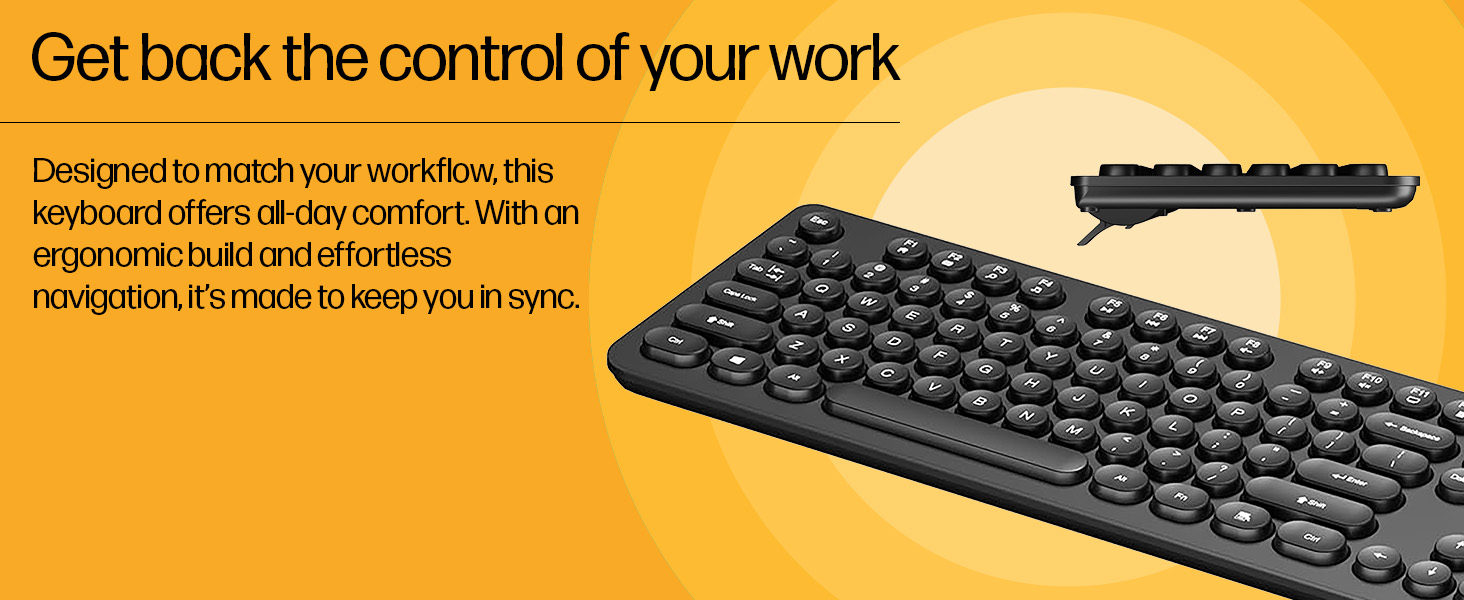
Image: Close-up of the keyboard's keycaps, illustrating its design for easy cleaning.
Troubleshooting
If you encounter issues with your HP K270 Wireless Keyboard, try the following solutions:
| Problem | Possible Solution |
|---|---|
| Keyboard not responding |
|
| Lag or intermittent response |
|
| Specific keys not working |
|
Specifications
| Feature | Detail |
|---|---|
| Brand | HP |
| Model | K270 |
| Item Model Number | AB3D4AA |
| Connectivity Technology | Wireless (2.4 GHz) |
| Keyboard Description | Multimedia |
| Color | Black |
| Product Dimensions (LxWxH) | 44 x 14.1 x 2.6 cm |
| Item Weight | 400 g |
| Compatible Devices | Laptops, PCs |
| Special Feature | Backlit LED (for indicators) |
Warranty and Support
HP products are backed by a limited warranty. For detailed warranty information, please refer to the warranty card included with your product or visit the official HP support website. For technical assistance, driver downloads, or further inquiries, please visit www.hp.com/support or contact HP customer service in your region.