
1. Product Overview
The XIBEIKE 16 PIN Android Canbus Box Adaptor is designed to integrate an aftermarket Android head unit with your vehicle's existing CANbus system. This adaptor facilitates communication between the Android unit and the vehicle's electronic systems, allowing features such as steering wheel controls, door status, and reverse gear signals to function correctly.
Compatibility:
- For HYUNDAI SANTAFE 2013-2017
- For HYUNDAI IX45 2013-2017
- For HYUNDAI Elantra 2016-2018
- For KIA Sorento 2015
- For KIA Sportage 2010-2015
- For KIA Cerato/K3 2013-2016
Note: Always verify compatibility with the Original Equipment (OE) of your vehicle's original parts before installation.
2. Setup and Installation
This product is designed for direct replacement and integration. Professional installation is highly recommended due to the complexity of vehicle wiring and CANbus systems. Incorrect installation can lead to damage to the vehicle's electronics or the product itself.
2.1 Package Contents
- 1 x XIBEIKE 16 PIN Android Canbus Box Adaptor (Canbus with Cable variant)
2.2 Installation Steps
- Preparation: Ensure the vehicle's ignition is off and the battery is disconnected to prevent electrical shorts.
- Access Head Unit: Carefully remove the existing factory head unit from your vehicle's dashboard. Refer to your vehicle's service manual for specific instructions on removing trim panels and the head unit.
- Identify Connectors: Locate the vehicle's factory wiring harness connectors.
- Connect Adaptor: Connect the XIBEIKE 16 PIN Android Canbus Box Adaptor harness to the corresponding factory connectors in your vehicle. Ensure all connections are secure.
- Connect to Android Head Unit: Connect the other end of the adaptor harness to your aftermarket Android head unit. The 16-pin connector should align with the input on your Android unit.
- CANbus Box Placement: Securely place the CANbus box in a safe location behind the dashboard, ensuring it is not pinched or exposed to moisture.
- Test Functionality: Reconnect the vehicle battery. Turn on the ignition and test the Android head unit's functionality, including steering wheel controls, reverse camera input (if applicable), and other CANbus-dependent features.
- Reassemble: Once all functions are verified, carefully reassemble the dashboard trim and secure the head unit.
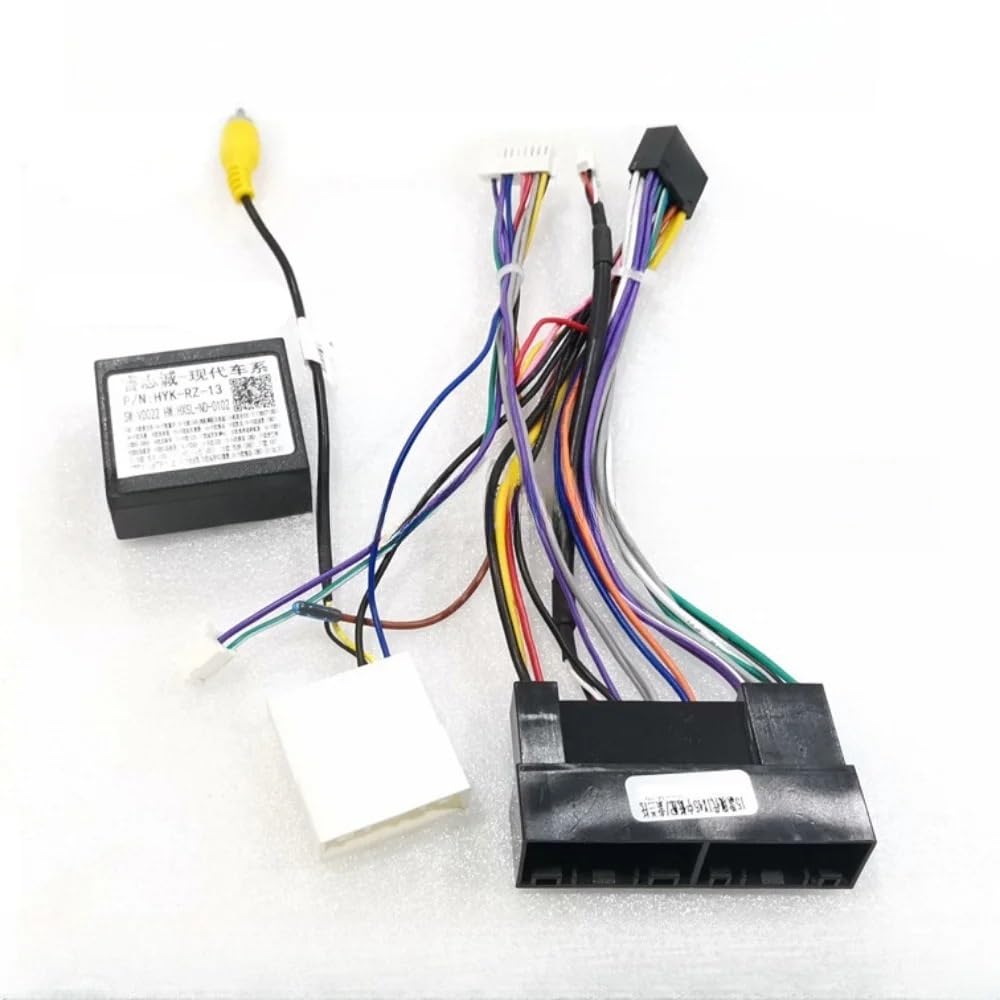
Figure 1: Overview of the XIBEIKE 16 PIN Android Canbus Box Adaptor, showing the CANbus module, wiring harness, and detailed view of the connectors for integration.

Figure 2: The XIBEIKE 16 PIN Android Canbus Box Adaptor, illustrating the main wiring harness and the CANbus module for vehicle integration.
3. Operating Instructions
The XIBEIKE Canbus Box Adaptor operates automatically once correctly installed. Its primary function is to translate vehicle CANbus data into a format recognizable by your aftermarket Android head unit. This enables the following functionalities:
- Steering Wheel Controls: Allows the vehicle's factory steering wheel buttons to control the Android head unit (e.g., volume, track skip, mode).
- Reverse Gear Signal: Provides a signal to the Android unit when the vehicle is in reverse, typically activating a connected reverse camera.
- Illumination Signal: Detects when vehicle lights are on, allowing the Android unit to adjust screen brightness or activate night mode.
- Door Status: May provide information about open doors, depending on the vehicle and Android unit capabilities.
No direct user interaction with the CANbus box itself is required after installation. All operations are managed through your Android head unit's interface.
4. Maintenance
The XIBEIKE Canbus Box Adaptor is a sealed electronic component and requires minimal maintenance.
- Cleaning: If the unit becomes dusty during installation, gently wipe it with a dry, soft cloth. Do not use liquid cleaners or solvents.
- Inspection: Periodically check the wiring connections for any signs of wear, corrosion, or looseness, especially if experiencing intermittent issues.
- Environment: Ensure the unit remains in a dry, stable environment within the vehicle's dashboard, away from extreme temperatures or direct moisture.
5. Troubleshooting
If you encounter issues after installing the Canbus Box Adaptor, consider the following troubleshooting steps:
- No Power to Android Unit:
- Check all power connections from the vehicle harness to the adaptor and from the adaptor to the Android unit.
- Verify vehicle fuses related to the head unit.
- Steering Wheel Controls Not Working:
- Ensure the CANbus box is correctly connected and receiving power.
- Check the settings within your Android head unit for steering wheel control configuration. Many units require manual mapping of buttons.
- Confirm the adaptor is compatible with your specific vehicle's CANbus protocol.
- Reverse Camera Not Activating:
- Verify the reverse signal wire from the adaptor is correctly connected to the Android head unit's reverse input.
- Check the reverse camera's power and video connections.
- Intermittent Functionality:
- Inspect all wiring connections for looseness or poor contact.
- Ensure the CANbus box is not overheating or exposed to excessive vibration.
If issues persist after performing these checks, it is recommended to consult with a professional car audio installer or contact XIBEIKE customer support.
6. Specifications
| Feature | Specification |
|---|---|
| Model Number | XIBEIKE1019 |
| Brand | XIBEIKE |
| Package Dimensions | 1.18 x 0.79 x 0.39 inches |
| Item Weight | 1.76 ounces (50 Grams) |
| Assembly Required | No |
| Number of Pieces | 1 |
| Installation Type | Direct Replacement |
7. Warranty and Support
This product is covered by a standard return policy, typically allowing for returns or replacements within 30 days of purchase, subject to the retailer's terms and conditions.
For technical support, installation assistance, or warranty claims, please contact your point of purchase or refer to the XIBEIKE official website for customer service contact information.