
Introduction
This manual provides essential information for the safe and efficient use of your Philips 24E2N1100LB 24-inch Full HD Monitor. Please read these instructions carefully before operating the device and retain them for future reference. This monitor is designed to deliver detailed images with a Full HD resolution, a 100Hz refresh rate, and a 1ms MPRT response time, ensuring a smooth visual experience.
Setup
1. Unpacking
Carefully remove all components from the packaging. Ensure all items listed in the packing list are present and undamaged. Keep packaging materials for potential future transport or service needs.
2. Assembling the Stand
Attach the monitor stand to the display panel. Refer to the quick start guide included with your monitor for specific assembly steps. Ensure the stand is securely fastened before placing the monitor on a flat, stable surface.
3. Connecting Cables
Connect the necessary cables to the monitor and your computer or other devices.
- Power Cable: Connect the power cable to the monitor's power input and then to a grounded electrical outlet.
- Video Cable:
- HDMI: Connect one end of the HDMI cable to the monitor's HDMI port and the other end to the HDMI output port on your computer.
- D-Sub (VGA): Connect one end of the D-Sub cable to the monitor's D-Sub port and the other end to the D-Sub output port on your computer.
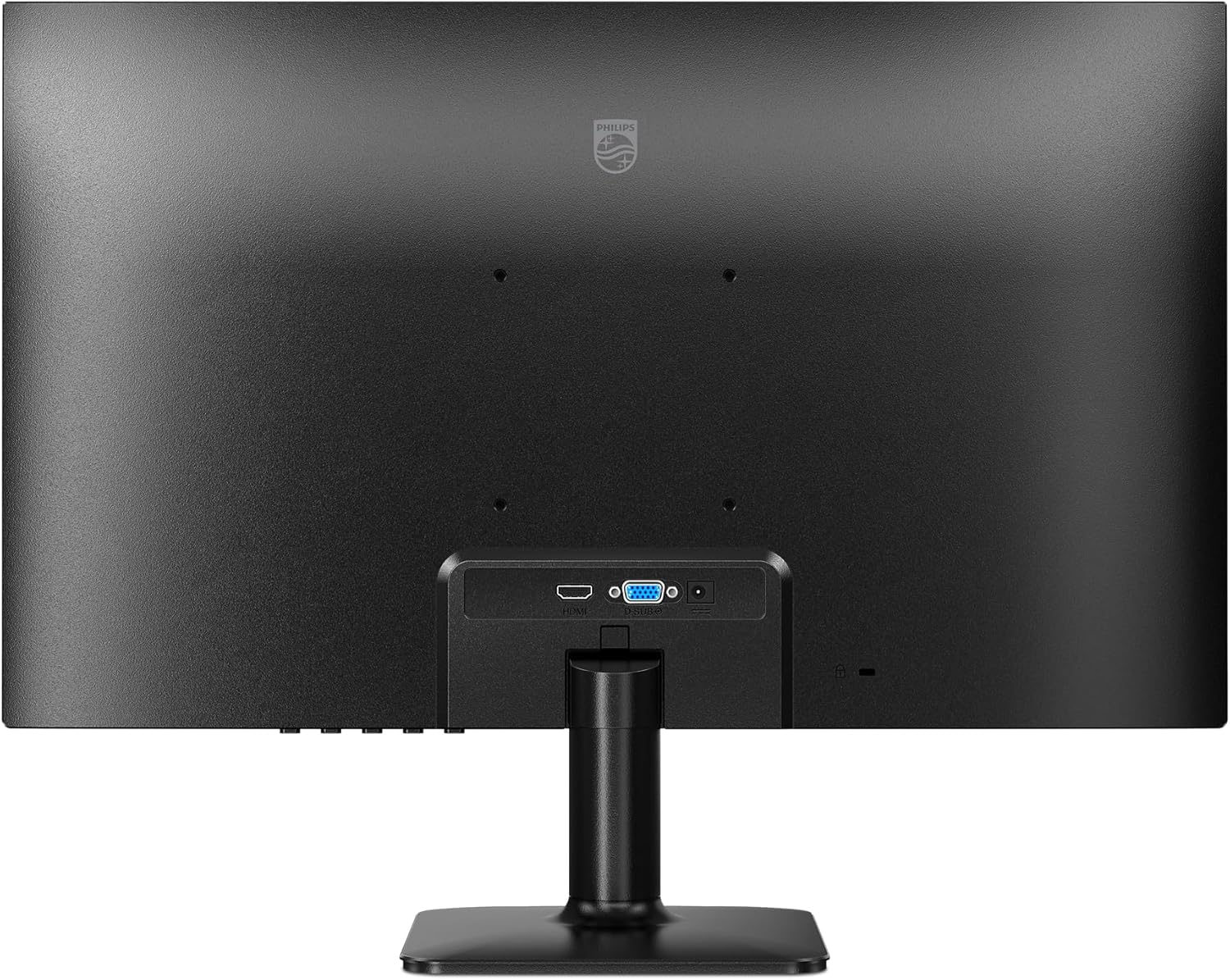 Image: Rear view of the monitor displaying the D-Sub and HDMI input ports.
 Image: Detailed view of the monitor's rear input panel, highlighting the HDMI and VGA (D-Sub) connection options.
4. Initial Power-On
Press the power button on the monitor. The monitor should power on and display an image from the connected source. If no image appears, ensure all cables are securely connected and the correct input source is selected.
Operating
1. Power On/Off
To turn the monitor on or off, press the power button located on the monitor's frame, typically on the bottom right or rear.
2. On-Screen Display (OSD) Menu
The OSD menu allows you to adjust various monitor settings. Use the control buttons (usually located on the bottom right or rear of the monitor) to navigate the menu. Common controls include:
- Menu Button: Opens the OSD menu.
- Navigation Buttons: Used to move through menu options (Up/Down, Left/Right).
- OK/Select Button: Confirms a selection or enters a sub-menu.
- Exit/Back Button: Returns to the previous menu or exits the OSD.
3. Adjusting Settings
Within the OSD menu, you can customize display settings:
- Picture: Adjust brightness, contrast, sharpness, and gamma.
- Color: Select color temperature, sRGB mode, or user-defined color settings.
- Input: Manually select the video input source (HDMI or D-Sub).
- Audio: Adjust volume if external speakers are connected to the monitor's audio output (if available).
- Adaptive Sync: Enable or disable Adaptive Sync for tear-free gaming and video playback. This feature synchronizes the monitor's refresh rate with the graphics card's frame rate.
- LowBlue Mode: Activate LowBlue Mode to reduce harmful shortwave blue light emissions, which can help reduce eye strain during prolonged use.
 Image: Front view of the Philips 24E2N1100LB monitor, showcasing its 24-inch VA panel, 100Hz refresh rate, 1ms MPRT, Adaptive Sync, 3-sided frameless design, and LowBlue Mode.
4. Ergonomic Adjustments
The monitor stand allows for tilt adjustment to optimize your viewing angle. Adjust the screen to a comfortable position to reduce neck and eye strain.
 Image: Side profile of the monitor illustrating its tilt capability, ranging from -5 to 20 degrees for ergonomic viewing.
Maintenance
1. Cleaning the Monitor
- Always unplug the monitor before cleaning.
- Use a soft, lint-free cloth slightly dampened with water or a mild, non-abrasive screen cleaner.
- Do not use alcohol, ammonia, or abrasive cleaners, as these can damage the screen or casing.
- Wipe the screen gently to avoid scratching.
2. Safety Precautions
- Do not block ventilation openings.
- Keep the monitor away from direct sunlight, heat sources, and excessive moisture.
- Avoid placing heavy objects on the power cord.
- Do not attempt to service the monitor yourself. Refer all servicing to qualified service personnel.
Troubleshooting
If you encounter issues with your monitor, refer to the following common problems and solutions:
- No Power:
- Ensure the power cable is securely connected to both the monitor and the electrical outlet.
- Verify the power outlet is functional.
- Press the monitor's power button.
- No Signal:
- Check that the video cable (HDMI or D-Sub) is firmly connected to both the monitor and the computer.
- Ensure the computer is powered on and not in sleep mode.
- Select the correct input source via the OSD menu.
- Try a different video cable or port if available.
- Distorted Image / Incorrect Resolution:
- Ensure your computer's display settings are configured for the monitor's native resolution (1920 x 1080) and refresh rate (100 Hz).
- Check for updated graphics drivers for your computer.
- Perform an OSD reset to factory settings.
- Flickering Screen:
- Check the video cable connection.
- Ensure the refresh rate is set correctly (100 Hz).
- Disable Adaptive Sync temporarily to see if it resolves the issue.
If the problem persists after trying these steps, contact Philips customer support.
Specifications
| Feature | Detail |
|---|---|
| Model Number | 24E2N1100LB |
| Screen Size | 23.8 Inches (60.5 cm) |
| Panel Type | VA (Vertical Alignment) |
| Resolution | 1920 x 1080 (Full HD) |
| Aspect Ratio | 16:9 |
| Refresh Rate | 100 Hz |
| Response Time | 1 ms MPRT |
| Connectivity | 1x HDMI 1.4, 1x D-Sub (VGA) |
| Color | Black |
| Product Dimensions (L x W x H) | 18 x 54.1 x 41.6 cm |
| Weight | 4.08 kg |
| Special Features | Adaptive Sync, LowBlue Mode, WLED Backlight |
Warranty and Support
Warranty Information
Your Philips monitor is covered by a limited warranty. The specific terms and duration of the warranty may vary by region. Please refer to the warranty card included with your product or visit the official Philips website for detailed warranty information.
Customer Support
For technical assistance, troubleshooting beyond this manual, or warranty claims, please contact Philips customer support. You can typically find contact information (phone numbers, email, or support portals) on the official Philips website or in the documentation provided with your monitor.
When contacting support, please have your monitor's model number (24E2N1100LB) and serial number ready.


