
1. Introduction
This manual provides detailed instructions for the installation, operation, and maintenance of your Yoidesu 27-Inch Monitor Sync LED Light Strip. This ambient light strip is designed to enhance your visual experience by syncing with your display colors, creating an immersive lighting effect for gaming, movies, or work environments. Please read this manual thoroughly before use and retain it for future reference.
2. Safety Information
Please observe the following safety precautions to prevent damage to the product or injury to yourself:
- Ensure the power source matches the product's requirements (USB 5V).
- Do not expose the light strip to water or excessive moisture.
- Avoid bending the light strip sharply or applying excessive force, which may damage the LEDs or wiring.
- Keep out of reach of children.
- Do not attempt to disassemble or modify the product.
3. Package Contents
Verify that all items are present in the package:
- 1 x Light Strip
- 7 x Light Strip Buckle Tapes
- 7 x Light Strip Buckles
- 3 x Cable Buckle Tapes
- 3 x Cable Buckles
- 1 x User Manual
4. Setup and Installation
The Yoidesu Monitor Sync LED Light Strip features a simple, three-step installation process. It is designed for 27-inch displays and automatically recognizes the display upon connection.
4.1 Installation Steps
- Prepare your monitor: Ensure the back of your 27-inch monitor is clean and dry for optimal adhesion of the buckle tapes.
- Attach the light strip: Use the provided light strip buckle tapes and buckles to securely attach the LED light strip to the back edges of your monitor. Position the strip along the top and sides, ensuring proper alignment.
- Connect to power: Plug the USB connector of the light strip into an available USB data port on your computer. The system will automatically recognize the device and match the color settings. No manual configuration is required for basic operation.

Figure 4.1: Product installation diagram. Follow these steps to complete the installation.
4.2 Cable Management
Utilize the included cable buckle tapes and buckles to manage the wiring neatly. This helps in achieving a clean setup and ensures the cables are hidden, preventing clutter and providing a more aesthetically pleasing environment.
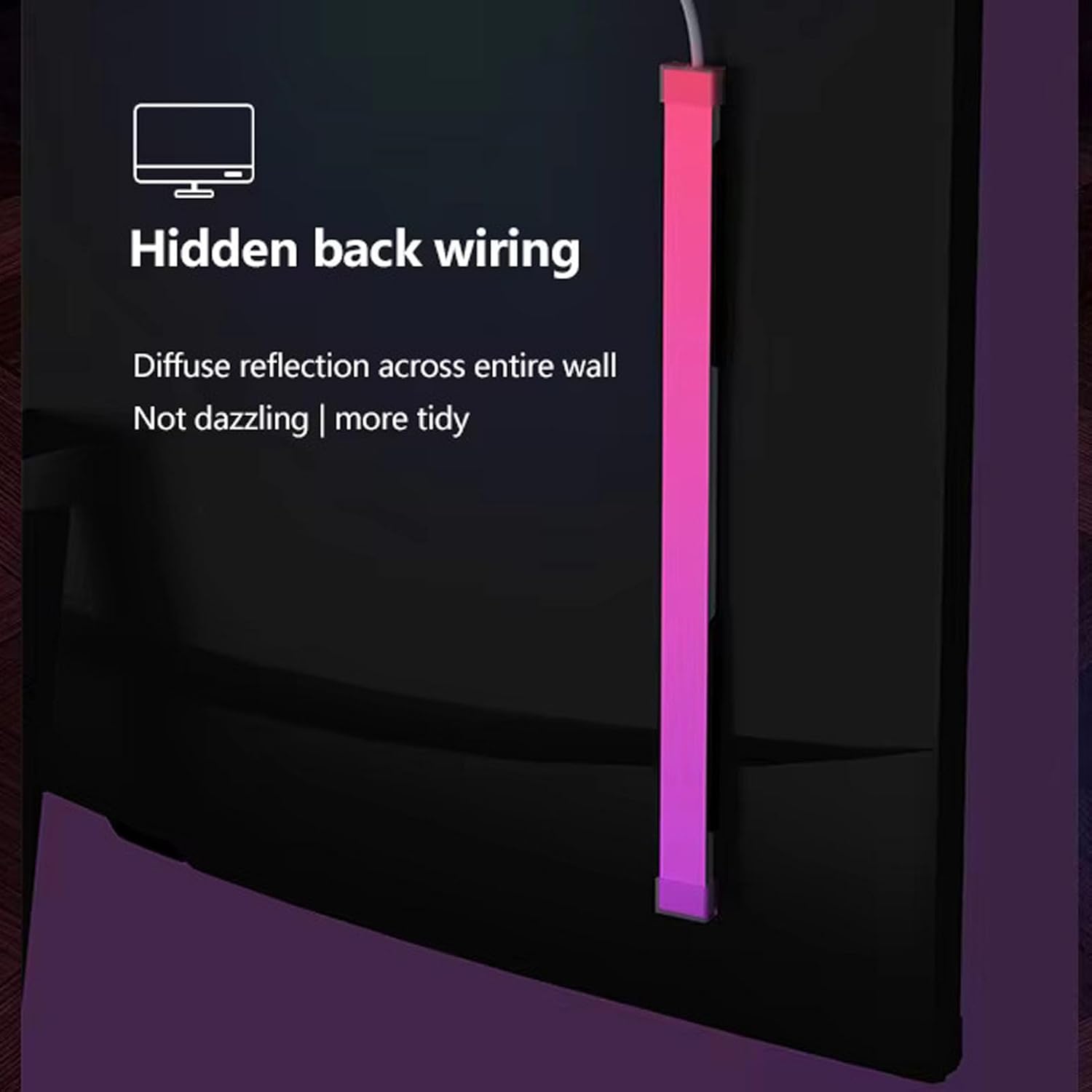
Figure 4.2: Hidden back wiring for a tidy setup and diffuse reflection.

Figure 4.3: Three-step quick installation and automatic display recognition. Compatible with 23.8, 24, and 32-inch displays.
5. Operating Instructions
The Yoidesu Monitor Sync LED Light Strip offers various modes to customize your ambient lighting experience.
5.1 Screen Synchronization
The primary function of the light strip is to sync with your display's colors in real-time. This creates an immersive visual effect that extends the on-screen action beyond the monitor, enhancing gaming, movie watching, and general computing.

Figure 5.1: Key features including screen synchronization and versatile lighting options.

Figure 5.2: Screen light synchronized light strip with automatic display recognition.
5.2 Versatile Lighting Modes
Choose from a variety of lighting modes to suit your preference and occasion:
- Colorful Mode (RGB Flowing Racing): Displays dynamic, flowing color patterns.
- Monochrome Mode: Allows selection of a single, customized color from 16 million RGB options.
- Music Mode: The light colors change and react to the rhythm of music, creating an engaging audio-visual experience.

Figure 5.3: Enhance entertainment and movie-watching atmosphere with dynamic lighting.
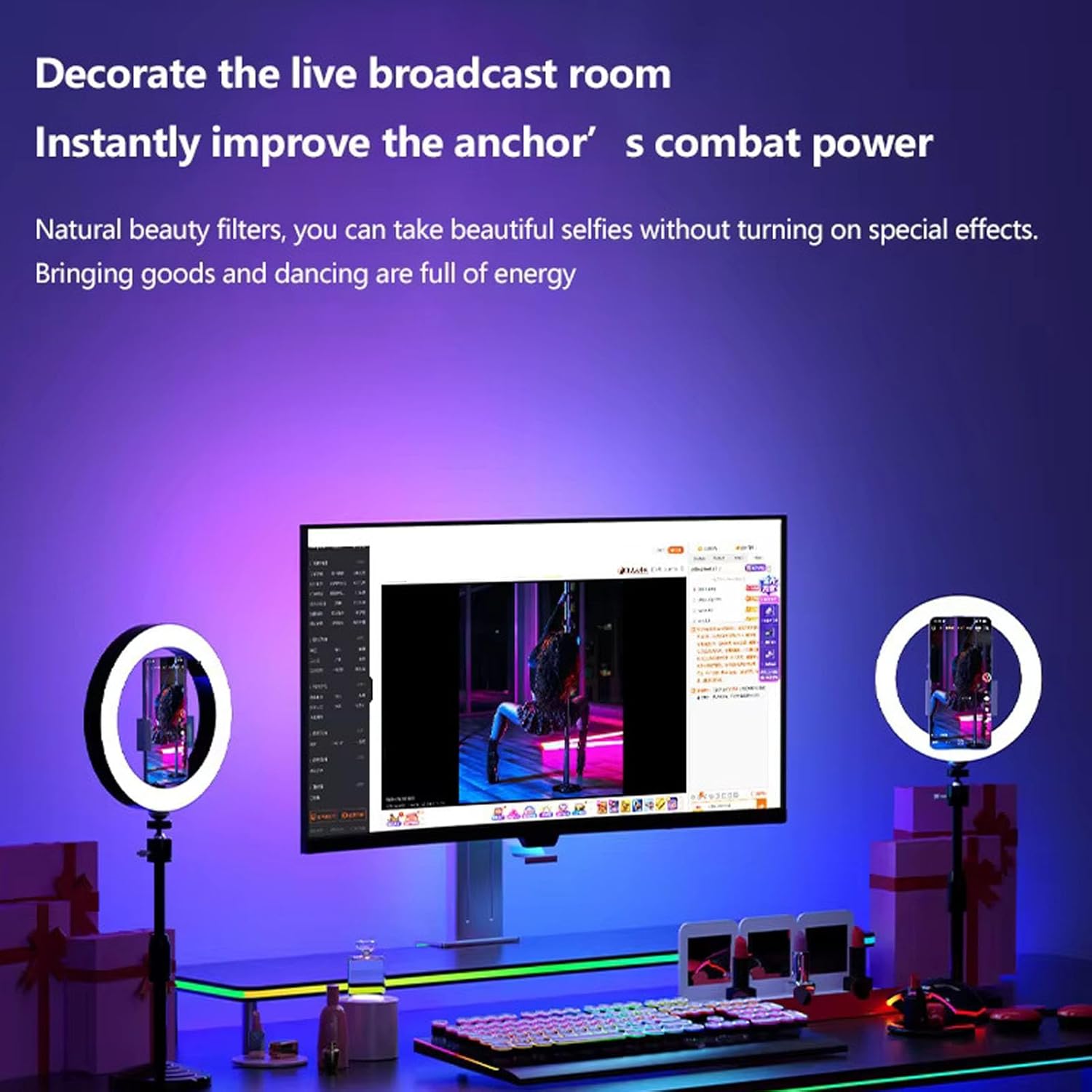
Figure 5.4: Decorate a live broadcast room and improve visual ambiance.
5.3 PC Client Support
For advanced control and additional lighting effects, download and install the dedicated PC client software. This intuitive interface allows you to manage your lighting setup, customize colors, and explore more complex lighting patterns.
- Compatibility: The PC client is compatible with Windows systems. (Not compatible with OS X).
- Features: Access a wider range of lighting effects, fine-tune color settings, and create personalized lighting scenes.

Figure 5.5: PC client interface for advanced lighting control.
6. Specifications
| Feature | Description |
|---|---|
| Item Type | Screen Sync Light Strip |
| LED Color | RGB 16 Million Colors (5050 Colorful Series) |
| LED Quantity | 65pcs |
| Rated Input | USB 5V (Computer USB Data Port) |
| Compatible System | For Windows System (Not for OS X) |
| Application | For 27 inch Display (also compatible with 23.8, 24, and 32 inch displays as per image) |
| Brand | Yoidesu |
| Model Number | Yoidesuawb4qc1gud |
| Indoor/Outdoor Usage | Indoor |
| Power Source | AC/DC (via USB) |
7. Maintenance
To ensure the longevity and optimal performance of your Yoidesu Monitor Sync LED Light Strip, follow these simple maintenance guidelines:
- Cleaning: Gently wipe the light strip with a soft, dry cloth to remove dust. Do not use abrasive cleaners or solvents.
- Storage: If storing the light strip for an extended period, ensure it is clean, dry, and stored in a cool, dry place away from direct sunlight.
- Cable Care: Avoid sharp bends or kinks in the USB cable.
8. Troubleshooting
If you encounter any issues with your light strip, refer to the following common problems and solutions:
- Light strip does not turn on:
- Ensure the USB cable is securely plugged into a functional USB data port on your computer.
- Verify that your computer is powered on.
- Try a different USB port.
- Lights are not syncing with the screen:
- Confirm that the PC client software is installed and running correctly on your Windows system.
- Check the settings within the PC client to ensure screen synchronization is enabled.
- Ensure the light strip is connected to the same computer whose screen you wish to sync.
- Colors appear incorrect or inconsistent:
- Adjust color settings within the PC client software.
- Ensure the light strip is properly attached and not obstructed.
If the problem persists after attempting these solutions, please contact customer support.
9. Warranty and Support
For warranty information and technical support, please refer to the contact details provided with your purchase documentation or visit the official Yoidesu website. Keep your purchase receipt as proof of purchase for warranty claims.