Introduction
The Veqotya A-2025 Android Auto Wireless Adapter converts your car's existing wired Android Auto system into a wireless connection. This slim and lightweight adapter utilizes Bluetooth technology for stable connectivity, providing a seamless in-car experience. It allows you to access all Android Auto functions, including navigation, music, and calls, through your car's original controls.
Package Contents
Please verify that all items are present in the package:
- Veqotya A-2025 Android Auto Wireless Adapter
- USB-C Cable
- USB-A Cable

Image: The Veqotya A-2025 wireless adapter shown with its USB-C and USB-A cables.
Setup Instructions
Follow these simple steps for the initial setup. After the first connection, the adapter will automatically activate wireless Android Auto when your car starts.
- Connect the Adapter: Plug the Veqotya A-2025 adapter into your car's USB port that supports wired Android Auto. Use the appropriate USB-C or USB-A cable provided.
- Enable Phone Settings: On your Android phone, ensure both Bluetooth and Wi-Fi are enabled.
- Pair Bluetooth: On your car's infotainment screen, select the Bluetooth pairing option. Search for and connect to the Veqotya adapter's Bluetooth signal. Follow any on-screen prompts to complete the pairing process.
The first connection typically takes about 15 seconds. Subsequent reconnections should occur automatically within approximately 5 seconds when you start your car.

Image: Visual guide illustrating the plug-in, Wi-Fi/Bluetooth activation, and Bluetooth pairing steps for initial setup.
Operating Instructions
Once connected, the Veqotya A-2025 adapter allows you to use all standard Android Auto functions wirelessly, maintaining your car's original control methods.
- Full Android Auto Functionality: Access navigation, music playback, phone calls, messaging, and other compatible apps directly on your car's display.
- Control Methods: Operate Android Auto using your car's existing controls, including:
- Touch Screen
- OEM Knob/Controller
- Steering Wheel Controls
- Voice Control (e.g., "Hey Google...")
- Automatic Reconnection: The adapter is designed to automatically connect to the last paired Android phone when the car starts. If multiple paired phones are nearby, it will prioritize the most recently connected device.
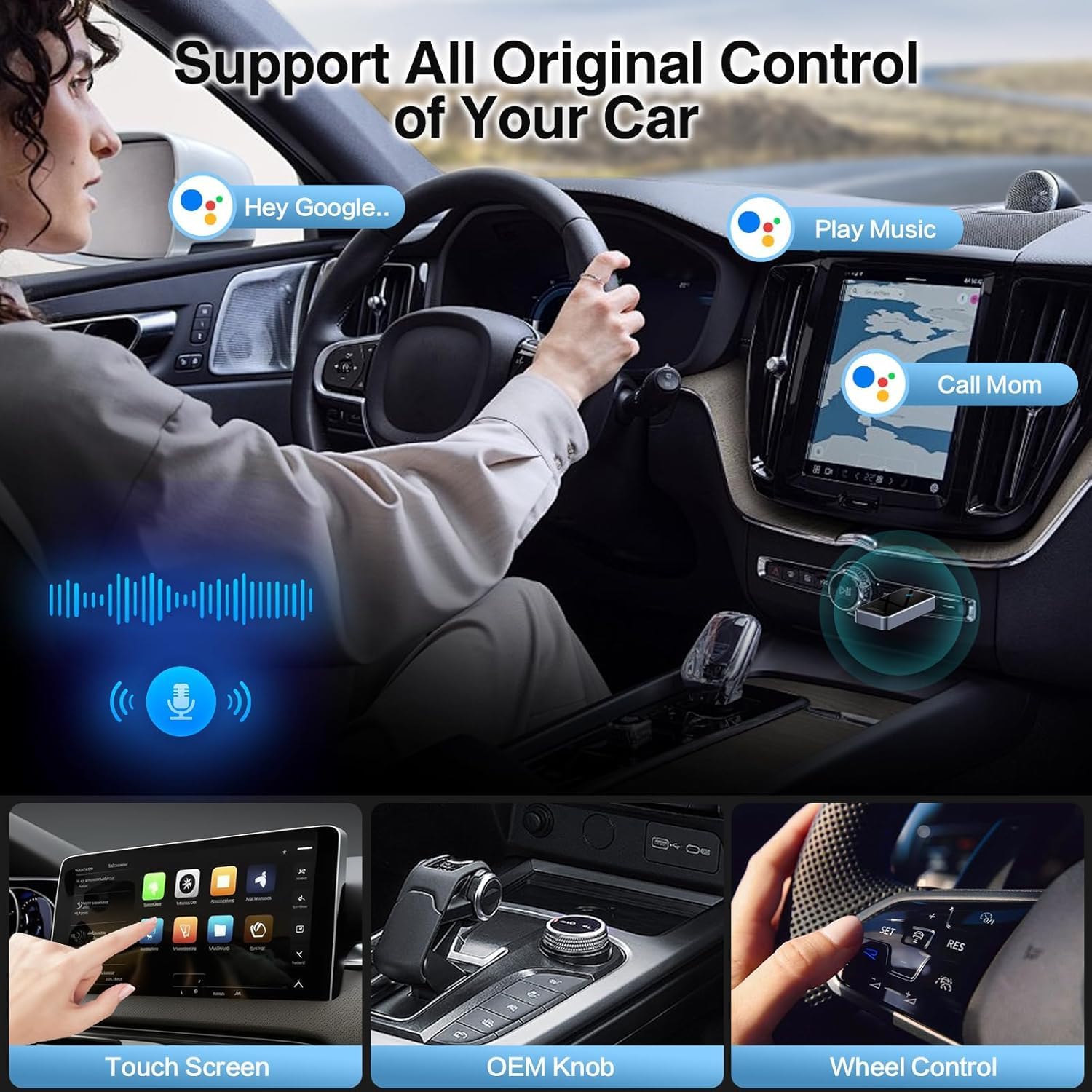
Image: Depicts the Android Auto interface with various applications like music, navigation, and phone calls.

Image: Illustrates the different control methods available for Android Auto, including touch screen, OEM knob, steering wheel buttons, and voice commands.
Compatibility
The Veqotya A-2025 Android Auto Wireless Adapter is designed for broad compatibility, but specific requirements must be met:
- Car Compatibility: Your car or audio system must be equipped with factory-installed wired Android Auto. The adapter supports over 800 car models from 2017 onwards.
- Phone Compatibility: Your Android phone must support Android Auto. Android 11 or higher is highly recommended for optimal performance.
To verify if your car model is compatible, please refer to the official Android Auto compatibility list: Android Auto Compatible Vehicles.

Image: Overview of car brand logos and Android phone models indicating broad compatibility.
Maintenance
To ensure the longevity and optimal performance of your Veqotya A-2025 Android Auto Wireless Adapter, follow these general maintenance guidelines:
- Keep Clean: Gently wipe the adapter with a soft, dry cloth to remove dust. Avoid using liquid cleaners or abrasive materials.
- Store Properly: When not in use for extended periods, disconnect the adapter and store it in a cool, dry place away from direct sunlight and extreme temperatures.
- Handle with Care: Avoid dropping the adapter or subjecting it to physical shock, which can damage internal components.
- Software Updates: Periodically check the manufacturer's website or app (if applicable) for any firmware updates to ensure the best performance and compatibility.
Troubleshooting
If you encounter issues with your Veqotya A-2025 adapter, please refer to the following common solutions:
| Problem | Solution |
|---|---|
| Adapter does not connect automatically. |
|
| Audio skipping or intermittent connection. |
|
| Android Auto fails to launch or connect. |
|
| Adapter is not recognized by the car. |
|
Specifications
| Feature | Detail |
|---|---|
| Model Number | A-2025 |
| Brand | Veqotya |
| Connectivity | Bluetooth 5.3, Wi-Fi 2.4-5.8GHz |
| Processor | A7S Dual-Core |
| Compatible Devices | Cars/Audio systems with factory wired Android Auto, Android phones (Android 11+ recommended) |
| Connector Type | USB Type A, USB Type C |
| Dimensions | 6.22 x 2.87 x 0.75 inches (Package) |
| Weight | 2.39 ounces (Item) |

Image: Diagram highlighting the core technical specifications of the adapter, including Bluetooth version, Wi-Fi bands, and processor type.
Warranty and Support
Veqotya provides comprehensive support for the A-2025 Android Auto Wireless Adapter:
- Lifetime Technical Support: Customers are entitled to lifetime technical assistance for the product.
- Customer Service: For any issues or inquiries, please contact Veqotya customer service. We aim to resolve all concerns within 24 hours.
For further assistance, please refer to the contact information provided with your purchase or visit the official Veqotya website.


