1. Introduction
This manual provides detailed instructions for the installation, operation, and maintenance of your Inefala 2+64G Android 15 Car Stereo. This unit is specifically designed for Toyota Camry models from 1997 to 2003, offering advanced features such as CarPlay, Android Auto, GPS navigation, Bluetooth, and a 9-inch touchscreen display. Please read this manual thoroughly before installation and use to ensure proper functionality and safety.
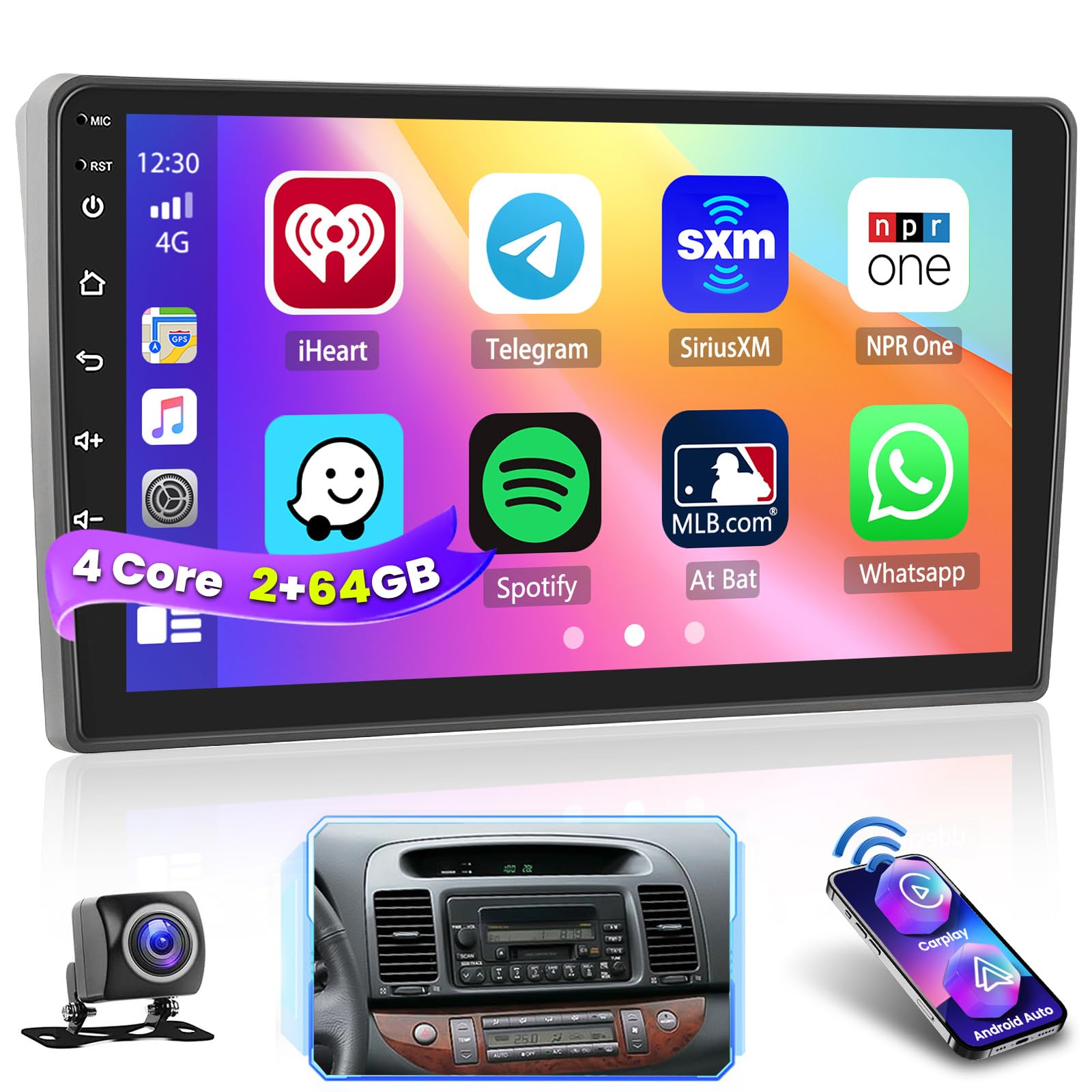
Figure 1: Inefala 2+64G Android 15 Car Stereo Unit
2. Product Features
- Operating System: Android 13 with 2GB RAM and 64GB ROM.
- Display: 9-inch 2.5D 1024 x 600 touchscreen, supporting split screen and 1080P video playback.
- Customization: 26 selectable desktop themes.
- Audio: Digital Signal Processing (DSP) with 32-band EQ options for enhanced sound.
- Smartphone Integration: Wireless/wired Apple CarPlay, Android Auto, and Mirror Link functionality.
- Navigation: Integrated GPS navigation with support for online and offline maps.
- Connectivity: WiFi hotspot, Bluetooth for hands-free calling, phone book download, and music playback.
- Radio: FM/RDS radio with 18 preset stations.
- Safety: Includes AHD backup camera with night vision and waterproof design.
- Control: Supports steering wheel control learning for easy audio system management.
- Voice Command: Compatible with Siri and Google Voice Assistant.
3. Package Contents
Verify that all items listed below are included in your package:
- 1 x Inefala Android Radio for Toyota Camry
- 1 x Power Cable
- 1 x RCA Harness
- 1 x GPS Antenna
- 1 x AHD Backup Camera
- 1 x Rear Camera Input Cable
- 1 x External Microphone
- 2 x USB Cable
- 1 x Installation Tool

Figure 2: Package List and Unit Dimensions
4. Setup and Installation
4.1 Pre-Installation Check
- Connect the red and yellow wires of the car stereo together, then connect to the positive pole of a 12V battery. Connect the black wire to the negative pole.
- After 2 seconds, check if the car stereo screen lights up. If it does, the device is functioning normally. If not, recheck the installation procedure.
4.2 Important Installation Tips
- Double-check that the power cable port provided matches the port of your car.
- If the harness does not fit, or if accessories are missing/damaged, contact customer support for assistance.

Figure 3: Installation Effect in Toyota Camry
4.3 Wiring Diagram
Refer to the following diagram for proper connection of the power cable, RCA harness, GPS antenna, and backup camera.

Figure 4: Port Details
4.4 Reversing Camera Wiring
Tip: The reversing input must be plugged in even if the reversing camera is not used. Otherwise, your WiFi and Bluetooth signals may be affected.
To connect the backup camera:
- Connect Cable 1 and Cable 5 to the positive pole of the car reversing light cable.
- Connect Cable 2 to the negative pole of the car reversing light cable.
- Connect Cable 3 and Cable 4 to the reverse trigger wire of the power cable (labeled "Reverse/Back"). If not needed, pull it out and connect it if the last step doesn't work.

Figure 5: Reversing Camera Wiring
5. Operating Instructions
5.1 Basic Interface and Navigation
The main interface provides access to various functions. You can navigate by tapping icons or swiping the screen. Long-press an application icon to move or delete it.

Figure 6: 26 Multi UI Themes
5.2 CarPlay & Android Auto & Mirror Link
The unit supports both wireless and wired connections for CarPlay and Android Auto, allowing voice-assisted controls and access to phone features like music, navigation, calls, and messages. Mirror Link functionality is also available.

Figure 7: Wireless/Wired CarPlay & Android Auto Connection
Note: For some Samsung and Huawei phones, Android Auto and Mirror Link functionality may not be fully supported. Ensure your phone supports Google Services and has Android Auto installed.
5.3 Voice Control
Utilize Siri or Google Voice Assistant for hands-free operation. Commands include playing music, opening navigation, making calls, and more.

Figure 8: Siri/Google Voice Assistant Functionality
5.4 Audio Settings (DSP)
The built-in Digital Signal Processor (DSP) allows for precise audio adjustments with a 32-band equalizer. You can customize sound profiles for different music genres or adjust the balance for optimal listening experience.

Figure 9: DSP and Other Features
5.5 Steering Wheel Control
The unit supports learning existing steering wheel button functions. This allows you to control the car audio system conveniently without taking your hands off the wheel.
- Without CANBUS box: Activation of steering wheel controls requires key learning in settings.
- With CANBUS box: Connect the 20-pin white port in the power cable to the Canbus itself, and the remaining 8-pin white port to the corresponding port on the back of the radio. Match the car model in Factory Setup (Password 000000) > CAN Settings.

Figure 10: Steering Wheel Control
5.6 Interface Demonstration Video
Video 1: This video demonstrates the various functions and user interface of the MT816 Android head unit, including music playback, radio tuning, DSP settings, Bluetooth connectivity, video playback, and system settings. It provides a visual guide to navigating the device's features.
6. Maintenance
- Cleaning: Use a soft, dry cloth to clean the screen and exterior. Avoid abrasive cleaners or solvents.
- Temperature: Operate the unit within recommended temperature ranges to prevent damage.
- Software Updates: Periodically check for software updates to ensure optimal performance and access to new features.
7. Troubleshooting
| Problem | Possible Cause | Solution |
|---|---|---|
| Unit does not power on. | Incorrect wiring; Blown fuse. | Check power cable connections; Inspect and replace fuse if necessary. |
| No sound. | Volume too low; Speaker wires disconnected; Incorrect audio settings. | Increase volume; Check speaker connections; Adjust DSP/EQ settings. |
| Bluetooth/WiFi issues. | Reversing input not connected (even if camera not used); Interference. | Ensure reversing input is connected; Check for other electronic interference. |
| CarPlay/Android Auto not connecting. | Phone compatibility; Incorrect connection steps. | Verify phone compatibility (Samsung/Huawei limitations); Follow connection steps in Section 5.2. |
| Steering wheel controls not working. | Not programmed; Incorrect CANBUS connection. | Perform key learning in settings; Verify CANBUS wiring and settings (if applicable). |
8. Specifications
- Item Weight: 2.86 pounds
- Package Dimensions: 10.24 x 6.69 x 3.94 inches
- Display Size: 9 Inches
- Screen Resolution: 1024*600
- Operating System: Android 13
- RAM: 2GB
- ROM: 64GB
- Connectivity: Bluetooth, USB, Wi-Fi, Wireless
- Special Features: 1080P Video Playback, DSP, 26 Desktop Themes, Hands-free Bluetooth, Touchscreen, FM/RDS Radio, Support Reverse Input, Steering Wheel Learning, Wireless/Wired CarPlay & Android Auto & Mirror Link, Siri/Google Voice Assistant, GPS Navigation, WiFi/Hotspot Connection
- Audio Output Mode: Stereo
- Mounting Type: Dashboard Mount
- Map Type: Worldwide
9. Warranty and Support
9.1 Warranty Information
This Inefala Car Stereo comes with a 1-Year Warranty from the date of purchase.
9.2 Customer Support
For any difficulties in installing or using your Inefala product, please contact our dedicated customer service team. All inquiries will be replied to within 24 hours.
- Email Support: inefalaservices@163.com
- Amazon Platform: You can also reach us through the Amazon platform by clicking on 'Inefala Direct' and then 'Ask a question' on the product page.

Figure 11: How to Reach Us


