
Introduction
Thank you for choosing the LIZVIE S100-10 Smoke Detector Home Security Camera. This device is designed to provide discreet surveillance with advanced features such as 1080P video recording, 150° wide-angle view, night vision, motion detection, and remote access via a mobile application. This manual provides detailed instructions for setup, operation, and maintenance to ensure optimal performance and security.
Safety Information
- This device is a security camera disguised as a smoke detector and does not provide actual smoke detection functionality.
- Ensure the device is installed in a location where it will not be exposed to extreme temperatures, direct sunlight, or moisture.
- Use only the provided charging cable and power adapter to prevent damage to the device.
- Keep the device out of reach of children and pets.
- Do not attempt to disassemble or modify the device, as this will void the warranty and may cause damage.
- Adhere to all local laws and regulations regarding surveillance and privacy when using this device.
Package Contents
- LIZVIE S100-10 Smoke Detector Camera
- Remote Control
- USB Charging Cable
- Mounting Screws and Anchors
- User Manual
- 10000mAh Battery
Product Overview
The LIZVIE S100-10 is designed to blend seamlessly into your home environment. Below is an overview of its key components and features.

Image: Front view of the LIZVIE S100-10 Smoke Detector Camera, showing its discreet design.
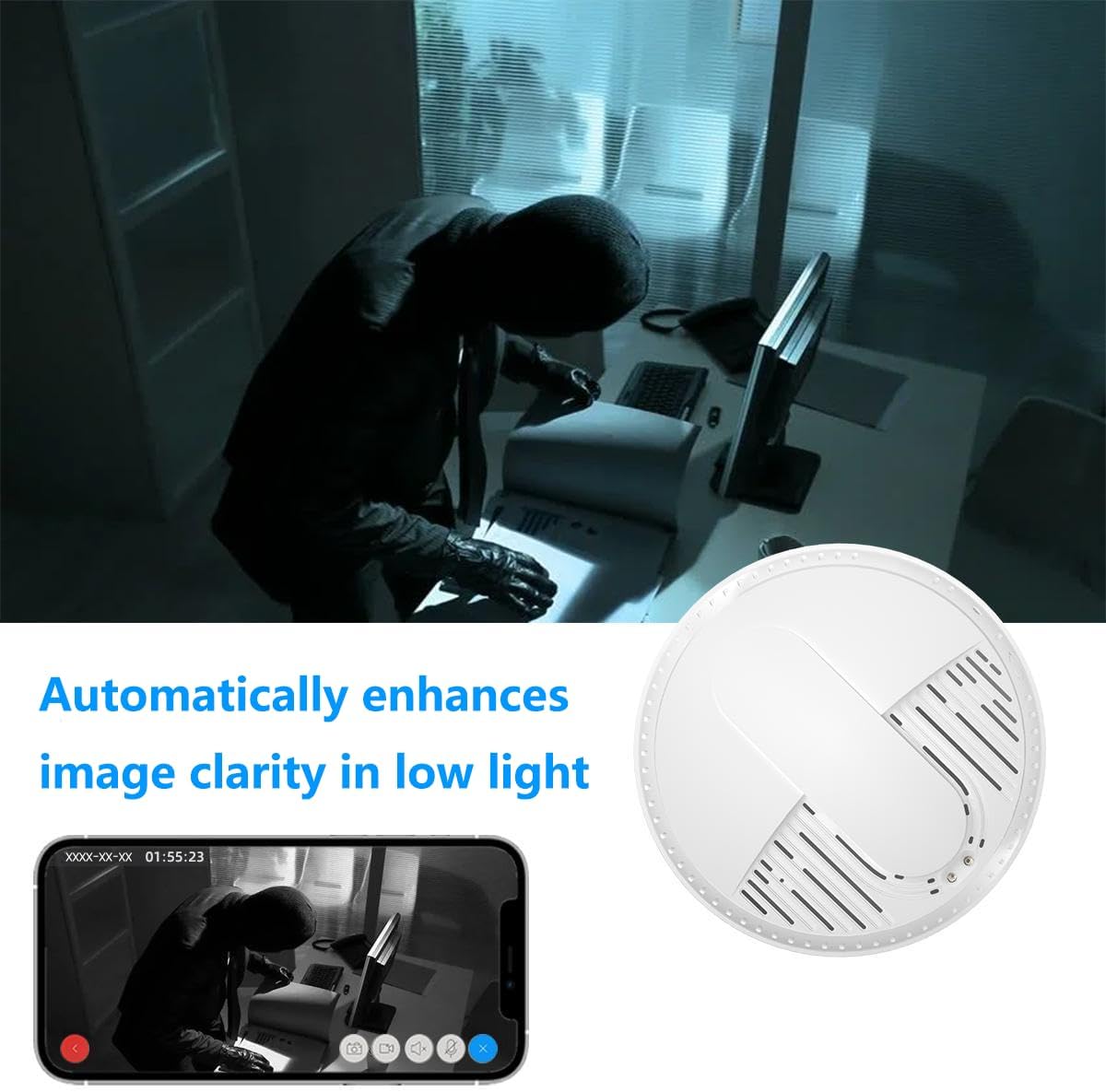
Image: Internal view of the LIZVIE S100-10 Smoke Detector Camera, highlighting the battery terminal, power port, TF slot, power button, and reset button.
Setup
1. Powering On and Initial Reset
- Remove the device cover by gently twisting or prying it open.
- Connect the battery lead wire to the battery connector inside the device.
- Plug the USB charging cable into the device's power port and connect the other end to a power source.
- Turn on the device using the power switch.
- For first-time use, press and hold the reset button for approximately 30 seconds until the red indicator light starts flashing rapidly. This indicates a successful reset.
Video: This video demonstrates the initial setup process, including connecting the battery, powering on, and resetting the device for the LIZVIE Smoke Detector Camera.
2. App Download and Wi-Fi Connection
- Download the "LizviePro" application from your smartphone's app store (available for Android and iOS).
- Open your phone's Wi-Fi settings and connect to the device's Wi-Fi network, which typically appears as "Blink-xxxxxx" (refer to the device's UID for the full name). The default password is "0123456789".
- Open the LizviePro app. The camera should automatically switch to the video page.
- To connect to your home network, click the "Settings" icon in the upper right corner of the app.
- Select "Network Information" then "Wi-Fi manager".
- Find your home Wi-Fi network, enter the password, and click "Apply". Wait for the device to connect.

Image: Step-by-step guide on how to connect the LIZVIE S100-10 camera to your home Wi-Fi network using the mobile application.
Video: This video illustrates the process of connecting the LIZVIE Smoke Detector Camera to a Wi-Fi network via the mobile application.
3. SD Card Installation
The device supports local storage via an SD card (up to 256GB, not included).
- With the device cover removed, locate the TF slot.
- Carefully insert the Micro SD card into the slot until it clicks into place. Ensure correct orientation to avoid damage.
- Replace the device cover.
4. Physical Installation
The camera can be mounted on a ceiling or wall.
- Use the included mounting screws and anchors to secure the mounting plate to your desired location.
- Align the camera with the mounting plate and twist it clockwise until it locks securely.

Image: Diagram illustrating the recommended installation locations for the LIZVIE S100-10 Smoke Detector Camera in various rooms of a house, showing wide coverage.
Operating Instructions
1. Live View
- Open the LizviePro app. Your connected device will appear on the "My Device" screen.
- Tap on the device to access the live video feed.
- You can switch between standard definition (SD) and high definition (HD) video quality.
Image: Screenshot of the LizviePro app showing remote viewing capabilities and multi-user access for the LIZVIE S100-10 camera.
2. Motion Detection
- In the app settings, navigate to "Motion Detection Setting".
- Enable "Motion Alert" to receive push notifications on your phone when motion is detected.
- Adjust the motion sensitivity (Low, Medium, High, Max) and define motion detection zones as needed.
- Detected events will be stored on the SD card (if inserted) or in cloud storage (subscription may be required).
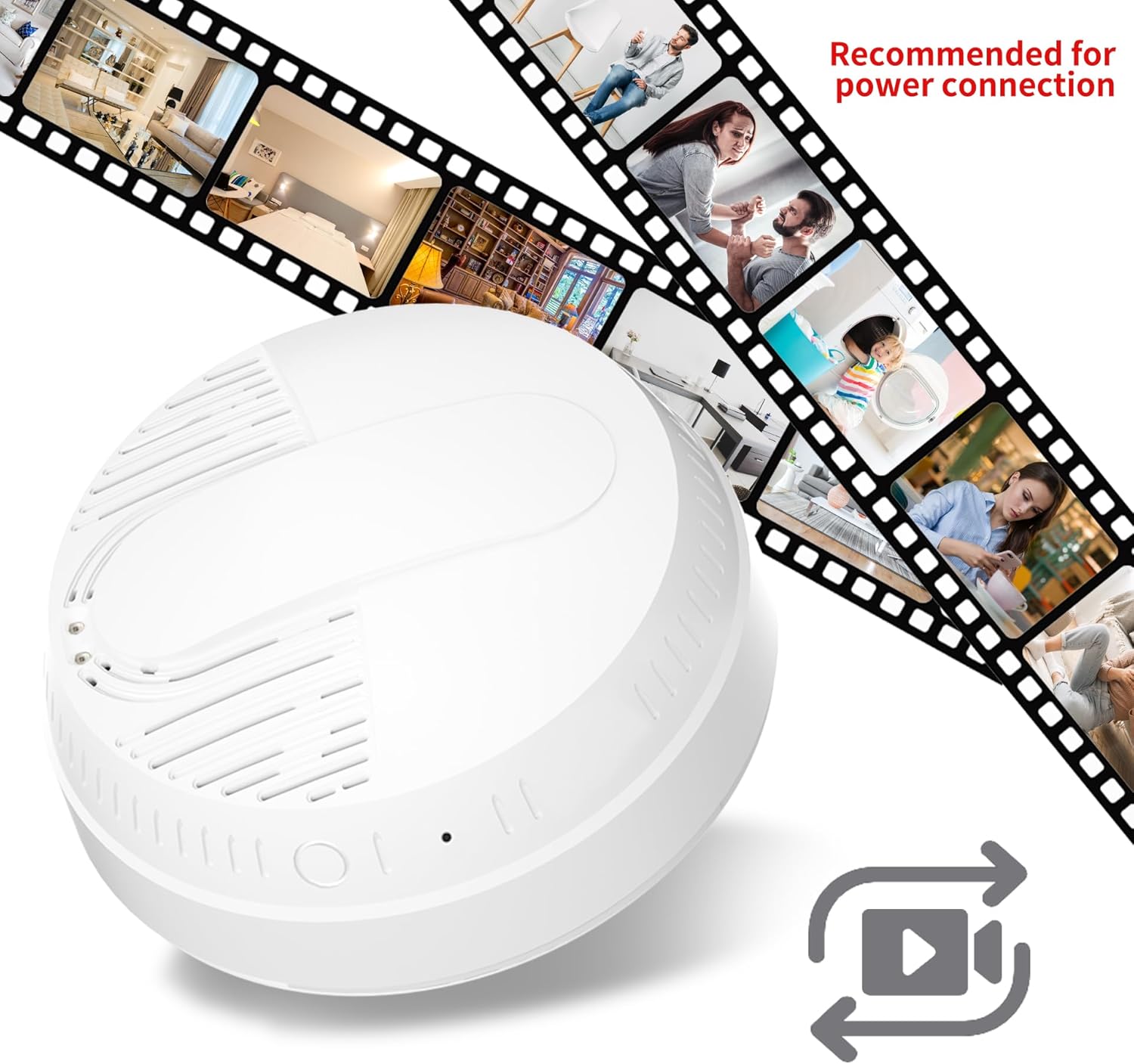
Image: Visual representation of the motion detection feature of the LIZVIE S100-10 camera, showing alerts on a smartphone when suspicious activity is detected.
3. Night Vision
- The camera features automatic night vision for clear surveillance in complete darkness.
- The 5 infrared lights enhance image clarity in low-light conditions.

Image: Depiction of the LIZVIE S100-10 camera's night vision feature, showing enhanced image clarity in a dark room with a person in the foreground.
4. Remote Control Operation
The device can be operated using the included remote control.
- Switch the device to "Remote" mode (refer to internal labels for switch position).
- Remove the insulation tab from the remote control before first use.
- Press "ON" once on the remote; the red light will flash rapidly, and the device will start emitting Wi-Fi.
- Connect to the device's network on the app.
- Press "OFF" once on the remote to turn off all indicators on the device.
Video: This video demonstrates the initial setup process, including connecting the battery, powering on, and resetting the device for the LIZVIE Smoke Detector Camera.
Maintenance
1. Charging the Battery
The device is powered by a 10000mAh battery, providing up to 29 hours of continuous wireless operation.
- Method 1 (Direct Connection): With the device powered on, connect the battery directly to the charging cable. A green light indicates charging.
- Method 2 (Fast Charging Board): Remove the fast charging board from the accessories pack. Use a Type-C data cable to power the charging board, then connect it to the battery. A red light indicates charging.
- The product can be fully charged in about 4-7 hours.
Video: This video demonstrates the initial setup process, including connecting the battery, powering on, and resetting the device for the LIZVIE Smoke Detector Camera.
2. SD Card Management
- When the memory card is full, the latest files will automatically overwrite the old ones (loop recording).
- You can view and manage footage remotely over Wi-Fi using the app.
3. Hiding Indicator Lights
If the product's network indicator light is visible and you wish to conceal it, you can cover the light source with a blackout cloth or tape.
Troubleshooting
| Issue | Possible Solution |
|---|---|
| Device not connecting to Wi-Fi. |
|
| No video feed in the app. |
|
| Motion detection alerts not received. |
|
| SD card not recording or full. |
|
Specifications
| Feature | Detail |
|---|---|
| Model Name | S100-10 |
| Video Capture Resolution | 1080p |
| Connectivity Technology | Wi-Fi (2.4G only) |
| Indoor/Outdoor Usage | Indoor |
| Power Source | USB, 10000mAh Battery |
| Battery Life | Up to 29 hours continuous wireless operation |
| Special Feature | HD Resolution, Night Vision, Motion Detection, Remote Control |
| Item Dimensions L x W x H | 5.12 x 5.12 x 1.77 inches |
| Item Weight | 10.2 ounces |
| Video Capture Format | H.264 |
Warranty and Support
LIZVIE is committed to providing high-quality products and excellent customer service. If you have any questions or require technical assistance, please contact our after-sales service team.
- WhatsApp: +86 134 8069 0376
- Email: support@lizvie.com
- Please refer to the product packaging or official LIZVIE website for specific warranty terms and conditions.