
1. Introduction
Welcome to the HDTABLET Android 15 Tablet instruction manual. This guide provides essential information for setting up, operating, maintaining, and troubleshooting your new device. Please read this manual thoroughly to ensure optimal performance and longevity of your tablet.

Image 1.1: The HDTABLET Android 15 Tablet shown with its protective case and included stylus.
2. Product Overview
The HDTABLET Android 15 Tablet is a 10-inch device designed for versatile use, from entertainment to productivity. It features the latest Android 15 operating system, a high-performance quad-core CPU, and ample memory for smooth operation.
Key Features:
- Operating System: Android 15
- Display: 10.1-inch HD (1280x800) IPS screen
- Memory: 12GB RAM (4GB physical + 8GB virtual)
- Storage: 64GB internal ROM, expandable up to 1TB via microSD
- Connectivity: Dual-band 2.4GHz/5GHz WiFi 6, Bluetooth 5.0
- Cameras: 2MP Front, 8MP Rear
- Battery: 6000mAh for extended use
- Certification: GMS (Google Mobile Services) certified, Widevine L1 support

Image 2.1: The tablet runs on the Android 15 operating system, offering a secure and smart user experience with access to millions of apps via the Play Store.
3. Setup
3.1 Initial Power On
- Press and hold the Power button located on the side of the tablet until the screen lights up.
- Follow the on-screen prompts to select your language and region.
3.2 Network Connection
- During initial setup, you will be prompted to connect to a Wi-Fi network. Select your network from the list and enter the password if required.
- To connect to Bluetooth devices (e.g., headphones, speakers), go to Settings > Connected devices > Bluetooth and pair your device.
3.3 Account Setup & Parental Controls
- Sign in with your Google account. If you have an existing Android device, you can transfer your data and settings during this step.
- To set up parental controls, navigate to Settings > Digital Wellbeing & parental controls. This allows you to manage screen time, app access, and content filters for child profiles.
4. Operating Instructions
4.1 Basic Navigation
- Swipe: Move your finger across the screen to scroll through pages or lists.
- Tap: Touch an icon or option to select it.
- Long Press: Press and hold an item for additional options or to move it.
- Pinch: Use two fingers to zoom in or out on images and web pages.
4.2 Camera Functions
The tablet is equipped with a 2MP front camera and an 8MP rear camera for photos and video calls.
- Open the Camera app.
- Tap the shutter button to take a photo or start/stop video recording.
- Switch between front and rear cameras using the camera toggle icon.

Image 4.1: The tablet features dual cameras, suitable for capturing moments or engaging in video calls.
4.3 App Management
- Downloading Apps: Access the Google Play Store to download and install new applications.
- Uninstalling Apps: Long-press an app icon on the home screen or app drawer, then drag it to the 'Uninstall' option. Alternatively, go to Settings > Apps & notifications, select the app, and tap 'Uninstall'.
4.4 Display Settings
The 10.1-inch HD display provides a clear visual experience for various activities.
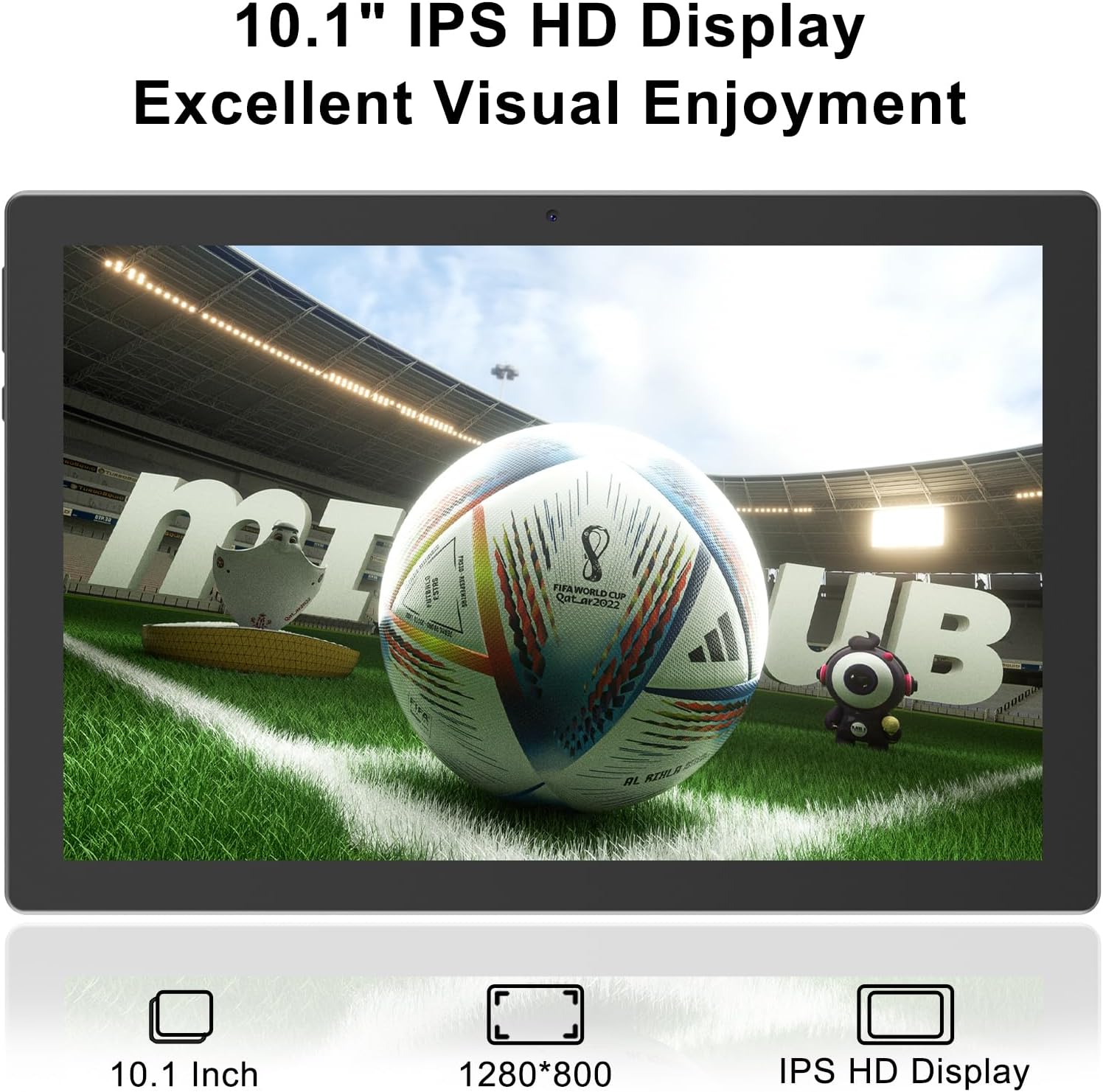
Image 4.2: The 10.1-inch HD display is ideal for media consumption and browsing.
- Adjust brightness, wallpaper, and font size via Settings > Display.
- The tablet supports Widevine L1, ensuring high-quality streaming from supported services.
5. Maintenance
5.1 Battery Management
The tablet is equipped with a 6000mAh battery. For optimal battery life:
- Charge the tablet using the provided Type-C charger.
- Avoid extreme temperatures.
- Close unused applications to conserve power.

Image 5.1: The 6000mAh battery provides extended usage, with convenient Type-C charging.
5.2 Storage Expansion
The tablet comes with 64GB of internal storage, which can be expanded up to 1TB using a microSD card.
- Locate the microSD card slot on the side of the tablet.
- Gently insert the microSD card until it clicks into place.
- Manage storage settings via Settings > Storage.

Image 5.2: The tablet offers generous storage options, including expandable memory for all your files.
5.3 Cleaning and Care
- Use a soft, lint-free cloth to clean the screen and body of the tablet.
- Avoid using harsh chemicals or abrasive materials.
- Keep the tablet away from water and excessive moisture.
6. Troubleshooting
- Tablet not turning on: Ensure the battery is charged. Connect the charger and try again.
- Screen unresponsive: Perform a forced restart by holding the Power button for approximately 10-15 seconds.
- Wi-Fi connectivity issues: Check your router and ensure the tablet is within range. Try forgetting the network and reconnecting.
- Apps crashing: Clear the app's cache (Settings > Apps & notifications > [App Name] > Storage & cache > Clear cache) or reinstall the app.
- Slow performance: Close unnecessary background apps, clear cache, or consider a factory reset if issues persist (back up your data first).
7. Specifications
| Feature | Specification |
|---|---|
| Standing Screen Display Size | 10 Inches |
| Screen Resolution | 1280 x 800 pixels |
| Operating System | Android 15 |
| Item Weight | 1.98 pounds |
| Product Dimensions | 9.5 x 0.3 x 6.9 inches |
| Rear Webcam Resolution | 8 MP |
| Flash Memory Size | 64 GB |
| Average Battery Life | 8 Hours |
| Wireless Type | 802.11b, 802.11g, 802.11n (Wi-Fi 6 compatible) |
| Model Name | CP20S |
8. Warranty and Support
Your HDTABLET Android 15 Tablet comes with a standard manufacturer's warranty. Please refer to the warranty card included in your product packaging for specific terms and conditions. For technical support, troubleshooting assistance, or warranty claims, please contact HDTABLET customer service through the retailer where you purchased the device or visit the official HDTABLET website.