
1. Introduction
Welcome to the user manual for your new HDTABLET Android 15 Tablet. This guide provides essential information to help you set up, operate, and maintain your device, including its accompanying keyboard, mouse, and stylus. Please read this manual thoroughly to ensure optimal performance and longevity of your tablet.
2. Package Contents
Verify that all items are present in your package:
- HDTABLET Android 15 Tablet (10.1 inch)
- Wireless Keyboard
- Wireless Mouse
- Protective Case
- Stylus
- USB Type-C Charging Cable
- Power Adapter
- User Manual (this document)
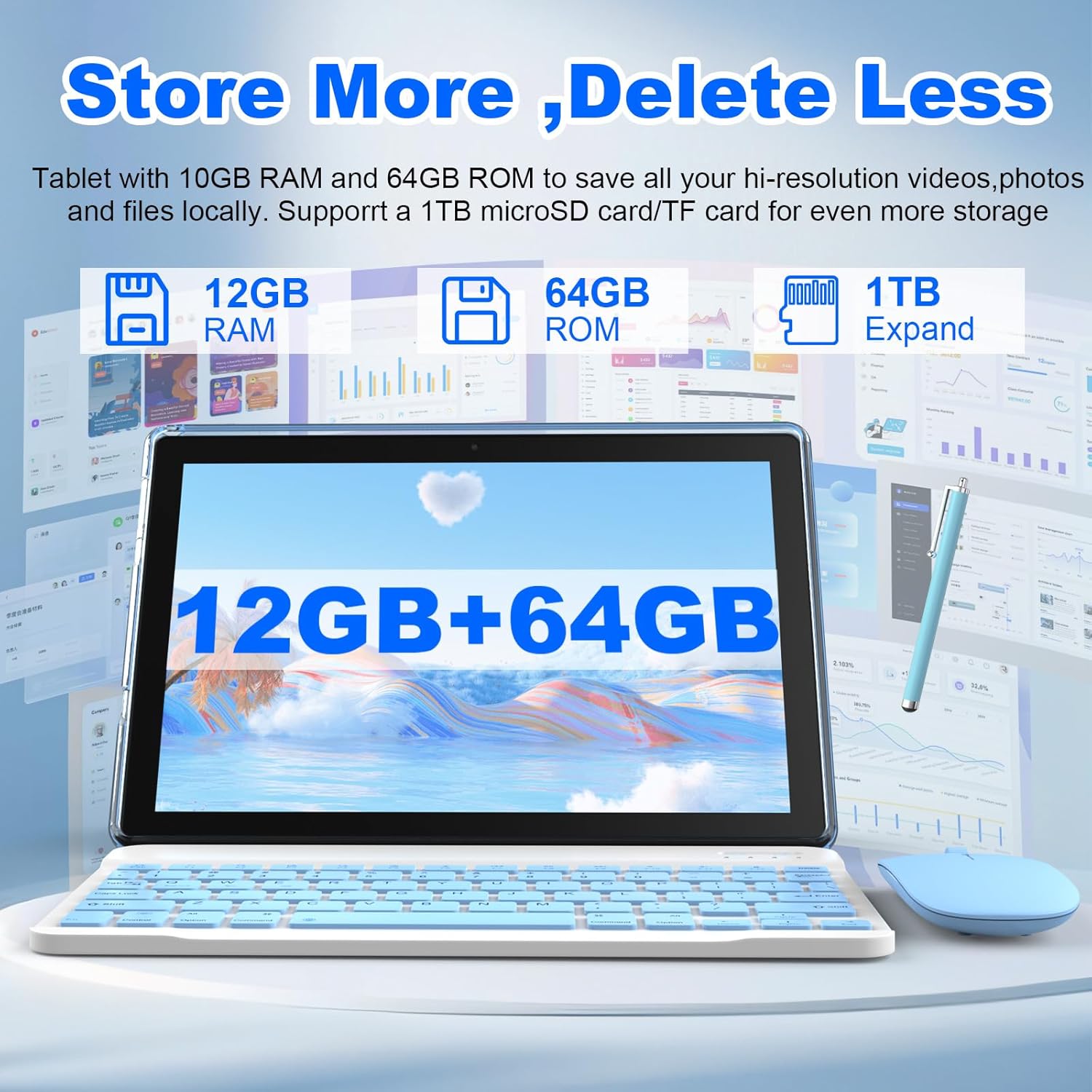
Image: The HDTABLET Android 15 Tablet displayed with its wireless keyboard, mouse, and stylus, highlighting its 12GB RAM and 64GB ROM storage capabilities.

Image: The HDTABLET tablet configured in its 2-in-1 mode, attached to the wireless keyboard, demonstrating its versatility.
3. Device Overview
Familiarize yourself with the physical features of your tablet.
Ports and Buttons:
- Power Button: Press and hold to power on/off or restart. Press briefly to sleep/wake.
- Volume Buttons: Adjust media and notification volume.
- USB Type-C Port: For charging and data transfer.
- MicroSD Card Slot: Insert a microSD card for expandable storage.
- Headphone Jack: Connect 3.5mm audio devices.
- Front Camera: For video calls and selfies (2MP).
- Rear Camera: For photos and videos (8MP).
4. Setup
4.1 Charging the Tablet
Before first use, fully charge your tablet. Connect the USB Type-C cable to the tablet's charging port and the other end to the power adapter. Plug the adapter into a wall outlet. The battery indicator on the screen will show charging status.

Image: A close-up of the HDTABLET tablet's side, illustrating the Type-C charging port and highlighting its 6000mAh battery capacity.
4.2 Powering On/Off
- To Power On: Press and hold the Power button until the screen lights up.
- To Power Off: Press and hold the Power button, then select 'Power off' from the options.
- To Restart: Press and hold the Power button, then select 'Restart' from the options.
4.3 Initial Android Setup
Upon first power-on, follow the on-screen prompts to complete the initial setup:
- Select your language.
- Connect to a Wi-Fi network (see section 4.4).
- Sign in with your Google account or create a new one. This is necessary to download apps from the Google Play Store.
- Review and accept the terms and conditions.
- Set up screen lock (PIN, pattern, or password).

Image: The HDTABLET tablet displaying the Android 15 operating system interface, emphasizing its focus on efficiency, security, and personalization.
4.4 Connecting to Wi-Fi
- Go to Settings > Network & internet > Internet.
- Turn on Wi-Fi.
- Select your desired network from the list.
- Enter the password if prompted, then tap Connect.

Image: The HDTABLET tablet screen showcasing the benefits of 5G WiFi 6 technology for faster and more stable wireless connections.
4.5 Inserting a MicroSD Card
To expand storage, insert a microSD card (up to 1TB, not included):
- Locate the microSD card slot on the side of the tablet.
- Gently insert the microSD card into the slot until it clicks into place.
- The tablet will detect the card and prompt you to set it up (e.g., as portable storage or internal storage).
4.6 Connecting Bluetooth Accessories (Keyboard, Mouse)
Your tablet comes with a wireless keyboard and mouse that connect via Bluetooth 5.0.
- Ensure the keyboard and mouse are charged and powered on.
- On your tablet, go to Settings > Connected devices > Bluetooth.
- Turn on Bluetooth.
- The tablet will scan for available devices. Select the keyboard and mouse from the list to pair them. Follow any on-screen prompts for pairing codes.
4.7 Using the Stylus
The included stylus can be used for precise input, drawing, and navigation on the tablet screen. No pairing is required for basic stylus functionality.
5. Operating the Tablet
5.1 Basic Navigation
The Android 15 operating system uses touch gestures for navigation:
- Tap: Select an item or open an app.
- Swipe: Scroll through lists or switch between home screens.
- Pinch-to-Zoom: Zoom in or out on images and web pages.
- Long Press: Access contextual menus or move app icons.
5.2 Managing Apps
- Install Apps: Open the Google Play Store app, search for your desired app, and tap Install.
- Uninstall Apps: Long-press an app icon on the home screen or app drawer, then drag it to 'Uninstall' or select 'App info' and choose 'Uninstall'. Alternatively, go to Settings > Apps > See all apps, select the app, and tap Uninstall.
- Update Apps: Open the Google Play Store, tap your profile icon, then select Manage apps & device > Updates available.
5.3 Storage Management
Your tablet has 64GB of internal storage, expandable up to 1TB with a microSD card. To manage storage:
- Go to Settings > Storage to view storage usage and free up space.
- Move files to the microSD card to free up internal storage.
5.4 Camera Operation
The tablet features an 8MP rear camera and a 2MP front camera.
- Open the Camera app.
- Tap the shutter button to take a photo.
- Tap the video icon to record a video.
- Use the switch icon to toggle between front and rear cameras.
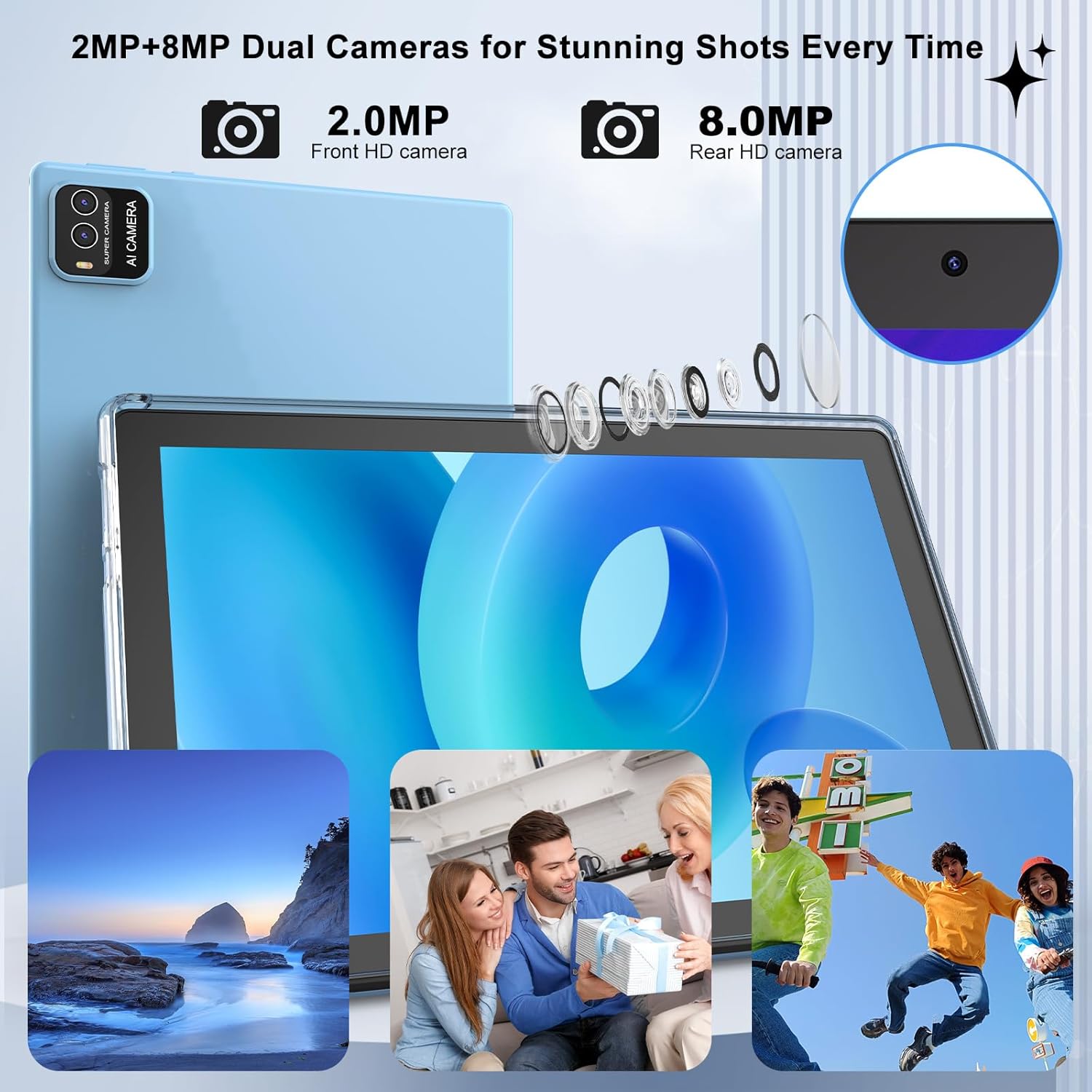
Image: A visual representation of the HDTABLET tablet's dual camera system, featuring a 2MP front camera and an 8MP rear camera for capturing images and videos.
5.5 Battery Usage Tips
The 6000mAh battery provides up to 10 hours of video playback or gaming, and 14 hours of call time.
- Reduce screen brightness.
- Turn off Wi-Fi and Bluetooth when not in use.
- Close unused apps running in the background.
- Enable battery saver mode in Settings > Battery.
6. Maintenance
6.1 Cleaning the Device
Use a soft, lint-free cloth to clean the screen and body of the tablet. Avoid using harsh chemicals or abrasive materials.
6.2 Software Updates
Regularly check for and install software updates to ensure your tablet has the latest features and security patches.
- Go to Settings > System > System update.
- Follow the on-screen instructions to check for and install updates.
6.3 Factory Reset
A factory reset will erase all data from your tablet and restore it to its original factory settings. Back up important data before proceeding.
- Go to Settings > System > Reset options.
- Select Erase all data (factory reset).
- Confirm your decision and enter your PIN/pattern/password if prompted.
7. Troubleshooting
If you encounter issues with your tablet, refer to the following common problems and solutions:
| Problem | Solution |
|---|---|
| Tablet won't turn on | Ensure the tablet is charged. Connect it to the charger for at least 30 minutes, then try powering on again. |
| Wi-Fi connection issues | Restart your Wi-Fi router and the tablet. Forget the network in tablet settings and reconnect. Ensure you are within range of the Wi-Fi signal. |
| Bluetooth accessories won't connect | Ensure accessories are charged and in pairing mode. On the tablet, go to Bluetooth settings, turn Bluetooth off and on, then rescan and attempt to pair. |
| Tablet is slow or unresponsive | Close unused apps. Clear cache for frequently used apps. Restart the tablet. Check for available software updates. |
| Apps crashing or freezing | Clear the app's cache and data (Settings > Apps > [App Name] > Storage & cache). If the problem persists, uninstall and reinstall the app. |
8. Specifications
Detailed technical specifications for the HDTABLET Android 15 Tablet (Model: CP20S):
- Operating System: Android 15
- Display: 10.1-inch IPS, 1280 x 800 pixels resolution
- Processor: Quad-Core Processor
- RAM: 12GB (4GB fixed + 8GB virtual)
- Internal Storage: 64GB ROM
- Expandable Storage: Up to 1TB via microSD card (not included)
- Cameras: 8MP Rear Camera, 2MP Front Camera
- Battery: 6000mAh (up to 10 hours video/game, 14 hours call)
- Connectivity: 5G WiFi 6 (802.11ax), Bluetooth 5.0
- Ports: USB Type-C, 3.5mm Headphone Jack, MicroSD Card Slot
- Dimensions: 9.8 x 0.3 x 6.9 inches
- Weight: 2.7 pounds
- Included Accessories: Wireless Keyboard, Wireless Mouse, Protective Case, Stylus
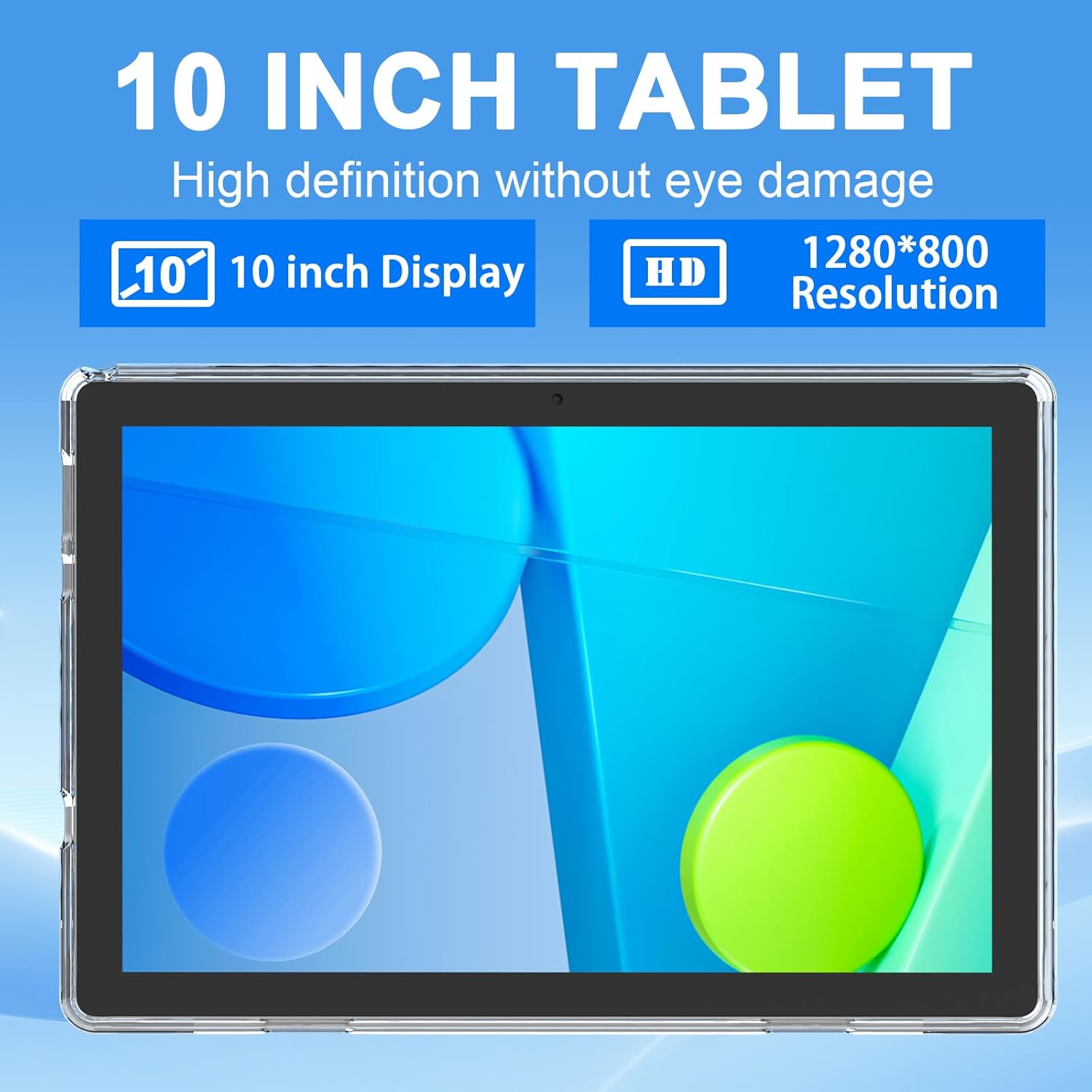
Image: The HDTABLET tablet screen showcasing its 10-inch display with 1280x800 HD resolution.
9. Safety Information
Please observe the following safety guidelines:
- Do not expose the tablet to extreme temperatures, direct sunlight, or moisture.
- Use only the provided charging cable and power adapter.
- Avoid dropping or subjecting the tablet to strong impacts.
- Do not attempt to disassemble or repair the tablet yourself.
- Keep the tablet away from children and pets to prevent damage or injury.