
Introduction
This manual provides essential information for setting up, operating, and maintaining your HDTABLET Android 15 Tablet, model CP20S. Please read this manual thoroughly before using your device to ensure proper function and longevity.
Package Contents
Verify that all items are present in your package:
- HDTABLET Android 15 Tablet (CP20S)
- Protective Case
- USB Type-C Charging Cable
- Power Adapter
- User Manual (this document)
Device Overview
Familiarize yourself with the tablet's physical features and ports.

Image: The HDTABLET Android 15 Tablet CP20S, shown with its protective case. This image highlights the overall design and the included accessory.
- 10.1-inch HD Display: Main screen for all interactions.
- Front Camera (2MP): Located above the screen, used for video calls and selfies.
- Rear Camera (8MP): Located on the back of the tablet, used for taking photos and videos.
- Power Button: Typically on the side, used to turn the tablet on/off or wake/sleep the screen.
- Volume Buttons: Typically on the side, used to adjust audio volume.
- USB Type-C Port: For charging and data transfer.
- 3.5mm Headphone Jack: For connecting wired headphones.
- MicroSD Card Slot: For expanding storage up to 1TB.
Setup
1. Initial Charge
Before first use, fully charge the tablet. Connect the USB Type-C cable to the tablet's charging port and the other end to the power adapter. Plug the adapter into a wall outlet.

Image: The tablet connected to a charger, emphasizing its 6000mAh battery and Type-C charging port for efficient power delivery.
2. Power On/Off
- To Power On: Press and hold the Power button until the screen lights up.
- To Power Off: Press and hold the Power button, then select "Power off" from the options on the screen.
- To Restart: Press and hold the Power button, then select "Restart" from the options.
3. Initial Setup Wizard
Upon first power-on, the tablet will guide you through the initial setup process. This includes:
- Language selection
- Wi-Fi network connection
- Google account sign-in (optional, but recommended for full Android functionality and app access)
- Date and time settings
- Security settings (PIN, pattern, or password)
4. Expand Storage (Optional)
The tablet supports storage expansion up to 1TB using a MicroSD card. Locate the MicroSD card slot, insert the card gently until it clicks into place. The tablet will prompt you to format the card for use.
Operating Instructions
Navigation
The HDTABLET CP20S runs on Android 15, offering an intuitive user interface.

Image: A visual representation of the Android 15 operating system interface, highlighting its personal OS, privacy controls, and access to the Google Play Store.
- Touch Gestures: Tap to select, swipe to scroll, pinch to zoom.
- Home Screen: Your central hub for apps and widgets.
- App Drawer: Swipe up from the bottom of the screen to access all installed applications.
- Notifications Panel: Swipe down from the top of the screen to view notifications and quick settings.
Connecting to Wi-Fi
To connect to a wireless network:
- Go to Settings > Network & internet > Wi-Fi.
- Toggle Wi-Fi On.
- Select your desired network from the list.
- Enter the password if prompted and tap Connect.
Bluetooth Pairing
To pair with Bluetooth devices (e.g., headphones, speakers):
- Go to Settings > Connected devices > Connection preferences > Bluetooth.
- Toggle Bluetooth On.
- Ensure your Bluetooth device is in pairing mode.
- Select your device from the list of available devices and follow any on-screen prompts.
Using the Cameras
The tablet features a 2MP front camera and an 8MP rear camera.

Image: A split image demonstrating the tablet's 8MP rear camera capturing a snowboarder and its 2MP front camera used for video calls.
Open the Camera app to take photos or record videos. You can switch between front and rear cameras within the app.
Installing Applications
Access millions of applications through the pre-installed Google Play Store.
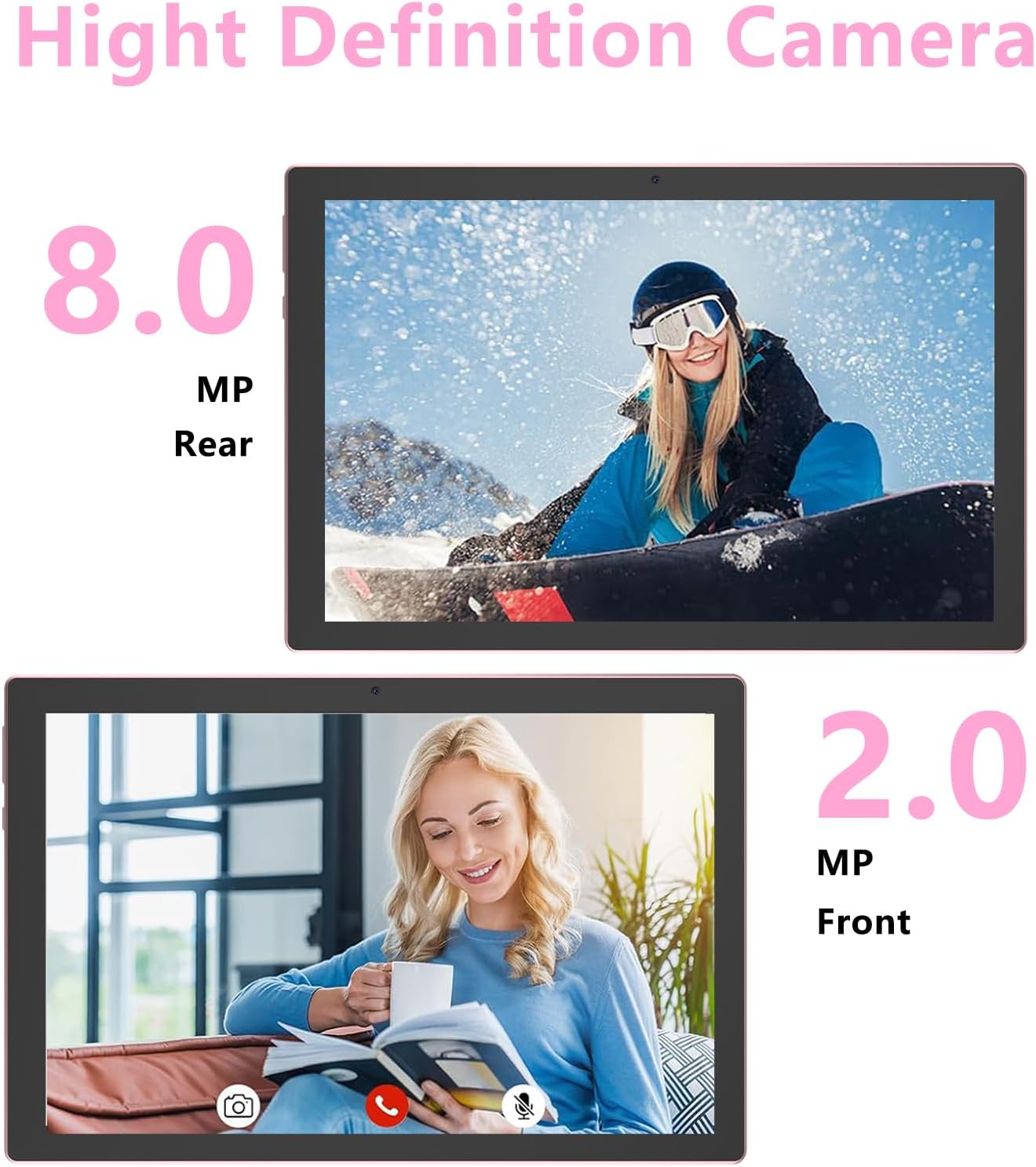
Image: The tablet displaying a variety of application icons, illustrating the ample storage (12GB RAM + 64GB ROM, expandable to 1TB) for apps and media.
- Open the Play Store app.
- Search for the desired app.
- Tap Install and follow the on-screen instructions.
Maintenance
Cleaning the Tablet
- Use a soft, lint-free cloth to clean the screen and body.
- For stubborn smudges, slightly dampen the cloth with water or a screen cleaner designed for electronics.
- Avoid using harsh chemicals, abrasive materials, or excessive moisture.
Battery Care
- Avoid extreme temperatures, which can degrade battery life.
- Do not let the battery completely drain frequently.
- Use the provided charger for optimal charging performance.
Software Updates
Regularly check for and install system updates to ensure optimal performance and security. Go to Settings > System > System update.
Troubleshooting
| Problem | Solution |
|---|---|
| Tablet does not turn on. | Ensure the tablet is charged. Connect to the charger for at least 30 minutes, then try powering on. |
| Wi-Fi connection issues. | Restart the tablet and your Wi-Fi router. Forget the network in settings and reconnect. Ensure you are within range. |
| Apps are slow or crashing. | Close unused apps. Clear app cache (Settings > Apps > [App Name] > Storage & cache > Clear cache). Restart the tablet. |
| Screen is unresponsive. | Perform a forced restart by holding the Power button for about 10-15 seconds until the tablet restarts. |
| Cannot connect Bluetooth device. | Ensure the Bluetooth device is in pairing mode and within range. Restart Bluetooth on both devices. |
Specifications
| Feature | Detail |
|---|---|
| Model | CP20S |
| Operating System | Android 15 |
| Processor | Quad-Core CPU |
| RAM | 12GB (4GB physical + 8GB virtual) |
| Internal Storage | 64GB ROM |
| Expandable Storage | Up to 1TB via MicroSD card |
| Display | 10.1-inch HD IPS (1280x800 pixels) |
| Wireless Connectivity | 5G WiFi 6 (2.4GHz/5GHz), Bluetooth 5.0 |
| Front Camera | 2MP |
| Rear Camera | 8MP |
| Battery Capacity | 6000mAh |
| Battery Life | Approximately 8 hours (average use) |
| Charging Port | USB Type-C |
| Audio Port | 3.5mm Headphone Jack |
| Dimensions (LxWxH) | 9.5 x 0.3 x 6.9 inches |
| Weight | 2.01 pounds |
| GMS Certified | Yes |
| Widevine L1 Support | Yes |
Warranty and Support
For warranty information and technical support, please refer to the contact details provided with your purchase documentation or visit the official HDTABLET website. Keep your proof of purchase for warranty claims.