
1. Introduction
Welcome to your ZUOYA GMK26 Mechanical Numpad. This manual provides comprehensive instructions for the setup, operation, and maintenance of your new device. The GMK26 is a versatile 26-key mechanical numpad featuring QMK/VIA programmability, triple-mode connectivity (Wired, 2.4GHz Wireless, Bluetooth 5.0), RGB backlighting, hot-swappable switches, and a multi-function rotary knob.
2. Package Contents
Please verify that all items listed below are included in your package:
- GMK26 Numpad
- 2.4Ghz Receiver
- USB Cable (Type-A to Type-C)
- Keycap Puller
- User Manual

Image: The ZUOYA GMK26 Mechanical Numpad, showcasing its compact design with a rotary knob and RGB backlit keys.
3. Setup and Connection
The GMK26 Numpad offers flexible connectivity options to suit various devices and preferences.
3.1. Wired Connection
To use the numpad in wired mode, simply connect the provided USB-C cable to the USB-C port on the numpad and an available USB-A port on your computer. The numpad will be automatically recognized and ready for use.
3.2. 2.4GHz Wireless Connection
- Locate the 2.4GHz wireless receiver, typically stored in a slot on the back of the numpad.
- Plug the 2.4GHz receiver into an available USB port on your device.
- Switch the mode selector on the numpad to the 2.4GHz position (refer to the numpad's display or manual for specific indicator).
- The numpad should connect automatically.
3.3. Bluetooth Connection
- Ensure your device's Bluetooth is enabled.
- Switch the mode selector on the numpad to the Bluetooth position.
- To enter pairing mode, press and hold the Fn key along with one of the Bluetooth profile keys (Fn+1, Fn+2, or Fn+3) until the indicator light flashes rapidly.
- On your device, search for new Bluetooth devices and select "GMK26" to pair.
- Once paired, the indicator light will become solid. You can switch between paired Bluetooth devices by pressing Fn+1, Fn+2, or Fn+3.

Image: Diagram illustrating the triple-mode connection options: Bluetooth, 2.4GHz Wireless, and USB-C Wired, with various devices like laptops, desktops, and smartphones.
Video: A demonstration showcasing the different connection modes (wired, 2.4GHz, Bluetooth) and how to switch between them on the GMK26 Numpad.
4. Operating Instructions
4.1. Key Functions
- Standard Numeric Keys: 0-9, ., /, *, -, +, Enter.
- Navigation Keys: Home, End, PgUp, PgDn, Insert, Delete (accessible via NumLock or Fn combinations).
- Special Keys: NumLock, Esc, Fn, Tab, Backspace.
- M1-M5 Macro Keys: These five dedicated keys can be programmed for custom functions, shortcuts, or complex macros using the QMK/VIA software.
4.2. Multi-function Rotary Knob
- Rotate: Adjusts system volume (clockwise to increase, counter-clockwise to decrease).
- Press: Mutes or unmutes audio.
4.3. RGB Backlight Control
The GMK26 Numpad features dynamic RGB backlighting with multiple preset modes.
- Fn + Enter: Cycles through different RGB backlight modes.
- Fn + Backspace: Toggles the backlight On/Off.
- Brightness Adjustment: Use the rotary knob in specific modes (refer to QMK/VIA software for detailed control).
- Speed Adjustment: Adjust the speed of dynamic lighting effects (refer to QMK/VIA software for detailed control).

Image: Close-up of the GMK26 Numpad keys illuminated with vibrant RGB backlighting, demonstrating various color patterns.
Video: A demonstration showcasing the dynamic RGB lighting effects and key presses on the GMK26 Numpad.
5. Customization and Advanced Features
5.1. QMK/VIA Programmability
The GMK26 Numpad is fully compatible with QMK and VIA software, allowing for extensive customization:
- Key Remapping: Assign any function to any key.
- Macro Creation: Record and assign complex sequences of keystrokes to macro keys (M1-M5).
- Lighting Customization: Fine-tune RGB effects, colors, brightness, and speed beyond the onboard presets.
To utilize QMK/VIA, download the official software from the ZUOYA website. Connect the numpad via USB-C to your computer to access the programming interface.

Image: Screenshot of the QMK/VIA software interface, showing key remapping and macro programming options for the numpad.
5.2. Hot-Swappable Switches
The GMK26 Numpad features hot-swappable sockets, allowing you to easily change mechanical switches without soldering. This supports both 3-pin and 5-pin switches, enabling personalized typing feel and sound.

Image: A hand using a keycap puller to remove a keycap and switch from the GMK26 Numpad, highlighting its hot-swappable feature.
5.3. Gasket Structure
The numpad incorporates a gasket-mounted design, which provides a softer, more flexible typing experience and improved acoustics by isolating the plate from the case. This design contributes to a more comfortable and satisfying feel with each keystroke.
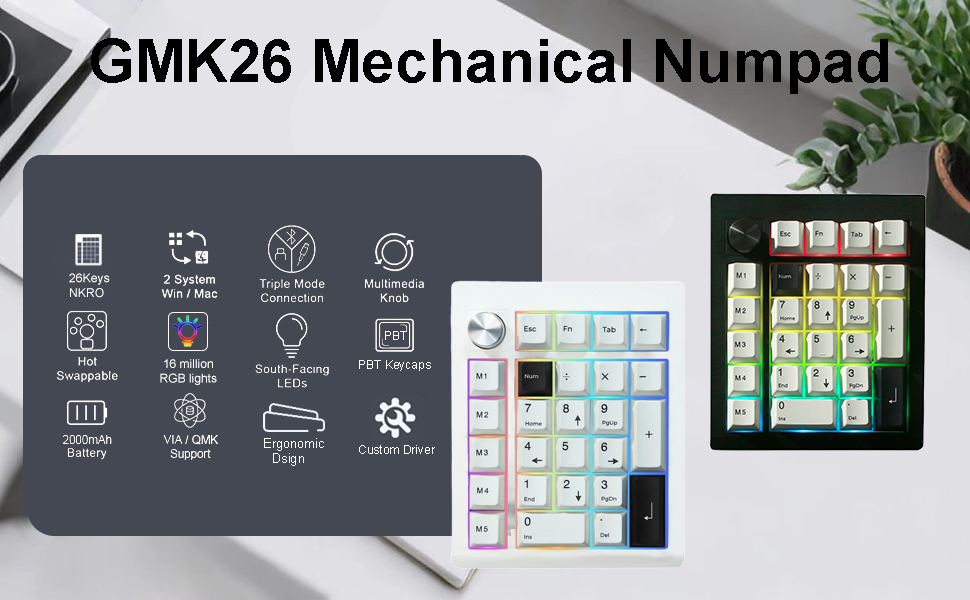
Image: An exploded diagram illustrating the internal gasket structure of the numpad, showing layers like the knob, top cover, positioning board, Poron cotton, IXPE pad, PET film, circuit board, sponge, and bottom shell.
6. Maintenance
6.1. Cleaning
- Use a soft, dry cloth to wipe the surface of the numpad regularly.
- For deeper cleaning, use the provided keycap puller to carefully remove keycaps. Use compressed air or a soft brush to remove dust and debris from beneath the keycaps and switches.
- Do not use harsh chemicals or abrasive materials, as these may damage the numpad's finish or components.
6.2. Switch and Keycap Replacement
- Removing Keycaps: Gently attach the keycap puller to the sides of the keycap and pull upwards evenly until the keycap detaches.
- Removing Switches: After removing the keycap, use a switch puller to grasp the top and bottom clips of the switch. Apply gentle pressure and pull the switch straight up.
- Installing Switches: Align the pins of the new switch with the holes on the PCB. Gently push the switch down until it clicks into place. Ensure the pins are straight to avoid bending.
- Installing Keycaps: Align the new keycap with the switch stem and press down firmly until it is securely seated.
7. Troubleshooting
7.1. Common Issues and Solutions
- Numpad not responding:
- Check the USB-C cable connection for wired mode.
- For 2.4GHz wireless, ensure the receiver is securely plugged in and the numpad is in 2.4GHz mode.
- For Bluetooth, verify the numpad is in Bluetooth mode and correctly paired to your device. Try re-pairing if necessary.
- Ensure the numpad has sufficient battery charge.
- Backlight not working:
- Press Fn + Backspace to toggle the backlight on.
- Adjust brightness using the rotary knob or QMK/VIA software.
- Keys not registering or double-typing:
- Ensure the switches are properly seated in their sockets.
- If a specific key is consistently faulty, consider replacing the switch using the hot-swap feature.
- Connectivity issues (lag, disconnections):
- Ensure the numpad is fully charged.
- Reduce interference by moving other wireless devices away from the numpad or receiver.
- Try restarting your computer/device and the numpad.
8. Specifications
| Feature | Detail |
|---|---|
| Keys | 26 |
| Connection | Bluetooth 5.0, 2.4GHz Wireless, Wired USB-C |
| Battery | 2000mAh Rechargeable Lithium Ion |
| Switches | Hot-Swappable Linear Switches (3-pin/5-pin compatible) |
| Keycaps | Dye Sublimation PBT |
| Backlight | RGB (16+ preset modes, 16.8 Million colors via software) |
| Programmability | QMK/VIA Supported |
| Compatible Devices | PC, Laptop, Desktop, Gaming Console, Smartphone, Projector (Win/Mac) |
| Dimensions | 5.5 x 4.6 x 1.2 inches |
| Item Weight | 1 pounds |
| Manufacturer | ZUOYA |
| Model Name | GMK26 Numeric Keypad |
9. Warranty and Support
For detailed warranty information, technical support, or to download the latest QMK/VIA software and firmware updates, please visit the official ZUOYA website or contact their customer service department.
Official ZUOYA Store: ZUOYA Store


