
1. Introduction
This manual provides detailed instructions for the setup, operation, and maintenance of your Generic Small Wireless Hidden Security Camera. Please read this manual thoroughly before using the device to ensure proper functionality and safety.
Safety Information
There is no specific safety information provided by the manufacturer. Always handle electronic devices with care. Keep the device away from water and extreme temperatures. Do not attempt to disassemble or repair the device yourself.
2. Product Overview
2.1 Components
The package typically includes the following items:
- Main Camera Unit
- USB Power Cable
- User Guide
- Card Reader
- Rotating Bracket

2.2 Key Features
- High Definition Video: Records video in 1080P HD resolution.
- Enhanced Night Vision: Features advanced infrared LEDs for clear viewing in low light or complete darkness, with an effective range of up to 26 feet. The infrared lights are not visible during operation.
- Wireless Connectivity: Supports Wi-Fi for live viewing via a dedicated mobile application on iOS and Android devices.
- Motion Detection: Equipped with AI human detection capabilities to identify human or animal movement and send activity alerts.
- Loop Recording: Automatically overwrites the oldest files when the memory card is full, ensuring continuous recording.
- External Power Required: The camera does not have a built-in battery and requires continuous power via a mobile power supply or USB plug.
- Compact Design: Small form factor for discreet placement.


3. Setup
3.1 Powering the Camera
The camera does not contain an internal battery. It must be continuously connected to a power source for operation.
- Connect the provided USB power cable to the camera's USB port.
- Plug the other end of the USB cable into a compatible USB power adapter (not included) or a mobile power bank.
3.2 Inserting a Memory Card
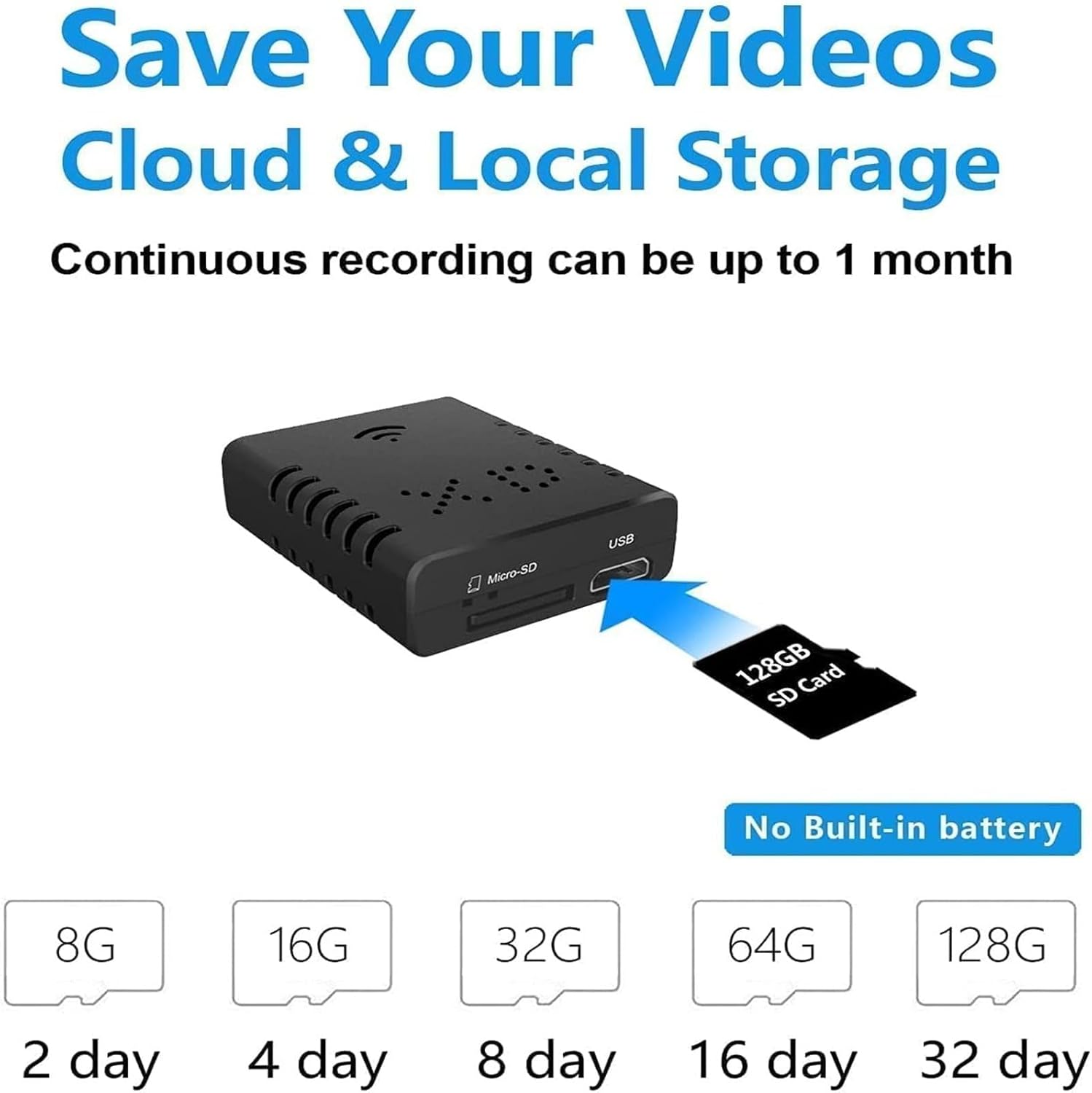
A Micro SD card (not included) is required for recording video. The camera supports cards up to 128GB.
- Locate the Micro SD card slot on the camera.
- Gently insert the Micro SD card into the slot until it clicks into place. Ensure the card is inserted in the correct orientation.
- To remove, press the card inward until it springs out.
3.3 App Download and Wi-Fi Connection
To access live view and remote control features, download the companion app to your smartphone.
- Scan the QR code in the user guide or search for the specified app name in your device's app store (iOS/Android).
- Install and open the application.
- Follow the in-app instructions to add your camera. This typically involves connecting your phone to the camera's Wi-Fi hotspot first, then configuring the camera to connect to your home Wi-Fi network.
4. Operating Instructions
4.1 Recording Video
Once powered and with a memory card inserted, the camera will begin recording according to its default settings or your app configurations.
- Continuous Recording: The camera supports continuous recording. When the memory card is full, the loop recording feature will automatically overwrite the oldest files.
- Motion-Activated Recording: Configure motion detection settings via the mobile app. The camera will record when movement is detected.
4.2 Night Vision
The camera automatically activates its infrared night vision in low-light conditions.

4.3 Remote Viewing and Alerts
Use the mobile application to view live footage and receive alerts.
- Live View: Open the app to access the camera's live video feed from anywhere with an internet connection.
- Activity Alerts: When motion is detected, the app can send notifications to your smartphone.
- Multi-User Access: The camera supports multiple users viewing the feed simultaneously from different devices.


5. Maintenance
5.1 Cleaning
To maintain optimal performance, keep the camera lens and body clean.
- Use a soft, dry cloth to wipe the camera body.
- For the lens, use a lens cleaning cloth and solution designed for optical surfaces.
- Avoid using harsh chemicals or abrasive materials.
5.2 Storage
When not in use, store the camera in a cool, dry place, away from direct sunlight and moisture.
5.3 Memory Card Management
Regularly check the memory card for important recordings. Back up any critical footage to another storage device. Format the memory card periodically through the app to ensure optimal performance and prevent data corruption.
6. Troubleshooting
If you encounter issues with your camera, refer to the following common problems and solutions:
- Camera not powering on:
Ensure the USB power cable is securely connected to both the camera and a working power source. Verify the power source is active. Remember, the camera requires continuous external power. - Cannot connect to Wi-Fi:
Check that your Wi-Fi network is active and within range. Ensure you have entered the correct Wi-Fi password. Try restarting your router and the camera. Follow the app's connection steps carefully. - No recording or footage missing:
Verify that a Micro SD card is properly inserted and has sufficient free space. If the card is full, loop recording should overwrite old files, but check if the card itself is faulty or needs formatting. Ensure recording settings in the app are correctly configured. - Poor video quality:
Ensure the camera lens is clean. Check your Wi-Fi signal strength, as a weak connection can affect streaming quality. - App not receiving alerts:
Confirm that motion detection is enabled in the app settings. Check your phone's notification settings to ensure the app has permission to send alerts.
7. Specifications
| Feature | Detail |
|---|---|
| Model Name | best small hidden cameras |
| Video Capture Resolution | 1080P HD |
| Connectivity Technology | Wireless (Wi-Fi) |
| Special Feature | Secret camera, AI Human Detection, Infrared Night Vision |
| Indoor/Outdoor Usage | Outdoor (also suitable for indoor) |
| Power Source | External USB Power (No built-in battery) |
| Product Dimensions (L x W x H) | 5.33 x 5.33 x 3.3 cm |
| Storage Support | Micro SD card up to 128GB |
| Included Components | Camera, USB Cable, User Guide, Card Reader, Rotating Bracket |
8. Warranty and Support
8.1 Warranty Information
The manufacturer provides a warranty. Please refer to the specific warranty details provided with your purchase documentation or contact the seller for information regarding warranty coverage and duration.
8.2 Customer Support
For technical assistance or further inquiries, please contact the seller or manufacturer through the contact information provided at the point of purchase.