
1. Introduction
The Radxa Penta SATA HAT is an expansion board designed to provide up to five SATA disk interfaces for compatible Single Board Computers (SBCs), including the Raspberry Pi 5 and various Radxa ROCK SBCs. This HAT enables the creation of compact Network Attached Storage (NAS) servers or other storage-intensive projects, supporting up to 100TB of storage capacity. It features four standard SATA ports and one eSATA port with power, offering flexible storage solutions.
2. Product Overview
The Penta SATA HAT integrates essential components for multi-drive storage. Key features include:
- SATA Interfaces: 4x SATA ports and 1x eSATA port with power.
- Storage Capacity: Supports up to 100TB total storage.
- Power Options: External Standard ATX Power Supply interface or 12V DC Power Supply input.
- Compatibility: Designed for Raspberry Pi 5 and Radxa ROCK SBCs.
- Expansion: Includes interfaces for OLED display and fan.
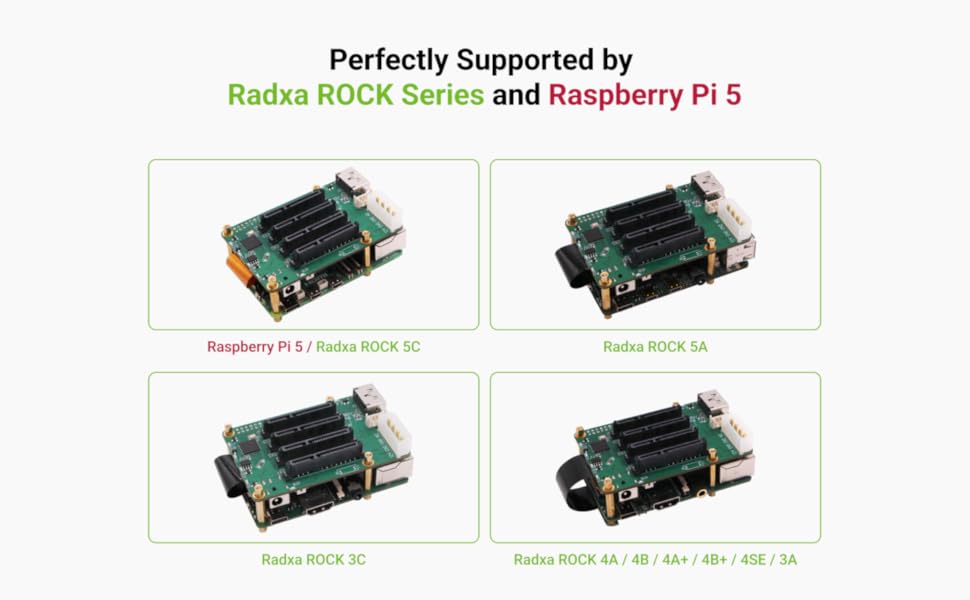
Image: Overview of the Radxa Penta SATA HAT highlighting its key features and interfaces.
3. What's in the Box
Verify that all the following components are included in your package:
- Penta SATA HAT board
- FPC Cable
- Copper Posts (for mounting)
- eSATA Cable
- Acrylic Board (for protection/enclosure)
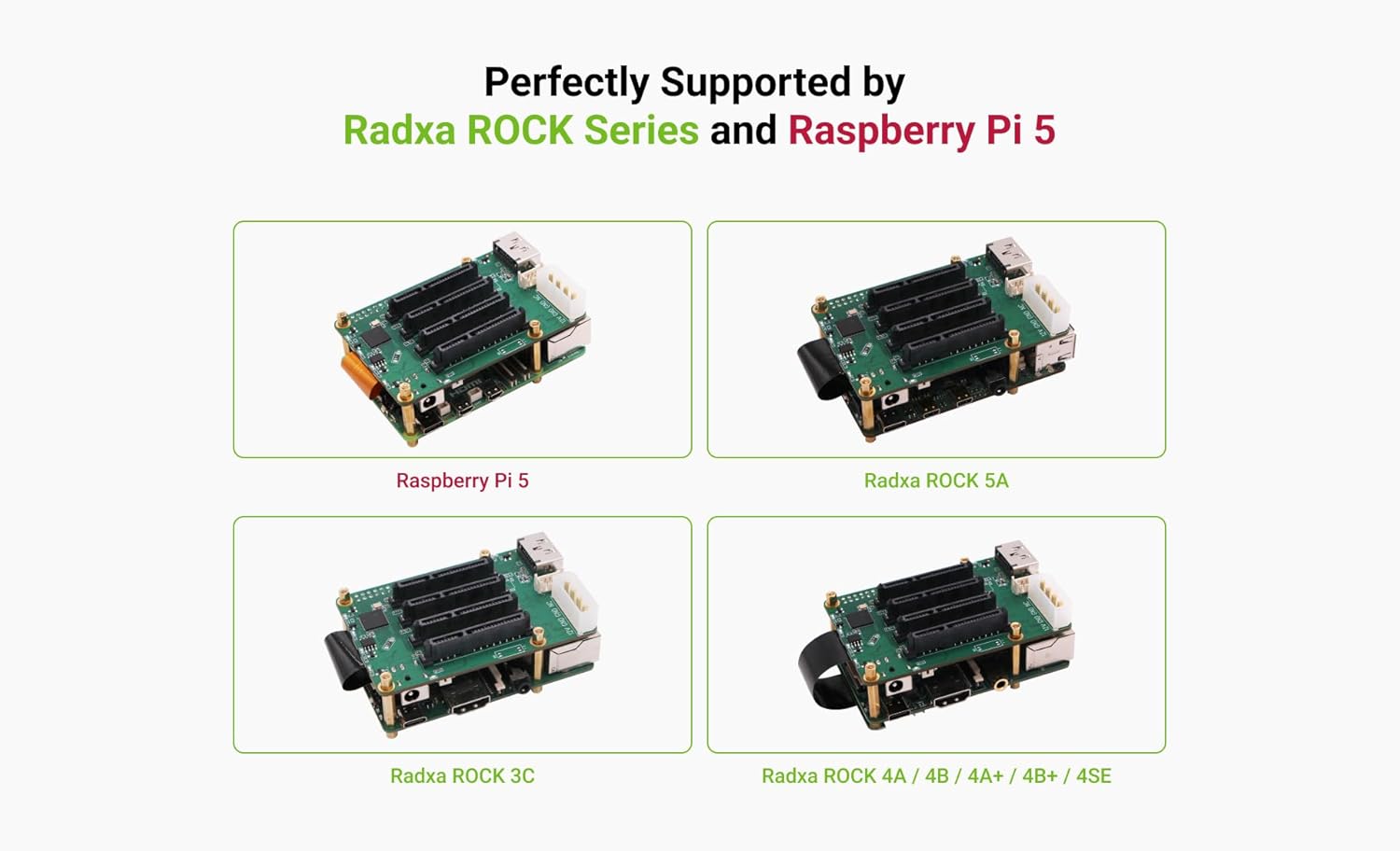
Image: All components included with the Radxa Penta SATA HAT, including the HAT board, FPC cable, copper posts, eSATA cable, and acrylic board.
4. Setup Instructions
Follow these steps to set up your Radxa Penta SATA HAT with your compatible SBC.
4.1. Component Identification

Image: Top view of the Radxa Penta SATA HAT, showing the location of 4x SATA ports, eSATA port, external ATX power supply interface, expansion interface (OLED and Fan), and 12V DC input.
4.2. Compatibility Check
Ensure your Single Board Computer is compatible. The Radxa Penta SATA HAT supports Raspberry Pi 5 and various Radxa ROCK series boards.

Image: Visual representation of the Radxa Penta SATA HAT mounted on various compatible SBCs, including Raspberry Pi 5, Radxa ROCK 5A, Radxa ROCK 3C, and Radxa ROCK 4 series.
4.3. Assembly and Connection
- Mount the HAT: Securely attach the Penta SATA HAT to your Raspberry Pi 5 or Radxa ROCK SBC using the provided copper posts.
- Connect FPC Cable: Connect the FPC cable between the HAT and your SBC's appropriate connector.
- Connect SATA Drives: Connect your 2.5-inch or 3.5-inch SATA HDDs/SSDs to the 4x SATA ports. For external drives, use the eSATA port with the provided eSATA cable.
- Power Connection: Connect a 12V DC power supply (recommended 4A or 5A) to the 12V DC jack on the HAT, or connect a standard ATX power supply to the designated interface. Important: Once the Radxa Penta SATA HAT is powered, it will supply power to the SBC through the 40-pin connector, eliminating the need to power the SBC separately.

Image: Illustration of the flexible power interface options, showing the 12V DC 5525 Power Jack and the Molex 4-Pin Peripheral Power Connector on the Radxa Penta SATA HAT.
4.4. Optional Expansion Connections
The HAT includes an expansion interface designed to support an OLED display and a cooling fan (sold separately).

Image: Close-up of the Radxa Penta SATA HAT showing the dedicated expansion interface for an OLED display and fan.
5. Operating Instructions
Once assembled and powered, the Radxa Penta SATA HAT will make the connected SATA drives available to your SBC's operating system, typically Linux.
5.1. Software Configuration
For optimal performance and data safety, consider configuring your drives in a RAID array. The HAT supports software RAID configurations such as RAID 0, RAID 1, and RAID 5, which can be managed through your Linux operating system.

Image: Diagram illustrating RAID 0, RAID 1, and RAID 5 configurations for data management and redundancy.
5.2. NAS Server Functionality
With the drives configured, you can install NAS software (e.g., OpenMediaVault, TrueNAS SCALE) on your SBC to create a functional network-attached storage server. This allows for centralized file storage, media streaming, and data backup.
6. Maintenance
To ensure the longevity and reliable operation of your Radxa Penta SATA HAT and connected components:
- Keep Clean: Regularly clean the HAT and SBC to prevent dust buildup, which can lead to overheating.
- Ventilation: Ensure adequate airflow around the HAT and SBC, especially when multiple drives are in use. Consider adding a cooling fan to the expansion interface if temperatures are high.
- Cable Management: Keep all cables neatly organized and securely connected to prevent accidental disconnections or damage.
7. Troubleshooting
If you encounter issues, consider the following troubleshooting steps:
- Drives Not Detected:
- Verify all SATA and FPC cables are securely connected to both the HAT and the drives.
- Ensure the HAT is receiving sufficient power from the 12V DC or ATX power supply.
- Check the power connections to individual 3.5-inch HDDs, as they may require separate power if the HAT's supply is insufficient.
- SBC Not Powering On:
- Confirm the 12V power supply is functional and correctly connected to the HAT.
- Ensure the HAT is properly seated on the SBC's GPIO pins.
- If the SBC still does not power on, temporarily remove the HAT and attempt to power the SBC directly to rule out a HAT-related issue.
- Compatibility Issues:
- While compatible with many Radxa ROCK SBCs, specific models like the Rock5A may require particular cables or adapters not included with the standard HAT package. Verify requirements for your specific SBC model.
8. Specifications
| Brand | Radxa |
| Model Number | Radxa Penta SATA HAT |
| Hardware Interface | SATA 3.0 Gb/s |
| Product Dimensions (L x W x H) | 3.27" x 2.17" x 1.26" |
| Item Weight | 0.17 Kilograms |
| Compatible Devices | Raspberry Pi 5 and ROCK Pi SBCs |
| Operating System | Linux |
9. Warranty Information
The Radxa Penta SATA HAT comes with a 1-year warranty from the date of purchase. This warranty covers manufacturing defects under normal use. Please retain your proof of purchase for any warranty claims.
10. Support
For further assistance, technical support, or to report issues, please refer to the official Radxa website or community forums. Online resources and documentation are often available to help with advanced configurations and troubleshooting.


