
1. Product Overview
This manual provides detailed instructions for the installation, operation, and maintenance of your Denash A78SD3 AM3 Motherboard. Please read this manual thoroughly before proceeding with installation to ensure correct setup and optimal performance.
Key Features
- Stable Power Design: Features a multi-phase power system for stable and optimal performance.
- Extensive Connectivity: Includes 4 USB 2.0 ports and 4 Serial ATA 3.0 ports for versatile peripheral and storage connections.
- Powerful Performance: Supports AM3 socket APU processors and 2-channel DDR3 memory up to 16GB.
- Immersive Visuals & Audio: Equipped with HDMI and VGA video outputs, 100Mbps Ethernet, and 5.1 channel sound.
- Ample Storage Options: 4 Serial ATA 3.0 ports accommodate high-capacity storage needs.

Figure 1.1: Overview of the Denash A78SD3 AM3 Motherboard. This image displays the full layout of the motherboard, including the CPU socket, memory slots, expansion slots, and various I/O ports.

Figure 1.2: Denash A78SD3 Motherboard with key components labeled. This image highlights the locations of the 24-pin ATX power connector, 2-channel DDR3 memory slots, SATA 2.0 ports, keyboard and mouse ports, HDMI, VGA, USB 2.0 ports, network port, sound output, 4-pin CPU power connector, and PCIe X16 slot.
2. Technical Specifications
The following table details the technical specifications of the Denash A78SD3 Motherboard:
| Feature | Specification |
|---|---|
| Item Type | A78SD3 Computer Motherboard |
| Material | PCB |
| Motherboard Chip | Integrated Sound Card, Card with Integrated Graphics |
| Main Chipset | for RS780 Series |
| Card Chip | Integrated 100Mbps Ethernet |
| Sound Chip | Integrated 6 Channel Sound Chip |
| Processor Specifications | Supports AM3 Interface for APU Processors |
| CPU Socket | AM3 |
| Supported CPU Quantity | 1 Piece (CPU Excluded) |
| Memory Type | DDR3 1600/1333/1066MHz |
| Memory Slots | 2 x DDR3 (Memory Excluded), Maximum supported 16GB (Maximum 8GB per stick) |
| Expansion Slots | 1 x PCI-E X16 Graphics Card Slot, 1 x COM Serial Port Header, 2 x USB 2.0 Headers, 4 x Serial ATA 3.0 Ports |
| I/O Interfaces | PS/2 (Keyboard/Mouse) x 1 Each, 1 x RJ45 Ethernet Port, 1 x VGA Port, 1 x High Definition Multimedia Interface Output, 4 x USB 2.0 Ports, Sound Interfaces |
| Motherboard Size | Approx. 17x21.3cm / 6.7x8.4in |
| Battery Type | 1 x CR2032L Battery (Included) |
| Power Connectors | 4 Pin and 24 Pin Power Connector |
| Power Supply Mode | 4 Phase |
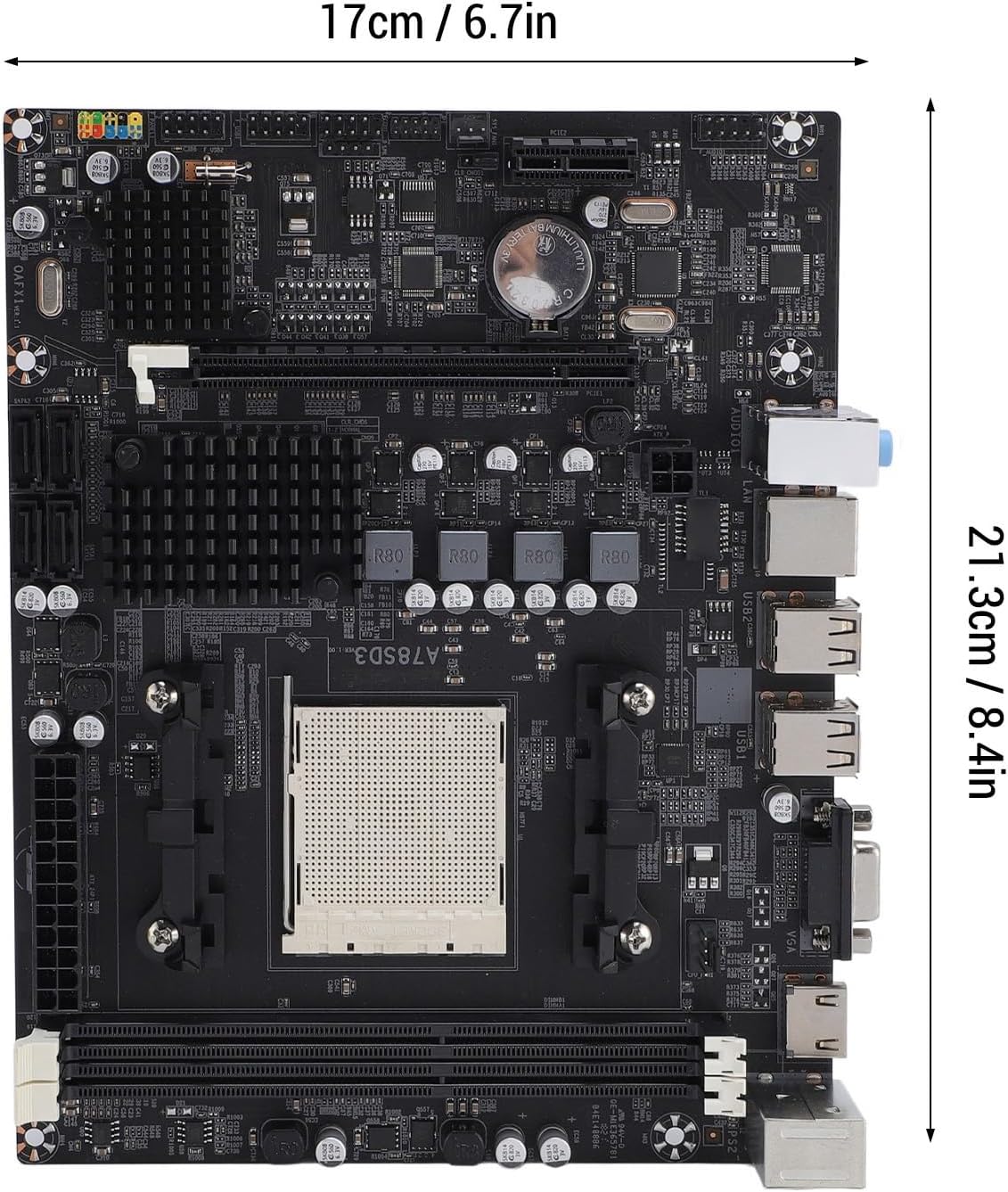
Figure 2.1: Dimensions of the Denash A78SD3 Motherboard. The image shows the motherboard measuring approximately 17cm (6.7in) in width and 21.3cm (8.4in) in length.
3. Installation and Setup
Follow these steps for proper installation of your motherboard and components.
3.1 CPU Installation
- Locate the AM3 CPU socket on the motherboard.
- Gently lift the load lever on the side of the socket.
- Align the triangular mark on your AM3 processor with the corresponding mark on the socket. Carefully place the CPU into the socket without forcing it.
- Lower the load lever back into its locked position to secure the CPU.
- Apply thermal paste to the CPU and install the CPU cooler according to its manufacturer's instructions.
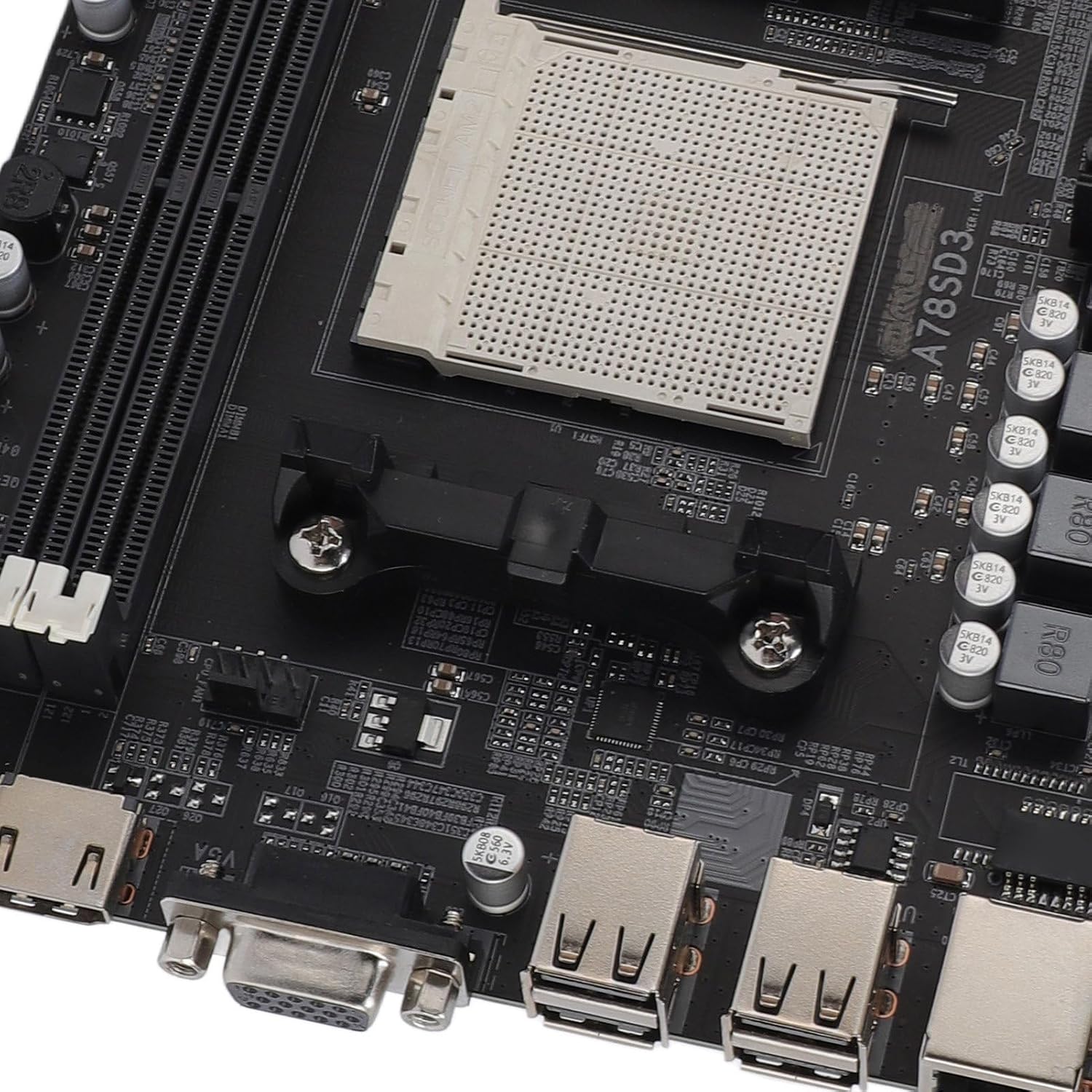
Figure 3.1: Close-up view of the AM3 CPU socket on the Denash A78SD3 Motherboard. This image shows the pin grid array (PGA) socket where the processor is installed.
3.2 Memory (RAM) Installation
- Locate the two DDR3 memory slots.
- Open the clips at both ends of the memory slot.
- Align the notch on the DDR3 memory module with the key in the memory slot.
- Insert the memory module firmly into the slot until the clips snap into place. Ensure both clips are fully closed.

Figure 3.2: Close-up view of the 2-channel DDR3 memory slots on the Denash A78SD3 Motherboard. This image highlights the slots where RAM modules are to be installed.
3.3 Storage Device Connection
- Locate the 4 Serial ATA 3.0 ports on the motherboard.
- Connect one end of a SATA data cable to a SATA port on the motherboard.
- Connect the other end of the SATA data cable to your storage device (HDD/SSD).
- Connect a SATA power cable from your power supply unit (PSU) to the storage device.
3.4 Power Connections
- Connect the 24-pin ATX main power connector from your PSU to the corresponding slot on the motherboard. Ensure it clicks into place.
- Connect the 4-pin CPU power connector from your PSU to the 4-pin power socket near the CPU.
3.5 Peripheral Connections
- Video Output: Connect your monitor to either the VGA port or the HDMI port on the motherboard's I/O panel.
- USB Devices: Connect your keyboard, mouse, and other USB devices to the available USB 2.0 ports.
- Network: Connect an Ethernet cable from your router or modem to the RJ45 Ethernet port for network access.
- Audio: Connect speakers or headphones to the appropriate audio jacks on the I/O panel.
- Front Panel Connectors: Connect the power switch, reset switch, power LED, HDD LED, and front panel audio/USB headers from your computer case to the corresponding pins on the motherboard. Refer to your case manual for specific pin assignments.

Figure 3.3: Close-up view of the I/O ports on the Denash A78SD3 Motherboard. This image shows the USB ports, VGA port, HDMI port, Ethernet port, and audio jacks.
4. Operation Guide
Once all components are installed and connected, you can proceed with system operation.
4.1 Initial System Startup
- Ensure all power cables are securely connected and the power supply is switched on.
- Press the power button on your computer case.
- The system should power on, and you should see a display on your monitor.
4.2 BIOS/UEFI Setup
The BIOS (Basic Input/Output System) or UEFI (Unified Extensible Firmware Interface) is the firmware that initializes hardware during the booting process. To access the BIOS/UEFI setup utility:
- During system startup, repeatedly press the designated key (commonly DEL, F2, or F10) as indicated on the screen.
- Within the BIOS/UEFI, you can configure boot order, system time, hardware settings, and more. Save changes before exiting.
4.3 Operating System and Driver Installation
- Insert your operating system installation media (USB drive or DVD).
- Follow the on-screen prompts to install your preferred operating system.
- After OS installation, install the necessary drivers for the motherboard components (chipset, audio, LAN, graphics) from the provided driver disc or the manufacturer's website.
5. Maintenance
Regular maintenance helps ensure the longevity and stable performance of your motherboard.
5.1 Cleaning
- Periodically clean dust from the motherboard and other internal components using compressed air.
- Ensure the system is powered off and unplugged before cleaning.
- Avoid using liquids or abrasive materials.
5.2 BIOS Updates
BIOS updates can improve system stability, add support for new hardware, or fix bugs. Check the Denash support website for the latest BIOS versions and follow their instructions carefully. Incorrect BIOS updates can damage your motherboard.
5.3 CMOS Battery Replacement
The motherboard uses a CR2032L coin cell battery to retain BIOS settings and system time when the computer is off. If your system consistently loses time or BIOS settings, the battery may need replacement.
- Power off the computer and unplug it from the wall outlet.
- Locate the CR2032L battery on the motherboard.
- Gently pry the old battery out of its holder.
- Insert a new CR2032L battery with the positive (+) side facing up.
6. Troubleshooting
This section provides solutions to common issues you might encounter.
6.1 No Power / System Does Not Turn On
- Check if the power supply unit (PSU) is properly connected to the wall outlet and switched on.
- Ensure the 24-pin and 4-pin power connectors are securely attached to the motherboard.
- Verify that the front panel power switch cable is correctly connected to the motherboard header.
- Test the PSU with another system or a PSU tester if available.
6.2 No Display on Monitor
- Ensure the monitor is powered on and the video cable (VGA or HDMI) is securely connected to both the monitor and the motherboard.
- If using a dedicated graphics card, ensure the monitor is connected to the graphics card's output, not the motherboard's integrated graphics ports.
- Reseat the memory modules. Incorrectly seated RAM is a common cause of no display.
- Check if the CPU is properly installed and the CPU cooler is functioning.
6.3 Peripherals Not Detected
- For USB devices, try connecting them to different USB ports.
- Ensure all necessary drivers for the motherboard and peripherals are installed.
- Check BIOS/UEFI settings to ensure USB ports or other relevant controllers are enabled.
- For SATA devices, ensure both data and power cables are securely connected.
6.4 System Instability / Crashes
- Check for overheating. Ensure CPU and case fans are working correctly and heatsinks are clean.
- Run memory diagnostic tools to check for faulty RAM modules.
- Ensure all drivers are up to date.
- Check the power supply unit for sufficient wattage and stability.
7. Warranty and Support
Denash products are designed for reliability and performance. For specific warranty terms and conditions, please refer to the warranty card included with your product or visit the official Denash website.
7.1 Technical Support
If you encounter issues that cannot be resolved using this manual, please contact Denash customer support. Have your product model number (A78SD3) and purchase information ready when contacting support.
For the most up-to-date support information, including FAQs and driver downloads, please visit the official Denash support website.