1. Product Overview
This ETLFUCyber Android Car Radio is designed for Ford Mondeo models from 2004 to 2007. It features a 9-inch IPS touchscreen, a 4-core Android operating system with 2GB RAM and 64GB memory, ensuring efficient performance. Key functionalities include wireless and wired CarPlay, Android Auto, GPS navigation, FM RDS radio, Bluetooth hands-free calling, and support for a reversing camera.

Image 1.1: Visual comparison of the Ford Mondeo dashboard before and after the installation of the 9-inch Android Car Radio.
2. Setup and Installation
2.1 Package Contents
Before installation, verify all components are present:

Image 2.1: Dimensions of the car radio unit and a comprehensive list of all items included in the packing list.
2.2 Wiring Connections
Follow these steps for proper wiring, especially for the reversing camera:
- Connect the camera's positive terminal to the positive terminal of the reverse light.
- Connect the camera's negative terminal to the negative terminal of the reverse light.
- The white plug must be connected to the radio. Failure to do so will prevent Bluetooth and WiFi signals from functioning.
- The reversing trigger (cable 4) does not need to be connected as it is controlled by the stereo unit.

Image 2.2: Step-by-step guide for connecting the backup camera, illustrating the necessary power and signal connections.
2.3 Steering Wheel Control (SWC) Setup
After installing the car radio, you must complete the steering wheel button learning process. Navigate to Settings > Car settings > General > Enter SWC setting interface. Complete the steering wheel button learning to enable the steering wheel controls. If you previously learned buttons, they will be cleared, and you will need to relearn them.

Image 2.3: Visual guide for configuring steering wheel controls, showing the interface for assigning functions to physical buttons.
3. Operating Instructions
3.1 Wireless/Wired CarPlay and Android Auto
The car radio supports both wireless and wired CarPlay and Android Auto. Once connected, you can access various smartphone functions directly on the car radio's screen, including maps, GPS navigation, email, notifications, music, and phone contacts. Voice control (Siri for CarPlay) is also supported, allowing for safer operation while driving.
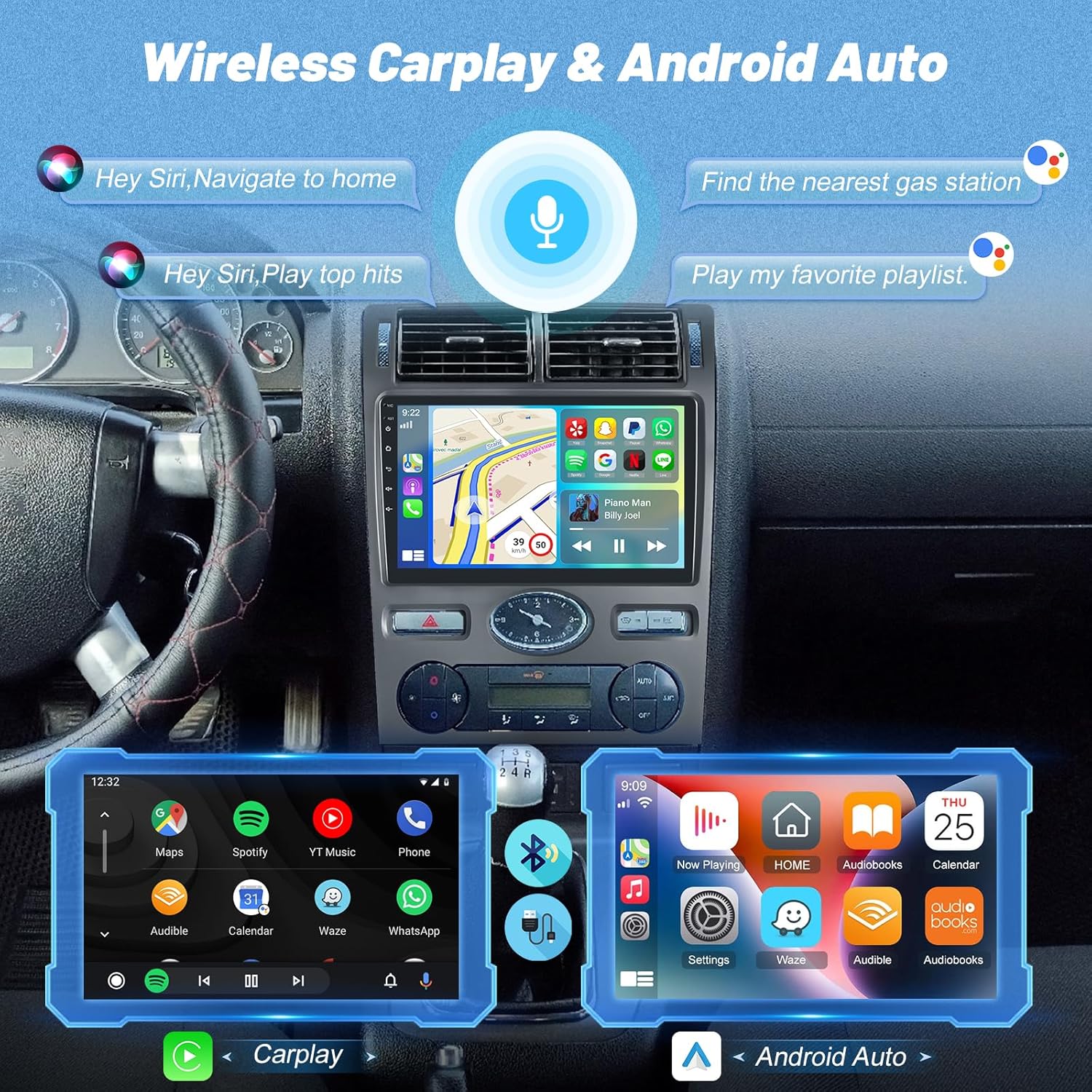
Image 3.1: Examples of the Wireless CarPlay and Android Auto interfaces, highlighting navigation, media, and voice command capabilities.
3.2 FM RDS Radio
The integrated FM/RDS radio provides access to 18 preset stations. You can listen to news broadcasts, weather forecasts, and real-time traffic information. The RDS function displays station and program information where available.
3.3 Bluetooth Connectivity
The unit supports Bluetooth for hands-free calling, music playback, and phone book synchronization. You can answer or make calls directly from the car radio with a single button press, enhancing driving safety.

Image 3.2: Demonstrations of GPS navigation with route display and the Bluetooth calling interface.
3.4 GPS Navigation and WiFi Hotspot
The car radio includes GPS navigation functionality, allowing the use of both online and offline maps. With WiFi connectivity, you can access the app store to download and use various applications such as YouTube, TikTok, and Spotify, expanding the unit's capabilities.
3.5 EQ Settings
The device features a 32-band graphic equalizer (EQ) for audio customization. It also integrates various music effects, allowing you to tailor the sound output to your preferences.

Image 3.3: Displays of the FM RDS radio tuner and the detailed 32-band equalizer settings.
3.6 Reversing Camera Display
When a compatible reversing camera is connected, the car radio automatically displays a clear image on the screen when the vehicle is shifted into reverse, aiding in safe parking and maneuvering.
4. Maintenance
To ensure the longevity and optimal performance of your car radio, follow these simple maintenance guidelines:
- Screen Cleaning: Use a soft, lint-free cloth slightly dampened with water or a screen cleaner specifically designed for electronic displays. Avoid harsh chemicals or abrasive materials.
- General Cleaning: Wipe the exterior of the unit with a dry or slightly damp cloth to remove dust and grime. Ensure no liquids enter the unit.
- Temperature: Avoid exposing the unit to extreme temperatures, both hot and cold, for extended periods.
- Software Updates: Periodically check for available software updates to ensure the system runs efficiently and has the latest features and security patches.
5. Troubleshooting
If you encounter issues with your car radio, refer to the following common troubleshooting steps:
- No Power: Check all power connections. Ensure the car's ignition is on. Verify fuses are intact.
- No Sound: Check volume levels. Ensure speakers are properly connected. Verify audio output settings.
- Touchscreen Unresponsive: Try restarting the unit. If the issue persists, a factory reset might be necessary (note: this will erase all user data).
- Bluetooth/WiFi Connectivity Issues: Ensure the white plug is securely connected to the radio (refer to Section 2.2). Restart the radio and your mobile device. Clear Bluetooth/WiFi settings and re-pair.
- GPS Signal Loss: Ensure the GPS antenna is properly installed and has a clear view of the sky.
- Steering Wheel Controls Not Working: Re-perform the SWC learning process as described in Section 2.3.
For persistent issues, please contact customer support.
6. Specifications
| Feature | Specification |
|---|---|
| Brand | ETLFUCyber |
| Model Number | 12667008-fefc-4cec-97c4-666de1ad767d |
| Operating System | Android (4-core) |
| RAM | 2GB |
| Internal Storage | 64GB |
| Screen Size | 9 Inch IPS Touchscreen |
| Compatible Devices | Smartphone |
| Special Features | Touchscreen, Wireless/Wired CarPlay, Android Auto, GPS, WiFi, FM RDS Radio, Bluetooth, EQ Settings, Reversing Camera Support, Steering Wheel Control |
| Connectivity Technology | Bluetooth, USB Type A |
| Audio Output Mode | Stereo |
| Surround Sound Channel Configuration | 5.1 |
| Number of Channels | 2 |
| Video Encoding | H.264, H.265/HEVC, MPEG-4 |
| Media Format | MP3 Audio |
| Package Dimensions | 41 x 32 x 13 cm |
| Item Weight | 1.98 kg |
7. Warranty and Support
ETLFUCyber provides a professional technical team and excellent customer service. We offer two years of technical support via email. If you have any questions or require assistance, please do not hesitate to contact us. We commit to replying within 24 hours and providing a solution.