
Retrogame PG-9217
Retrogame Ipega PG-9217 Bluetooth Telescopic Gamepad User Manual
Model: PG-9217
1. Product Overview
The Ipega PG-9217 is a versatile telescopic Bluetooth gamepad designed to enhance your gaming experience across multiple platforms. It offers compatibility with Android devices, Windows PCs, PS3, and Nintendo Switch. Its telescopic design securely holds your mobile device, providing an immersive and comfortable gaming session. Responsive controls and Bluetooth connectivity ensure fluid gameplay. The ergonomic button and joystick layout allows for extended gaming sessions without fatigue. Please note that this controller is not compatible with iOS devices.
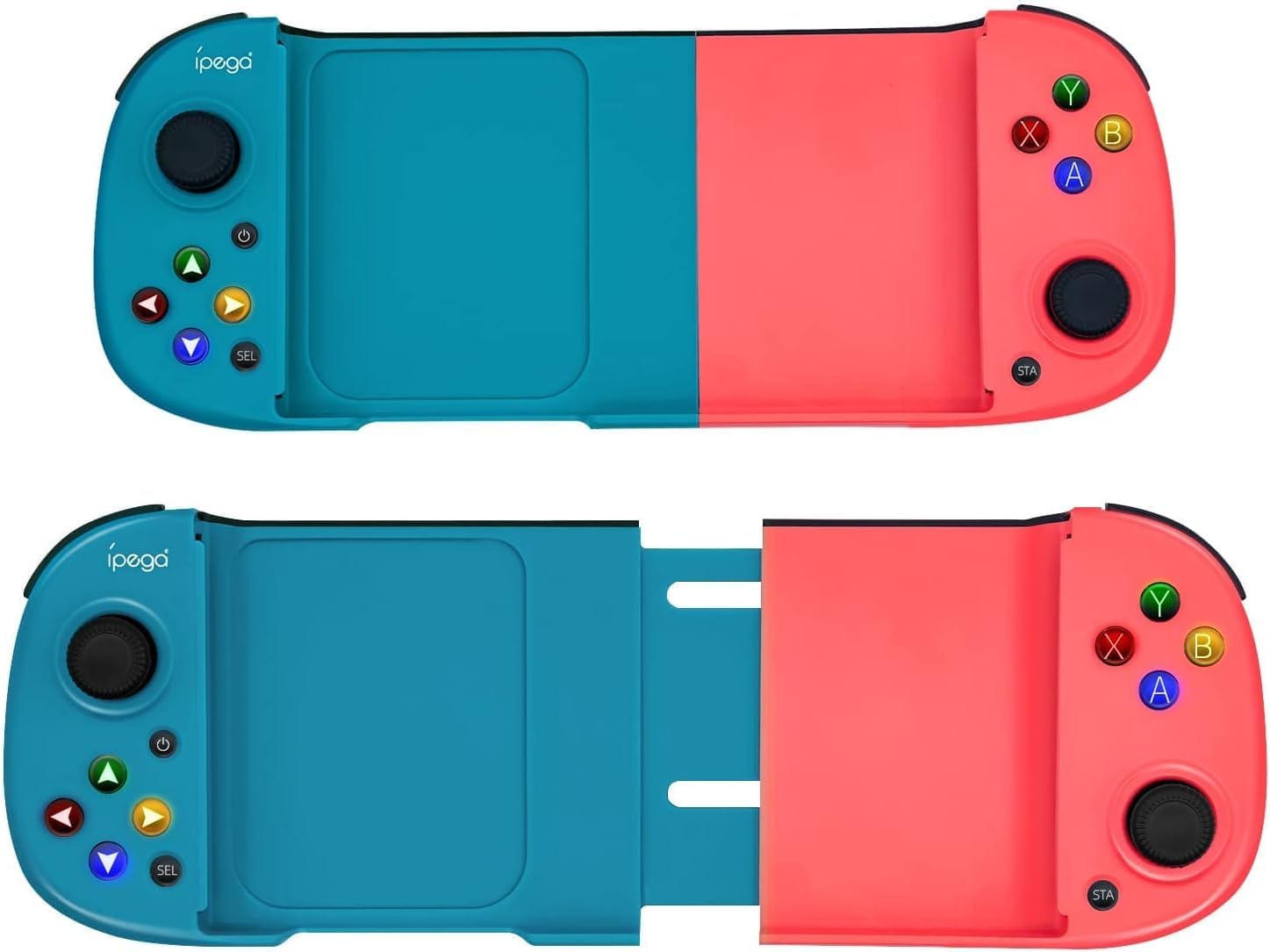
Image: The Ipega PG-9217 gamepad shown in both its compact and extended forms, highlighting its telescopic design.
2. Features
- Multiple Compatibility: Compatible with Android devices, Windows PC, PS3, and Nintendo Switch, offering versatility for different gaming platforms.
- Telescopic Design: Adjustable support that expands to securely fit various mobile device sizes.
- Wireless Connectivity: Bluetooth wireless connection for a cable-free gaming experience and greater freedom of movement.
- Precise Controls: Dual analog joysticks and quick-response buttons for precise control in all your games.
- Ergonomics: Comfortable design with textured grips for prolonged gaming sessions without fatigue.
- Micro Switches: Shoulder and trigger buttons feature durable built-in micro-switches for crisp clicks and consistent comfort.
- LED Backlight: Buttons come with cool LED backlight for enhanced visibility.
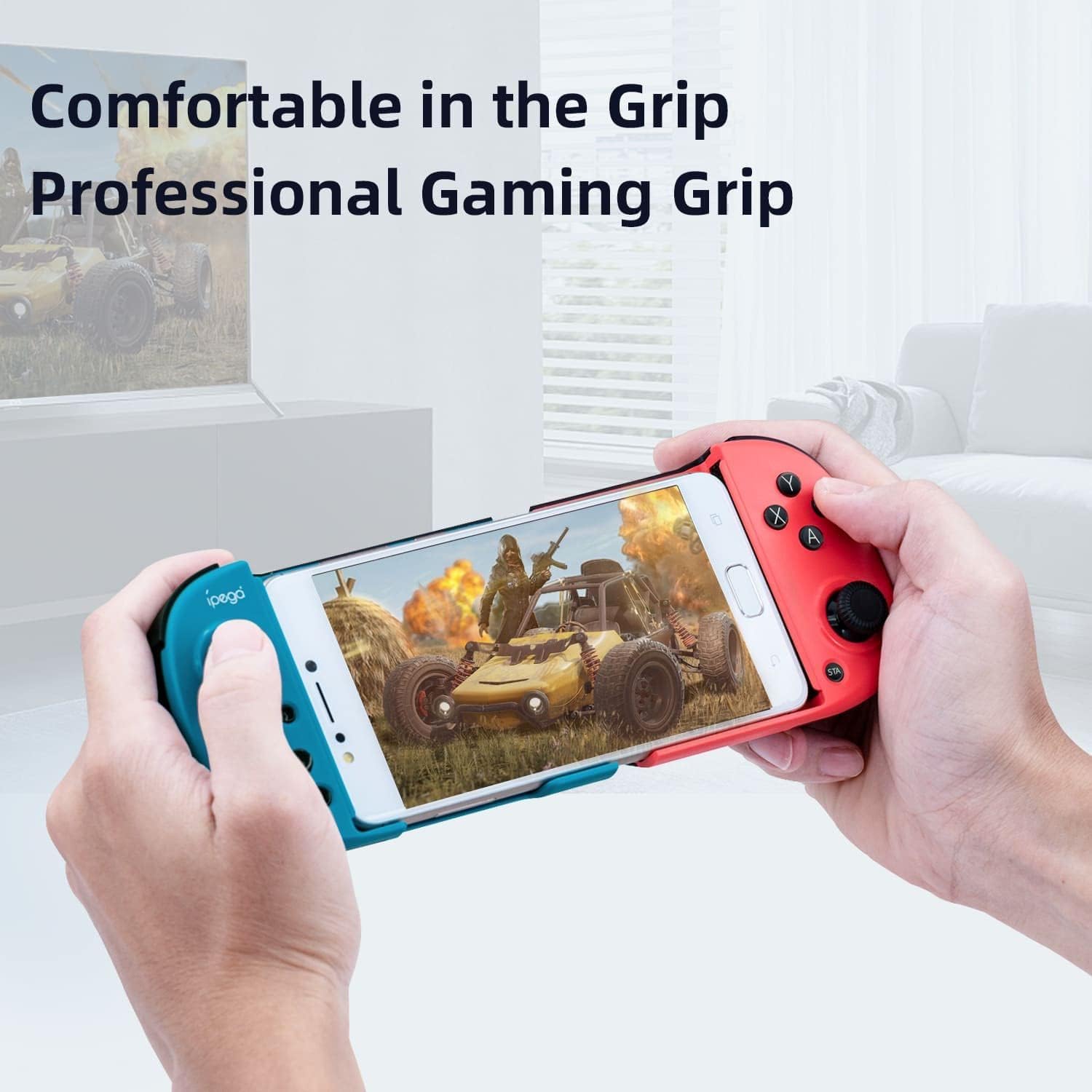
Image: Demonstrates the comfortable and professional grip of the gamepad when holding a smartphone.
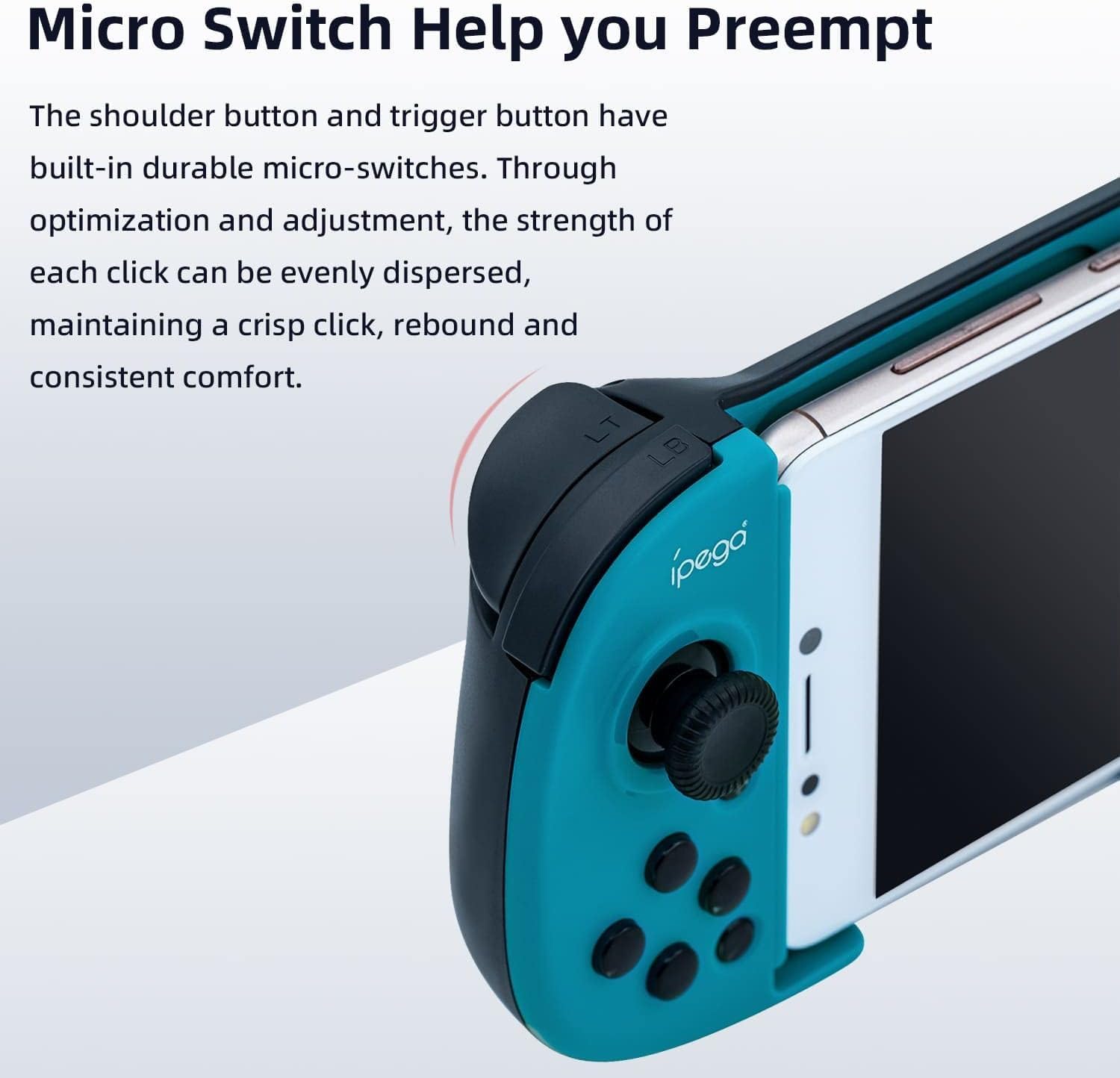
Image: A detailed view of the shoulder button, illustrating the internal micro switch mechanism for precise feedback.
3. Package Contents
Upon unboxing your Ipega PG-9217 Gamepad, please ensure all the following items are present:
- 1 x Ipega PG-9217 Telescopic Bluetooth Gamepad
- 1 x User Manual
- 1 x Type-C USB Cable

Image: Visual representation of the items included in the product package: the gamepad, a user manual, and a USB Type-C charging cable.
4. Setup
4.1 Charging the Gamepad
Before initial use, fully charge the gamepad. Connect the provided Type-C USB cable to the charging port on the gamepad and the other end to a USB power source (e.g., computer USB port, USB wall adapter).
4.2 Inserting Your Mobile Device
- Gently pull the left and right sides of the gamepad outwards to extend the telescopic holder.
- Carefully place your mobile phone into the central slot, ensuring it is securely seated within the grips. The holder supports mobile phones with a width between 135mm and 165mm.
- Release the sides to allow them to retract and firmly grip your device.
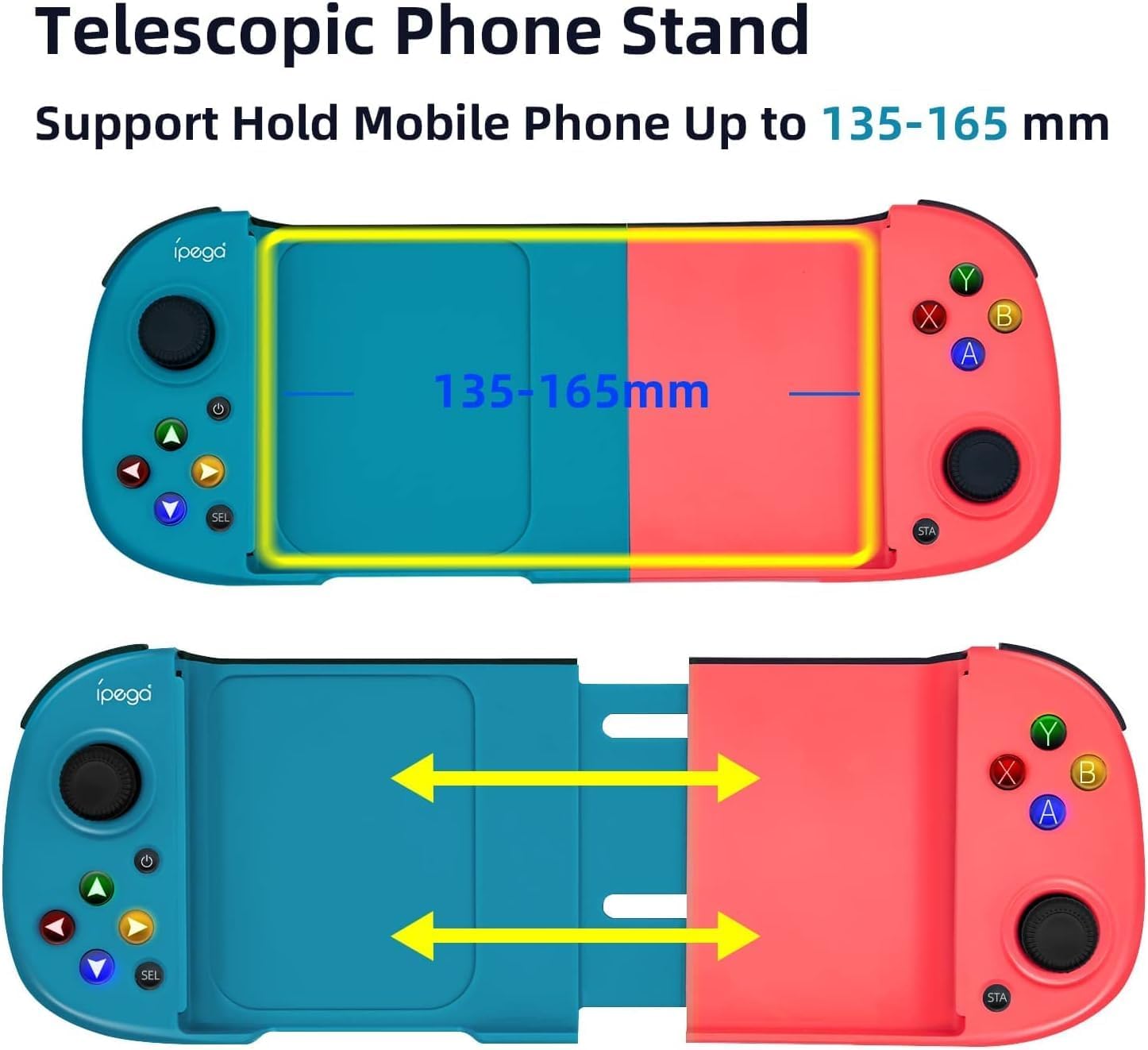
Image: Illustrates the telescopic mechanism of the gamepad, showing how it expands to accommodate mobile phones and indicating the supported width range (135-165mm).
5. Operating Instructions
5.1 Powering On/Off
- To Power On: Press and hold the Power button (usually indicated by a power icon) for a few seconds until the indicator lights turn on.
- To Power Off: Press and hold the Power button again for a few seconds until the indicator lights turn off.
5.2 Bluetooth Pairing
The PG-9217 supports various pairing modes for different platforms. Ensure the gamepad is powered off before starting the pairing process for a new device.
- Android Device Pairing:
- Press and hold the A + HOME buttons simultaneously until the indicator light flashes rapidly.
- On your Android device, go to Bluetooth settings and search for new devices.
- Select "PG-9217" from the list of available devices to connect. The indicator light will become solid once connected.
- Windows PC Pairing:
- Press and hold the X + HOME buttons simultaneously until the indicator light flashes rapidly.
- On your Windows PC, go to Bluetooth & other devices settings, click "Add Bluetooth or other device", then select "Bluetooth".
- Select "PG-9217" from the list. The indicator light will become solid once connected.
- Nintendo Switch Pairing:
- From the Nintendo Switch HOME Menu, select "Controllers" > "Change Grip/Order".
- Press and hold the Y + HOME buttons simultaneously on the gamepad until the indicator light flashes rapidly.
- The Switch will detect the gamepad. The indicator light will become solid once connected.
- PS3 Pairing:
- Connect the gamepad to the PS3 console using the USB cable.
- Press the HOME button on the gamepad. The gamepad will be assigned a controller number.
- Once assigned, you can disconnect the USB cable for wireless play.
5.3 Button Functions
The gamepad features standard button layouts for intuitive control:
- Left Analog Stick / L3: Movement, camera control. Press down for L3.
- Right Analog Stick / R3: Camera control, aiming. Press down for R3.
- D-Pad: Directional input (Up, Down, Left, Right).
- Action Buttons (A, B, X, Y): Primary game actions.
- Shoulder Buttons (L1, R1): Secondary game actions.
- Trigger Buttons (L2, R2): Analog input for actions like acceleration or shooting.
- HOME Button: Power on/off, return to home screen, pairing.
- SELECT / SHARE Button: Varies by game/platform, often for menu or share functions.
- START / OPTIONS Button: Varies by game/platform, often for pause or options menu.
5.4 LED Backlight Control
The gamepad features an LED backlight for its buttons. To toggle the backlight:
- Press the HOME + R3 buttons simultaneously to turn the button lights on or off.

Image: The gamepad with its cool LED backlight feature activated, illuminating the buttons for better visibility in low-light conditions.
6. Maintenance
- Cleaning: Use a soft, dry cloth to clean the gamepad. Do not use abrasive cleaners or solvents.
- Storage: Store the gamepad in a cool, dry place away from direct sunlight and extreme temperatures.
- Battery Care: To prolong battery life, avoid fully discharging the battery frequently. Charge the gamepad regularly, even if not in use for extended periods.
- Avoid Drops: Protect the gamepad from drops and impacts, which can damage internal components.
7. Troubleshooting
| Problem | Possible Cause | Solution |
|---|---|---|
| Gamepad does not power on. | Low battery. | Charge the gamepad for at least 30 minutes. |
| Cannot connect via Bluetooth. | Incorrect pairing mode; Bluetooth not enabled on device; interference. | Ensure correct pairing mode (A+HOME for Android, X+HOME for PC, Y+HOME for Switch). Enable Bluetooth on your device. Move closer to the device. Forget previous pairings and try again. |
| Buttons are unresponsive or delayed. | Low battery; software glitch; interference. | Recharge the gamepad. Power off and on the gamepad. Ensure no strong wireless interference. |
| Gamepad disconnects frequently. | Low battery; too far from device; interference. | Recharge the gamepad. Stay within the recommended Bluetooth range. Reduce wireless interference. |
| Mobile device does not fit in holder. | Device width exceeds supported range. | The holder supports devices between 135mm and 165mm width. Ensure your device is within this range. |
8. Specifications
| Attribute | Detail |
|---|---|
| Model | PG-9217 |
| Connectivity | Bluetooth Wireless |
| Compatibility | Android, Windows PC, PS3, Nintendo Switch (Not compatible with iOS) |
| Battery | 1 Non-standard Battery (Type of battery required) |
| Dimensions | 10 x 15 x 2 cm (3.94 x 5.91 x 0.79 inches) |
| Weight | 100 g (0.22 lbs) |
| Supported Phone Width | 135mm - 165mm (5.31 - 6.50 inches) |
| Country of Origin | China |
| ASIN | B0DWXJDPP3 |
9. Warranty and Support
For warranty information and technical support, please refer to the documentation provided with your purchase or contact the retailer/manufacturer directly. Keep your proof of purchase for warranty claims.
For further assistance, you may visit the Retrogame official website or contact their customer service.
Ask a question about this manual
Ask about setup, troubleshooting, compatibility, parts, safety, or missing instructions. Manuals+ will review the question and use this page’s manual context to help answer it.