
Veeniix V997 & V11PRO
V997 Monster Truck & V11PRO 8K Camera Drone User Manual
Comprehensive Guide for Operation and Maintenance
1. Introduction
Welcome to the world of advanced remote control technology! This manual provides detailed instructions for the safe and effective operation of your new Veeniix V997 Monster Truck and V11PRO 8K Camera Drone. Please read this manual thoroughly before first use to ensure optimal performance and to prevent damage.
These products are designed for users aged 14 and above. Adult supervision is recommended for younger users.
2. Safety Information
Always prioritize safety during operation. Failure to follow these guidelines may result in injury or damage to the product.
- Age Recommendation: Suitable for ages 14+.
- Battery Safety: Use only specified batteries. Do not mix old and new batteries. Do not short-circuit, disassemble, or expose batteries to extreme temperatures.
- Operating Environment: Operate the truck on flat, open surfaces. Operate the drone in open areas, away from people, animals, buildings, and power lines. Avoid flying in strong winds or rain.
- Propeller Safety (Drone): Keep hands, face, and loose clothing away from rotating propellers. Ensure propellers are securely attached before flight.
- Water Bullet Safety (Truck): Use only the provided water bullets. Do not aim at eyes or face.
- Supervision: Adult supervision is recommended, especially during initial setup and operation.
- Maintenance: Perform regular checks for damage. Do not operate if damaged.
3. Package Contents
Please verify that all items are present in your package:
- 1 x V997 Monster Truck
- 1 x V11PRO 8K Camera Drone
- 1 x Truck Remote Controller
- 1 x Drone Remote Controller
- Truck Battery(ies)
- Drone Battery(ies) (Multiple batteries are often included for extended flight time)
- USB Charging Cables
- Spare Propellers (for Drone)
- Water Bullets (for Truck)
- Screwdriver
- User Manual (this document)
- Storage Case (for Drone)

Image: V11PRO Drone and its accessories, including the remote controller, multiple batteries, spare propellers, and a compact carrying case.
4. V997 Monster Truck Guide
4.1. Setup
- Charge Battery: Connect the truck battery to the USB charging cable and plug into a USB power source. The indicator light will show charging status (refer to specific battery instructions for details). Charge fully before first use.
- Install Truck Battery: Open the battery compartment on the V997 Monster Truck, insert the charged battery, and close the compartment securely.
- Install Controller Batteries: Open the battery compartment on the truck remote controller and insert the required batteries (usually AA, not included).
- Pairing:
- Turn on the truck.
- Turn on the remote controller.
- The indicator lights on both devices will flash and then become solid when successfully paired.
- Load Water Bullets: Open the water bullet reservoir on the truck's turret and carefully load the provided water bullets.

Image: A person holding the V997 Monster Truck, highlighting its substantial size and robust design, ready for action.
4.2. Operating the V997 Monster Truck
The V997 Monster Truck offers various modes for dynamic play:
- Basic Driving: Use the joysticks on the remote controller to move the truck forward, backward, left, and right.
- 3D Drift Modes: Engage specific buttons on the controller to activate advanced drift maneuvers. Practice in an open area to master these moves.
- Water Bullet Battle:
- Aim the turret using the designated controls.
- Press the firing button to launch water bullets.
- The truck features an 8-point health system for competitive play.
- Infrared Targeting: Utilize the infrared targeting system for enhanced accuracy during battles.
- Programmable Action Commands:
- Enter programming mode via the controller.
- Input a sequence of up to 60 actions using the motion command languages.
- Execute the programmed sequence to watch the truck perform complex maneuvers automatically.
- Intelligent Sound System: The truck features dynamic sound effects that enhance the immersive experience.

Image: Two V997 Monster Trucks demonstrating their "Racing Mode" capabilities, performing drifts on a textured surface.

Image: The V997 Monster Truck with its water bullet turret prominently displayed, illustrating its shooting functionality.

Image: An adult and a child engaging with the V997 Monster Truck, demonstrating the programming aspect and interactive learning.

Image: Two V997 Monster Trucks positioned for a "Battle Mode" scenario in a home environment, with users in the background.
4.3. Maintenance (V997 Monster Truck)
- Cleaning: Wipe the truck with a dry, soft cloth after use. Avoid water or harsh chemicals.
- Battery Care: Remove batteries from the truck and controller when not in use for extended periods. Store batteries in a cool, dry place.
- Storage: Store the truck in a dry, dust-free environment.
5. V11PRO 8K Camera Drone Guide
5.1. Setup
- Charge Battery: Connect the drone battery to the USB charging cable and plug into a USB power source. Ensure the battery is fully charged before each flight.
- Install Drone Battery: Insert the charged battery into the drone's battery compartment until it clicks into place.
- Attach Propellers: Securely attach the propellers to the drone's motors according to the markings (e.g., A and B). Ensure they are firmly in place.
- Install Controller Batteries: Open the battery compartment on the drone remote controller and insert the required batteries (usually AA, not included).
- Download App: Scan the QR code in the quick start guide or search for the "Veeniix Drone" app on your smartphone's app store. Install the app.
- Pairing:
- Turn on the drone.
- Turn on the remote controller.
- Connect your smartphone to the drone's Wi-Fi network (usually named "Veeniix_Drone_XXXX").
- Open the Veeniix Drone app. The app will indicate a successful connection.
- Gimbal Calibration: After powering on, the 3-axis gimbal will automatically calibrate. Ensure the drone is on a flat, stable surface during this process.
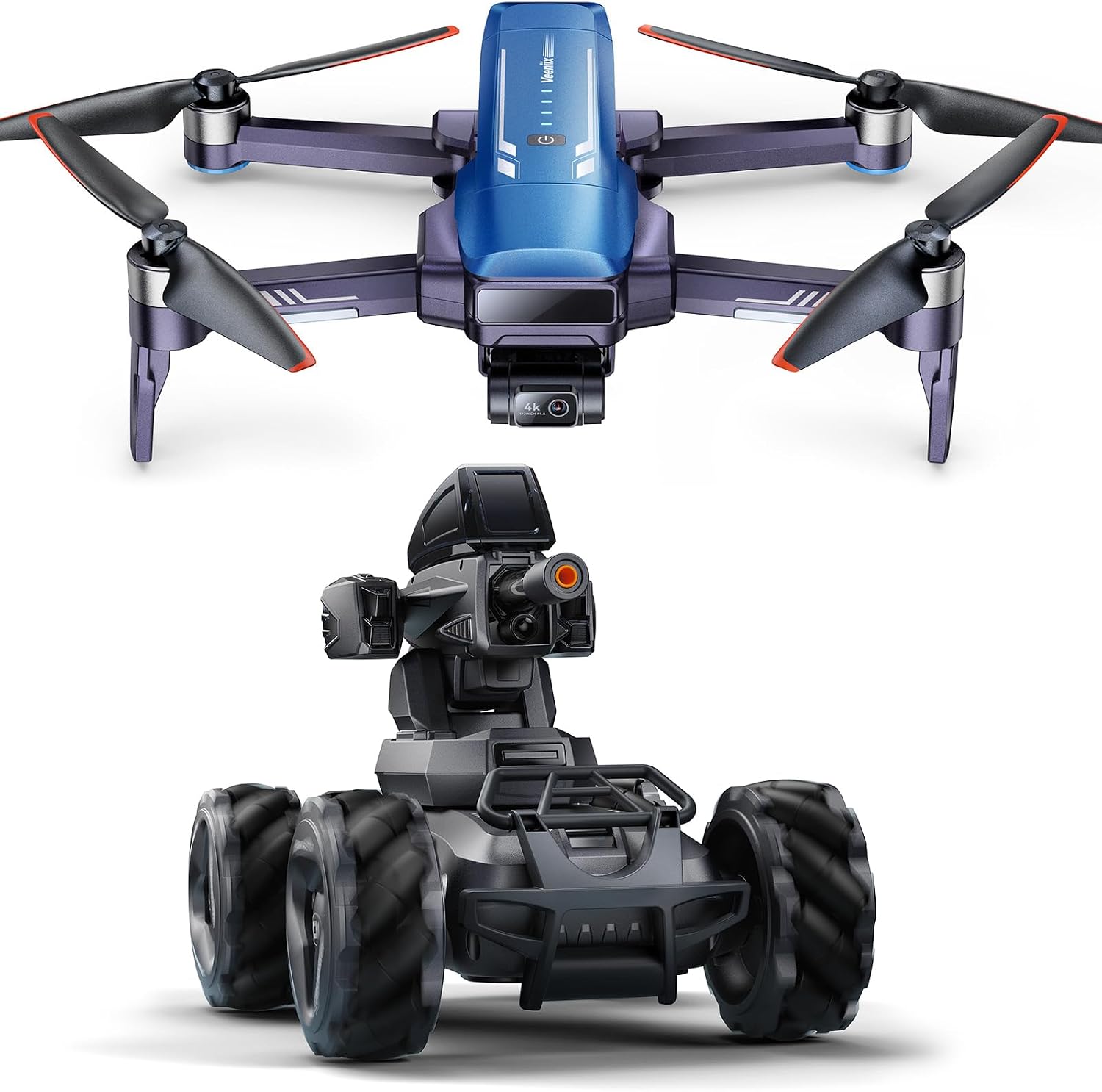
Image: The V997 Monster Truck and V11PRO 8K Camera Drone displayed together, showcasing both products included in the package.
5.2. Operating the V11PRO Drone
Before flight, ensure you are in an open, safe area, away from obstacles and people.
- Take-off/Landing: Use the one-key take-off/landing button on the controller or within the app. Alternatively, manually take off by pushing both joysticks down and out, then slowly increasing throttle.
- Flight Controls:
- Left Joystick: Throttle (up/down), Yaw (rotate left/right).
- Right Joystick: Pitch (forward/backward), Roll (sideways left/right).
- Camera Operation:
- 8K Images: Press the photo button on the controller or in the app to capture high-resolution 8K still images.
- 4K/30fps Videos: Press the video button to start/stop recording 4K video at 30 frames per second.
- Gimbal Control: Use the dedicated dial/button on the controller to adjust the camera's tilt angle.
- Intelligent Flight Modes: Access various smart flight modes via the app, such as:
- Follow Me: Drone automatically follows the controller/user.
- Waypoint Flight: Draw a path on the map, and the drone will fly along it.
- Point of Interest: Drone circles a designated point.
- Return to Home (RTH): Automatically returns the drone to its take-off point (GPS required).
- Digital Transmission: The drone supports up to 6KM digital transmission for extended range and clear video feed.
- Flight Time: Enjoy up to 80 minutes of flight time with multiple batteries (actual flight time may vary based on conditions).

Image: A detailed view of the V11PRO Drone's camera, highlighting its 8K photo and 4K/30fps video capabilities with a 120° FOV lens.

Image: A close-up demonstrating the V11PRO Drone's 3-axis brushless gimbal and Electronic Image Stabilization (EIS) for ultra-stable shooting.
5.3. Maintenance (V11PRO Drone)
- Propeller Inspection: Regularly check propellers for cracks, bends, or damage. Replace damaged propellers immediately using the provided spares.
- Motor Cleaning: Keep motors free of dust and debris. Use a soft brush or compressed air if necessary.
- Gimbal Protection: Always attach the gimbal protector when transporting or storing the drone to prevent damage to the camera and gimbal mechanism.
- Battery Care: Do not overcharge or over-discharge batteries. Store batteries at approximately 50% charge if not used for extended periods.
- Storage: Store the drone and accessories in the provided carrying case in a cool, dry place.
6. Troubleshooting
| Problem | Possible Cause | Solution |
|---|---|---|
| V997 Truck / V11PRO Drone does not power on. | Battery not charged or not installed correctly. | Ensure batteries are fully charged and correctly inserted. Check battery polarity. |
| No response from controller. | Controller batteries low or not installed. Not paired. | Replace controller batteries. Re-pair the controller with the device. |
| V11PRO Drone unstable during flight. | Propellers damaged or incorrectly installed. Not calibrated. Strong winds. | Check and replace damaged propellers. Ensure correct installation. Perform gyroscope calibration. Avoid flying in windy conditions. |
| V11PRO Drone camera feed is blurry or shaky. | Gimbal protector still on. Gimbal not calibrated. Lens dirty. | Remove gimbal protector before flight. Ensure gimbal calibrates on a flat surface. Clean lens with a soft cloth. |
| V997 Truck water bullets not firing. | Reservoir empty. Jammed mechanism. | Refill water bullets. Check for obstructions in the firing mechanism. |
| App connection issues (V11PRO Drone). | Incorrect Wi-Fi network. App not updated. | Ensure connection to the drone's specific Wi-Fi network. Update the app to the latest version. Restart drone, controller, and phone. |
7. Specifications
7.1. V997 Monster Truck
- Features: Water bullet battles, 3D drift modes, Programmable action commands (up to 60 actions), Infrared targeting, 8-point health system, Intelligent sound system.
- Playtime: Approximately 2 hours (depending on usage).
- Speed: Up to 12 KM/H (Racing Mode).
- Recommended Age: 14+
7.2. V11PRO 8K Camera Drone
- Camera: 8K Photo, 4K/30fps Video, 120° FOV Lens.
- Gimbal: 3-Axis Bushless Gimbal with EIS (Electronic Image Stabilization).
- Transmission: 6KM Digital Transmission.
- Flight Time: Up to 80 minutes (with multiple batteries, actual time varies).
- Intelligent Flight Modes: Follow Me, Waypoint Flight, Point of Interest, Return to Home.
- Recommended Age: 14+
8. Warranty and Support
Veeniix is committed to providing high-quality products. For any issues, questions, or support needs, please contact our customer service team.
Customer Support: Please refer to the contact information provided on the product packaging or the official Veeniix website for the most up-to-date support channels.
Warranty Information: Specific warranty details may vary by region and purchase location. Please retain your proof of purchase for warranty claims. For detailed warranty terms and conditions, visit the official Veeniix website or contact customer support.
Related documentsV997 & V11PRO


Ask a question about this manual
Ask about setup, troubleshooting, compatibility, parts, safety, or missing instructions. Manuals+ will review the question and use this page’s manual context to help answer it.