
ZYSKABQ EStQjiMrGdohYDPEPD
ZYSKABQ K7 Pro+ Smart Lock
User Manual
Model: EStQjiMrGdohYDPEPD
Product Overview
The ZYSKABQ K7 Pro+ Smart Lock is an advanced biometric fingerprint door lock designed for enhanced home security. It offers multiple unlocking methods and smart features for convenient access control. This manual provides essential information for installation, operation, and maintenance of your smart lock.

Image: ZYSKABQ K7 Pro+ Smart Lock, showcasing its sleek design and key components like the keypad and fingerprint reader.
Setup and Installation
The K7 Pro+ Smart Lock is designed for universal compatibility with both left and right-handed doors. It is suitable for door thicknesses ranging from 35mm to 55mm.
Mortise Lock Selection and Adjustment
Ensure you select the correct mortise lock size for your door. The mortise lock can be adjusted to either 60mm or 70mm backset to fit various door configurations.

Image: Illustration detailing the universal design for left/right door direction and the adjustable mortise lock (60mm or 70mm) for proper installation.
Operating Instructions
Unlocking Methods
The K7 Pro+ Smart Lock offers five convenient ways to unlock your door:
- Tuya App: Remote unlocking and management via the Tuya application on your smartphone.
- Fingerprint: Utilize the integrated semiconductor fingerprint sensor for quick and secure access. The K7 Pro+ features a larger sensor for improved accuracy and speed compared to previous models.
- Password: Enter your personalized numerical password on the keypad.
- Smart Card: Use the encrypted IC card for easy tap-to-unlock functionality. These cards are copy-resistant for high security. Lost cards can be easily deleted and invalidated through the system.
- Mechanical Key: For emergency situations or when the lock is powered off, traditional mechanical keys can be used.
Tuya App Features
The Tuya app provides extensive control and monitoring capabilities for your smart lock:
- Remote Unlock & Temporary Passwords: When you are away from home, you can generate temporary passwords via the Tuya app to grant access to visitors or service providers.
- Easy Connection: The app connects easily to the lock, offering energy-saving operation.
- Gateway Connectivity: For enhanced remote functionality and integration with other smart home devices, the lock can also connect to a gateway.
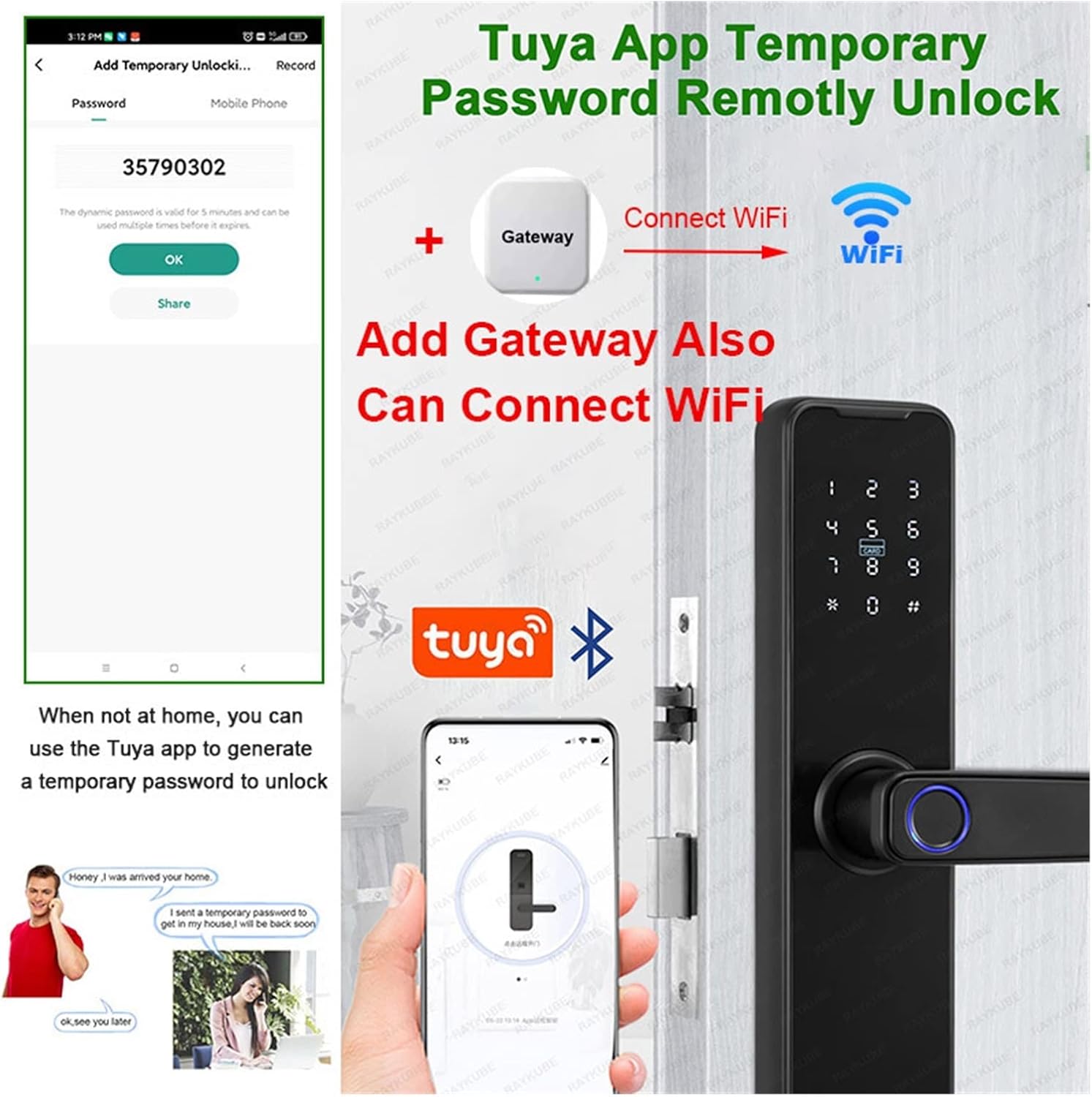
Image: Visual guide to using the Tuya app for remote temporary password generation and demonstrating gateway connectivity for the smart lock.
Normally Open Mode
This mode allows the door to remain unlocked, enabling direct opening by pressing the handle without requiring a fingerprint or password. This is convenient for periods of frequent entry and exit.
Free Handle Design
The free handle design prevents malicious pressure on the handle from damaging the internal structure of the lock, thereby extending the motor's lifespan and enhancing security against forced entry attempts.
Virtual Password Anti-Gaze Unlock
To prevent others from guessing your password, you can enter random numbers before or after your actual password. As long as the correct password sequence is embedded within the entered numbers, the lock will unlock.
Maintenance
Proper maintenance ensures the longevity and optimal performance of your K7 Pro+ Smart Lock.
- Battery Life: The Tuya version of the K7 Pro+ boasts an extended battery life of up to 8 months. Replace batteries promptly when the low battery indicator appears.
- Emergency Power: In case of complete battery depletion, the lock can be temporarily powered via a USB power bank for emergency access.
- Cleaning: Wipe the lock surface with a soft, dry cloth. Avoid using abrasive cleaners or solvents that could damage the finish or electronic components.
- Fingerprint Sensor: Keep the fingerprint sensor clean and free of debris for accurate recognition.
Troubleshooting
If you encounter issues with your smart lock, consider the following:
- Lock Not Responding: Check battery levels. Use the mechanical key or connect a USB power bank for emergency power.
- Fingerprint Recognition Issues: Ensure your finger and the sensor are clean and dry. Try re-registering your fingerprint if problems persist.
- App Connectivity Problems: Verify your phone's Bluetooth or Wi-Fi connection. Ensure the Tuya app is updated to the latest version. If using a gateway, check its power and network connection.
- Password Entry Errors: Double-check the entered password. Remember to use the virtual password anti-gaze feature correctly if enabled.
- Lost IC Card: Immediately delete the lost card from the system via the Tuya app to prevent unauthorized access.
Specifications
| Feature | Detail |
|---|---|
| Brand Name | ZYSKABQ |
| Model Number | EStQjiMrGdohYDPEPD |
| Color | Singnal (Red Bronze) |
| Manufacturer | ZYSKABQ |
| Door Thickness Compatibility | 35-55mm |
| Unlocking Methods | Tuya App, Fingerprint, Password, Smart Card, Key |
| Fingerprint Sensor Type | Semiconductor |
| Battery Life (Tuya version) | Up to 8 months |
| Emergency Power | USB |
| ASIN | B0DWXDXYDF |
| Date First Available | April 28, 2025 |
Warranty and Support
For specific warranty details and terms, please refer to the documentation provided with your purchase or contact the manufacturer directly. For technical support, product inquiries, or assistance with troubleshooting, please reach out to ZYSKABQ customer service through their official channels or the retailer from whom the product was purchased.
Always ensure you are using official support channels to receive accurate and timely assistance.
Ask a question about this manual
Ask about setup, troubleshooting, compatibility, parts, safety, or missing instructions. Manuals+ will review the question and use this page’s manual context to help answer it.