1. Introduction
This manual provides detailed instructions for the DAIDAI AJAZZ AK650 65% Layout Mechanical Keyboard. The AK650 is a compact gaming keyboard designed for versatility and performance, featuring hot-swappable switches, a 0.85-inch TFT color display, and multiple connectivity options. Please read this manual thoroughly to ensure proper setup and operation of your device.

Image 1.1: The AJAZZ AK650 65% Mechanical Keyboard, showcasing its compact layout and RGB backlighting.
2. Key Features
- 65% Gasket Mount Design: Incorporates five layers of sound-absorbing material for reduced noise and improved typing acoustics.
- Hot-Swappable Switches: Equipped with pre-lubed cream switches, compatible with most 3-pin/5-pin mechanical switches for customization.
- Smart TFT Color Display & Knob: A 0.85-inch display provides real-time keyboard status, including connection mode, time, battery level, and lighting effects. The knob allows for quick adjustment of various functions.
- Tri-Mode Connection: Supports wired (USB Type-C), 2.4GHz wireless, and Bluetooth 5.1 connectivity.
- Long-lasting Battery: Features a built-in 5000mAh battery for extended wireless use.
- RGB Backlighting: Full-color RGB lighting with support for musical rhythm synchronization.

Image 2.1: Overview of the AK650's main features, including RGB, Gasket Design, Tri-Mode, 5000mAh Battery, Hot-Swap, 0.85" Screen, Control Knob, and 5 Layers of Silencing.

Image 2.2: Exploded diagram illustrating the internal components of the AK650, such as the top cover, 0.85-inch color screen, roller, 5000mAh battery, satellite switch, silicone, PCB, bottom cotton, Dream Weaving Switch, acoustic pads, undershaft pads, sandwich cotton, and PC positioning plate.
3. Setup
3.1. Package Contents
- AJAZZ AK650 Mechanical Keyboard
- USB Type-C Cable
- 2.4GHz Wireless Dongle (stored in the keyboard)
- Keycap/Switch Puller Tool
- User Manual
3.2. Connection Modes
The AK650 supports three connection methods: Wired, 2.4GHz Wireless, and Bluetooth. A switch located on the back of the keyboard allows you to select your preferred mode.
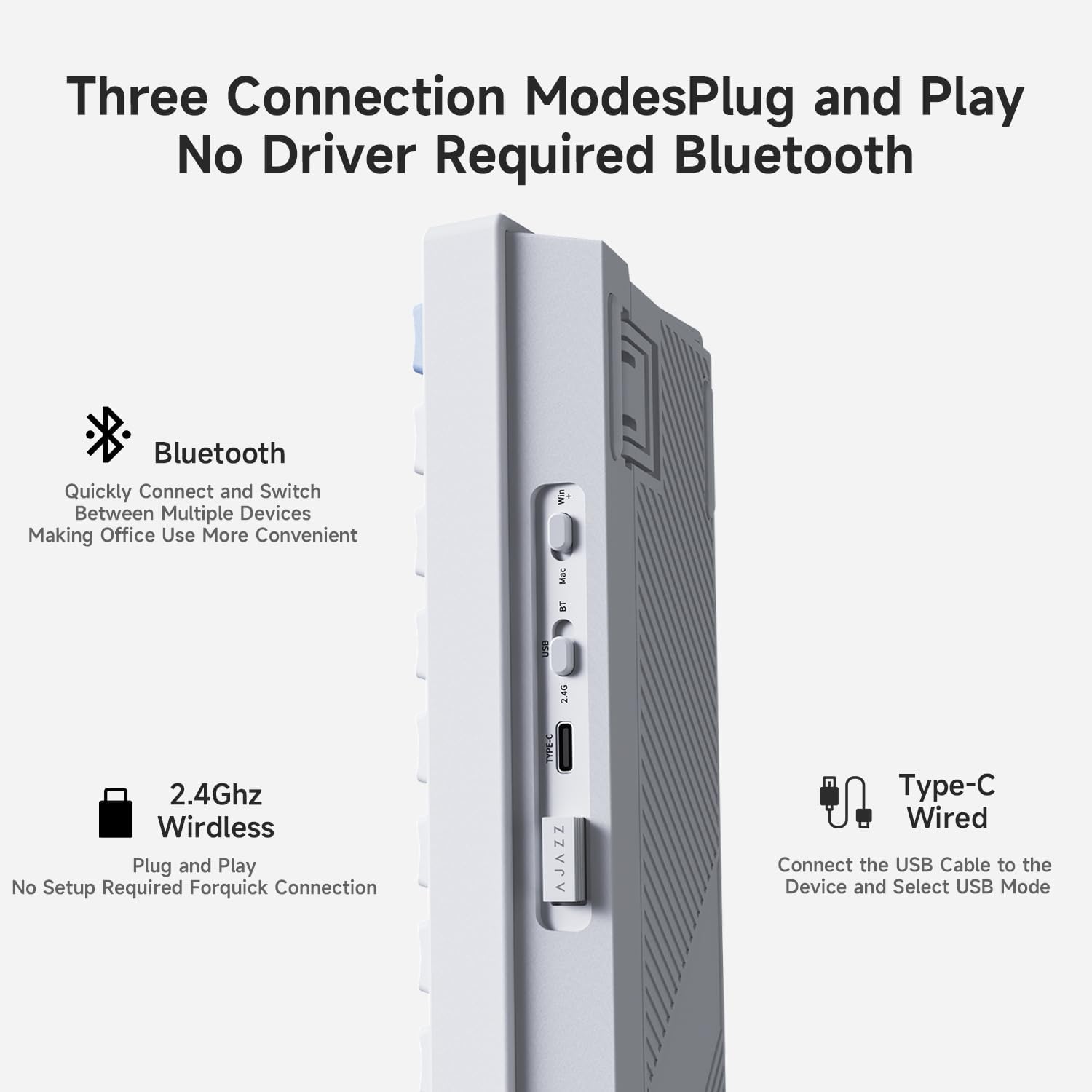
Image 3.1: Side view of the keyboard illustrating the USB-C port, 2.4GHz/BT/USB switch, and Win/Mac switch.
- Wired Mode: Connect the provided USB Type-C cable to the keyboard and your computer. Set the mode switch to the 'USB' position.
- 2.4GHz Wireless Mode: Locate the 2.4GHz wireless dongle stored in the keyboard's back compartment. Plug the dongle into an available USB port on your computer. Set the mode switch to the '2.4G' position.
- Bluetooth Mode: Set the mode switch to the 'BT' position. On your device (computer, tablet, gaming console), search for Bluetooth devices and select 'AJAZZ AK650' to pair.
3.3. System Compatibility
The keyboard features a dedicated switch for Windows ('Win') and Mac ('Mac') compatibility, located next to the connection mode switch. Ensure this switch is set correctly for your operating system.
3.4. Charging
Connect the keyboard to a USB power source using the USB Type-C cable. The TFT display will indicate the charging status and battery level. The 5000mAh battery provides ample power for wireless operation.
4. Operation
4.1. Basic Typing
The AK650 functions as a standard 65% layout keyboard. Familiarize yourself with the key layout. For functions typically found on a full-size keyboard, refer to the keycap legends for FN (Function) key combinations.
4.2. TFT Display and Knob Control
The 0.85-inch TFT color display provides quick access to keyboard information and settings. The multi-function knob allows for intuitive navigation and adjustment.

Image 4.1: Close-up of the side knob and TFT screen, displaying time, date, battery, and connection status.
- Navigation: Rotate the knob to scroll through display options (e.g., connection mode, system, backlight settings, volume).
- Selection/Confirmation: Press the knob to select an option or confirm a setting.
- Volume Control: In most operating systems, rotating the knob directly adjusts the system volume.
- Customization: Advanced settings, including custom GIF images for the display, can be configured via the dedicated driver software (available from the manufacturer's website).
4.3. RGB Lighting Effects
The keyboard features customizable RGB backlighting. Use the knob or FN key combinations to cycle through various lighting modes, adjust brightness, speed, and color. The keyboard also supports audio sensing technology for lighting effects that respond to music.

Image 4.2: The AK650 keyboard displaying RGB lighting effects synchronized with musical rhythms.
5. Maintenance
5.1. Cleaning
To clean the keyboard, first disconnect it from all power sources. Use a soft, dry cloth to wipe the surface. For deeper cleaning, remove keycaps using the provided puller and use compressed air to clear debris from beneath the switches. Avoid using harsh chemicals or abrasive materials.
5.2. Keycap and Switch Replacement
The AK650 features hot-swappable switches, allowing for easy replacement without soldering. Use the included keycap puller to gently remove keycaps, then use the switch puller to remove the switches. Align new switches carefully with the PCB pins and press firmly until they click into place. Ensure the new switches are compatible (3-pin or 5-pin).

Image 5.1: Demonstration of hot-swapping switches on the AK650 keyboard using the provided tool.
Video: Swappable Key Keyboard Demonstration
Video 5.1: A demonstration of the hot-swappable key feature of the keyboard, showing how to remove and replace switches and keycaps. The video also briefly covers the wired and wireless connectivity options and the functionality of the display and volume knob.
5.3. Battery Care
To maximize battery life, avoid fully discharging the keyboard frequently. Charge the keyboard when the battery indicator on the TFT display shows low power. Store the keyboard in a cool, dry place when not in use for extended periods.
6. Troubleshooting
- Keyboard Not Responding (Wired): Ensure the USB Type-C cable is securely connected to both the keyboard and the computer. Verify the mode switch is set to 'USB'. Try a different USB port or cable.
- Keyboard Not Responding (2.4GHz Wireless): Ensure the 2.4GHz dongle is properly inserted into a USB port. Set the mode switch to '2.4G'. Check the keyboard's battery level.
- Keyboard Not Responding (Bluetooth): Ensure the keyboard is in 'BT' mode and discoverable. On your device, unpair and re-pair the keyboard. Check the keyboard's battery level.
- Keys Not Registering: If a specific key is not working, it may be due to a faulty switch. Use the switch puller to remove the switch and inspect it. If necessary, replace it with a new, compatible switch.
- TFT Display Issues: If the display is blank or not showing correct information, check the keyboard's battery level. Use the knob to navigate through display settings and ensure they are configured as desired.
- RGB Lighting Not Working: Check the keyboard's battery level. Use FN key combinations or the knob to adjust lighting settings.
7. Specifications
| Product Dimensions | 12.99 x 4 x 1.9 inches |
| Item Weight | 1.76 pounds |
| Manufacturer | AJAZZ |
| Item Model Number | AK650 |
| Batteries | 1 A battery required (included) |
| Brand | DAIDAI |
| Compatible Devices | Gaming Console, Laptop, PC, Tablet |
| Connectivity Technology | Bluetooth, USB-C, 2.4GHz Wireless |
| Keyboard Description | Mechanical |
| Special Feature | Backlit, Ergonomic, Hot-Swappable |
| Keyboard Backlighting Color Support | RGB |
8. Warranty and Support
For warranty information and technical support, please refer to the official DAIDAI website or contact customer service directly. Keep your purchase receipt for warranty claims.


