
1. Introduction
This manual provides detailed instructions for the installation, operation, and maintenance of your Hiseeu Wireless Security Camera. Please read this manual thoroughly before using the product to ensure proper functionality and safety. This camera features dual-lens view, Pan-Tilt-Zoom (PTZ) control, full-color night vision, smart motion detection with auto-tracking, and two-way audio communication. It supports both 5G and 2.4G WiFi connectivity and is IP66 waterproof for outdoor use.

Figure 1.1: Hiseeu Wireless Security Camera (Model TZ-HB312) and accompanying mobile app interface.
2. What's in the Box
Verify that all items are present in the package:
- Hiseeu Wireless Security Camera
- Instruction Manual
- Mounting Screws
- Power Adapter
3. Setup Guide
3.1 App Download and Registration
To manage your camera, download the Eseecloud app from your device's app store (iOS 9.0+ or Android 5.0+). Register an account using your phone number or email address. Follow the on-screen prompts for verification and password setup.
Video 3.1: Eseecloud APP Manual - Video Version. This video provides a visual guide for app setup and camera connection.
3.2 Connecting the Camera
The camera supports both WiFi and Ethernet connections. For WiFi, ensure your network is 2.4GHz or 5GHz. For initial setup, it is recommended to connect via WiFi using the Eseecloud app. Follow the in-app instructions to add the device by scanning the QR code located on the camera or by searching for it on your local network.
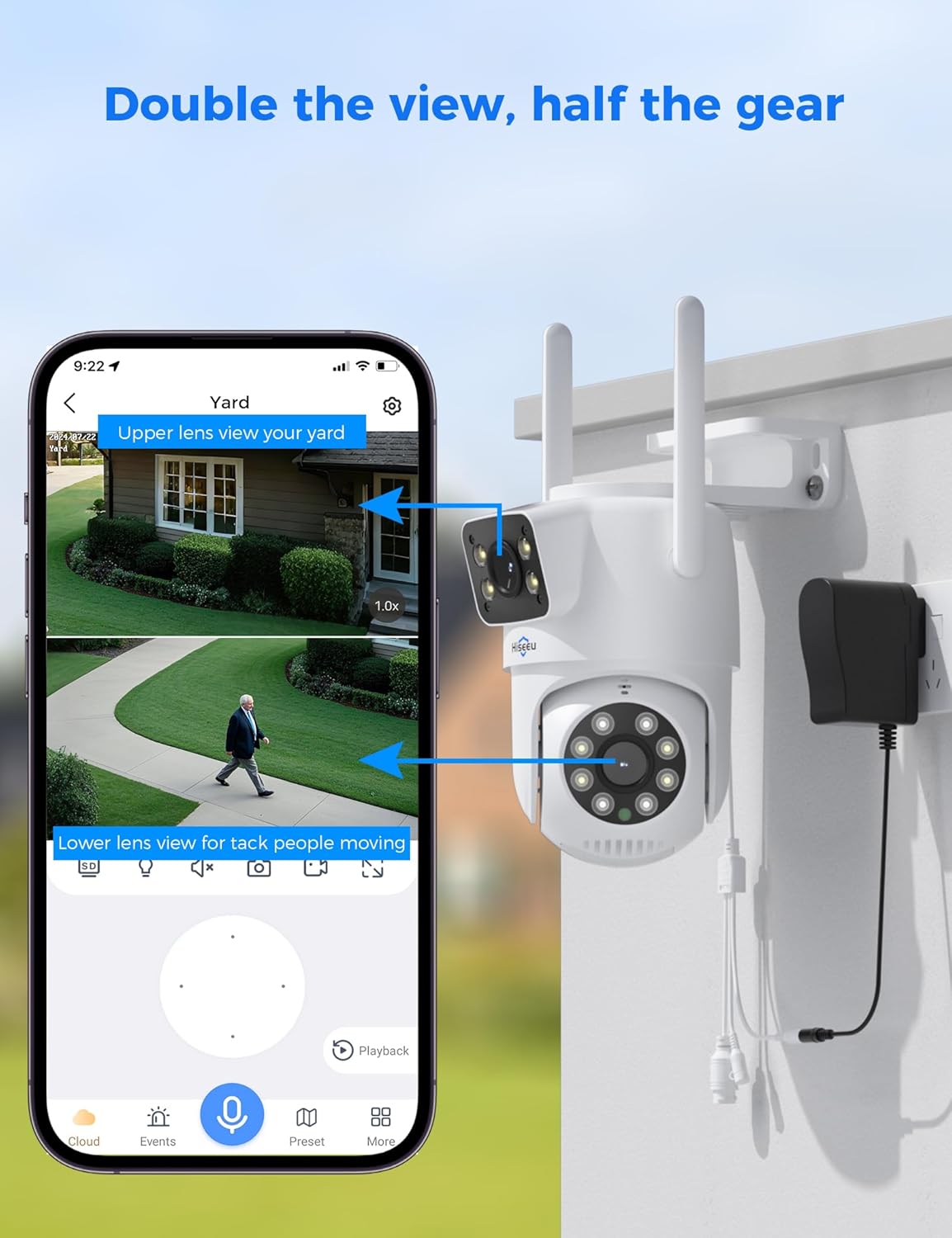
Figure 3.2: Example of camera installation and power connection.
3.3 Mounting the Camera
The Hiseeu security camera is designed for easy mounting and installation. Choose a suitable outdoor location with a clear view of the area you wish to monitor. Use the provided mounting screws to securely attach the camera to a wall or other stable surface. Ensure the camera is within range of your WiFi network or has access to an Ethernet connection.

Figure 3.3: The camera is rated IP66 waterproof, suitable for outdoor installation in various weather conditions.
4. Operation
4.1 App Interface and Real-time Viewing
Once connected, open the Eseecloud app to access the camera's live feed. You can switch between SD (Standard Definition) and HD (High Definition) viewing modes. The app allows you to take screenshots and record video directly to your mobile device.

Figure 4.1: The Eseecloud app interface showing dual-lens view and control options.
4.2 Pan-Tilt-Zoom (PTZ) Control
Utilize the PTZ controls within the app to remotely adjust the camera's viewing angle. The advanced fixed-angle and PTZ lens linkage ensures comprehensive 360° coverage, eliminating blind spots and tracking movement effectively. You can also set preset positions for quick navigation to specific areas.

Figure 4.2: The camera's PTZ functionality allows for wide area monitoring and precise targeting.

Figure 4.3: Define key locations around your home within the camera's monitoring range to focus on important areas.
4.3 Two-Way Audio Communication
The camera features built-in two-way audio, allowing you to speak directly to visitors or deter intruders through your mobile device. This enhances both security and convenience.

Figure 4.4: Engage in clear, real-time two-way audio communication via the app.

Figure 4.5: Speak directly to family members, visitors, or deter intruders with clear, real-time audio through your mobile device.
4.4 Night Vision Modes
The camera offers three recording modes for night vision: infrared, full-color night vision, and intelligent color night vision adjustment. Built-in LED lights enable color night vision and light alarms for enhanced security, ensuring clear, high-definition footage even in complete darkness.
- Infrared Night Vision: Provides clear black and white images in low light.
- Full-Color Night Vision: Utilizes built-in spotlights to capture full-color video in dark conditions.
- Smart Night Vision: Automatically switches between infrared and full-color mode when motion is detected.

Figure 4.6: Visual representation of different night vision modes.

Figure 4.7: Capturing colorful and clear night video for enhanced visibility and detail.
4.5 Smart Motion Detection and Auto-Tracking
The camera features smart motion detection and auto-tracking capabilities. When movement is detected, the camera will automatically track the subject and send event notifications to your phone app. This ensures you are alerted to any activity in the monitored area.
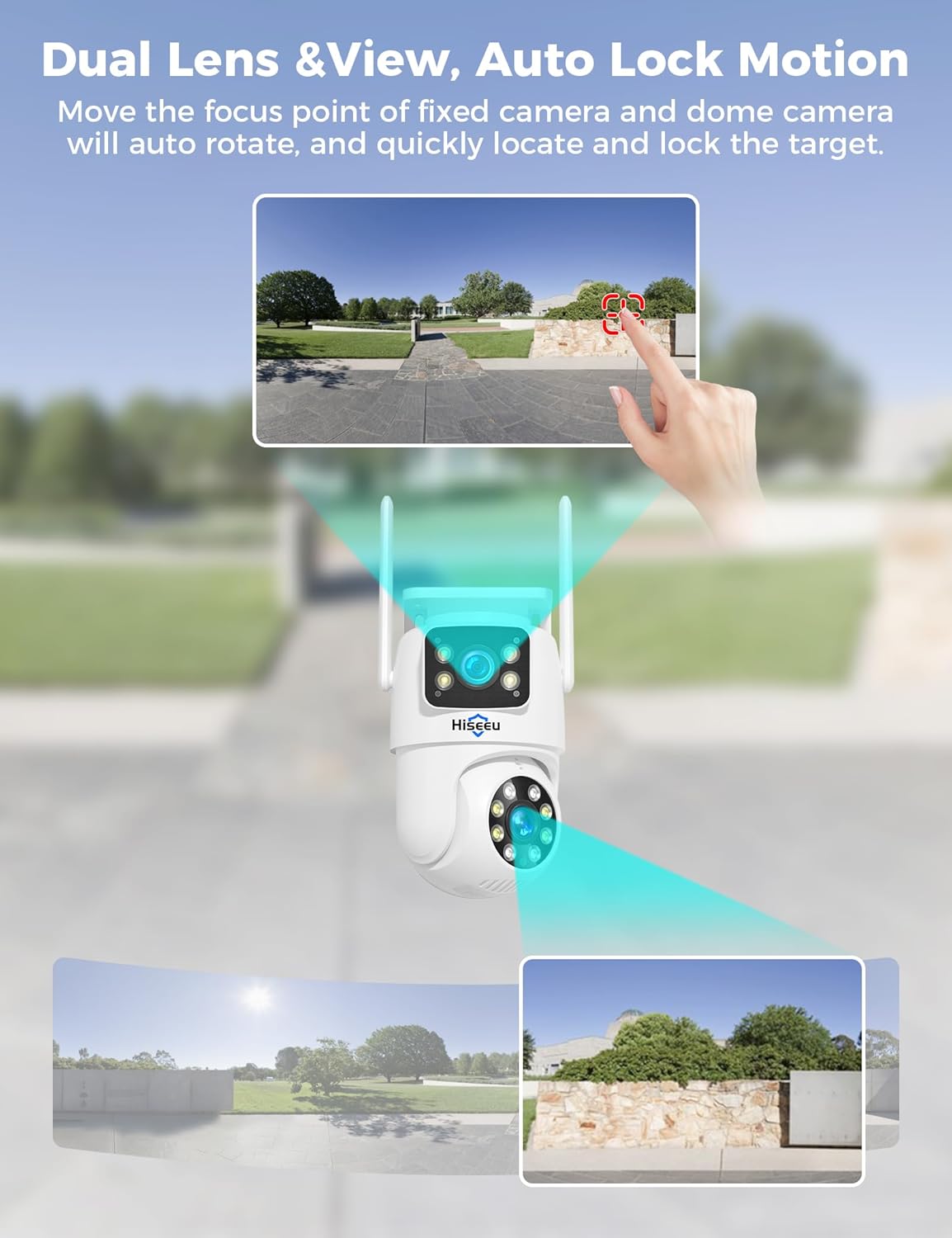
Figure 4.8: The camera automatically rotates to locate and lock onto moving targets.

Figure 4.9: Receive instant notifications on your phone when motion events are detected.

Figure 4.10: Capture all actions with AI motion detection and tracking, following the movement.

Figure 4.11: This intelligent tracking feature enhances security by capturing detailed footage and minimizing blind spots.
4.6 Alexa Integration
The WS03 security camera is compatible with Alexa. You can add the camera to the Eseecloud APP or Alexa to conveniently view camera feeds on compatible devices.

Figure 4.12: View your camera feed on Alexa-enabled devices.
4.7 Video Storage
The camera supports 24/7 non-stop storage. While it does not include a MicroSD card, one can be purchased separately for video storage. Cloud storage options are also available through the Eseecloud app.

Figure 4.13: The camera supports local storage via MicroSD card (not included) and cloud storage.
4.8 Sharing Access
Each camera is linked to a single account for privacy protection. You can manually share access with other users and adjust sharing settings anytime, allowing you to share important moments without compromising security.

Figure 4.14: The Hiseeu camera system allows users to check multiple devices simultaneously and share information with different home accounts.
5. Maintenance
5.1 General Care
Regularly clean the camera lens with a soft, dry cloth to ensure clear image quality. Avoid using harsh chemicals or abrasive materials. Ensure the power connection is secure and free from damage.
5.2 Weather Resistance
The camera has an IP66 waterproof rating, making it resistant to rain, snow, and various weather conditions. While designed for outdoor use, extreme weather conditions may still impact performance. Ensure proper installation to prevent water ingress.

Figure 5.1: The camera is built to withstand various weather conditions, from snowing to sunny.
6. Troubleshooting
6.1 Connection Issues
If you experience connection issues, please ensure your WiFi network is stable and within range. Verify the WiFi password entered is correct. For persistent issues, contact Hiseeu customer support to confirm the camera version and receive a firmware upgrade if necessary.
6.2 Image Quality
If image quality is poor, check the lens for dirt or obstructions and clean it as described in the maintenance section. Ensure adequate lighting for optimal night vision performance. Verify the camera is connected to a strong WiFi signal for HD streaming.
7. Specifications
| Feature | Detail |
|---|---|
| Model Name | ws03 |
| Item Model Number | TZ-HB312 |
| Indoor/Outdoor Usage | Outdoor |
| Connectivity Technology | Wireless (Wi-Fi) |
| Wireless Communication Technology | Wi-Fi (2.4G/5G) |
| Power Source | Corded Electric |
| Video Capture Resolution | 1296p |
| Special Feature | 2-Way Audio, Pan-Tilt-Zoom, Full Color Night Vision, Smart Motion Detection, Auto Track |
| IP Rating | IP66 Waterproof |
| Item Dimensions (L x W x H) | 3 x 3 x 3 inches |
| Item Weight | 1.48 pounds |
| Included Components | Camera, Instruction Manual, Mounting Screw, Power Adapter |
8. Warranty and Support
8.1 Warranty Information
The Hiseeu Wireless Security Camera comes with a 12-month limited warranty. The actual warranty period shall be implemented according to the requirements of local laws and regulations.
8.2 Customer Support
Eseecloud app provides one-on-one 7/24 online support. For any questions or issues, please contact us directly through the app to get problem solved. You can also find contact information for email and phone support within the user manual or on the Hiseeu official website.