1. Introduction
The Pavlleen Smart Tag Pro is a compact Bluetooth tracker designed to help you locate your valuable items using Apple's "Find My" network. This device connects seamlessly with your iPhone, iPad, or other iOS devices, allowing you to track the location of your belongings, receive left-behind reminders, and activate a sound to find items nearby. This manual provides detailed instructions for setup, operation, and maintenance of your Smart Tag Pro.
2. Product Overview
The Smart Tag Pro package includes four individual trackers, along with protective cases, keyrings, and lanyards for versatile attachment to various items. Each tracker is designed for durability and ease of use within the Apple ecosystem.

Image 2.1: Contents of the Smart Tag Pro package, including four trackers, various colored protective cases, keyrings, lanyards, and a depiction of the Find My app interface.
The Smart Tag Pro utilizes Bluetooth technology to communicate with your Apple devices and leverage the extensive "Find My" network for location tracking. It is important to note that this device is compatible exclusively with Apple iOS devices and does not support Android.

Image 2.2: A Smart Tag Pro tracker being held, with an iPhone showing the "Find My" app's map view. A note on the image indicates that Android devices are not supported.
3. Setup
3.1. Battery Installation
Each Smart Tag Pro tracker comes with a pre-installed replaceable button cell battery (e.g., CR2032). If the battery needs replacement, follow these steps:
- Gently twist the back cover of the tracker counter-clockwise to open it.
- Remove the old battery.
- Insert a new button cell battery (CR2032 recommended) with the positive (+) side facing up.
- Align the back cover and twist clockwise to secure it.
3.2. Pairing with Your iOS Device
To connect your Smart Tag Pro with your Apple device:
- Ensure your iPhone or iPad is running a compatible iOS version (iOS 14.5 or later recommended).
- Open the "Find My" app on your iOS device.
- Navigate to the "Items" tab.
- Tap the "+" icon and select "Add Other Item".
- Follow the on-screen instructions to pair your Smart Tag Pro. The tracker will emit a sound to confirm pairing.
- Assign a name to your Smart Tag Pro (e.g., "Keys," "Wallet," "Luggage") and choose an emoji to easily identify it in the app.
4. Operating Instructions
4.1. Locating Your Items
Once paired, you can locate your items using the "Find My" app:
- View on Map: Open the "Find My" app and select your Smart Tag Pro from the "Items" tab to see its last known location on a map.
- Play Sound: If your item is nearby, tap "Play Sound" in the app. The Smart Tag Pro will emit a loud beep (90-105dB) to help you pinpoint its exact location.
- Precision Finding: For closer proximity, the app may offer directional guidance to your item.

Image 4.1: An iPhone displaying the "Find My" app, showing a map and options to make the tracker emit a sound or locate it. A Smart Tag Pro is visible on a couch, illustrating its use for finding nearby items.
4.2. Left-Behind Reminders
The Smart Tag Pro can notify you if you leave an item behind. This feature is configured within the "Find My" app:
- In the "Find My" app, select your Smart Tag Pro.
- Under "Notifications," enable "Notify When Left Behind."
- You can set specific locations where you don't want to be notified (e.g., your home or office).

Image 4.2: An iPhone displaying a notification for a "Left-Behind Remind" feature, indicating an item is no longer detected nearby. A set of keys with an attached Smart Tag Pro is shown on a wooden surface.
4.3. Sharing Items (iOS 17 and later)
With iOS 17 or later, you can share your Smart Tag Pro with up to five other individuals. This allows multiple users to view the item's location on the map within their own "Find My" app. Shared users will not receive tracking notifications when the item moves with them.
- In the "Find My" app, select the Smart Tag Pro you wish to share.
- Scroll down to the "Share This Item" option and follow the prompts to invite others.
4.4. Usage Scenarios
The Smart Tag Pro is versatile and can be attached to various items to prevent loss and aid in recovery:
- Keys: Attach to your house keys, car keys, or office keys.
- Bags: Secure to backpacks, handbags, or luggage.
- Wallets: Place inside your wallet or purse.
- Pets: Attach to a pet's collar (ensure it is securely fastened and does not cause discomfort).

Image 4.3: A visual representation of the Smart Tag Pro's diverse applications, including attachment to keys, bags, pet collars, wallets, and luggage.
5. Maintenance
5.1. Battery Replacement
When the battery level is low, your iOS device will notify you through the "Find My" app. Refer to Section 3.1 for instructions on replacing the button cell battery.
5.2. Cleaning
To clean your Smart Tag Pro, wipe it with a soft, dry, or slightly damp cloth. Avoid using harsh chemicals or abrasive materials, as these can damage the device.
5.3. Water Resistance
The Smart Tag Pro is rated IPX6 waterproof, meaning it is protected against high-pressure water jets from any direction. While it can withstand splashes and rain, it is not designed for submersion. Ensure the battery compartment is securely closed to maintain water resistance.

Image 5.1: A Smart Tag Pro tracker, visibly wet, demonstrating its IPX6 waterproof capability while resting on a rocky surface.
6. Troubleshooting
- Tracker not connecting to "Find My" app:
- Ensure Bluetooth is enabled on your iOS device.
- Make sure the Smart Tag Pro has a fresh battery.
- Try resetting the tracker (refer to manufacturer's specific reset instructions if available, or remove and re-insert battery).
- Ensure your iOS device is updated to the latest version. - Tracker not emitting sound:
- Check the battery level in the "Find My" app.
- Ensure the tracker is within Bluetooth range of an Apple device on the "Find My" network.
- The sound may be difficult to hear in noisy environments. - Inaccurate location:
- The location shown is the last known location detected by an Apple device on the "Find My" network. If the item is moving or in an area with no Apple devices, the location may not update in real-time.
- Ensure location services are enabled for the "Find My" app on your iOS device. - Android devices not supported:
- The Smart Tag Pro is designed exclusively for Apple's "Find My" network and is not compatible with Android operating systems.
7. Specifications
| Brand | Pavlleen |
| Model | Smart Tag Pro (B0DWX4VRQ3) |
| Dimensions (Tracker) | Approx. 32mm (diameter) x 7mm (thickness) |
| Weight (per tracker) | Approx. 130g (total package weight) |
| Connectivity | Bluetooth |
| Compatibility | Apple iOS devices (iPhone, iPad) with "Find My" app |
| Waterproof Rating | IPX6 |
| Battery Type | Replaceable Button Cell (e.g., CR2032) |
| Sound Level | 90-105dB |
| Bluetooth Range | Up to 160ft / 50m (direct line of sight) |
| Material | Plastic |
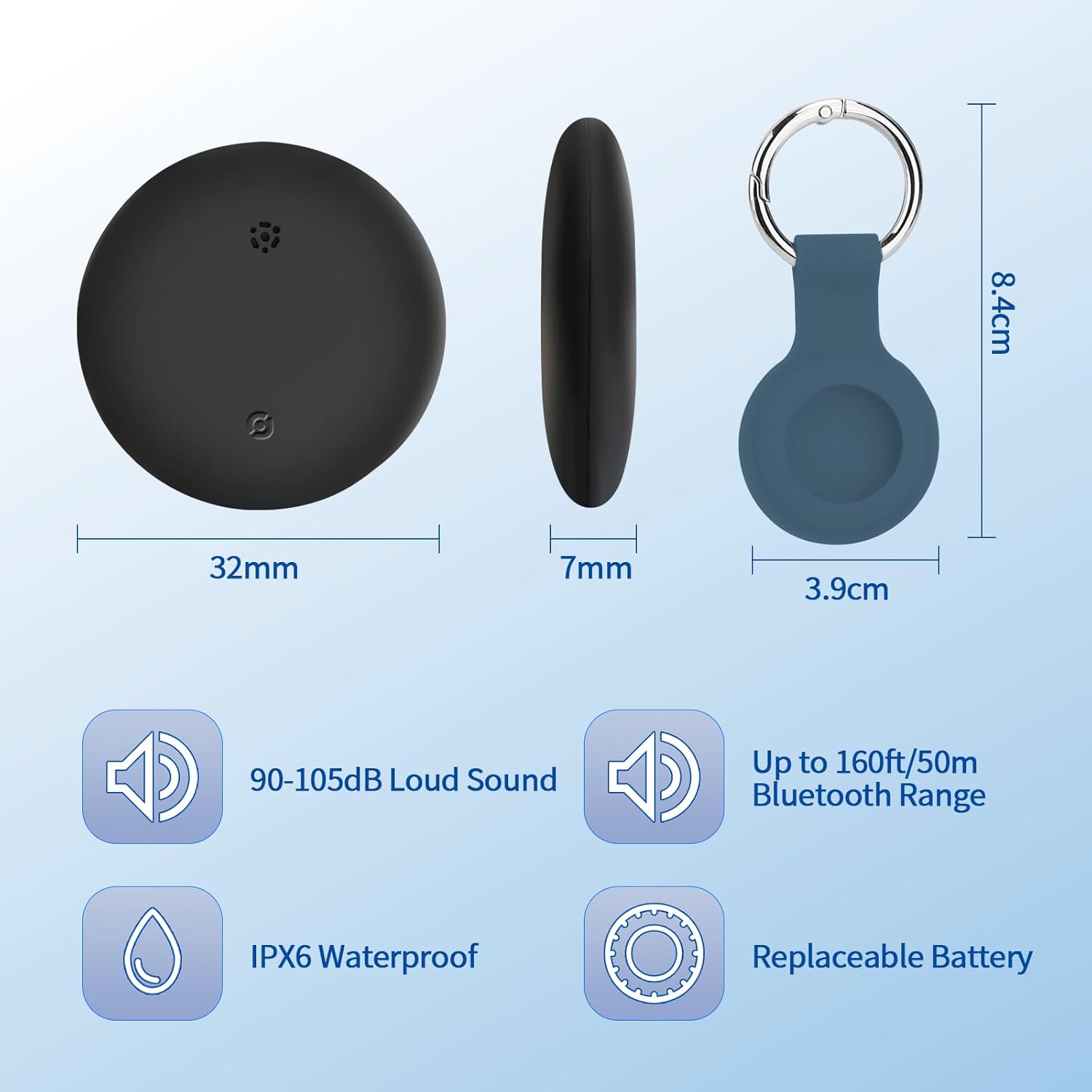
Image 7.1: A detailed diagram illustrating the physical dimensions of the Smart Tag Pro and highlighting key features such as its loud sound capability, Bluetooth range, IPX6 waterproof rating, and replaceable battery.
8. Warranty and Support
For warranty information and customer support, please refer to the documentation provided with your purchase or contact the manufacturer directly through their official channels. Keep your proof of purchase for any warranty claims.