
1. Introduction
This manual provides comprehensive instructions for the B BraiNice Universal Remote Control, designed for Samsung Smart TVs manufactured between 2019 and 2025. This remote offers voice control capabilities and is intended to replace various original Samsung remote models. Please read this manual carefully to ensure proper setup and operation.
2. Compatibility
This remote control is compatible with a wide range of Samsung Smart TVs from 2019 to 2025, including models with Tizen OS. It supports voice control functionality on TVs that have built-in Bluetooth hardware for voice commands.
Compatible TV Series:
- Samsung Neo QLED
- Samsung OLED
- Samsung QLED
- Samsung Crystal UHD
- Samsung Frame TV series
- Samsung Serif
- Samsung Terrace
- Samsung Sero
- Samsung Micro LED
- Samsung Monitor Series Smart TVs
Replaceable Remote Models:
This remote can replace many original Samsung remote models, including but not limited to:
- BN59-01385A/B
- BN59-01432A
- BN59-01455A
- BN59-01357A/F
- BN59-01312 series (e.g., BN59-01312A, BN59-01312F, BN59-01312D)
- BN59-01329 series
- BN59-01330 series
Note: For older Samsung TVs (2016, 2017 models), some shortcut buttons or voice functions may not be fully supported or may work improperly if the original TV hardware does not support these features.

Figure 2.1: Compatible Samsung TV Series

Figure 2.2: Examples of Original Samsung Remotes Replaced by This Model
3. Setup
3.1 Installing Batteries
The remote requires two AAA batteries (not included). To install:
- Gently slide down the back cover of the remote control.
- Insert two AAA batteries, ensuring correct polarity (+/-).
- Slide the back cover upwards until it clicks into place.

Figure 3.1: Battery Installation
3.2 Pairing the Remote with Your Samsung TV
To enable voice control and full functionality, the remote must be paired with your Samsung TV. A Samsung TV can typically be paired with only one specific remote at a time. If you have an old remote, remove its batteries to prevent interference.
- Turn on your Samsung TV.
- Point the new remote at the TV from a distance of 1-2 feet.
- Press and hold the Back button (
 ) and the Play/Pause button () simultaneously for approximately 6 seconds.
 - The TV screen will display a message indicating that it is searching for devices and then confirm "Pairing Complete" once successful.
Video 3.2.1: How to Pair the Remote with Samsung TV. This video demonstrates the steps for pairing the remote control with a Samsung television, showing the buttons to press and the on-screen confirmation.
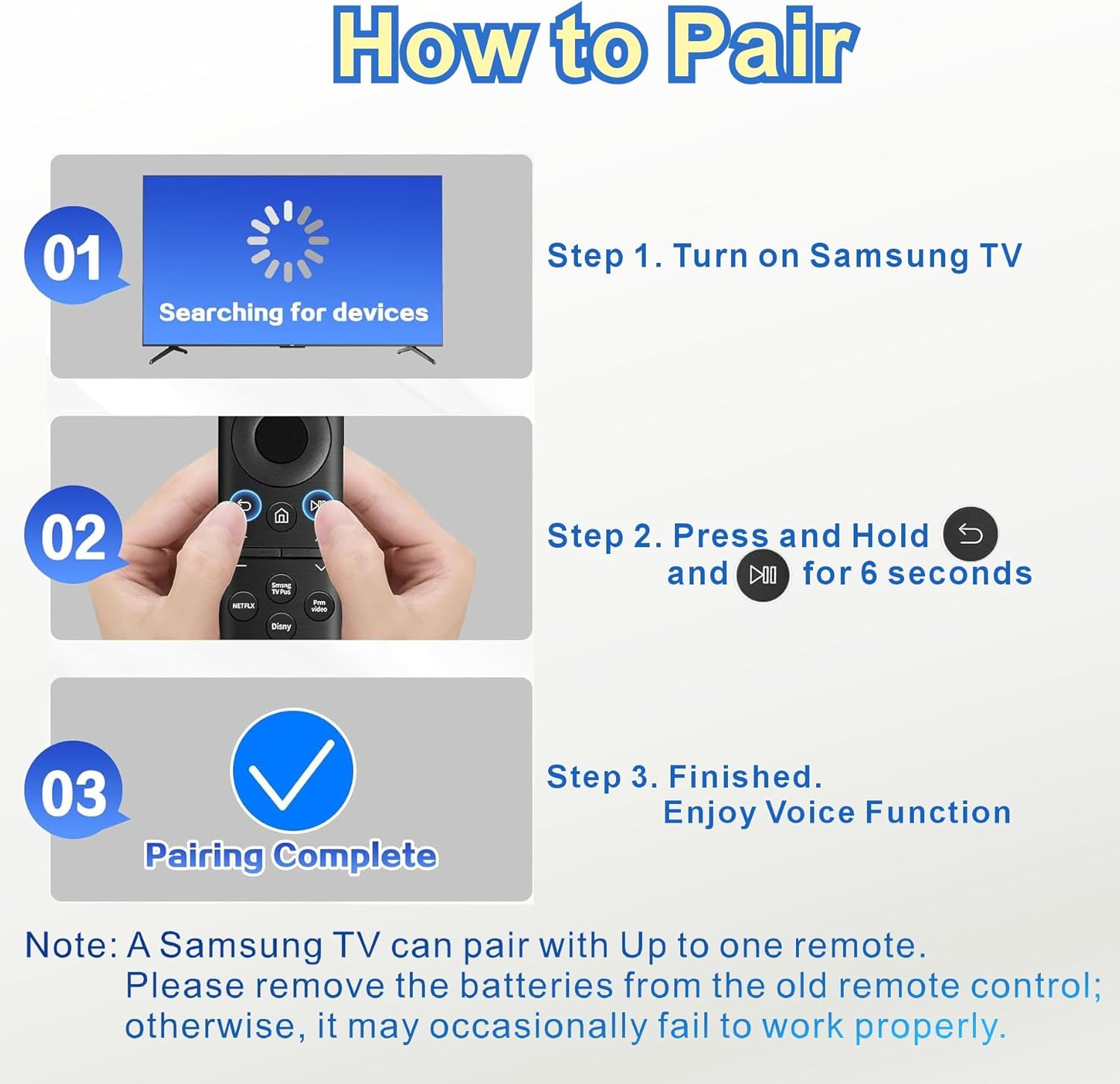
Figure 3.2: Remote Pairing Steps
After successful pairing, you can utilize the voice control function.
4. Operating Instructions
The B BraiNice Universal Remote Control provides intuitive navigation and control over your Samsung Smart TV.
Figure 4.1: Remote Control Layout
4.1 Basic Functions
- Power Button: Located at the top, press to turn the TV on or off.
- Navigation Pad (Circular): Use the directional buttons to navigate menus and select items. The center button acts as 'Enter' or 'OK'.
- Volume Buttons (+/-): Adjust the TV volume.
- Channel Buttons (Up/Down): Change TV channels.
- Home Button: Returns to the TV's Smart Hub or home screen.
- Back Button: Returns to the previous screen or menu.
- Play/Pause, Fast Forward, Rewind: Control media playback.
4.2 Voice Control
After successful pairing, the voice control feature allows for hands-free operation.
- Press the Microphone Button (located near the top of the remote).
- Speak your command clearly into the remote's microphone.
Examples of Voice Commands:
- "Find [movie/show title]"
- "Open Netflix"
- "Increase volume" or "Decrease volume"
- "Go to settings"
Voice commands work reliably within approximately 10 meters (33 feet) from the TV.

Figure 4.2: Voice Control Feature

Figure 4.3: Using Voice Control
4.3 Shortcut Buttons
The remote includes dedicated shortcut buttons for quick access to popular streaming services:
- NETFLIX
- Disney+
- Prime Video
- Samsung TV Plus
Pressing these buttons will directly launch the corresponding application on your Samsung TV, provided the app is installed and your TV supports the feature.

Figure 4.4: Shortcut Buttons
5. Maintenance
5.1 Cleaning
To clean the remote, use a soft, dry cloth. Do not use liquid cleaners, sprays, or abrasive materials, as these can damage the remote's surface or internal components.
5.2 Battery Replacement
Replace batteries when the remote's response becomes sluggish or it stops functioning. Always replace both AAA batteries at the same time with new ones. Do not mix old and new batteries or different types of batteries.
6. Troubleshooting
If you encounter issues with your B BraiNice Universal Remote Control, refer to the following common solutions:
| Problem | Solution |
|---|---|
| Remote is not responding. |
|
| Voice control is not working. |
|
| Shortcut buttons do not work. |
|
| Remote occasionally fails to work properly. |
|
7. Specifications
| Feature | Detail |
|---|---|
| Product Dimensions | 6 x 3 x 1.5 inches |
| Item Weight | 1.76 ounces |
| Batteries Required | 2 AAA batteries |
| Connectivity | Bluetooth (for voice control), Infrared (for basic functions) |
| Special Features | Universal compatibility, Voice Search, 4 Shortcut buttons (Netflix, Disney+, Prime Video, Samsung TV Plus) |
| Compatible TV Years | 2019-2025 Samsung Smart TVs |
| Voice Control Range | Up to 40 inches (approx. 10 meters / 33 feet) |
| Material | Sustainable ABS plastic |
| Button Durability | Designed to withstand over 100,000 presses |

Figure 7.1: Advanced Chip Technology

Figure 7.2: Remote Control Features and Durability
8. Warranty and Support
8.1 2-Year Full Warranty
This B BraiNice Universal Remote Control is protected by a 2-year full warranty from the date of purchase. This warranty covers manufacturing defects and ensures the product meets its stated performance. For warranty claims or support, please contact the seller or manufacturer directly.
8.2 Customer Support
For further assistance, technical support, or inquiries not covered in this manual, please refer to the contact information provided by your retailer or the B BraiNice official support channels.