1. Introduction
This manual provides detailed instructions for the operation and maintenance of your SHJ Zello 4G LTE&WiFi POC Walkie Talkie. This device is designed for professional outdoor and team communication, offering seamless connectivity through 4G LTE and WiFi networks, and supporting Zello Android applications.
Key features include:
- Seamless 4G LTE and WiFi Connectivity: Automatic switching between networks for continuous communication.
- Built-in POC Radio Function: Efficient Push-to-Talk over Cellular (POC) for intercom and online radio access.
- Fast Charging and Long-lasting Battery: High-capacity battery with quick charging capabilities.
- Wide Coverage: Extended communication range via 4G LTE technology.
- Lightweight and Portable Design: Ergonomic and compact for easy carrying.
2. Package Contents
Please verify that all items listed below are present in your package:
- 1 x SHJ H28Y Radio
- 1 x Battery
- 1 x Desktop Charger
- 1 x Back Clip
- 1 x USB Type-C Charging Cable
- 1 x Power Adapter
- 1 x Wrist Strap
- 1 x Antenna
- 1 x User Manual (this document)

Image: Contents of the SHJ H28Y Walkie Talkie package, including the radio unit, battery, desktop charger, USB cable, power adapter, back clip, wrist strap, and antenna.
3. Product Overview
Familiarize yourself with the components and controls of your walkie talkie.

Image: Front view diagram of the SHJ H28Y Walkie Talkie, indicating the Aerial, Indicator light, Volume knob, Earpiece port, TYPE-C port, Monitor button, PTT (Push-to-Talk) button, Menu button, Side key 1, P1 function key, Side key 2, Select key, Exit button, P2 function key, Microphone, and Loudspeaker.
3.1. Controls and Functions
- Aerial: For signal transmission and reception.
- Indicator Light: Displays device status (e.g., charging, transmitting, receiving).
- Volume Knob: Adjusts the audio output level.
- Earpiece Port: Connects to external earpieces or headsets.
- TYPE-C Port: Used for charging the device.
- PTT (Push-to-Talk) Button: Press and hold to transmit voice, release to listen.
- Menu Button: Accesses the device's menu options.
- Side Key 1 / Side Key 2: Programmable function keys.
- P1 / P2 Function Keys: Dedicated programmable function keys.
- Select Key: Used for navigation and selection within menus.
- Exit Button: Returns to the previous screen or exits a menu.
- Microphone: Captures your voice for transmission.
- Loudspeaker: Outputs received audio.
4. Setup
4.1. Battery Installation
- Ensure the device is powered off.
- Locate the battery compartment cover on the back of the radio.
- Slide the cover latch to unlock and remove the cover.
- Insert the Lithium Ion battery, ensuring the contacts align correctly.
- Replace the battery compartment cover and slide the latch to lock it securely.
4.2. Charging the Battery
The device can be charged using the included desktop charger or directly via the Type-C port.
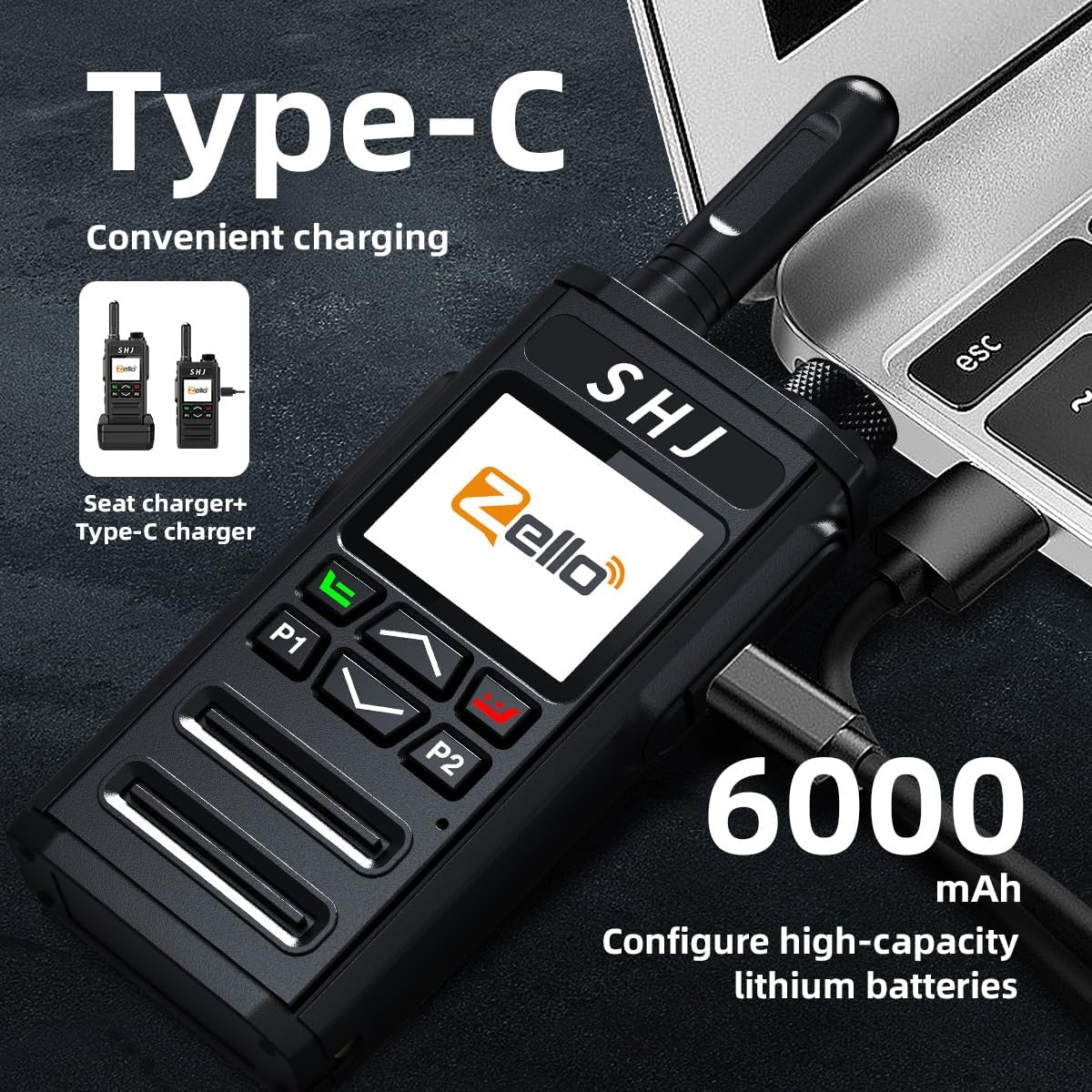
Image: The SHJ H28Y Walkie Talkie connected to a Type-C charging cable, illustrating the convenient charging method and the 6000 mAh high-capacity battery.
Using the Desktop Charger:
- Connect the power adapter to the desktop charger and plug it into a power outlet.
- Place the walkie talkie into the charging slot of the desktop charger.
- The indicator light on the charger will show the charging status.
Using the Type-C Port:
- Connect the Type-C USB cable to the device's Type-C port.
- Connect the other end of the cable to the power adapter and plug it into a power outlet, or connect to a compatible USB power source.
- The device's indicator light will show the charging status.
A full charge provides long-lasting standby and call time.
4.3. Initial Power On and Network Connection
- Power On: Rotate the Volume knob clockwise until the device powers on.
- SIM Card (Optional): If using 4G LTE, ensure a compatible SIM card (not included) is properly installed.
- WiFi Connection:
- Navigate to the device's settings menu.
- Select "WiFi" and enable it.
- Choose your desired network from the list and enter the password if required.
- Zello Application Setup:
- The device is compatible with Zello Android Applications.
- Launch the Zello application.
- Log in with your existing Zello account or create a new one.
- Note: Entering passwords can be challenging with the device's buttons. It is recommended to set up your Zello account on a mobile phone or PC first.

Image: The SHJ H28Y Walkie Talkie displaying icons for Bluetooth and WiFi connectivity, highlighting its ability to connect to the internet and adapt to Zello dedicated headphones or microphones for efficient communication.
5. Operating Instructions
5.1. Basic Communication (Push-to-Talk)
- Ensure the device is connected to a network (4G LTE or WiFi) and logged into Zello.
- Select the desired contact or channel within the Zello application.
- Press and hold the PTT button on the side of the radio to transmit your voice.
- Speak clearly into the microphone.
- Release the PTT button to stop transmitting and listen for replies.

Image: The SHJ H28Y Walkie Talkie screen showing the Zello interface, illustrating the one-touch call functionality where pressing and holding the on-screen button sends a voice message, similar to traditional walkie-talkie operation.
5.2. Group Communication
The Zello application allows for flexible group communication:
- Single Call: Communicate with an individual contact.
- Group Call: Communicate with a predefined group of users.
- All Call: Broadcast messages to all members within a specific group.
Manage groups and contacts directly within the Zello application interface on the device.

Image: Two SHJ H28Y Walkie Talkies side-by-side, illustrating the "Free grouping" feature with options for Single call, Group call, and All call, enabling flexible communication among individuals and teams.
5.3. Network Switching (4G LTE / WiFi)
The device automatically switches between 4G LTE and WiFi networks to maintain communication stability. When a strong WiFi signal is detected, the device will prioritize it. If WiFi signal is lost or weak, it will switch back to 4G LTE (if a SIM card is installed and active).

Image: The SHJ H28Y Walkie Talkie overlaid on a city skyline, emphasizing its "Global intercom" capability with "High speed network without delay" via 4G, indicating a 5000 kilometer signal range.
5.4. GPS Positioning
The walkie talkie supports GPS positioning, allowing for location tracking and trajectory playback. This feature is useful for coordinating teams in outdoor environments.
- Location View: View the current location of the device.
- Track Playback: Review past movement trajectories.
Access GPS functions through the device's menu or compatible Zello features.

Image: The SHJ H28Y Walkie Talkie next to a large blue GPS pin icon, illustrating its GPS positioning capabilities, including support for trajectory playback and easy access to location information.
6. Maintenance
- Cleaning: Use a soft, dry cloth to clean the device. Avoid using harsh chemicals or abrasive cleaners.
- Battery Care:
- Charge the battery fully before first use.
- Avoid overcharging or completely draining the battery for optimal lifespan.
- Store the device and battery in a cool, dry place when not in use for extended periods.
- Storage: Keep the device away from extreme temperatures, direct sunlight, and moisture.
- Antenna: Ensure the antenna is securely attached. Do not operate the device without the antenna.
7. Troubleshooting
| Problem | Possible Cause | Solution |
|---|---|---|
| Device does not power on. | Low or depleted battery. Battery not installed correctly. | Charge the battery. Reinstall the battery, ensuring proper alignment. |
| Cannot connect to network (4G/WiFi). | Out of network range. Incorrect WiFi password. SIM card issues. | Move to an area with better signal. Re-enter WiFi password. Check SIM card installation and activation. |
| Zello application not working or connecting. | No internet connection. Incorrect Zello login. Outdated Android OS version. | Ensure stable 4G or WiFi connection. Verify Zello login credentials. Note: This device runs on Android 5.1.1. Zello may require Android 7 or higher for full functionality and security updates. Compatibility issues may arise. |
| Poor audio quality. | Weak signal. Obstructions. Volume too low/high. | Move to an open area. Adjust volume. Ensure microphone and speaker are clear. |
| Battery drains quickly. | High usage. Background applications. | Reduce screen brightness. Close unnecessary background applications. Ensure full charge before use. |

Image: An exploded view of the SHJ H28Y Walkie Talkie's speaker component, highlighting its "High definition sound effects" and "AI noise reduction call" features, designed to convey clear sound even in noisy outdoor environments.
8. Specifications
| Feature | Detail |
|---|---|
| Model Number | H28Y |
| Connectivity | 4G LTE, WiFi, Bluetooth |
| Battery Type | 1 Lithium Ion (included) |
| Battery Capacity | 6000 mAh (estimated from image) |
| Operating System | Android 5.1.1 (based on customer reviews) |
| Item Weight | 14.9 ounces |
| Package Dimensions | 7.01 x 4.33 x 3.86 inches |
| Number of Channels | 299 |
| Special Feature | 4G POC |
| Frequency Range | 700 MHz to 2.6 GHz |
| Talking Range Maximum | 100 Kilometer |
| Water Resistance Level | Not Water Resistant |
| Compatible Devices | Zello Android Applications, RM devices |
9. Warranty and Support
9.1. Product Warranty
The SHJ H28Y Walkie Talkie comes with a 2-year warranty from the date of purchase. This warranty covers manufacturing defects and malfunctions under normal use. Please retain your proof of purchase for warranty claims.
9.2. Extended Protection Plans
Extended protection plans are available for purchase separately to provide additional coverage beyond the standard warranty period:
- 2-Year Protection Plan: Provides coverage for an additional 2 years.
- 3-Year Protection Plan: Provides coverage for an additional 3 years.
- Complete Protect: A monthly plan covering eligible past and future purchases.
For details on purchasing and terms of these protection plans, please refer to the retailer or contact customer service.
9.3. Customer Support
For technical assistance, troubleshooting, or warranty inquiries, please contact SHJ customer support through the retailer where the product was purchased. Please have your model number (H28Y) and proof of purchase ready.


