
GESKS Tuya 8MP
GESKS Tuyasmart Wireless 4K 8MP WiFi Security Camera User Manual
Model: Tuya 8MP
Introduction
This manual provides detailed instructions for the installation, operation, and maintenance of your GESKS Tuyasmart Wireless 4K 8MP WiFi Security Camera. This advanced security camera offers 4K Ultra HD resolution, intelligent features like motion detection and human tracking, two-way audio, and robust night vision, ensuring comprehensive surveillance for your property.
What's in the Box
Please verify that all components are present before proceeding with installation.
- GESKS Tuyasmart Wireless 4K 8MP WiFi Camera
- Power Adapter
- Mounting Screws
- Instruction Manual (This document)
Product Overview
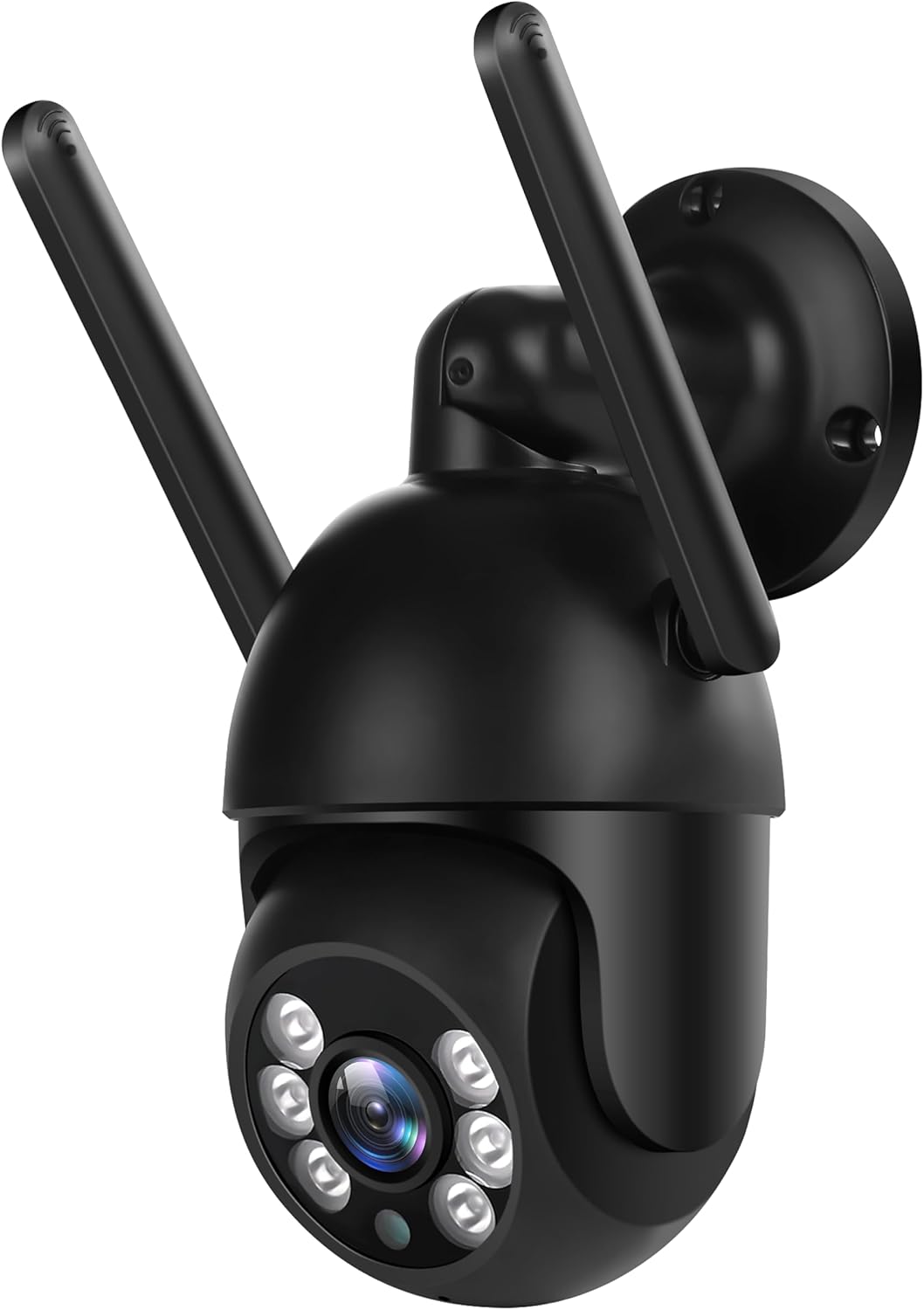
Figure 1: GESKS Tuyasmart Wireless 4K 8MP WiFi Security Camera. This image displays the black dome-shaped security camera with two external antennas. The camera features a lens surrounded by multiple infrared and white light LEDs for night vision. It is designed for wall mounting, with a circular base visible at the top right. The camera's compact design allows for versatile installation.
The GESKS Tuyasmart camera is a compact, outdoor-rated dome PTZ camera. It features a 2.8mm lens, IR-CUT filter, and a combination of infrared and white light LEDs for effective night vision up to 20 meters. The camera supports horizontal rotation of 355 degrees and vertical rotation of 110 degrees, providing wide area coverage.
Setup
1. Mounting the Camera
- Choose a Location: Select a suitable outdoor or indoor location that provides the desired viewing angle and is within range of your Wi-Fi network. Ensure the mounting surface is sturdy enough to support the camera.
- Mark Drill Holes: Use the camera's mounting base as a template to mark the positions for drilling holes on the wall or ceiling.
- Drill Holes: Drill pilot holes at the marked positions. Insert wall anchors if necessary for added stability.
- Secure the Camera: Align the camera's mounting base with the drilled holes and secure it using the provided mounting screws.
2. Power Connection
Connect the provided power adapter to the camera's power input port. Plug the power adapter into a standard electrical outlet. The camera will power on and initiate its startup sequence.
3. App Installation and Wi-Fi Connection
- Download the App: Download the "Tuyasmart" or "Smartlife" app from the iOS App Store (for Apple devices) or Google Play Market (for Android devices).
- Register/Log In: Open the app and register a new account or log in if you already have one.
- Add Device: Tap the "+" icon or "Add Device" button in the app. Select "Security & Video Surveillance" and then "Smart Camera (Wi-Fi)".
- Connect to Wi-Fi: Follow the on-screen instructions to connect the camera to your 2.4GHz Wi-Fi network. Ensure your mobile device is connected to the same Wi-Fi network during the setup process. You may need to scan a QR code displayed on your phone with the camera lens or listen for a connection tone.
- Device Added: Once connected, the camera will appear in your device list within the app. You can rename the camera for easier identification.
Operating the Camera
1. Live View and Recording
- Access Live View: Open the Tuyasmart/Smartlife app and tap on your camera's name to access the live video feed.
- Manual Recording: While in live view, you can manually start and stop video recording directly to your mobile device.
- Playback: Access recorded footage from the app's playback section. You can view recordings stored on a TF card or in cloud storage.
2. Pan, Tilt, and Zoom (PTZ) Control
From the live view interface in the app, use the directional controls to remotely adjust the camera's viewing angle. The camera supports 355 degrees horizontal rotation and 110 degrees vertical rotation.
3. Motion Detection and Human Tracking
- Enable Motion Detection: Navigate to the camera settings in the app and enable motion detection. You can adjust sensitivity levels and set detection zones.
- Human Tracking: When enabled, the camera will automatically track detected human figures within its field of view, keeping them centered in the frame.
- Alarm Push Notifications: Configure the app to send rapid push notifications to your mobile device when motion or human activity is detected.
4. Two-Way Audio
The camera features a built-in microphone and speaker. Tap the microphone icon in the live view interface to speak through the camera, and listen to audio from the camera's surroundings.
5. Night Vision
The camera automatically switches to night vision mode in low-light conditions. It utilizes 6 infrared LEDs and 6 white light LEDs to provide clear visibility up to 20 meters, offering both infrared (black and white) and colorful night vision options.
6. Storage Options
- TF Card Storage: Insert a MicroSD (TF) card (up to 128GB, not included) into the camera's TF card slot for local storage of recordings. The app supports playback and downloading of videos from the TF card.
- Cloud Recording: The camera supports optional cloud storage services (subscription may be required). Refer to the app for details on activating and managing cloud recording.
Maintenance
- Cleaning: Regularly clean the camera lens and housing with a soft, dry cloth to ensure clear image quality. Do not use abrasive cleaners or solvents.
- Firmware Updates: Check the Tuyasmart/Smartlife app periodically for available firmware updates. Keeping the firmware updated ensures optimal performance and access to new features.
- Storage Management: If using a TF card, periodically review and manage stored footage to prevent the card from becoming full. Old footage may be overwritten automatically depending on settings.
- Power Cycle: If the camera experiences connectivity issues or unusual behavior, try power cycling it by unplugging and re-plugging the power adapter.
Troubleshooting
| Problem | Possible Cause | Solution |
|---|---|---|
| Camera offline in app | No power; Wi-Fi disconnected; Router issue | Check power connection; Verify Wi-Fi signal strength; Restart router and camera. |
| Cannot connect to Wi-Fi | Incorrect Wi-Fi password; 5GHz network selected; Weak signal | Ensure correct 2.4GHz Wi-Fi password; Connect to a 2.4GHz network; Move camera closer to router. |
| Poor image quality | Dirty lens; Insufficient lighting; Network bandwidth issues | Clean the lens; Ensure adequate lighting or check night vision settings; Check network speed. |
| Motion detection not working | Feature disabled; Sensitivity too low; Incorrect detection zone | Enable motion detection in app; Increase sensitivity; Adjust detection zone. |
| Two-way audio issues | Microphone/speaker muted; Network delay | Check audio settings in app; Ensure stable network connection. |
Specifications
| Feature | Detail |
|---|---|
| Model Name | 4K 8Mpx |
| Resolution | 8MP (3840*2160) |
| Image Sensor | 1/2.7" 8megapixel progressive CMOS sensor |
| Lens Type | 2.8mm |
| Night Vision Range | 20 meters (66 feet) |
| Infrared LED | 6 infrared + 6 white light |
| Rotation Angle (Horizontal) | 355 degrees |
| Rotation Angle (Vertical) | 110 degrees |
| Connectivity | WiFi 2.4G |
| Two-Way Audio | Supported (with Echo Cancellation) |
| Motion Detection | Supported |
| Human Tracking | Supported (Auto Tracking) |
| Storage | TF card (max 128G), Cloud Recording |
| Mobile APP View | Tuyasmart and Smartlife App |
| Power Supply | DC12V/2A |
| Material & Use Environment | Plastic / Outdoor dome PTZ camera |
| Product Dimensions | 3.2 x 3.2 x 7.4 inches |
| Item Weight | 14.1 ounces |
Warranty and Support
For warranty information and technical support, please refer to the contact details provided with your purchase or visit the official GESKS website. Keep your purchase receipt as proof of purchase for warranty claims.
Ask a question about this manual
Ask about setup, troubleshooting, compatibility, parts, safety, or missing instructions. Manuals+ will review the question and use this page’s manual context to help answer it.