
1. Introduction
This manual provides comprehensive instructions for the CAMECHO 2+64G Android 13 Car Stereo, model B0DKP5KJZK. This unit is specifically designed for Honda Odyssey models manufactured between 2005 and 2010. It covers essential information regarding installation, operation, maintenance, and troubleshooting to ensure optimal performance and user experience.
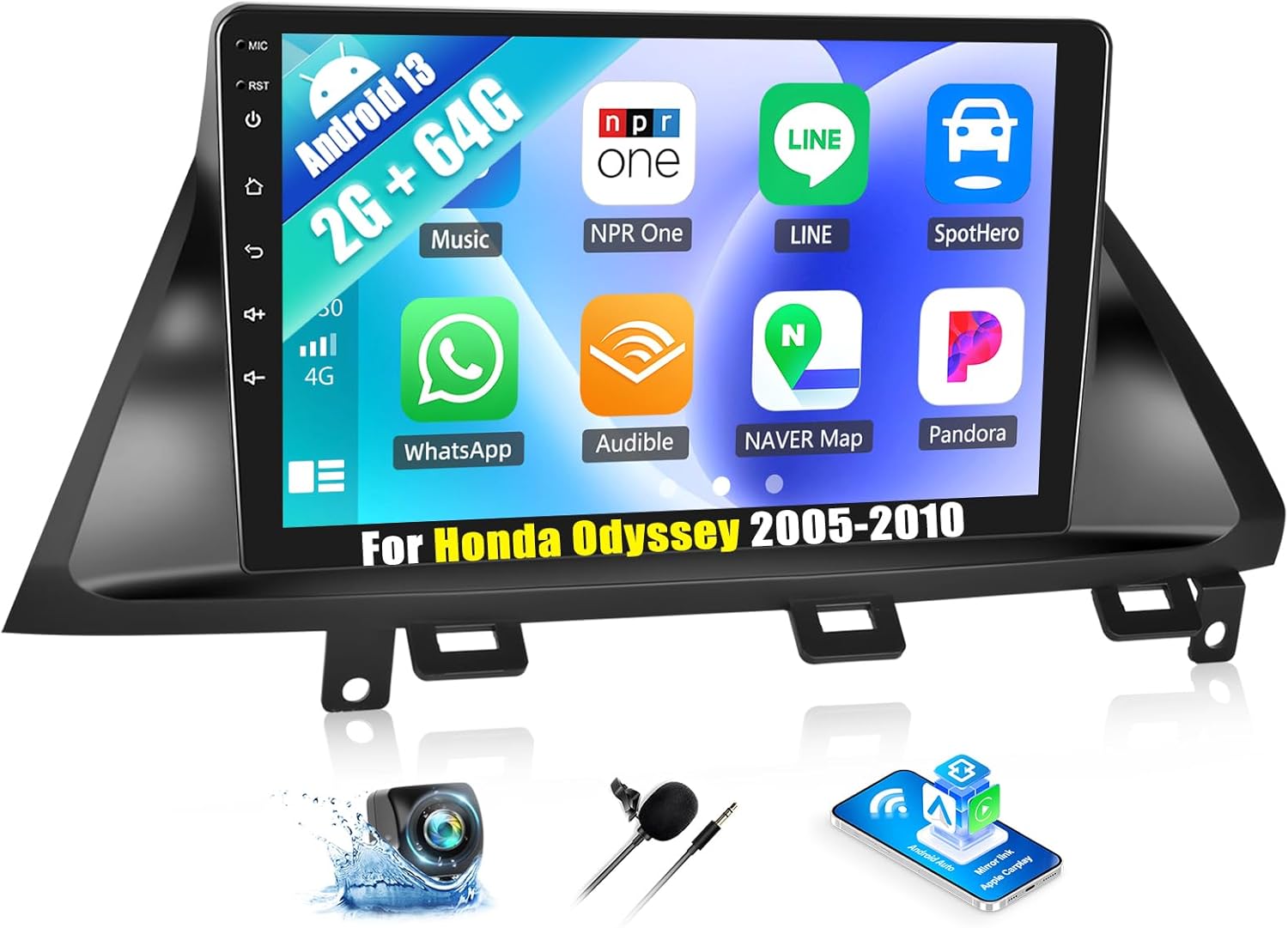
Image 1.1: The CAMECHO Android 13 Car Stereo unit, featuring a 10.1-inch touchscreen display.
2. Safety Information
Please read all safety instructions carefully before installing or operating the device. Failure to follow these instructions may result in injury or damage to the unit or vehicle.
- Professional Installation Recommended: Due to the complexity of car electrical systems, professional installation is highly recommended.
- Power Disconnection: Always disconnect the vehicle's battery negative terminal before beginning any installation work to prevent electrical shorts.
- Wiring: Ensure all wiring is correctly connected and insulated to prevent short circuits and fire hazards. Do not modify the wiring harness.
- Driving Safety: Do not operate the device in a manner that distracts you from driving. Always prioritize road safety.
- Temperature: Avoid exposing the unit to extreme temperatures or direct sunlight for prolonged periods.
3. Package Contents
Verify that all items listed below are included in your package:
- CAMECHO Android 13 Car Stereo Head Unit
- Power Cable
- USB Cable
- RCA Cable
- Rear View Input Cable
- GPS Antenna
- Installation Tool
- AHD Backup Camera
- External Microphone
- User Manual (this document)

Image 3.1: All components included in the CAMECHO car stereo package.
4. Installation Guide
4.1. Compatibility Check
This car stereo is compatible with Honda Odyssey models from 2005 to 2010. Before installation, carefully compare your vehicle's center console and existing adapter connectors with the provided unit and wiring harness to ensure a proper fit.

Image 4.1: Visual comparison of a Honda Odyssey dashboard before and after the CAMECHO car stereo installation.
4.2. Wiring Connections
Follow the wiring diagrams carefully. Incorrect connections can damage the unit or vehicle's electrical system.
4.2.1. Main Product Wiring

Image 4.2: Main wiring diagram for the CAMECHO car stereo, illustrating connections for RCA, USB, rear view video input, power, and GPS antenna.
Ensure the white plug is securely connected to the main device to enable Bluetooth and Wi-Fi signals.
4.2.2. Reversing Camera Wiring
Connect the backup camera as follows:
- Red Cable (1): Connect to the positive pole of the car's reversing light cable.
- Black Cable (2): Connect to the negative pole of the car's reversing light cable.
- The two red extension cables (3 and 4) are typically not required for standard installation.
Important: The reversing input cable must be plugged into the head unit even if the reversing camera is not used, to ensure proper system functionality.

Image 4.3: Reversing camera wiring diagram, showing connections to the vehicle's reversing light circuit.
4.3. Mounting the Unit
After completing all wiring, carefully mount the head unit into the dashboard opening. Secure it using the provided brackets and screws. Ensure the unit is flush with the dashboard and all cables are neatly tucked away to prevent interference.
4.4. Initial Power-On
Reconnect the vehicle's battery. Turn on the ignition. The unit should power on automatically. Follow any on-screen prompts for initial setup, such as language selection and time zone.
5. Operating Instructions
5.1. Basic Functions
- Power On/Off: Press and hold the power button (usually on the front panel) to turn the unit on or off. A short press typically mutes the audio.
- Touchscreen Interface: Navigate through menus and applications by tapping, swiping, and pinching on the 10.1-inch IPS 2.5D touchscreen.
- Volume Control: Adjust audio volume using the physical buttons or on-screen controls.
5.2. Android 13 System
The head unit operates on the Android 13 system, providing a responsive and smooth user experience. You can download various applications from the app store, such as YouTube, Waze, and Facebook, to enrich your in-car entertainment and utility.

Image 5.1: The CAMECHO car stereo display showcasing various Android applications.
5.3. Wireless Carplay & Android Auto
The unit supports both wired and wireless Apple Carplay and Android Auto. This feature allows you to integrate your smartphone for navigation, calls, music playback, and messaging via voice control.
- Compatibility: Supports iOS 15.3 and below, and Android 12 and below.
- Connection: Connect via USB or Wi-Fi.
- Note: Huawei mobile phones are not supported. Samsung phones do not support wired Android Auto.

Image 5.2: Visual representation of wired and wireless Carplay and Android Auto functionality.
5.4. GPS Navigation & WiFi Connection
The stereo includes a built-in offline map application, 'Here We GO'. You can download offline maps for navigation without an internet connection. For online navigation and app downloads, connect the unit to a Wi-Fi network or mobile hotspot.

Image 5.3: GPS navigation interface and Wi-Fi connection icon on the car stereo.
5.5. Bluetooth Hands-free Calling & Music
Connect your smartphone via Bluetooth for hands-free calling and audio streaming. The unit supports automatic phonebook loading and includes an external microphone for clearer call quality.
5.6. FM/RDS Radio
Tune into FM radio stations (87.0M-108M FM frequency) and preset up to 18 stations. RDS (Radio Data System) provides real-time information such as station names, weather forecasts, and road conditions.

Image 5.4: Bluetooth calling screen and FM/RDS radio interface.
5.7. Split Screen Functionality
The 10.1-inch screen with 1024x600 resolution supports split-screen mode, allowing you to run two applications simultaneously, such as GPS navigation and video playback.
5.8. Steering Wheel Control
The unit is compatible with your vehicle's steering wheel controls, enabling you to manage calls, switch music tracks, and adjust volume without taking your hands off the wheel, enhancing driving safety.
5.9. Backup Camera System
When the vehicle is shifted into reverse, the unit automatically displays the feed from the included AHD backup camera, assisting with safer parking and maneuvering. The camera features night vision and a 170-degree wide-angle view.

Image 5.5: Backup camera features and steering wheel control interface.
5.10. EQ Settings
Customize your audio experience with the 15-band equalizer. Preset modes such as classical, jazz, pop, and rock are available to suit various musical preferences.
6. Maintenance
Proper maintenance ensures the longevity and optimal performance of your car stereo.
- Screen Cleaning: Use a soft, lint-free cloth to gently wipe the touchscreen. For stubborn smudges, slightly dampen the cloth with water or a screen-safe cleaner. Avoid harsh chemicals.
- Software Updates: Periodically check for system software updates via the unit's settings menu when connected to Wi-Fi. Updates can improve performance and add new features.
- Environmental Care: Avoid exposing the unit to extreme temperatures, direct sunlight, or excessive moisture.
7. Troubleshooting
This section addresses common issues you might encounter. If problems persist, contact customer support.
- No Power:
- Check all power connections and fuses.
- Ensure the vehicle's battery is fully charged.
- No Sound:
- Verify speaker connections.
- Check volume levels and mute settings.
- Ensure the correct audio source is selected.
- System Resets/Crashes:
- This can sometimes occur when opening certain applications or due to software glitches. Try restarting the unit.
- Ensure the system software is up to date.
- If persistent, a factory reset might be necessary (note: this will erase all user data).
- Difficulty Connecting to Phone (Carplay/Android Auto/Bluetooth):
- Ensure your phone's operating system is within the supported versions (iOS 15.3 or below, Android 12 or below).
- Check the white plug connection for Bluetooth/Wi-Fi signals.
- Restart both the car stereo and your phone.
- Forget and re-pair the Bluetooth connection.
- Backup Camera Issues:
- Verify the reversing camera wiring, especially the positive and negative connections to the reversing light.
- Ensure the reversing input cable is securely plugged into the head unit.
- GPS Not Working:
- Ensure the GPS antenna is properly connected and placed in an area with a clear view of the sky.
- Check if offline maps are downloaded or if the unit has a stable Wi-Fi connection for online maps.
8. Specifications
| Feature | Specification |
|---|---|
| Model | B0DKP5KJZK |
| Operating System | Android 13 |
| RAM | 2GB |
| Internal Storage | 64GB |
| Display Size | 10.1 Inches |
| Display Type | IPS 2.5D Touchscreen |
| Connectivity | Bluetooth, USB, Wi-Fi |
| Special Features | Wireless Carplay & Android Auto, GPS Navigation, FM/RDS, EQ Settings, Split Screen, Steering Wheel Control, Backup Camera Input |
| Vehicle Service Type | Minivan (Honda Odyssey 2005-2010) |
| Map Type | North America (Offline Map APK 'Here We GO') |
| Item Weight | 3.34 pounds |
| Package Dimensions | 15 x 6 x 5 inches |

Image 8.1: Dimensions of the CAMECHO car stereo unit.
9. Warranty Information
This CAMECHO car stereo unit comes with a 2-year warranty from the date of purchase. The warranty covers manufacturing defects and malfunctions under normal use. It does not cover damage caused by improper installation, misuse, accidents, unauthorized repairs, or normal wear and tear.
Please retain your proof of purchase for warranty claims.
10. Customer Support
For technical assistance, troubleshooting guidance, or any questions regarding your CAMECHO car stereo, please contact our customer support team.
Email: camechovip@126.com
Our team is available to provide online help and further user manual support.

Image 10.1: CAMECHO customer support contact information.