
1. Product Overview
The Qulokar 10.26" Portable Wireless CarPlay/Android Auto Screen is designed to enhance your in-car experience by providing seamless smartphone integration, advanced navigation, and comprehensive driving recording capabilities. This device features a high-definition touch screen, dual cameras for front and rear recording, and multiple audio output options.
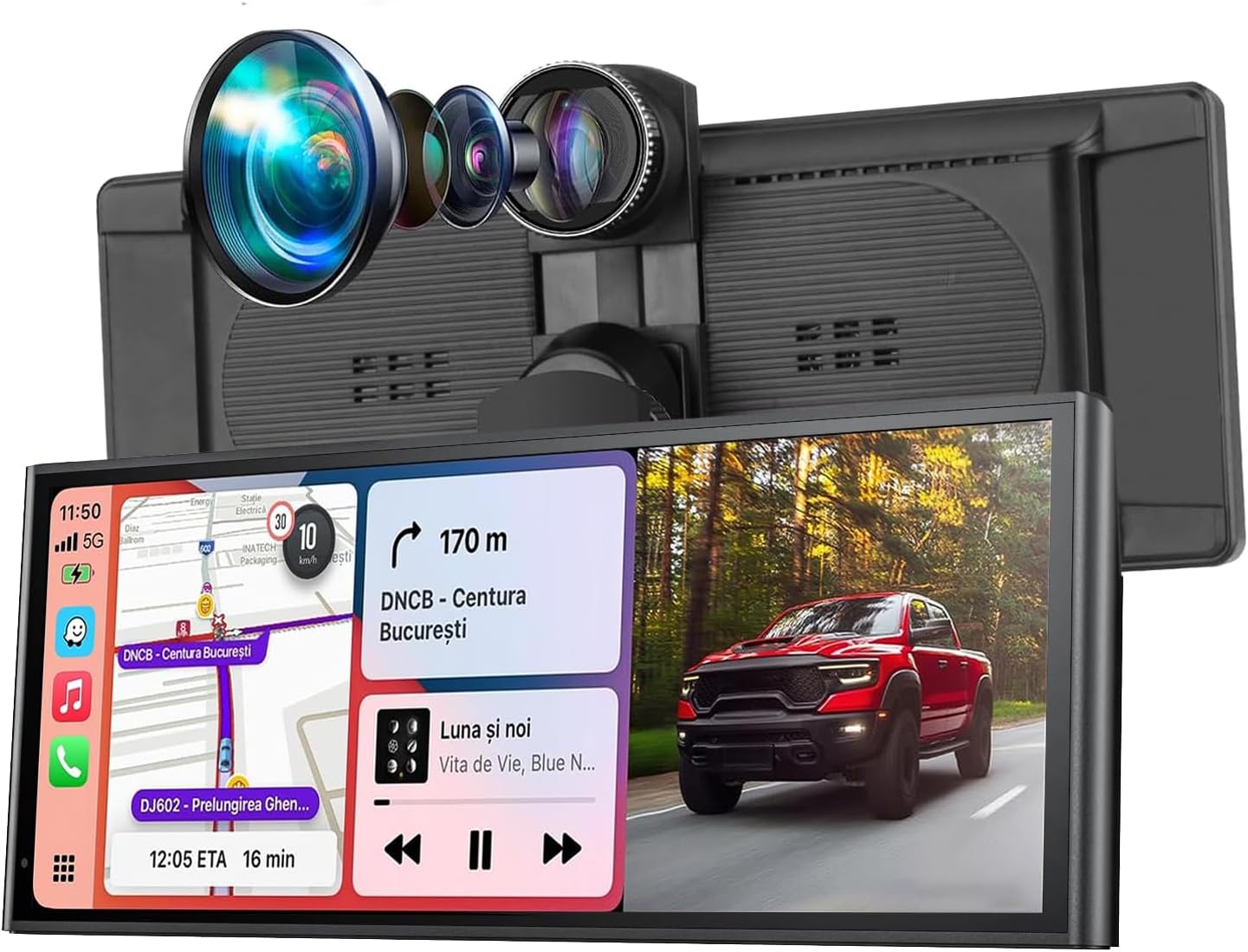
Image 1.1: Front view of the Qulokar 10.26" Portable Wireless CarPlay/Android Auto Screen.
2. Package Contents
Please verify that all items are present in the package:
- 10.26" Portable Car Stereo Unit
- Suction Mount Bracket
- Adhesive Sticker Bracket
- Rear Camera (1080P)
- Power Cord (for cigarette lighter)
- 64GB TF Card
- AUX Cable
- Stand Sticker
- User Manual

Image 2.1: All components included in the Qulokar Q10-Bk package.
3. Setup and Installation
3.1 Mounting the Device
The device offers two primary mounting methods: a suction cup bracket for the dashboard or windshield, and an adhesive bracket for a more permanent fixture.
- Suction Mount Bracket: Attach the suction cup to a clean, smooth surface on your dashboard or windshield. Press the center button to secure the suction cup. Adjust the screen angle using the retractable and rotatable joints.
- Adhesive Sticker Bracket: Clean the desired surface thoroughly. Apply the adhesive sticker bracket firmly to the surface. Attach the screen to the bracket.

Image 3.1: Illustration of adjustable brackets for various installation methods.
3.2 Power Connection
Connect the power cord to the device and plug the other end into your vehicle's cigarette lighter socket. The power cord also features a built-in USB socket for charging your phone.
3.3 Camera Installation
The device includes a front 4K camera and a 1080P waterproof backup camera. The large cord provided is for the backup camera.
- Front Camera: The main unit has an integrated front camera. Ensure its view is unobstructed.
- Rear Camera: Install the 1080P waterproof backup camera at the rear of your vehicle. Connect its cable to the designated input on the main unit.
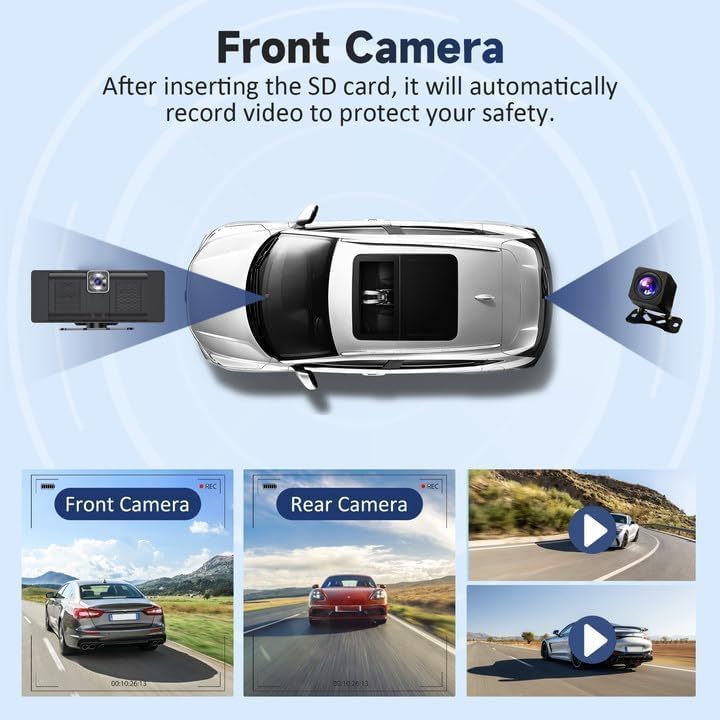
Image 3.2: The front camera records your journey, providing a clear view.

Image 3.3: Overview of the 4K dash cam and 1080P rear camera capabilities.
3.4 TF Card Insertion
Insert the included 64GB TF card into the designated slot on the device. This card is essential for recording dash cam footage.
4. Operating Instructions
4.1 Powering On/Off
The device powers on automatically when your vehicle starts and powers off when the ignition is turned off.
4.2 Touch Screen Navigation
The 10.26-inch HD touch screen allows for intuitive control. Tap icons to access various functions and swipe to navigate menus.
4.3 Wireless CarPlay and Android Auto
Connect your smartphone wirelessly to access CarPlay or Android Auto features. Your smartphone will automatically sync upon entering the vehicle.
- Ensure Bluetooth is enabled on your smartphone.
- On the device, select 'CarPlay' or 'Android Auto' from the main menu.
- Follow the on-screen prompts to pair your phone.

Image 4.1: The main interface showing CarPlay, Android Auto, and Mirror Link options.
4.4 Mirror Link (AirPlay/Android Cast)
The device supports AirPlay for iOS devices and Android Cast for Android devices, allowing you to mirror your phone's screen content.
- Select 'AirPlay' or 'Android Cast' from the main menu.
- Follow the instructions on the screen to connect your device.

Image 4.2: Demonstrating wireless mirror link to display phone content on the screen.
4.5 Audio Output Options
The device offers four ways to output audio:
- Bluetooth: Connect your phone to the device via Bluetooth for audio playback through your car's speakers.
- AUX: Use the provided AUX cable to connect the device to your car's AUX input.
- FM Transmitter: Tune the device and your car radio to the same FM frequency to transmit audio wirelessly.
- Built-in Speaker: The device has its own built-in speaker for audio output.

Image 4.3: Visual representation of the four audio output methods.
4.6 Dash Cam Functionality
The device records continuously using the front 4K camera and rear 1080P camera. It supports loop recording, ensuring older footage is overwritten when the TF card is full.
- Access the camera view from the main menu.
- Review recorded footage via the 'Playback' option.
- Adjust camera settings (e.g., resolution, loop recording duration) in the 'Settings' menu.
4.7 Voice Control (Siri/Google Assistant)
Utilize Siri or Google Assistant for hands-free control of navigation, music, calls, and other functions.

Image 4.4: Displaying GPS navigation and voice control integration.
4.8 Split Screen Mode
The device supports split-screen mode for CarPlay and Android Auto, allowing you to view multiple applications simultaneously. This can be enabled or disabled in the 'Settings' menu under 'Split screen mode'.
4.9 Brightness Adjustment
Adjust the screen brightness via the quick settings accessible from the main screen or within the 'Settings' menu.
5. Maintenance
To ensure optimal performance and longevity of your Qulokar device, follow these maintenance guidelines:
- Cleaning: Use a soft, dry cloth to clean the screen and exterior. Avoid abrasive cleaners or solvents.
- TF Card Management: Periodically format the TF card (e.g., monthly) to prevent data corruption and ensure continuous recording. Back up any important footage before formatting.
- Temperature: Avoid exposing the device to extreme temperatures for extended periods.
6. Troubleshooting
If you encounter issues with your device, refer to the following common solutions:
- Device not powering on: Ensure the power cord is securely connected to both the device and the cigarette lighter socket. Check if the vehicle's power outlet is functioning.
- CarPlay/Android Auto not connecting: Verify Bluetooth is enabled on your phone and the device. Ensure your phone's operating system is up to date. Try restarting both the device and your phone.
- No audio output: Check the selected audio output method (Bluetooth, AUX, FM Transmitter). Ensure the volume is turned up on both the device and your car stereo. If using FM, confirm the frequencies match.
- Camera not recording: Ensure the TF card is properly inserted and not full. Format the TF card if necessary (after backing up data).
- Screen unresponsive: Try restarting the device by unplugging and re-plugging the power cord.
For further assistance, please contact our professional support team.
7. Specifications
| Feature | Specification |
|---|---|
| Screen Size | 10.26 inches |
| Screen Resolution | 1600*600 |
| Front Camera | 4K |
| Rear Camera | 1080P (Waterproof) |
| Connectivity | Wireless Apple CarPlay, Wireless Android Auto, Bluetooth, AirPlay, Android Cast, WiFi |
| Audio Output Modes | Bluetooth, AUX, FM Transmitter, Built-in Speaker |
| Power Input | 7-32V (via cigarette lighter) |
| Included Storage | 64GB TF Card |
| Item Weight | 2.16 pounds |
| Package Dimensions | 11.22 x 5.47 x 4.49 inches |
8. Official Product Video
Video 8.1: A detailed demonstration of the 10.26" Wireless CarPlay screen's features and functionality, including setup, camera views, and smartphone integration.
9. Warranty and Support
The Qulokar 10.26" Portable Wireless CarPlay/Android Auto Screen comes with a one-year warranty. Our professional tech team is available 24/7 to assist with any product-related questions or issues, ensuring a response within 24 hours.
Additionally, we offer a 365-day free return policy. If you encounter any problems that Amazon Service cannot resolve, please contact Qulokar directly for dedicated after-sales support, including replacements or full refunds if the issue cannot be resolved.

Image 9.1: Information regarding Qulokar's 365-day free return policy and customer support.