
Introduction
The ZHIYUN CINEPEER Smooth 5E Combo is a professional 3-axis gimbal stabilizer designed for smartphones, including iPhone and Android devices. It provides advanced stabilization, intelligent tracking features, and integrated lighting to help users capture smooth, cinematic footage for vlogging, live streaming, and professional content creation. This manual provides essential information for setting up, operating, maintaining, and troubleshooting your device.
What's in the Box
- SMOOTH 5E Gimbal Stabilizer
- AI Tracker Module
- Magnetic Fill Light
- 4 × Fill Light Filters (various colors)
- Mini Tripod
- USB Charging Cable

Setup
1. Initial Charging
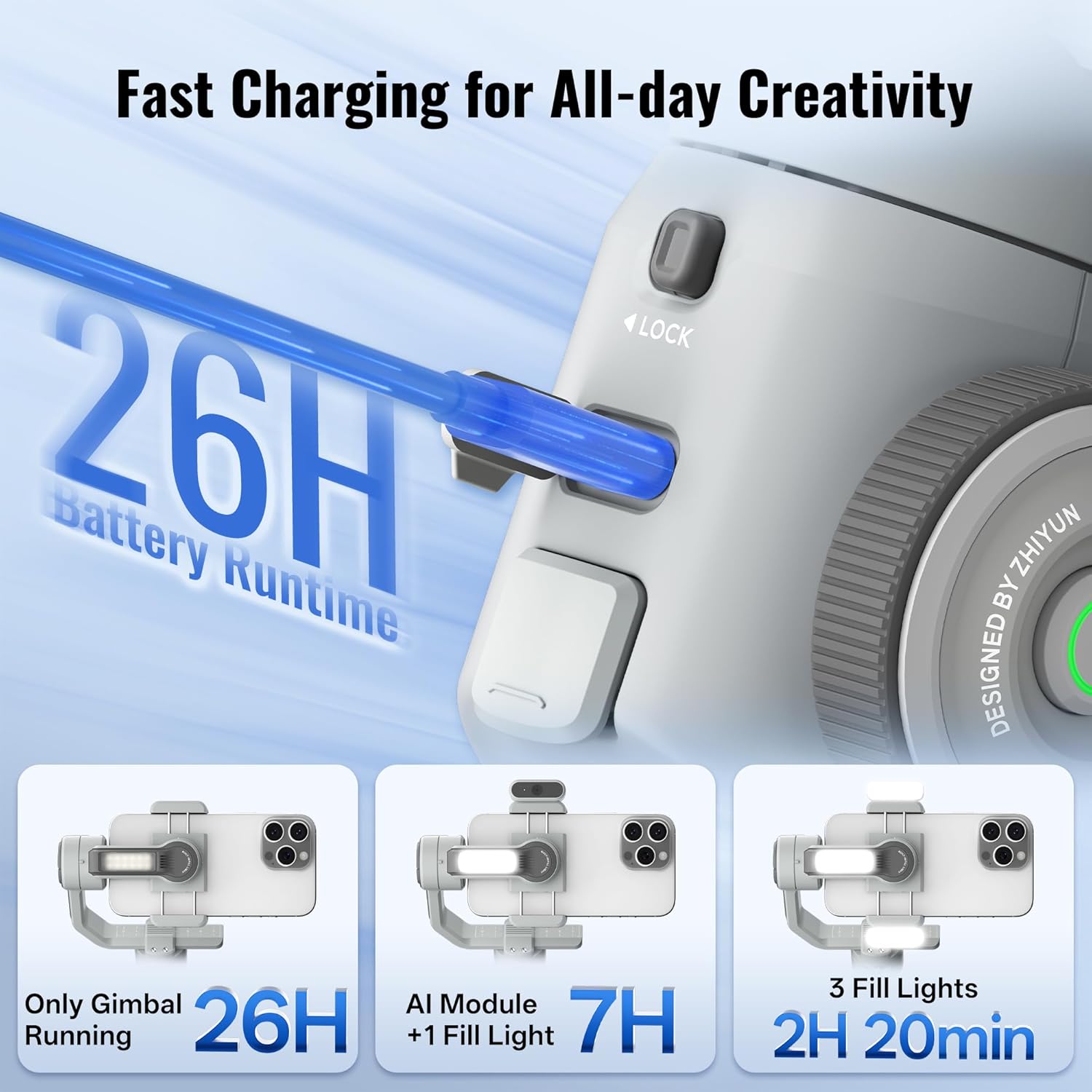
Before first use, fully charge the gimbal. Connect the provided USB charging cable to the gimbal's charging port and a suitable power adapter. A full charge typically takes 2 to 3.5 hours. The gimbal offers up to 26 hours of battery runtime with only the gimbal running, 7 hours with the AI module and one fill light, and 2 hours 20 minutes with three fill lights.

2. Unlocking and Balancing the Gimbal
The gimbal features three axes (pan, tilt, roll) that must be unlocked before use. Locate the locking switches on each axis and release them to allow free movement. Proper balancing is crucial for optimal performance and battery life. Mount your smartphone securely in the phone clamp. Adjust the phone's position within the clamp and slide the gimbal arms until the phone remains level and stable when the gimbal is powered off. This ensures the motors do not overwork to maintain balance.
3. App Installation and Connection
Download the ZY Cami app from your smartphone's app store (iOS or Android). Ensure Bluetooth is enabled on your phone. Power on the gimbal by pressing and holding the power button. Open the ZY Cami app and follow the on-screen instructions to connect to your Smooth 5E Combo via Bluetooth. The app unlocks advanced features and provides a comprehensive control interface.
Operating
1. Integrated Control Panel
The Smooth 5E features an intuitive control panel for easy operation:
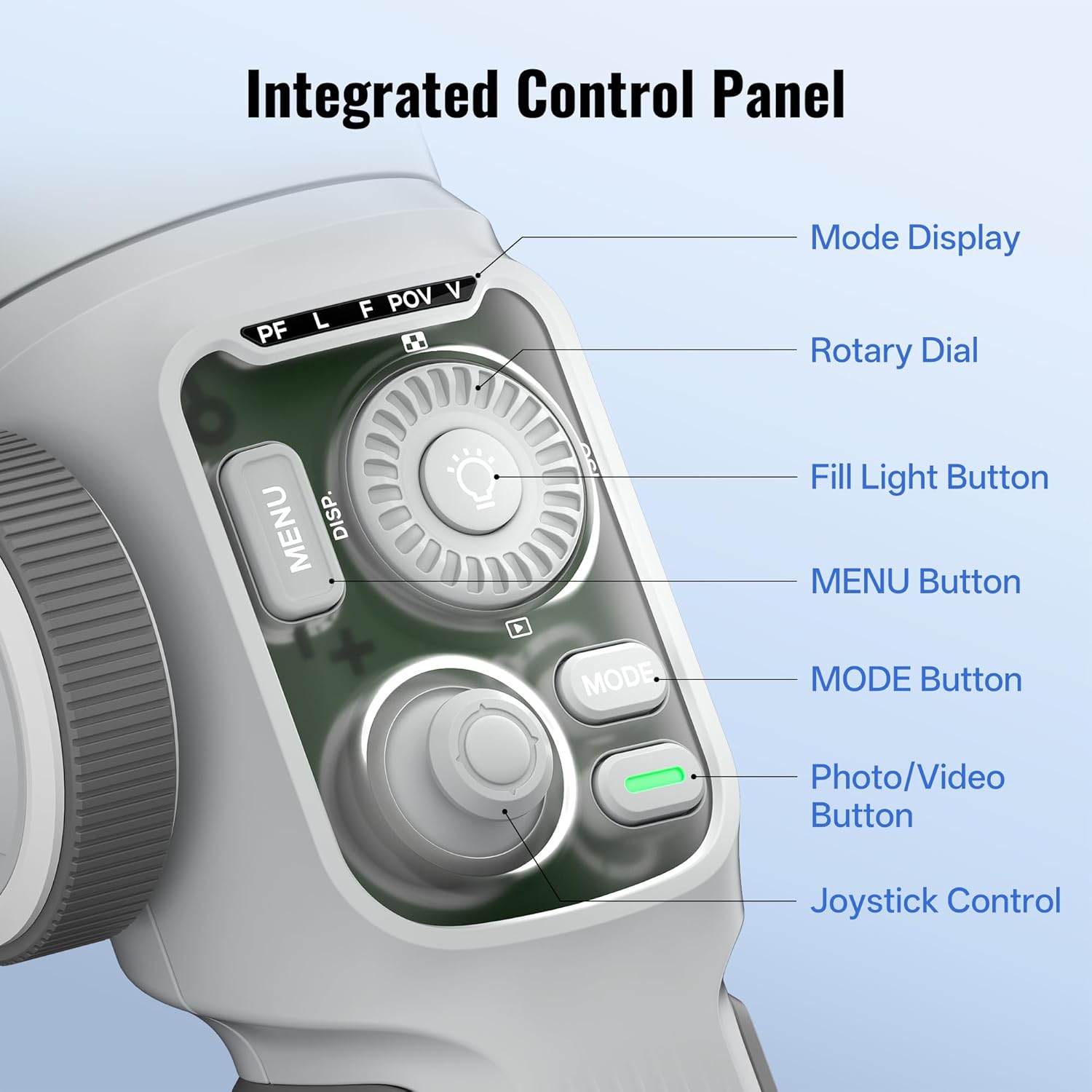
- Mode Display: Shows the current gimbal mode (PF, L, F, POV, V).
- Rotary Dial: Controls various settings, including zoom and focus.
- Fill Light Button: Activates and adjusts the built-in fill light.
- MENU Button: Accesses smart modes and other settings within the app.
- MODE Button: Cycles through different gimbal modes.
- Photo/Video Button: Initiates photo capture or video recording.
- Joystick Control: Manually controls the pan and tilt of the smartphone.
2. Gimbal Modes
The Smooth 5E offers five distinct gimbal modes for versatile shooting:
- Pan-Follow Mode (PF): The camera pans horizontally following your movement, while tilt and roll axes are locked. Ideal for smooth horizontal tracking shots.
- Lock Mode (L): All three axes are locked, keeping the camera fixed on a single direction. Useful for maintaining a static shot while moving.
- Full-Follow Mode (F): The camera follows both your pan and tilt movements, with the roll axis locked. Great for dynamic shots where you want the camera to mimic your natural movements.
- Point of View Mode (POV): All three axes follow your movements, providing a first-person perspective.
- Vortex Mode (V): The phone rotates 360 degrees along the roll axis, creating a spinning effect.

3. Built-in and Magnetic Fill Lights
The Smooth 5E Combo features a built-in fill light on the gimbal arm and includes an additional magnetic fill light. These lights provide up to 2040 Lux illumination, enhancing video quality in low-light conditions. The integrated magnetic power system allows for the attachment of up to two additional magnetic fill lights (sold separately) for increased brightness. The included colored filters can be used with the magnetic fill light to add creative lighting effects.

4. AI Tracking and Gesture Control
The included AI tracking module enables precise subject tracking without the need for the ZY Cami app. Simply use gestures to initiate tracking, composition, and video recording remotely. Within the ZY Cami app, you can frame a subject with your finger to activate locked tracking. Pressing the rear trigger button on the gimbal quickly activates face recognition and smart tracking.


5. Remote Control with Apple Watch
For Apple users, the ZY Cami app supports integration with Apple Watch (Series 7/8/9, SE 2, Ultra 1/2 with watchOS 9.0+ and iPhone with iOS 16.0+). This allows you to control tracking, zoom, and monitor the scene directly from your wrist, providing convenience for solo shooting.
6. ZY Cami and StaCam Apps
The ZY Cami and StaCam apps offer powerful features for video creation and post-production. They provide step-by-step guidance for filming, intelligent video production, and editing tools. StaCam, in particular, offers advanced professional-level video creation features, including lens adjustments and parameter adjustments for fine-tuning your mobile video parameters.
7. Low Angle and Ultra-Wide Shooting
The gimbal's design allows for easy capture of low-angle shots by simply tilting the gimbal downwards in any mode. Additionally, the roll axis motor position can be quickly switched to enable ultra-wide-angle, unobstructed selfies, providing more creative framing options.
Maintenance
To ensure the longevity and optimal performance of your ZHIYUN CINEPEER Smooth 5E Combo, follow these maintenance guidelines:
- Cleaning: Use a soft, dry cloth to clean the gimbal. Avoid using liquid cleaners or solvents that could damage the surface or internal components.
- Storage: When not in use, store the gimbal in a cool, dry place, away from direct sunlight and extreme temperatures. Ensure all axes are locked before storage to prevent accidental movement and potential damage.
- Battery Care: For long-term storage, charge the battery to approximately 50-60% every three months to maintain battery health.
- Avoid Overloading: Do not exceed the maximum payload capacity of 300 grams, as this can strain the motors and affect stabilization performance.
Troubleshooting
If you encounter issues with your ZHIYUN CINEPEER Smooth 5E Combo, refer to the following common troubleshooting steps:
- Gimbal Not Powering On: Ensure the battery is sufficiently charged. Connect the gimbal to a charger and try again.
- Unstable Footage/Vibrations: Verify that your smartphone is properly balanced on the gimbal. Perform an auto-calibration through the ZY Cami app if available. Check for any obstructions preventing free movement of the axes.
- Bluetooth Connection Issues: Ensure Bluetooth is enabled on your smartphone and the gimbal is powered on. Restart both the gimbal and your phone. Try forgetting the device in your phone's Bluetooth settings and re-pairing.
- App Functionality Problems: Ensure you are using the latest version of the ZY Cami app. Clear the app's cache or reinstall it if issues persist.
- Motors Overheating: This can occur if the gimbal is not properly balanced or if it's operating under excessive load. Re-balance your phone and ensure it's within the supported weight range.
- Gimbal Not Responding to Controls: Check if the gimbal is in the correct operating mode. If using the app, ensure it's properly connected.
For persistent issues, refer to the official ZHIYUN support resources or contact customer service.
Specifications
| Feature | Specification |
|---|---|
| Model Number | SM122C |
| Gimbal Size (Folded) | 311*168*52mm |
| Net Weight (with Tripod) | 625g (1.47 pounds) |
| Built-in Battery Capacity | 2600mAh |
| Battery Runtime | 2H20min - 26H (depending on usage) |
| Charging Time | 2H - 3.5H |
| Compatible Smartphone Weight | 150g - 300g |
| Horizontal Arm Adjustment Range | ±47mm |
| Mounting Clamp Supporting Range | 50mm - 90mm (width) |
| Smartphone Thickness | <10mm |
| Bluetooth | Bluetooth 5.1 |
| Tilt Mechanical Range | 349° |
| Roll Mechanical Range | 349° |
| Pan Mechanical Range | 360° |
| Operation Temperature | -10°C - 45°C |
| Charging Ambient Temperature | 5°C - 40°C |
| Operation Voltage | 6.5V - 8.4V |
| Operation Current | 70mA - 3000mA |
| Charging Voltage | 5V - 9V |
| Charging Current | 1600mA |
Warranty and Support
ZHIYUN products typically come with a limited warranty. Please refer to the warranty card included in your product packaging or visit the official ZHIYUN website for detailed warranty terms and conditions specific to your region.
For technical support, product inquiries, or service requests, please contact ZHIYUN customer support through their official website or the contact information provided in your product documentation. Keep your purchase receipt and product serial number handy when contacting support.
You can visit the ZHIYUN Store for more information and resources: ZHIYUN Store on Amazon


