
1. Introduction
This manual provides essential information for setting up, operating, and maintaining your Beelink SER9 MAX Mini PC. Please read these instructions carefully before using the device to ensure optimal performance and longevity.
The Beelink SER9 MAX is a high-performance mini PC equipped with an AMD Ryzen 7 H 255 processor, 64GB DDR5 RAM, and a 1TB M.2 NVME SSD. It supports triple display output at 4K@240Hz, offering robust capabilities for various computing tasks.
2. What's in the Box
Verify that all items are present in the package:
- 1 x Beelink SER9 MAX Mini PC
- 1 x HDMI Cable
- 1 x Power Adapter
- 1 x User Manual (this document)
3. Setup Guide
- Connect to Power: Plug the power adapter into the DC-IN port on the mini PC, then connect it to a power outlet.
- Connect to Display: Connect your monitor(s) to the mini PC using the HDMI, DisplayPort (DP), or USB4 (Type-C) ports. The device supports up to three displays simultaneously.
- Connect Peripherals: Connect your keyboard, mouse, and other USB devices to the available USB ports.
- Network Connection: For wired internet, connect an Ethernet cable to the 10Gbps LAN port. For wireless internet, the device supports WiFi 6 (802.11ax) and Bluetooth 5.2.
- Power On: Press the power button located on the front or side of the mini PC. The power indicator light will illuminate.
Upon first boot, the system will guide you through the Windows 11 Pro setup process. Follow the on-screen instructions to complete the initial configuration.
4. Operating Instructions
4.1 Power On/Off
- To Power On: Press the power button.
- To Shut Down: Click the Start button in Windows, then select Power > Shut down.
- To Restart: Click the Start button in Windows, then select Power > Restart.
- To Sleep: Click the Start button in Windows, then select Power > Sleep.
4.2 Initial Windows 11 Pro Configuration
The Beelink SER9 MAX comes pre-installed with Windows 11 Pro. During the first startup, you will be prompted to:
- Select your region and keyboard layout.
- Connect to a network (wired or wireless).
- Sign in with a Microsoft account or create a local account.
- Set up privacy settings.
4.3 Performance Overview
The AMD Ryzen 7 H 255 processor (8 cores/16 threads, up to 4.9GHz) combined with the AMD Radeon 780M GPU (12 cores, 2600 MHz) provides strong performance for demanding applications, 4K video editing, and gaming.

Image: Beelink SER9 MAX Mini PC highlighting the AMD Ryzen 7 H 255 Processor for efficient work.

Image: Beelink SER9 MAX Mini PC showcasing the AMD Radeon 780M GPU for gaming performance.
5. Connectivity and Ports
The Beelink SER9 MAX offers a comprehensive range of ports for versatile connectivity:
- Ethernet: 1 x 10Gbps RJ-45 LAN port for high-speed wired network.
- USB Ports: 2 x USB 3.2 (10Gbps), 2 x USB 2.0.
- Video Output: 1 x HDMI 2.1, 1 x DisplayPort 1.4, 1 x USB-C (USB4 40Gbps) for triple display support.
- USB-C: 1 x USB-C (USB4 40Gbps, full-featured), 1 x USB-C (10Gbps, data only).
- Audio: 1 x 3.5mm Audio Jack (HP&MIC).
- Power: 1 x DC Jack.
- Wireless: Built-in WiFi 6 (802.11ax) and Bluetooth 5.2.

Image: Front and rear views of the Beelink SER9 MAX Mini PC, detailing all available ports and interfaces.
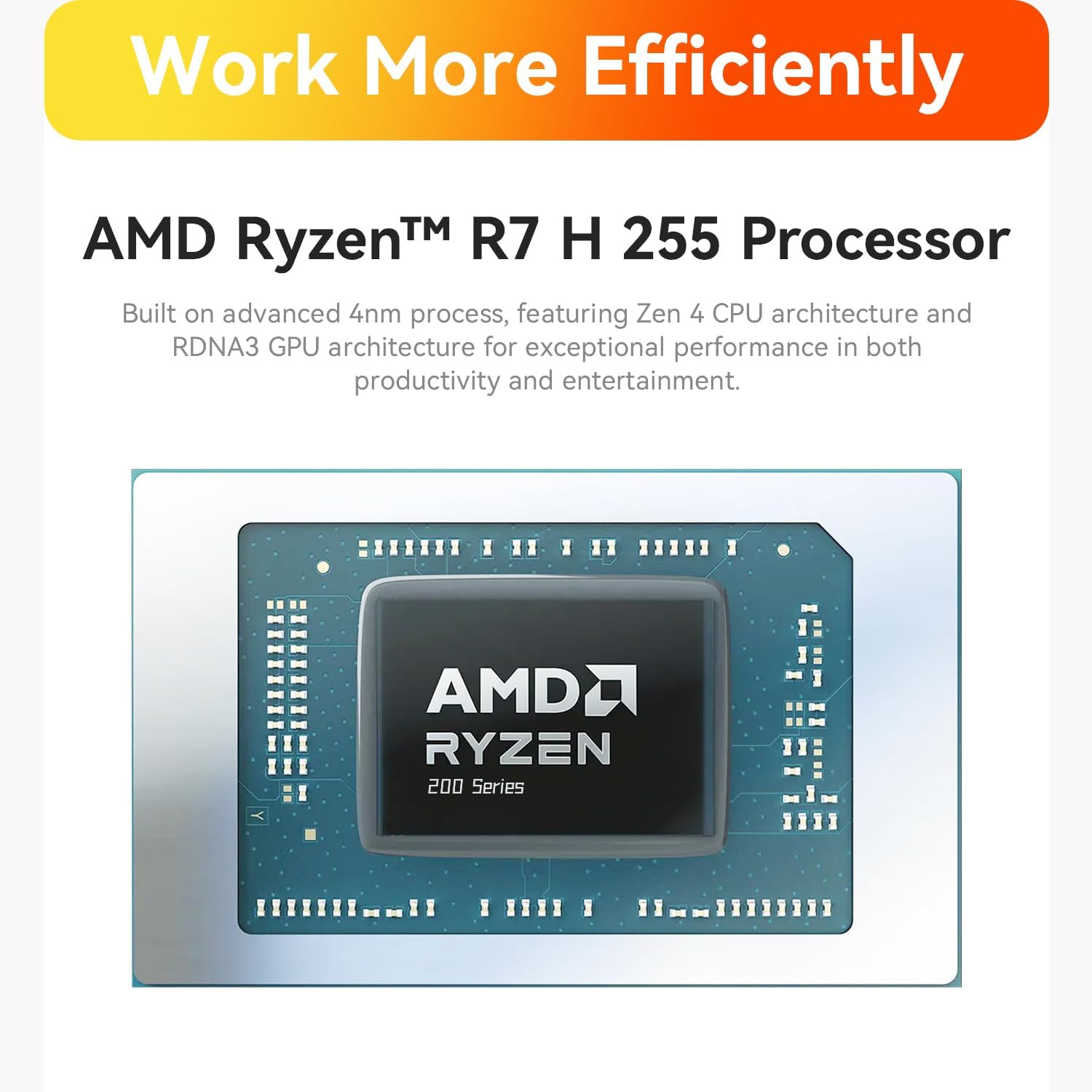
Image: Close-up of the 10Gbps Ethernet port on the Beelink SER9 MAX Mini PC, illustrating high-speed network capability.
6. Storage and Memory Expansion
The Beelink SER9 MAX is equipped with 64GB DDR5 RAM and a 1TB M.2 NVME SSD. It offers expansion capabilities:
- RAM: The system features two DDR5 SO-DIMM slots, allowing for memory upgrades up to 256GB (2 x 128GB).
- SSD: Dual M.2 PCIe 4.0 x4 SSD slots are available, supporting up to 8TB of internal storage.

Image: Internal view of the Beelink SER9 MAX Mini PC, highlighting the dual-channel DDR5 RAM and dual M.2 PCIe 4.0 SSD slots for storage expansion.
7. Display Configuration
The mini PC supports triple display output, allowing you to connect up to three monitors simultaneously for enhanced productivity or immersive experiences. It supports resolutions up to 4K at a refresh rate of 240Hz via HDMI and DisplayPort.
- HDMI 2.1: Connects to HDMI-compatible displays.
- DisplayPort 1.4: Connects to DisplayPort-compatible displays.
- USB4 (Type-C): Full-featured USB-C port supporting video output.
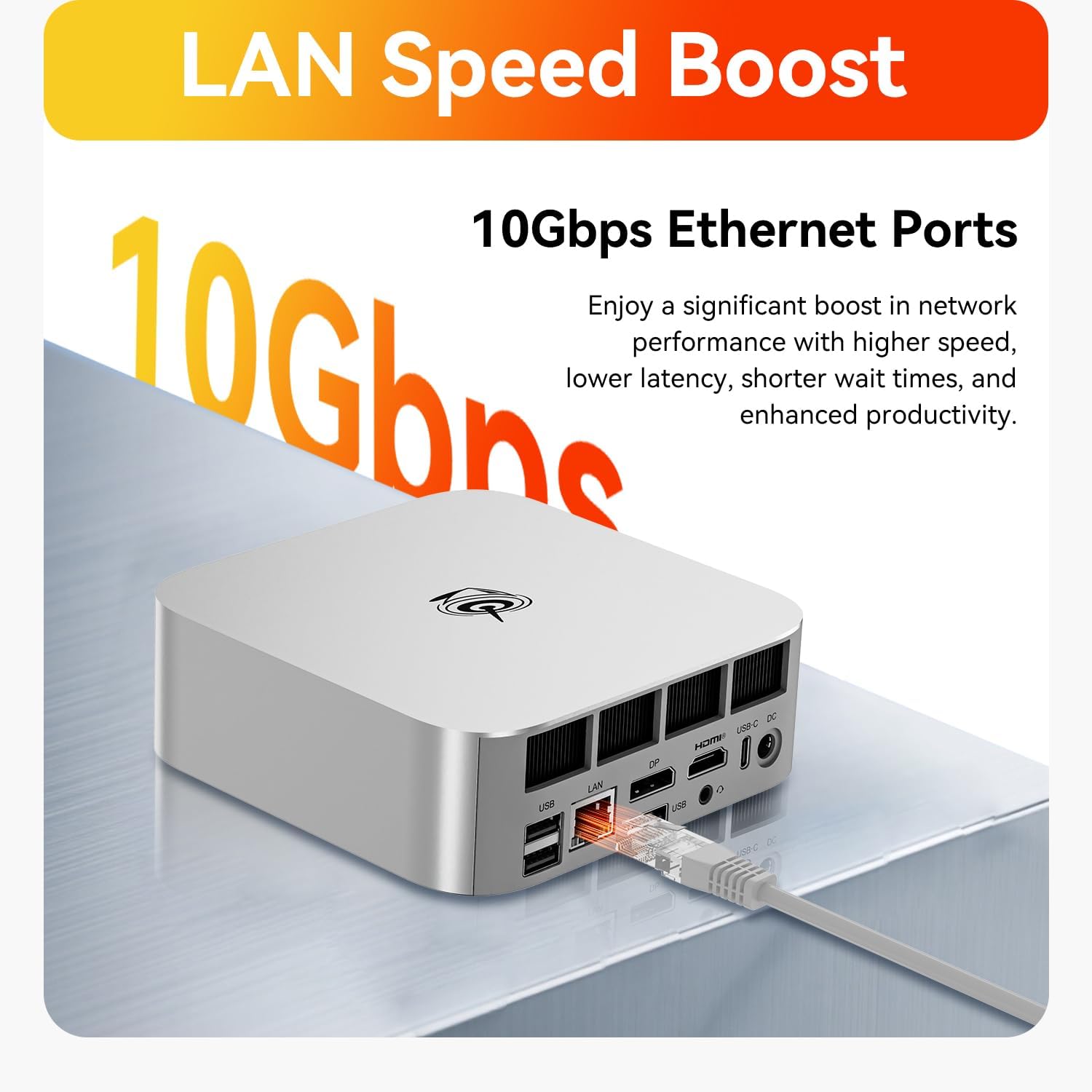
Image: The Beelink SER9 MAX Mini PC connected to three monitors, demonstrating its triple-display output capability at 4K 240Hz.
8. Cooling System
The Beelink SER9 MAX features the MSC2.0 cooling system, designed for efficient heat dissipation and quiet operation. It incorporates a vapor chamber technology that absorbs and spreads CPU heat evenly, ensuring sustained peak performance.

Image: Diagram illustrating the vapor chamber technology within the Beelink SER9 MAX Mini PC's cooling system, designed for superior thermal dissipation.
9. Specifications
| Feature | Specification |
|---|---|
| Brand | Beelink |
| Model Name | SER9 MAX |
| CPU Model | AMD Ryzen 7 H 255 (8C/16T, up to 4.9GHz) |
| Graphics Coprocessor | AMD Radeon 780M (12core 2600 MHz) |
| RAM Memory Installed Size | 64 GB DDR5 |
| RAM Memory Maximum Size | 256 GB |
| Hard Disk Description | 1 TB M.2 NVME SSD |
| Operating System | Windows 11 Pro |
| Video Output | HDMI 2.1, DisplayPort 1.4, USB4 (Type-C) |
| Display Resolution Maximum | 3840x2160 Pixels (4K@240Hz) |
| Wireless Connectivity | Wi-Fi 6 (802.11ax), Bluetooth 5.2 |
| Ethernet | 10Gbps LAN (RJ-45) |
| USB Ports | 2 x USB 3.2, 2 x USB 2.0, 1 x USB4 (Type-C), 1 x USB-C (10Gbps) |
| Audio Jack | 1 x 3.5mm (HP&MIC) |
| Cooling Method | MSC2.0 Cooling System (Vapor Chamber) |
| Item Weight | 16 ounces |
10. Troubleshooting
- No Power: Ensure the power adapter is securely connected to both the mini PC and a working power outlet. Check the power indicator light.
- No Display: Verify that the monitor is powered on and the video cable (HDMI, DP, or USB-C) is securely connected to both the mini PC and the monitor. Try a different video port or cable if available. Ensure the correct input source is selected on your monitor.
- No Internet Connection: For wired connections, check the Ethernet cable and router status. For Wi-Fi, ensure Wi-Fi is enabled in Windows settings and you are connected to the correct network with the correct password.
- Slow Performance: Close unnecessary applications. Check for background processes consuming high CPU or RAM. Ensure the system has adequate ventilation.
- Overheating: Ensure the mini PC is placed in a well-ventilated area and that its vents are not obstructed. Avoid placing it on soft surfaces that can block airflow.
11. Maintenance
- Keep Clean: Regularly clean the exterior of the mini PC with a soft, dry cloth. Use compressed air to gently clear dust from ventilation openings to maintain optimal airflow.
- Software Updates: Keep your Windows operating system and drivers updated to ensure system stability, security, and performance.
- Backup Data: Periodically back up important data to an external drive or cloud storage to prevent data loss.
- Proper Shutdown: Always shut down the mini PC properly through the operating system rather than simply unplugging it, to prevent data corruption.

Image: Exploded view of the Beelink SER9 MAX Mini PC, showing its internal structure including the metal case, vapor chamber, motherboard, and SSD heatsink.
12. Warranty and Support
The Beelink SER9 MAX Mini PC comes with a 3-year warranty. Beelink offers lifetime technical support and 24/7 after-sales service. For any questions or assistance, please contact Beelink customer support.
All Beelink products have passed strict inspections and obtained FCC, RoHS, and CE Certifications.