
1. Introduction
Thank you for choosing the KUIIYER Wireless Barcode Scanner. This device is designed for efficient and accurate scanning of various 1D and 2D barcodes, including QR codes. This manual provides detailed instructions on how to set up, operate, and maintain your scanner to ensure optimal performance. Please read this manual thoroughly before use.
2. Package Contents
Please verify that all items are present in your package:
- KUIIYER Wireless Barcode Scanner
- 2.4GHz USB Receiver
- USB Charging/Data Cable
- User Manual (this document)
3. Product Overview
Familiarize yourself with the components of your KUIIYER Wireless Barcode Scanner:

This image displays the KUIIYER Wireless Barcode Scanner, highlighting its key components and dimensions. Visible features include the 800 x 600 Pixel CMOS Scanning Window, Built-in Auxiliary Light, Scan Button, USB Charging Port, Indicator Light, Buzzer, and the 2000 mAh Large Capacity Battery. The device measures approximately 3.7 inches (9.5 cm) in width and 6.3 inches (16 cm) in height.
- 800 x 600 Pixel CMOS Scanning Window: High-resolution sensor for accurate barcode capture.
- Built-in Auxiliary Light: Enhances scanning in various lighting conditions.
- Scan Button: Activates the scanning function.
- USB Charging Port: For charging the internal battery and wired data connection.
- Indicator Light: Provides status feedback (e.g., power, connection, scan success).
- Buzzer: Provides audible feedback for scanning actions.
- 2000 mAh Large Capacity Battery: Ensures extended operational time.
- LCD Digital Display: Shows wireless status, barcode content, storage mode, battery indicator, and scan counts.
4. Setup and Connection
The KUIIYER Wireless Barcode Scanner offers multiple connection options for versatility.
4.1. 2.4GHz Wireless Connection

This image illustrates the three connection modes: 2.4GHz Wireless, Bluetooth, and USB Wired. The 2.4GHz wireless connection shows the scanner wirelessly transmitting data to a laptop via a USB receiver, with a transmission distance of up to 262 ft (80 M).
- Insert the 2.4GHz USB receiver into an available USB port on your computer or POS system.
- Power on the barcode scanner. It will automatically attempt to pair with the receiver.
- A successful connection will be indicated by a specific sound and/or light on the scanner.
- The 2.4GHz wireless connection offers a transmission distance of up to 262 ft (80 M).
4.2. USB Wired Connection
- Connect one end of the provided USB cable to the scanner's USB charging port.
- Connect the other end of the USB cable to an available USB port on your computer or POS system.
- The scanner will function as a wired device and also charge its internal battery.
- The USB cable length is approximately 3.3 ft (1 M).
4.3. Bluetooth Connection
- Ensure the scanner is powered on.
- Activate Bluetooth on your host device (e.g., tablet, smartphone, computer).
- Search for available Bluetooth devices and select the KUIIYER scanner from the list.
- Pairing may require a confirmation or a default PIN (refer to your device's Bluetooth settings if prompted).
- The Bluetooth connection offers a transmission distance of up to 98 ft (30 M).
5. Operating Instructions
The scanner supports various operational modes to suit different workflows.
5.1. Scanning Modes

This image demonstrates the three available scanning modes: Manual Trigger Mode, where the user presses the button for each scan; Auto-sensing Scan Mode, where the scanner automatically detects and scans barcodes; and Continuous Scan Mode, where the scanner continuously scans without requiring button presses.
You can switch between the following scanning modes by scanning the corresponding configuration barcodes (found in the full user manual or quick start guide):
- Manual Trigger Mode: Press the scan button to initiate each scan. This is suitable for precise, on-demand scanning. To activate, scan the barcode: $Set#Code^31
- Auto-sensing Scan Mode: The scanner automatically detects a barcode within its field of view and scans it without requiring a button press. Ideal for hands-free operation. To activate, scan the barcode: $Set#Code^30
- Continuous Scan Mode: The scanner continuously emits a scan beam, scanning any barcode that passes through it. Useful for high-volume scanning environments. To activate, scan the barcode: $Set#Code^32
5.2. Data Uploading Modes
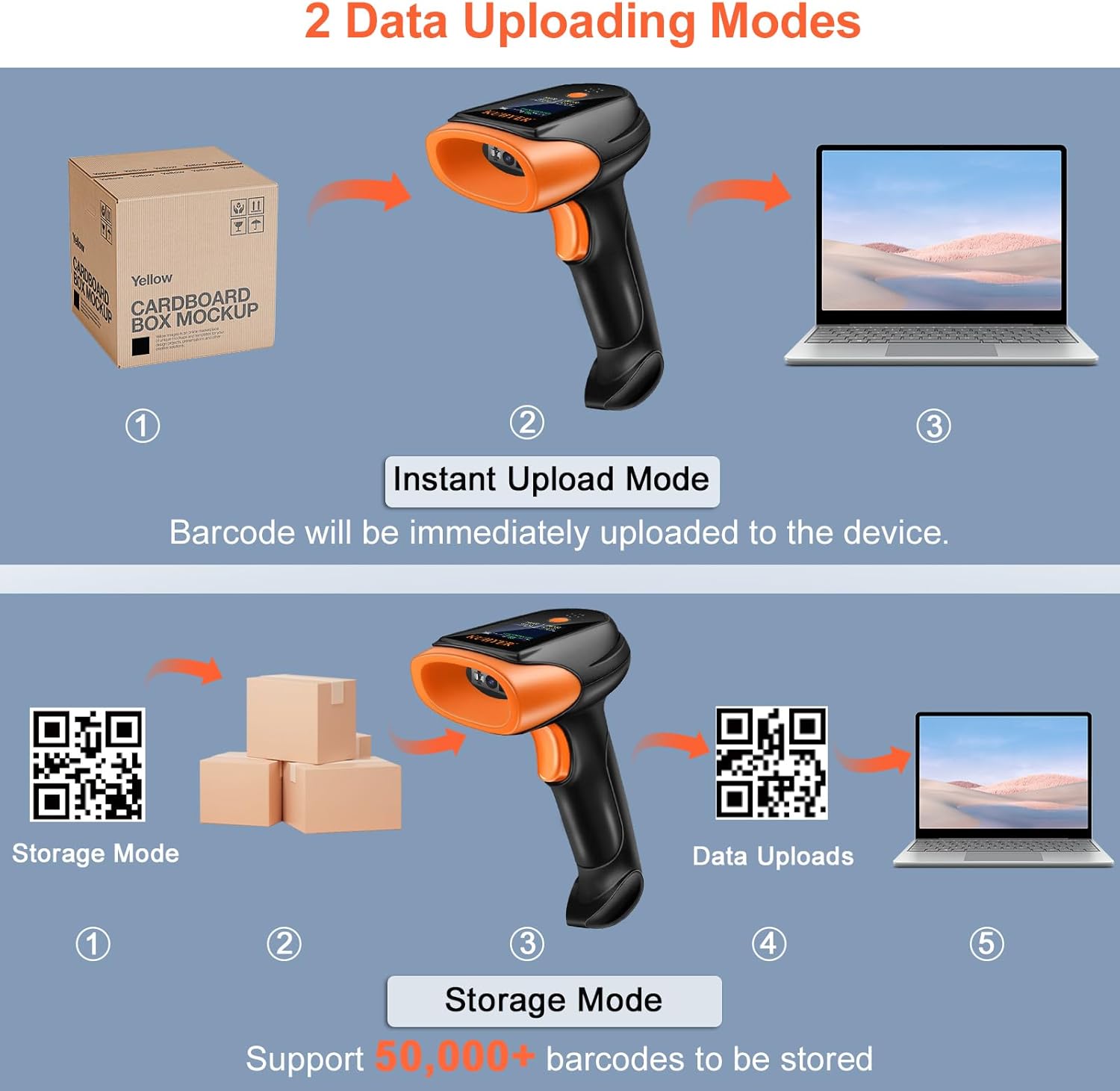
This image illustrates the two data uploading modes. In Instant Upload Mode, scanned barcodes are immediately transmitted to the connected device. In Storage Mode, barcodes are saved internally, supporting over 50,000 barcodes, and can be uploaded later.
The scanner supports two methods for uploading scanned data:
- Instant Upload Mode: Barcodes are immediately transmitted to the connected device (computer, POS, etc.) as they are scanned. This is the default mode. To activate, scan the barcode: %%ALLMEM-SC
- Storage Mode: Scanned barcodes are stored in the scanner's internal memory. This mode is useful when working out of range of the host device. The scanner can store over 50,000 barcodes. To activate, scan the barcode: %%ALLMEM-SET To upload stored data, connect the scanner and scan the appropriate upload barcode (refer to the full manual).
6. Barcode Compatibility
The KUIIYER Wireless Barcode Scanner is equipped with an 800 x 600 Pixel CMOS sensor, allowing it to read a wide range of 1D and 2D barcodes, even those that are complex or damaged.

This image displays various types of barcodes that the 800 x 600 Pixel CMOS scanner can accommodate. These include standard 1D codes like UPC/EAN (e.g., 486746841) and Code-128 (e.g., 2039839317797), as well as 2D codes like QR and Data Matrix. It also shows the scanner's capability to read complex barcodes such as wider scanning ranges, fuzzy, damaged (e.g., 5255559813259), curved, screen codes, and colorful codes (e.g., 0489465132127).
Supported barcode types include, but are not limited to:
- 1D Codes: UPC/EAN, Code-128, Code-39, Code-93, Code-11, Interleaved 2 of 5, Industrial 2 of 5, Matrix 2 of 5, Standard 2 of 5, Codabar, MSI, GS1 DataBar, etc.
- 2D Codes: QR Code, Data Matrix, PDF417, Aztec Code, Maxicode, etc.
The scanner can also read barcodes that are:
- Fuzzy or slightly damaged
- Curved surfaces
- Displayed on screens (e.g., mobile phones, tablets)
- With wider scanning ranges
- Colorful codes
7. Applications
The KUIIYER Wireless Barcode Scanner is suitable for a wide range of professional environments:

This image showcases the versatility of the barcode scanner across different applications, including use in a supermarket for checkout, a library for book management, a pharmacy for inventory, a restaurant for order processing, a hotel for guest services, and a warehouse for logistics and inventory tracking.
- Supermarkets and Retail Stores
- Libraries and Bookstores
- Pharmacies and Healthcare Facilities
- Restaurants and Hospitality
- Warehouses and Logistics
- Banking and Office Environments
8. Maintenance
To ensure the longevity and optimal performance of your scanner, follow these maintenance guidelines:
- Cleaning: Use a soft, dry cloth to clean the scanner's exterior. For the scanning window, use a lens cleaning cloth and a mild cleaning solution if necessary. Avoid abrasive materials or harsh chemicals.
- Durability: The scanner has an IP54 dust and waterproof rating, offering protection against dust ingress and splashing water. Its high-strength ABS+PC material shell is designed to withstand drops of up to 1.5m (5ft), providing shockproof and drop-proof performance.
- Storage: Store the scanner in a cool, dry place away from direct sunlight and extreme temperatures.
- Battery: For long-term storage, ensure the battery is partially charged (around 50%) to preserve its lifespan.
9. Troubleshooting
If you encounter issues with your scanner, please refer to the following common solutions:
- Scanner Not Powering On: Ensure the battery is charged. Connect the scanner to a power source using the USB cable.
- Scanner Not Connecting:
- For 2.4GHz wireless, ensure the USB receiver is properly inserted and the scanner is within range.
- For Bluetooth, ensure Bluetooth is enabled on your host device and the scanner is in pairing mode. Try re-pairing the device.
- For wired connection, ensure the USB cable is securely connected to both the scanner and the host device.
- Scanner Not Reading Barcodes:
- Ensure the barcode is clean, undamaged, and well-lit.
- Adjust the distance and angle between the scanner and the barcode.
- Check if the correct scanning mode is selected (e.g., Manual Trigger, Auto-sensing).
- Verify that the barcode type is supported by the scanner.
- No Data Transmission: Ensure the scanner is successfully connected to your host device. Check the data uploading mode (Instant vs. Storage). If in Storage Mode, ensure you initiate the upload process.
- Incorrect Data Output: Verify the language settings of the scanner (supports 32 multi-languages).
If these steps do not resolve the issue, please contact customer support.
10. Specifications
| Feature | Specification |
|---|---|
| Scanning Technology | CMOS Image Sensor |
| Sensor Resolution | 800 x 600 Pixels |
| Connectivity | 2.4GHz Wireless, Bluetooth, USB Wired |
| 2.4GHz Wireless Range | Up to 262 ft (80 M) |
| Bluetooth Range | Up to 98 ft (30 M) |
| Battery Capacity | 2000 mAh |
| Data Storage | Over 50,000 barcodes (in Storage Mode) |
| Durability Rating | IP54 Dust and Waterproof |
| Drop Resistance | Withstands 1.5m (5ft) drops |
| Supported Languages | 32 Multi-languages |
| Compatible Systems | Windows, macOS, Linux, Universal POS systems (Note: Not compatible with Square POS system) |
11. Warranty and Support
KUIIYER is committed to providing high-quality products and customer satisfaction.
- Return Policy: Enjoy a 90-day unconditional return policy for any reason.
- Quality Promise: A 24-month promise is provided for any quality-related issues.
- Customer Support: For any questions, concerns, or technical assistance, please contact the KUIIYER professional customer support team. Refer to your product packaging or the KUIIYER official website for contact details.