1. Introduction
This manual provides instructions for the GBIUT Indoor Security Camera, Model: indoor camera. This device is designed for indoor surveillance, offering features such as 1080P HD video, pan/tilt functionality, two-way audio, night vision, and motion detection. Please read this manual thoroughly before operating the camera to ensure proper use and to maintain device longevity.

Image: The GBIUT Indoor Security Camera shown alongside a smartphone displaying its live video feed, illustrating its use for monitoring pets and family.
2. Package Contents
Verify that all items are present in your package:
- GBIUT Indoor Security Camera Body
- Instruction Manual (this document)
- Power Adapter (Corded Electric)
- Mounting Accessories (if applicable, for tabletop use)
3. Product Overview
The GBIUT Indoor Security Camera features a compact dome design, equipped with a lens for 1080P HD video capture, an LED IR sensor for night vision, a microphone, and a speaker for two-way audio. It supports pan and tilt movements for comprehensive area coverage.

Image: An infographic highlighting the key features of the GBIUT Indoor Security Camera, such as 2.4GHz WiFi, two-way audio, 24/7 live view, motion tracking, and storage options.

Image: A visual representation of the camera's pan and tilt capabilities, demonstrating its 360-degree horizontal and 90-degree vertical rotation for comprehensive room coverage.
4. Setup Instructions
4.1 Powering On
- Connect the provided power adapter to the camera's power input port.
- Plug the power adapter into a standard electrical outlet.
- The camera will power on and initiate its startup sequence. Wait for the indicator light to flash, indicating it is ready for connection.
4.2 App Download and Account Registration
- Download the "AJCloud" app from your smartphone's app store (iOS App Store or Google Play Store).
- Open the AJCloud app and follow the on-screen instructions to register a new account or log in if you already have one.
4.3 Connecting to Wi-Fi
The camera supports 2.4GHz Wi-Fi networks only. Ensure your smartphone is connected to a 2.4GHz Wi-Fi network during the setup process.
- In the AJCloud app, tap the "+" icon to add a new device.
- Select your camera model from the list of devices.
- Follow the in-app prompts to connect the camera to your 2.4GHz Wi-Fi network. This typically involves scanning a QR code generated by the app with the camera's lens or entering Wi-Fi credentials.
- Once connected, the camera's indicator light will change to a solid color, and you will hear a confirmation sound.
4.4 Mounting the Camera
The GBIUT Indoor Security Camera is designed for tabletop mounting. Place the camera on a stable, flat surface with a clear view of the area you wish to monitor. Ensure it is within range of your Wi-Fi signal and a power outlet.
5. Operating Instructions
5.1 Live View
Open the AJCloud app and select your camera from the device list to access the live video feed. You can view the monitored area in real-time.
5.2 Pan/Tilt Control
From the live view screen in the AJCloud app, use the on-screen controls to remotely pan (rotate horizontally 360°) and tilt (rotate vertically 110°) the camera lens to adjust the viewing angle.
5.3 Two-Way Audio
The camera features a built-in microphone and speaker for two-way communication. Tap the microphone icon in the app's live view to speak through the camera, and listen to audio from the camera's surroundings.
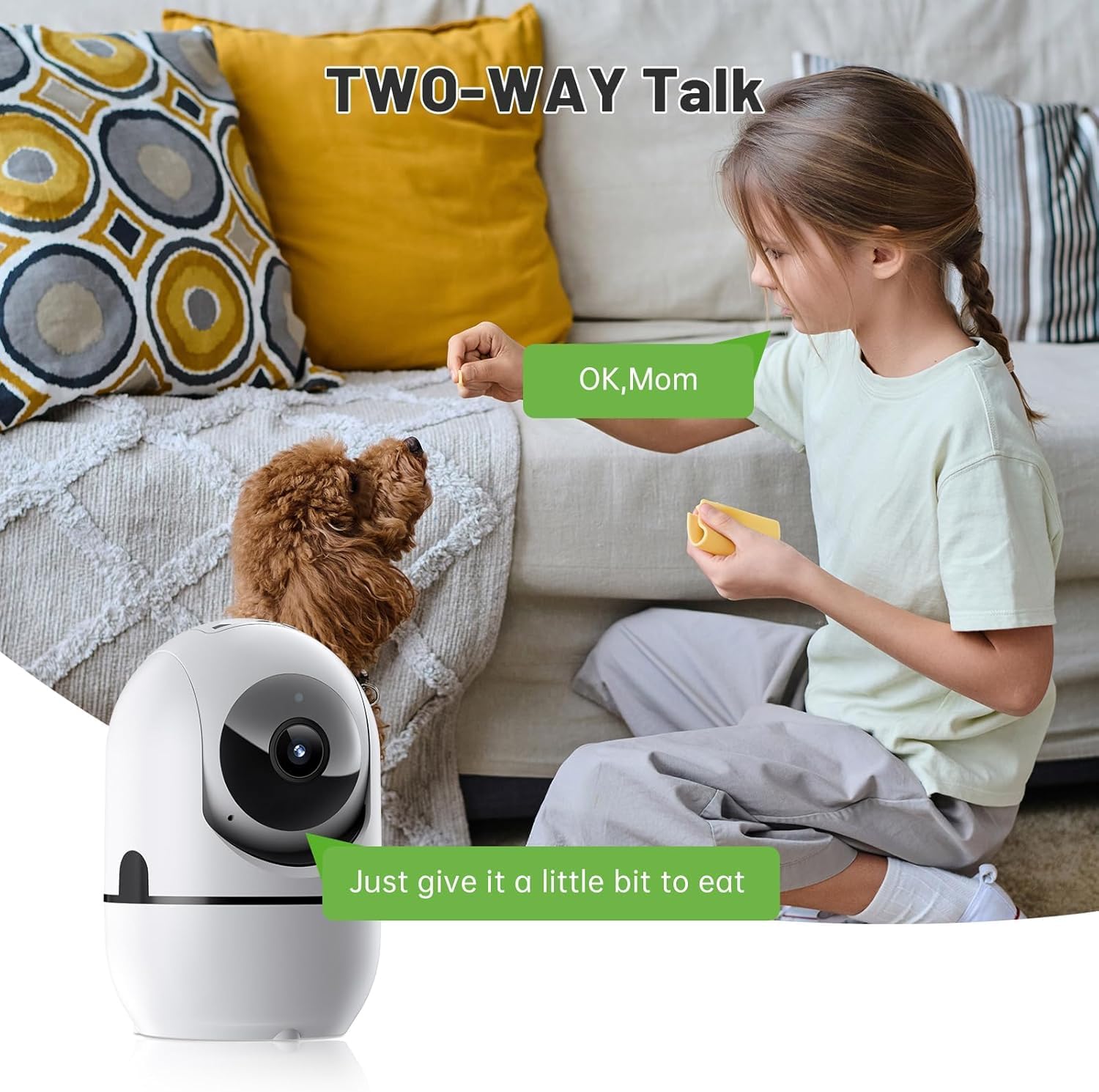
Image: A scene depicting a child and a pet, with speech bubbles indicating a conversation facilitated by the camera's two-way audio feature.
5.4 Motion Detection & Alerts
The camera can detect motion and sound, sending real-time alert notifications to your smartphone. You can adjust the motion detection sensitivity within the app settings. The camera also supports human detection to reduce false alarms.

Image: A visual demonstrating motion detection, showing a cat in a room and a corresponding alert notification on a smartphone from the AJCloud app.

Image: An illustration of the camera's human detection capability, showing a person highlighted by a detection grid and a smartphone displaying an alert, indicating real-time alarm functionality.
5.5 Night Vision
The camera automatically switches to enhanced night vision mode in low-light conditions, providing clear black and white video up to 33 feet. You can also manually control this feature in the app.

Image: A depiction of the camera's enhanced night vision, showing a sleeping baby in a dimly lit room, with the camera positioned to monitor.
5.6 Recording and Storage
The camera supports two storage options for recorded video:
- Micro SD Card: Insert a Micro SD card (up to 128GB, not included) into the camera's designated slot for local storage.
- Cloud Storage: Optional cloud storage services are available through the AJCloud app for secure, remote video backup.

Image: An illustration of the camera's recording capabilities, showing options for cloud storage and local SD card storage, with examples of continuous video playback.

Image: A family viewing continuous recordings from the camera on a smartphone, demonstrating the 24/7 monitoring feature.
5.7 Motion Tracking
When enabled in the app, the camera can automatically track moving objects within its field of view, ensuring continuous monitoring of activity.

Image: A visual representation of motion tracking, showing children playing with red boxes indicating the camera's detection and tracking of movement, along with an app notification.
6. Maintenance
6.1 Cleaning
- Ensure the camera is powered off and unplugged before cleaning.
- Use a soft, dry cloth to wipe the camera body.
- For the lens, use a lens cleaning cloth specifically designed for optics to avoid scratches. Do not use harsh chemicals or abrasive cleaners.
6.2 Storage
If storing the camera for an extended period, power it off, unplug it, and store it in a cool, dry place away from direct sunlight and extreme temperatures.
7. Troubleshooting
| Issue | Possible Cause | Solution |
|---|---|---|
| Camera not connecting to Wi-Fi | Incorrect Wi-Fi password; Camera too far from router; Not a 2.4GHz network. | Verify Wi-Fi password. Move camera closer to router. Ensure your router is broadcasting a 2.4GHz network and your phone is connected to it during setup. |
| No live video feed | Camera offline; Poor internet connection. | Check camera's power and Wi-Fi connection. Restart camera and router. Ensure stable internet connection on your phone. |
| Motion detection alerts not received | Alerts disabled in app; Incorrect sensitivity settings; App notifications blocked. | Enable motion detection alerts in AJCloud app settings. Adjust sensitivity. Check phone's notification settings for the AJCloud app. |
| Two-way audio not working | Microphone/speaker muted in app; Volume too low. | Ensure microphone and speaker are enabled and volume is adjusted in the app. Check phone's media volume. |
| Night vision unclear | Lens obstruction; Insufficient ambient light for IR. | Clean the camera lens. Ensure no objects are blocking the camera's view or the IR sensors. |
8. Specifications
| Feature | Detail |
|---|---|
| Model Number | indoor camera |
| Video Resolution | 1080P HD |
| Pan/Tilt Range | Horizontal 360°, Vertical 110° |
| Connectivity | 2.4GHz Wi-Fi |
| Night Vision Distance | Up to 33 feet (10 meters) |
| Audio | Two-Way Audio (Built-in microphone and speaker) |
| Storage Options | Micro SD Card (up to 128GB, not included), Cloud Storage (optional) |
| Power Source | Corded Electric |
| Mounting Type | Tabletop Mount |
| Material | Plastic |
| Dimensions (L x W x H) | 2 x 5 x 3 inches |
| Weight | 8.1 ounces |
| Compatible Devices | Smartphone (via AJCloud app) |
9. Safety Information
- This camera is for indoor use only. Do not expose it to rain, moisture, or extreme temperatures.
- Use only the provided power adapter. Using unauthorized adapters may damage the device and void the warranty.
- Keep the camera and its power cord out of reach of children and pets.
- Avoid placing the camera near heat sources or in direct sunlight.
- Do not attempt to disassemble or repair the camera yourself. Contact customer support for assistance.
10. Warranty and Support
For warranty information and technical support, please refer to the contact details provided with your product packaging or visit the official GBIUT website. Please have your product model number (indoor camera) and purchase information ready when contacting support.