
1. Product Overview
The Zecamin TH02 Pro is a mini smart digital thermometer and hygrometer designed for indoor use. It provides accurate temperature and humidity readings, displayed on a compact LCD screen, and offers advanced features such as WiFi connectivity, app monitoring with alerts, voice control compatibility, and data storage. Its small size and versatile mounting options make it suitable for various environments.

Figure 1.1: Zecamin TH02 Pro device displaying temperature and humidity, with icons indicating features like temperature, humidity, data storage, app monitoring, high accuracy, and alert notification. A note indicates to press a hole twice to change between Celsius and Fahrenheit.
2. Package Contents
Please check the package for the following items:
- Zecamin TH02 Pro Smart Digital Thermometer & Hygrometer (4 units if 4-pack)
- 2 x AAA Batteries (per device, included)
- Magnetic Self-Adhesive Film
- 3M Adhesive Tape
- Hanging Cord
- User Manual
3. Setup
3.1 Battery Installation
- Open the battery compartment cover on the back of the device.
- Insert two AAA batteries, ensuring correct polarity (+/-).
- Close the battery compartment cover. The device LCD screen will power on.
3.2 App Installation and Pairing
- Download the Tuya Smart or Smart Life app from your smartphone's app store (iOS or Android).
- Register or log in to your account.
- Ensure your smartphone is connected to a 2.4 GHz WiFi network. The device does not support 5 GHz WiFi.
- In the app, tap the "+" icon to add a new device.
- Follow the on-screen instructions to put the device into pairing mode (usually involves pressing and holding a button or pinhole until an indicator light flashes).
- Select the device type (e.g., "Temperature and Humidity Sensor") and complete the pairing process.
3.3 Device Placement
The compact design allows for flexible placement:
- Magnetic Attachment: Use the magnetic self-adhesive film to attach the sensor to metallic surfaces like refrigerators.
- Adhesive Mounting: Use the 3M adhesive tape for attachment to other smooth surfaces.
- Hanging: Utilize the included hanging cord to suspend the sensor in desired locations.
4. Operating Instructions
4.1 LCD Display
The device features a mini LCD screen that displays real-time temperature and humidity readings. This allows for quick checks without needing to access the app.
4.2 App Remote Monitoring and Alerts
Once paired with the Tuya Smart/Smart Life app, you can monitor temperature and humidity remotely from your smartphone. Set custom thresholds for temperature and humidity, and the app will send instant notifications if readings fall outside these predefined ranges. This feature is useful for monitoring nurseries, wine cellars, basements, or other sensitive areas.
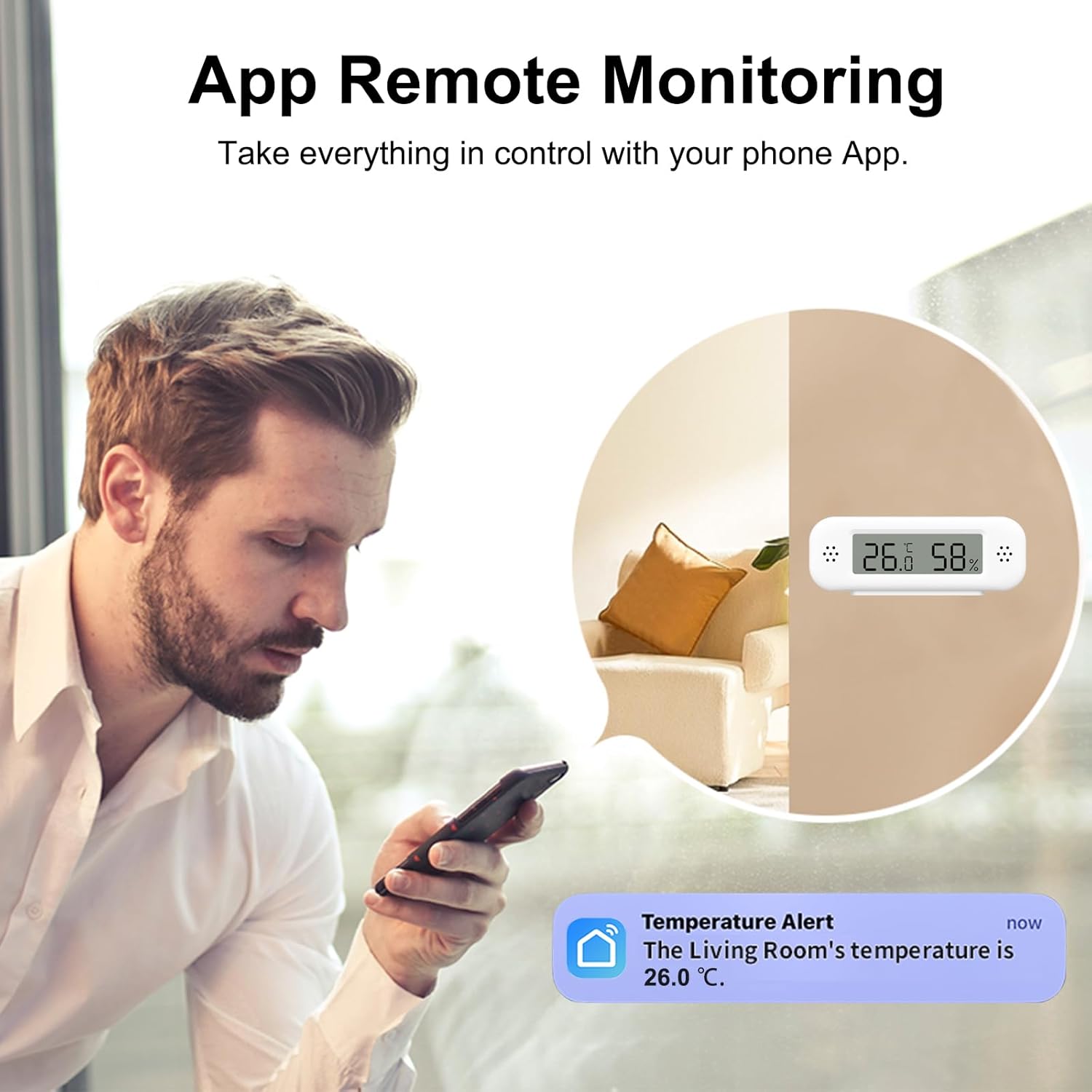
Figure 4.1: Remote monitoring of temperature and humidity via the smartphone app, displaying a temperature alert.
4.3 Voice Control
The TH02 Pro is compatible with Amazon Alexa and Google Home. After linking the Tuya Smart/Smart Life app with your voice assistant, you can inquire about the current temperature and humidity using voice commands. Note: Temperature data may not be displayed directly within the Alexa app, but can be queried via voice.

Figure 4.2: Voice control integration with Amazon Alexa and Google Home for checking environmental conditions.
4.4 Smart Scenes Automation
Integrate the TH02 Pro with other smart devices through the app to create automated scenes. For example, you can configure the system to automatically turn on a humidifier when humidity drops below 50% or activate an air conditioner if the temperature exceeds 26°C.

Figure 4.3: Example of smart scene automation, where the sensor triggers an air conditioner or humidifier based on set conditions.
4.5 Data Storage and Export
The device stores historical temperature and humidity data, which can be viewed as graphs within the app. This data can also be exported for further analysis, providing insights into environmental trends over time.

Figure 4.4: Historical data graphs and export options available through the app.
4.6 Calibration Function
The TH02 Pro includes a calibration function, allowing users to adjust for minor discrepancies in readings to ensure optimal accuracy. Refer to the app settings for calibration options.
4.7 Changing Temperature Units (C/F)
To switch between Celsius (°C) and Fahrenheit (°F), locate the small pinhole button on the side of the device. Press this button twice quickly to toggle the temperature unit.
5. Maintenance
5.1 Battery Replacement
The device features a low battery warning function. When the battery icon appears on the LCD or an alert is received via the app, replace the two AAA batteries promptly to ensure continuous operation and accurate readings. Follow the battery installation steps in Section 3.1.
5.2 Cleaning
Wipe the device with a soft, dry cloth. Do not use abrasive cleaners or immerse the device in water.
6. Troubleshooting
- Device not connecting to WiFi: Ensure your WiFi network is 2.4 GHz. The device does not support 5 GHz networks. Check that the device is within range of your router. Restart the device and try pairing again.
- Inaccurate readings: Use the calibration function in the app to fine-tune the sensor. Ensure the device is not placed near heat sources, direct sunlight, or in areas with extreme drafts, which can affect readings.
- App alerts not received: Check your app notification settings on your smartphone and within the Tuya Smart/Smart Life app. Ensure the device is connected to WiFi and has sufficient battery power.
- LCD display is blank: Check battery levels and replace if necessary. Ensure batteries are inserted with correct polarity.
7. Specifications
| Feature | Detail |
|---|---|
| Model Number | TH02 Pro |
| Brand | Zecamin |
| Connectivity Technology | Wi-Fi (2.4 GHz only) |
| Display Type | LCD Screen |
| Temperature Measurement Range | -10 °C to 50 °C (14 °F to 122 °F) |
| Temperature Accuracy | ±1 °C |
| Humidity Measurement Range | 0% to 99% RH |
| Humidity Accuracy | ±5% RH |
| Power Source | 2 x AAA Batteries (included) |
| Special Features | High Accuracy, Alarm, Calibration Function, Low Battery Warning |
| Exterior Material | Plastic |
| Package Dimensions | 14 x 7.5 x 2.7 cm; 200 grams |
| Color | White |
8. Warranty Information
Specific warranty details are not provided in the product information. Please refer to the retailer's return policy or contact the manufacturer directly for warranty inquiries.
9. Customer Support
For technical assistance, troubleshooting, or product-related questions, please contact the manufacturer or your point of purchase. Refer to the product packaging or the retailer's website for contact information.
10. Applications
The Zecamin TH02 Pro is suitable for a wide range of indoor environments where temperature and humidity monitoring is crucial:
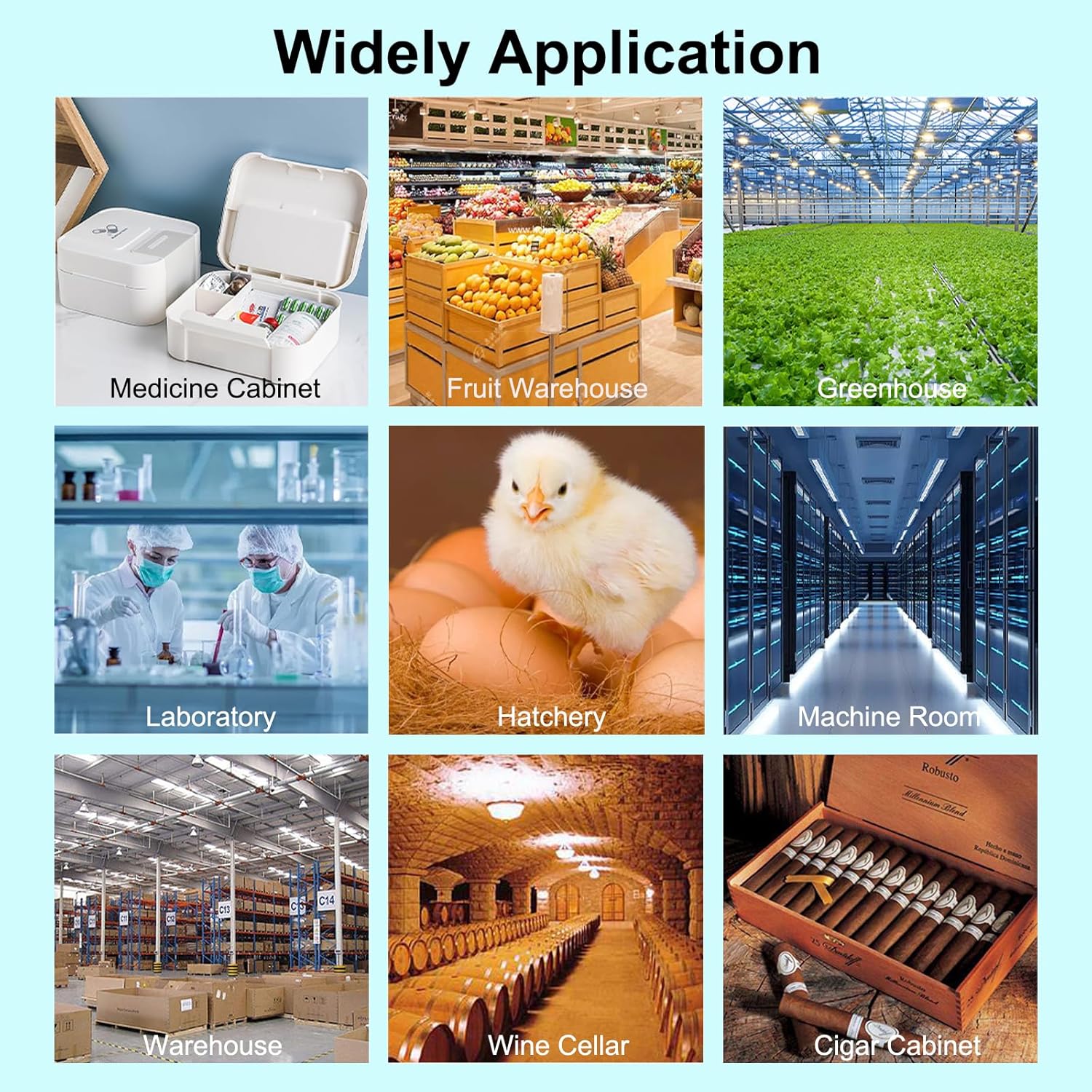
Figure 10.1: Diverse applications for the TH02 Pro, including medicine cabinets, fruit warehouses, greenhouses, laboratories, hatcheries, machine rooms, warehouses, wine cellars, and cigar cabinets.