
1. Product Overview
The Zecamin TH02 Pro is a smart digital thermometer and hygrometer designed for accurate indoor temperature and humidity monitoring. It features a mini LCD screen for direct readings and connects via 2.4 GHz WiFi to a mobile application for remote monitoring, alerts, and smart scene integration.
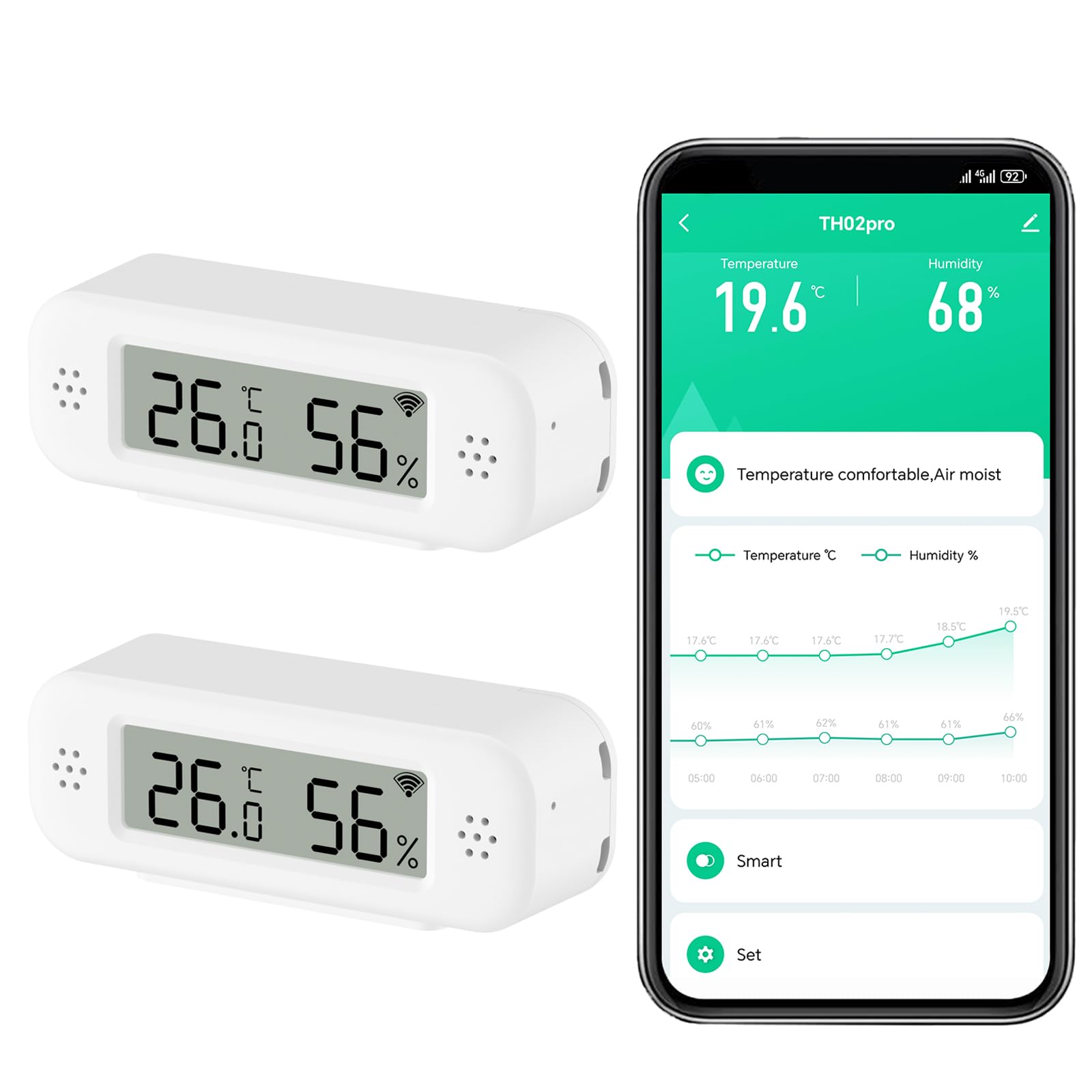
The Zecamin TH02 Pro Smart Digital Thermometer Hygrometer displays current temperature and humidity readings on its integrated LCD screen. It features icons for temperature, humidity, data storage, app monitoring, high accuracy, and alert notifications. A small note indicates that pressing a hidden button twice can switch between Celsius and Fahrenheit.
Key Features:
- LCD Screen: Provides real-time temperature and humidity readings.
- High Accuracy: Temperature accuracy of ±1°C (-10°C to 50°C) and humidity accuracy of ±5% (0% to 95% RH).
- WiFi Connectivity: 2.4 GHz WiFi for remote monitoring via app.
- Smart App Notifications: Receive alerts when conditions exceed predefined ranges.
- Smart Scene Support: Automate other smart devices based on sensor readings.
- Voice Control: Compatible with Amazon Alexa and Google Assistant.
- Data Storage & Export: View historical data and export for analysis.
- Flexible Placement: Includes magnetic adhesive film, 3M adhesive tape, and a hanging cord.
- Calibration Function: Allows for adjustment of readings to correct errors.
- Low Battery Warning: Notifies when batteries need replacement.
2. Setup Instructions
2.1. Battery Installation
- Open the battery compartment cover on the back of the device.
- Insert two AAA batteries, ensuring correct polarity (+/-).
- Close the battery compartment cover securely.
2.2. App Download and Device Pairing
- Download the Tuya Smart or Smart Life app from your smartphone's app store (iOS or Android).
- Register or log in to your account.
- Ensure your smartphone is connected to a 2.4 GHz WiFi network. The device does not support 5 GHz WiFi.
- Open the app and tap "Add Device" or the "+" icon.
- Select the "Temperature and Humidity Sensor (Wi-Fi)" from the device list.
- Follow the on-screen instructions to put the device into pairing mode (usually by pressing and holding a button on the device until an indicator light flashes).
- Enter your WiFi network password when prompted by the app.
- Wait for the device to connect. Once connected, you can rename the device in the app.
2.3. Placement Options
The compact design allows for flexible placement:
- Magnetic Attachment: Use the included magnetic adhesive film to attach the sensor to metal surfaces like refrigerators.
- Adhesive Mounting: Use the 3M adhesive tape for secure placement on various flat surfaces.
- Hanging: Utilize the integrated hanging cord to suspend the sensor in desired locations.
3. Operating Instructions
3.1. Reading Data on the Device
The mini LCD screen continuously displays the current temperature and humidity. To switch between Celsius (°C) and Fahrenheit (°F), locate the small pinhole button on the side or back of the device and press it twice quickly with a thin tool (e.g., a paperclip).
3.2. App Remote Monitoring
Once paired with the Tuya Smart or Smart Life app, you can monitor temperature and humidity remotely from your smartphone.
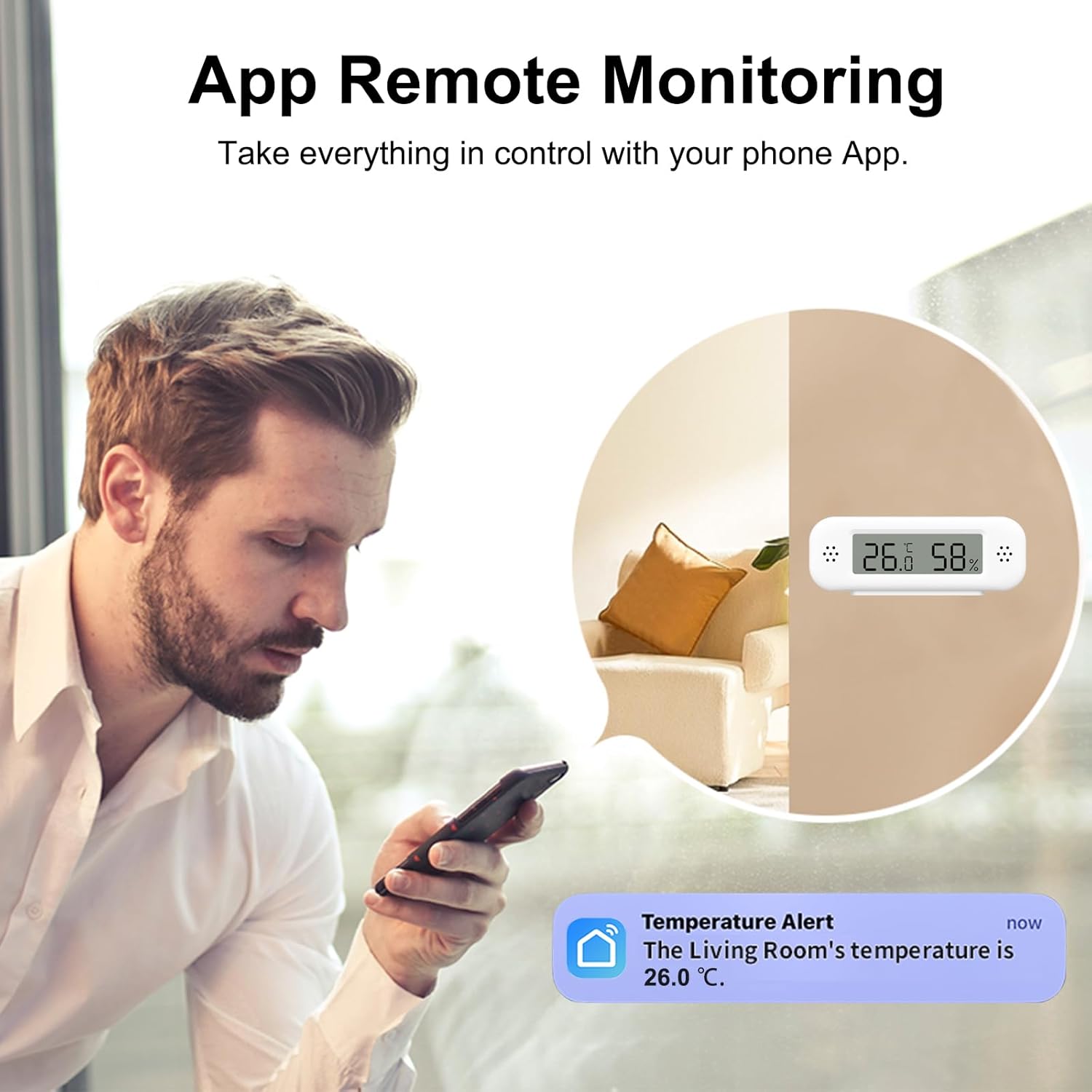
This image illustrates the remote monitoring capability of the Zecamin TH02 Pro. A user is viewing a 'Temperature Alert' notification on their smartphone, indicating the room temperature. The sensor is shown discreetly placed in a living room setting, demonstrating how the device connects to a mobile application for real-time updates and alerts.
- Open the app and select your TH02 Pro device.
- View current temperature and humidity readings.
- Access historical data graphs.
3.3. Smart App Notifications
Set custom temperature and humidity ranges within the app. If the readings go outside these predefined ranges, you will receive an instant notification on your smartphone. This feature is useful for monitoring conditions in sensitive areas like baby rooms, wine cellars, or greenhouses.
3.4. Smart Scene Integration
The TH02 Pro can be integrated with other smart devices through the Tuya Smart/Smart Life app to create automated scenes.

This diagram demonstrates the smart scene functionality. When the temperature exceeds 26°C, the air conditioner automatically turns on. When humidity drops below 50%, the humidifier activates. The Zecamin TH02 Pro acts as the central sensor for these automated actions, integrating with other smart home devices.
Example:
- If temperature exceeds 26°C, automatically turn on a smart air conditioner.
- If humidity drops below 50%, automatically turn on a smart humidifier.
3.5. Voice Control
Connect your TH02 Pro to Amazon Alexa or Google Assistant for voice-activated inquiries.

The Zecamin TH02 Pro supports voice control through smart assistants like Amazon Alexa and Google Assistant. A user can verbally inquire about the room's temperature, and the smart assistant will provide the current reading from the sensor, allowing for hands-free monitoring.
- Enable the Tuya Smart or Smart Life skill in your Alexa or Google Home app.
- Discover devices.
- You can then ask, for example, "Alexa, what's the room temperature?"
- Note: Temperature data may not be displayed directly within the Alexa app interface, but can be retrieved via voice command.
3.6. Data Storage and Export
The device stores historical temperature and humidity data. This data can be accessed and viewed as graphs within the Tuya Smart/Smart Life app. The app also provides an option to export this historical data for further analysis or record-keeping.

The Zecamin TH02 Pro stores historical temperature and humidity data, which can be viewed as graphs on the companion mobile application. This data can also be exported, allowing users to track environmental conditions over time for better management and analysis.
4. Maintenance
4.1. Cleaning
- Wipe the device with a soft, dry cloth.
- Do not use abrasive cleaners or solvents.
4.2. Battery Replacement
When the low battery warning appears on the device screen or in the app, replace the two AAA batteries promptly to ensure continuous operation and accurate readings.
4.3. Calibration Function
If you suspect the readings are inaccurate, you can use the calibration function within the Tuya Smart/Smart Life app to adjust the temperature and humidity values. Refer to the app's settings for your device for detailed calibration steps.
5. Troubleshooting
- Device not powering on: Check if batteries are inserted correctly and are not depleted. Replace batteries if necessary.
- Cannot connect to WiFi:
- Ensure your WiFi network is 2.4 GHz. The device does not support 5 GHz.
- Verify your WiFi password is correct.
- Make sure the device is within range of your WiFi router.
- Restart your router and try pairing again.
- Inaccurate readings:
- Ensure the device is not placed near heat sources, direct sunlight, or in areas with extreme drafts.
- Use the calibration function in the app to adjust readings if needed.
- No app notifications:
- Check app notification settings on your smartphone and within the Tuya Smart/Smart Life app.
- Ensure alert ranges are properly configured in the app.
- Voice control not working:
- Verify the Tuya Smart/Smart Life skill is enabled in your Alexa/Google Home app.
- Ensure devices are discovered and linked correctly.
- Check your internet connection.
6. Specifications
| Parameter | Value |
|---|---|
| Model Number | TH02 Pro |
| App Name | Tuya Smart / Smart Life |
| Battery Type | 2 x AAA (included) |
| Wireless Connection | WiFi 2.4 GHz |
| Temperature Measurement Range | -10 °C ~ 50 °C (14 °F ~ 122 °F) |
| Humidity Measurement Range | 0 % ~ 99 % RH |
| Temperature Accuracy | ±1 °C |
| Humidity Accuracy | ±5 % RH |
| Display Type | LCD |
| Material | Plastic |
| Dimensions (approx.) | 7.49 x 7.11 x 2.69 cm |
| Weight (approx.) | 100 grams |
7. Warranty and Support
For warranty information and customer support, please refer to the documentation included with your product packaging or visit the official Zecamin website. You may also contact the seller directly for assistance.