
Product Overview
This manual provides comprehensive instructions for the HopeFlex 1080p WiFi Security Camera with Solar Panel. Learn how to set up, operate, and maintain your camera to ensure optimal performance and reliable home security. This camera features 1080p Full HD video, AI motion detection, two-way talk, pan and tilt capabilities, and is powered by a rechargeable battery with solar panel support.

Image: The HopeFlex 1080p WiFi Security Camera with its solar panel, alongside a smartphone displaying the live camera feed.

Image: An overview of the camera's key features including AI Human Detection, 1080p Video, Solar Panel, Two-way Talk, 2.4GHz Wi-Fi Only, Color Night Vision, 355° Panoramic Surveillance, and Cloud Storage.
Setup Guide
What's in the Box
Ensure all components are present before proceeding with installation.
- HopeFlex 1080p WiFi Security Camera
- Solar Panel
- Mounting Bracket
- Mounting Screws and Anchors
- USB Charging Cable
- User Manual (this document)
Initial Setup
Before physical installation, it is recommended to set up the camera with your Wi-Fi network indoors to ensure connectivity.
App Download and Account Creation
- Scan the QR code provided in the packaging or search for the official app (e.g., "CloudEdge" or "Tuya Smart" - specific app name not provided, using generic) in your smartphone's app store (App Store for iOS, Google Play Store for Android).
- Download and install the application.
- Open the app and register a new account using your email address or phone number. Follow the on-screen prompts to complete registration and log in.
Wi-Fi Connection Steps
The camera only supports 2.4GHz Wi-Fi networks. Ensure your router is configured for 2.4GHz or has a mixed mode enabled.
- Open the app and click the "+" icon to add a new device.
- Select the appropriate device type, typically "Battery Camera" or "Security Camera".
- Power on the camera. Press and hold the reset button (often labeled "ring button") for approximately 5 seconds until the camera indicates it's ready for pairing (e.g., a voice prompt or flashing light). Tap "Next Step" in the app.
- Enable Bluetooth on your phone. The app will automatically connect to the camera via Bluetooth for initial setup.
- Once Bluetooth connection is complete, proceed to Wi-Fi configuration.
- Select your 2.4GHz Wi-Fi network from the list and enter the correct Wi-Fi password. Double-check the password for accuracy.
- After confirming the Wi-Fi information, the pairing process will begin. The camera will attempt to connect to your network.
- Once successfully connected, the app will confirm the connection, and your camera is ready for use.

Image: A step-by-step visual guide showing the app interface for connecting the camera to a 2.4GHz Wi-Fi network, from adding a device to successful connection.
Operating Your Camera
Key Features
1080p Full HD with Night Vision
The camera provides crystal-clear video quality in daylight and advanced night vision for round-the-clock security. It supports color night vision for enhanced detail in low-light conditions.

Image: Comparison of color night vision versus standard night vision, showing improved clarity and color accuracy in dark environments.
Solar-Powered & Long-Lasting Battery
Equipped with a 5200mAh rechargeable battery and a solar panel, the camera is designed for continuous 24/7 operation, minimizing the need for manual recharging.
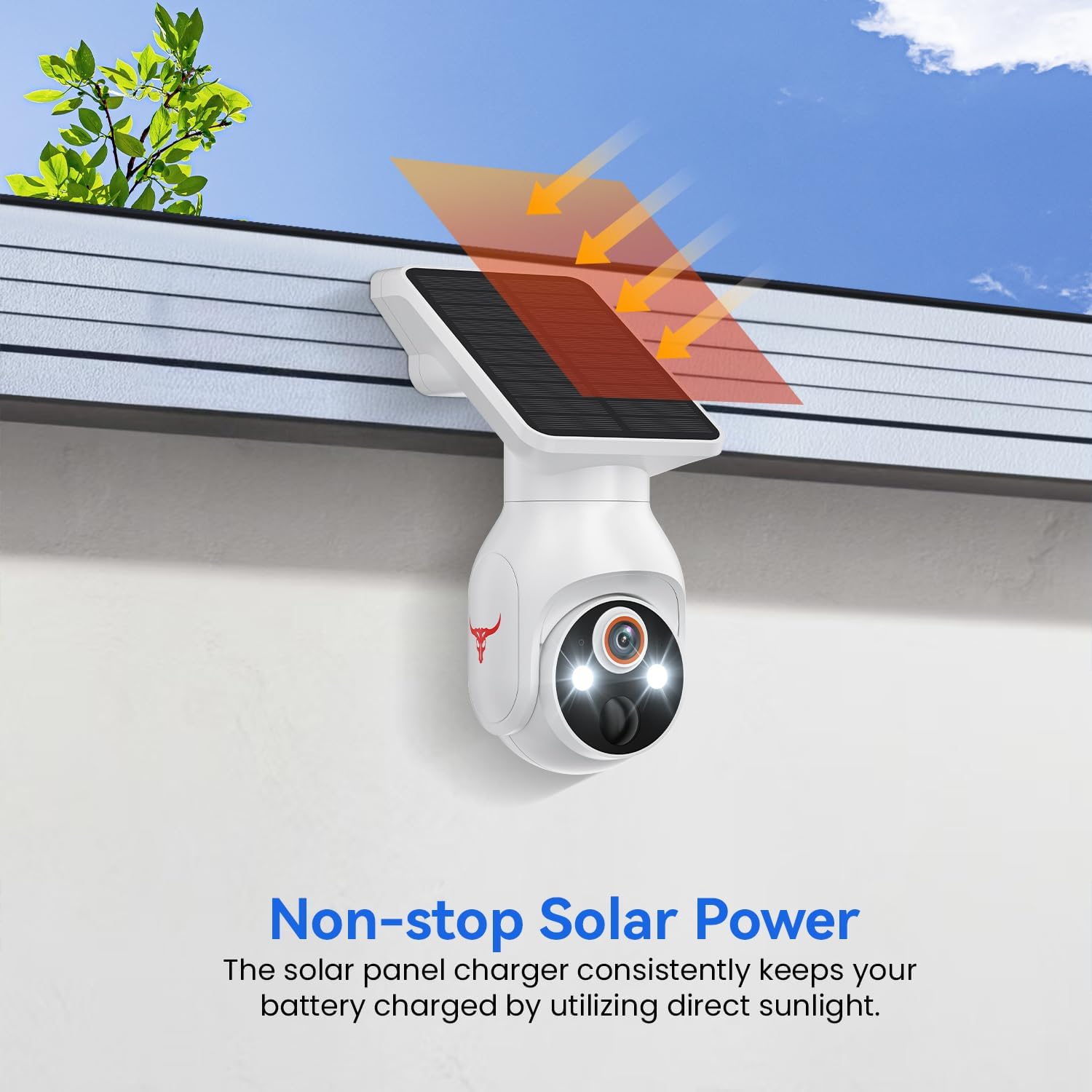
Image: Illustration of the solar panel charging the camera's battery by utilizing direct sunlight, ensuring continuous power.
Real-Time Two-Way Talk
Communicate directly with visitors or deter intruders using the built-in microphone and speaker, accessible through the mobile application.

Image: A person receiving a package, with speech bubbles illustrating the two-way communication feature between the camera and a smartphone user.
Panoramic Surveillance Coverage
Achieve complete area monitoring with 355° horizontal and 90° vertical rotation capabilities, effectively eliminating blind spots in your surveillance area.

Image: The camera mounted on a wall, with arrows indicating its 355° horizontal and 90° vertical rotation capabilities for wide surveillance coverage.
AI Motion Detection
The camera's advanced AI accurately detects human movement, reducing false alarms from pets or vehicles, and sends instant notifications to your smartphone.

Image: An illustration demonstrating the AI human detection feature, showing a person being detected while a dog is ignored, reducing false alarms.
Cloud Storage (Subscription Required)
Securely store your footage with AES 128-bit encrypted cloud storage. This service ensures secure access to your recordings and allows for easy sharing (subscription sold separately).

Image: The camera connected to a cloud icon, representing the cloud storage service for recorded video footage.
Maintenance
General Care
- Cleaning: Regularly wipe the camera lens and solar panel with a soft, damp cloth to remove dust and debris. Avoid abrasive cleaners.
- Battery Health: While solar-powered, ensure the camera receives adequate sunlight. If installed in a shaded area, occasional manual charging via the USB port may be necessary.
- Firmware Updates: Check the mobile app periodically for firmware updates. Keeping your camera's firmware up-to-date ensures optimal performance and security.
Troubleshooting
Network Connection Issues
If you experience difficulty connecting your camera to Wi-Fi or maintaining a stable connection, consider the following:
- The security camera only works with 2.4GHz Wi-Fi. Please connect it to a 2.4GHz network.
- Double-check that you are entering the correct Wi-Fi name and password.
- Verify the distance between the camera and the Wi-Fi router; the camera should be within 33 feet (10 meters) of the router for optimal signal.
- Please enable Bluetooth on your phone during the setup process. You do not need to connect Bluetooth with the device directly, just ensure it is on.
- If you changed your Wi-Fi password, or your camera got disconnected, please reset the Wi-Fi connection with the camera: Press and hold the reset button until the camera resets, and then add the camera again back to the same App account.
Other Troubleshooting Tips
- No Video/Offline: Check the camera's power status. Ensure the Wi-Fi signal is strong. Restart the camera and your router.
- Poor Video Quality: Ensure the lens is clean. Check your Wi-Fi signal strength.
- Motion Detection Not Working: Verify motion detection settings in the app. Ensure the camera's view is clear of obstructions.
Specifications
| Feature | Detail |
|---|---|
| Brand | HopeFlex |
| Model Name | 1080p WiFi Battery Camera with Solar Panel |
| Model Number | Q50 |
| Indoor/Outdoor Usage | Indoor, Outdoor |
| Power Source | Solar Powered |
| Connectivity Protocol | Wi-Fi (2.4GHz Only) |
| Video Capture Resolution | 1080p |
| Night Vision Range | 33 Feet |
| Pan/Tilt Coverage | 355° Horizontal, 90° Vertical |
| Item Dimensions L x W x H | 4.54 x 3.41 x 7.44 inches |
| Item Weight | 1.36 pounds |
| Included Components | Security Camera, Solar Panel |
Warranty and Support
Product Warranty
HopeFlex products typically come with a limited warranty covering manufacturing defects. Please refer to the warranty card included in your product packaging or visit the official HopeFlex website for detailed warranty terms and conditions.
Customer Support
For technical assistance, troubleshooting, or warranty claims, please contact HopeFlex customer support through the following channels:
- Email: Refer to your product packaging or the official website for the support email address.
- Online Support: Visit the HopeFlex official website for FAQs, support articles, and online chat options.
When contacting support, please have your product model number (Q50) and purchase information ready.


