
1. Introduction
This manual provides detailed instructions for the installation, operation, and maintenance of the MiBOXER FUT035Z+ (SZ2) 2-in-1 LED Strip Controller. This versatile controller supports both Zigbee 3.0 and 2.4G RF protocols, enabling control of single-color and CCT (Correlated Color Temperature) dual-white LED strip lights. It offers seamless integration with various smart home systems and provides flexible control options for your lighting needs.

Image 1.1: The MiBOXER FUT035Z+ (SZ2) 2-in-1 LED Strip Controller, shown from an angled perspective, highlighting its compact design and terminal labels.
2. Safety Information
- Ensure the power supply is disconnected before installation or maintenance to prevent electric shock.
- This device is designed for indoor use only. Avoid exposure to moisture or extreme temperatures.
- Use only with compatible DC12V-24V power supplies. Exceeding the specified voltage range may damage the device.
- Do not exceed the maximum output current of 12A per channel or total output of 12A.
- Consult a qualified electrician if you are unsure about any installation steps.
3. Package Contents
The package includes the following items:
- 1x MiBOXER FUT035Z+ (SZ2) 2-in-1 LED Strip Controller
- 1x User Manual (this document)

Image 3.1: The MiBOXER FUT035Z+ (SZ2) controller alongside its retail packaging and a printed manual.
4. Product Overview
The FUT035Z+ (SZ2) controller is designed for flexible LED strip lighting applications, offering dual-mode control capabilities:
- Zigbee 3.0 Standard Protocol: Enables integration with various Zigbee gateways and smart home ecosystems.
- 2.4G RF Control: Compatible with Mi-Light / MiBoxer 2.4GHz series remotes for direct control.
- 2-in-1 Output Modes: Supports both single-color LED strips and CCT (Dual White) LED strips.
- Adjustable Brightness and Color Temperature: Provides smooth dimming from 1% to 100% and color temperature adjustment for CCT strips.
- Push Dimmable Support: Allows for simple brightness control using a compatible push switch.

Image 4.1: Top view of the controller, showing input (V+, V-) and output terminals (V+, W, CW, WW, GND/PUSH), along with the 'SET' button and indicator lights for output mode.

Image 4.2: A lifestyle image demonstrating the application of the 2-in-1 LED Controller (Zigbee 3.0 + 2.4G) in a modern bedroom environment, highlighting its smart control capabilities.
5. Specifications
| Feature | Specification |
|---|---|
| Model Number | FUT035Z+ (SZ2) |
| Input Voltage | DC12V-24V |
| Output Current | 12A/Channel |
| Total Output | Max 12A |
| Working Temperature | -10~40°C |
| Zigbee Control Distance | 100m (open area) |
| 2.4G RF Control Distance | 30m |
| Output Modes | Single Color / Dual White (CCT) |
| Dimensions (L x W x H) | 74.5mm x 36mm x 17mm (approx.) |

Image 5.1: Technical drawing illustrating the dimensions of the MiBOXER FUT035Z+ (SZ2) controller, showing length (74.5mm), width (36mm), and height (17mm).
6. Setup and Installation
Follow these steps to correctly install your LED strip controller:
- Prepare Components: Ensure you have your MiBOXER FUT035Z+ (SZ2) controller, a compatible DC12V-24V power supply, and your LED strip light (single color or CCT dual white).
- Power Disconnection: IMPORTANT: Disconnect all power before making any connections.
- Connect Power Input: Connect the positive (+) and negative (-) terminals of your DC12V-24V power supply to the "INPUT V+" and "V-" terminals on the controller, respectively.
- Select Output Mode: The controller supports two output modes: Single Color and Dual White (CCT).
- Press the "SET" button once to activate the indicator light.
- Press and hold the "SET" button continuously to switch between modes. The indicator light will flash:
- Red: Single Color Mode
- Green: Dual White Mode
- Release the "SET" button when the desired mode's indicator color is displayed.
- Connect LED Strip Output:
- For Single Color LED Strip: Connect the positive (+) wire of your LED strip to the "V+" output terminal and the negative (-) wire to the "W" output terminal.
- For CCT Dual White LED Strip: Connect the common positive (+) wire of your LED strip to the "V+" output terminal. Connect the Warm White (WW) wire to the "WW" output terminal and the Cool White (CW) wire to the "CW" output terminal.
- Connect Push Switch (Optional): If using a push dimmable switch, connect it to the "GND" and "PUSH" terminals.
- Power On: Once all connections are secure, connect the power supply to the main power source.

Image 6.1: Detailed connection diagrams for the MiBOXER FUT035Z+ (SZ2) controller, illustrating wiring for both Single Color LED strips and CCT Dual White LED strips, including optional push switch connections.
7. Operating Instructions
7.1. Output Mode Switching
As described in the setup section, the controller can operate in two modes: Single Color or Dual White (CCT). To switch modes:
- Press the SET button once to activate the indicator light.
- Press and hold the SET button. The indicator light will cycle between Red (Single Color) and Green (Dual White).
- Release the button when the desired mode's indicator color is displayed.
7.2. Zigbee Pairing and Smart Home Integration
The FUT035Z+ (SZ2) controller is Zigbee 3.0 compliant and can be paired with various Zigbee gateways:
- Compatible Hubs: Philips Hue (limited features), Amazon Echo Plus (2nd Gen), Tuya Zigbee Hub, SmartThings, and other Zigbee 3.0 gateways.
- Pairing Process:
- Ensure the controller is powered on.
- Initiate the device search/pairing mode on your Zigbee gateway/hub (refer to your gateway's manual for specific instructions).
- On the MiBOXER controller, press and hold the SET button for approximately 3 seconds until the indicator light flashes rapidly, indicating it is in pairing mode.
- Once successfully paired, the indicator light will stop flashing and remain solid or turn off, depending on the status. The device should appear in your gateway's app.
7.3. 2.4G RF Remote Control
The controller is compatible with Mi-Light / MiBoxer 2.4GHz series remotes. To link a remote:
- Ensure the controller is powered on.
- On your Mi-Light / MiBoxer 2.4GHz remote, select the desired zone you wish to link.
- Within 3 seconds of powering on the controller, press the "ON" button of the selected zone on your remote three times.
- The LED strip connected to the controller should flash three times to confirm successful linking.
7.4. App Control (Tuya Smart)
For advanced features like scene customization, do not disturb mode, timing settings, and device sharing, you can use the Tuya Smart app. A Zigbee 3.0 gateway is required for this functionality.

Image 7.1: Illustration of Tuya Smart App control, showing a smartphone interface for adjusting LED strip settings and a separate Zigbee 3.0 gateway, which is necessary for app functionality.
7.5. Voice Control
Once integrated with a compatible Zigbee 3.0 gateway (e.g., Amazon Echo Plus, SmartThings), the controller can be controlled via voice commands using platforms like Amazon Alexa or Google Assistant.
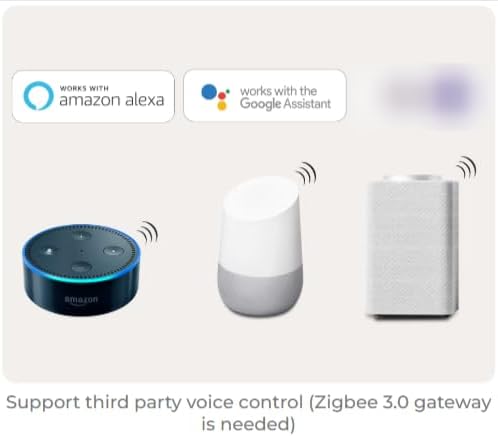
Image 7.2: Depiction of voice control compatibility, showing Amazon Echo and Google Home devices, indicating that the controller can be operated through Amazon Alexa and Google Assistant when connected via a Zigbee 3.0 gateway.
7.6. Push Dimmable Function
The controller supports push dimming for stepless brightness adjustment without flickering. Connect a compatible push switch to the "GND" and "PUSH" terminals as shown in the connection diagram.
- One click: Turns the lights on or off.
- Long press: Increases or decreases brightness. Press and hold to change brightness; release and long press again to change in the opposite direction.

Image 7.3: Visual explanation of the push dimmable function, detailing how a single click turns lights on/off and a long press adjusts brightness.
8. Maintenance
- Keep the controller clean and free from dust. Use a soft, dry cloth for cleaning.
- Avoid exposing the device to direct sunlight, high humidity, or corrosive environments.
- Do not attempt to open or repair the controller yourself, as this will void the warranty and may cause damage.
- Ensure proper ventilation around the device to prevent overheating.
9. Troubleshooting
| Problem | Possible Cause | Solution |
|---|---|---|
| LED strip not lighting up. | No power to controller; incorrect wiring; faulty LED strip. | Check power supply connection; verify input/output wiring; test LED strip with a known working power source. |
| Cannot pair with Zigbee gateway. | Controller not in pairing mode; gateway too far; interference. | Ensure controller is in pairing mode (rapid flashing indicator); move controller closer to gateway; check for other Zigbee devices causing interference. |
| Cannot control with 2.4G RF remote. | Remote not linked; remote battery low; out of range. | Re-link the remote to the controller; replace remote battery; ensure remote is within 30m range. |
| Incorrect color or brightness for CCT strip. | Incorrect output mode selected; incorrect wiring for CCT. | Verify controller is in Dual White mode (green indicator); check WW and CW wiring to the LED strip. |
10. Warranty and Support
MiBOXER products are designed for reliability and performance. For warranty information and technical support, please refer to the official MiBOXER website or contact your local distributor. Keep your purchase receipt as proof of purchase for warranty claims.
For further assistance, please visit the MiBOXER Store on Amazon or contact customer service.


