
Introduction
This manual provides essential information for the safe and efficient use of your KYOCERA ECOSYS MA2101cwfx All-in-One Color Laser Printer. This device offers print, copy, scan, and fax functionalities, delivering high-quality color output at speeds up to 22 pages per minute and a resolution of 1200 x 1200 dpi. Please read this manual thoroughly before operating the printer and keep it for future reference.

Setup Guide
1. Unpacking the Printer
- Carefully remove the printer from its packaging.
- Remove all protective tapes and packing materials from the exterior and interior of the printer. Refer to the quick setup guide for specific locations.
2. Component Check
Ensure all included components are present:
- KYOCERA ECOSYS MA2101cwfx Printer Unit
- Toner Cartridges (Starter set)
- Power Cord
- Documentation (e.g., Quick Setup Guide, Safety Information)
3. Power Connection
- Connect the power cord to the printer's power input.
- Plug the other end of the power cord into a grounded electrical outlet.
- Press the power button to turn on the printer.
4. Toner Cartridge Installation
The printer comes with starter toner cartridges. Follow these general steps for installation:
- Open the front cover of the printer.
- Remove any protective seals or caps from the toner cartridges.
- Insert each toner cartridge into its corresponding slot until it clicks into place.
- Close the front cover.
5. Paper Loading
Load paper into the standard paper drawer or the multipurpose tray.
- Standard Paper Drawer: Pull out the paper drawer. Adjust the paper guides to fit the paper size (e.g., Letter, Legal, A4). Load up to 250 sheets of paper.
- Multipurpose Tray: Open the multipurpose tray. Adjust the guides. Load up to 50 sheets of various media types and sizes.
6. Network Connection
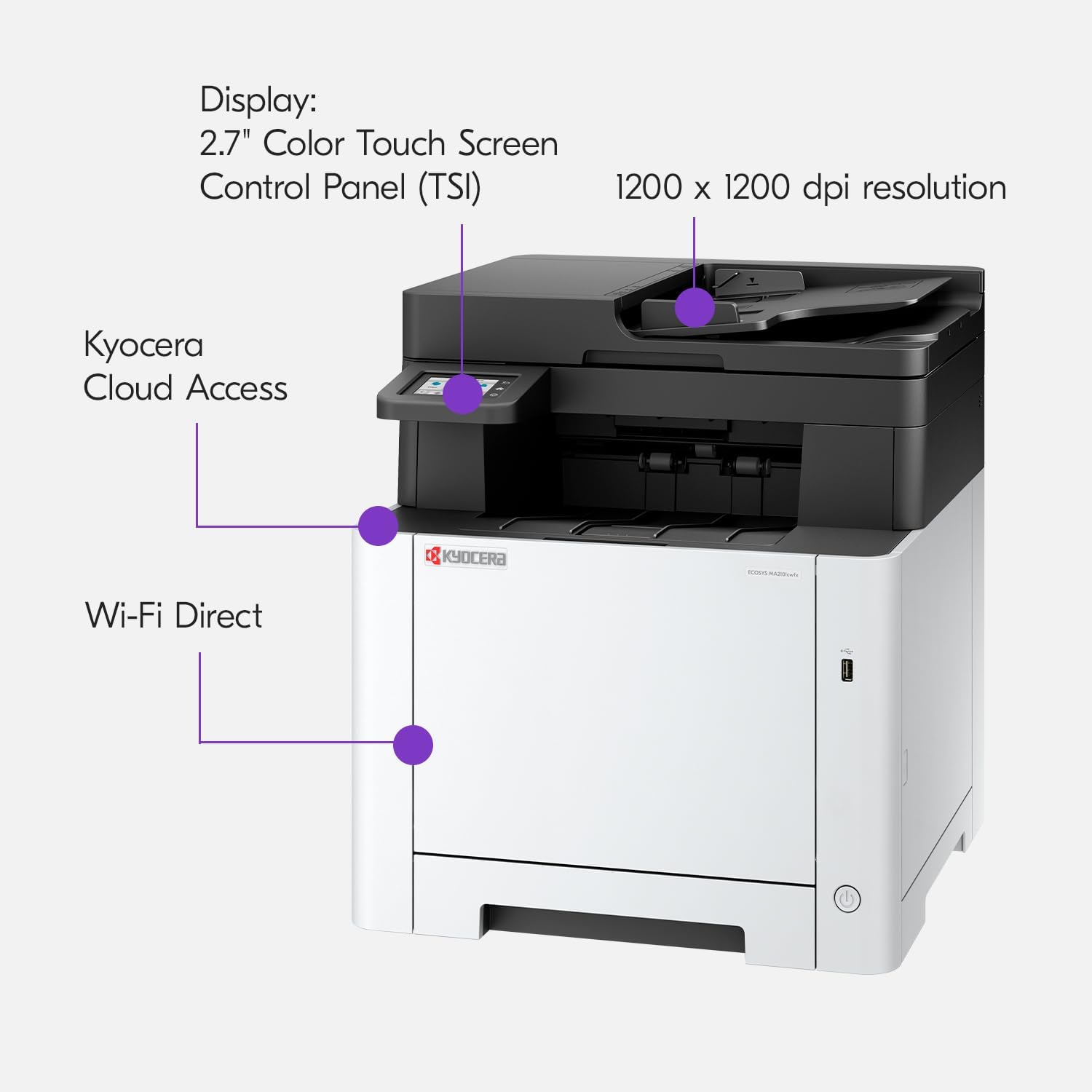
The MA2101cwfx supports Wi-Fi Direct, Ethernet, and USB connectivity.
- Wi-Fi Direct: On the control panel, navigate to the Wi-Fi Direct settings and follow the on-screen instructions to connect your mobile device or computer directly to the printer's Wi-Fi network.
- Ethernet: Connect an Ethernet cable from your network router or switch to the Ethernet port on the back of the printer.
- USB: Connect a USB cable from your computer to the USB port on the printer.
Operating Instructions
1. Control Panel Overview
The printer features a 2.7-inch Color Touch Screen Interface (TSI) for easy navigation and control of all functions.
2. Printing
- Ensure the printer is connected to your computer or network.
- Open the document you wish to print on your computer.
- Select 'Print' from the application's menu.
- Choose the KYOCERA ECOSYS MA2101cwfx as your printer.
- Adjust print settings such as color/monochrome, paper size, and duplex printing (automatic) as needed.
- Click 'Print'.
3. Copying
- Place the original document on the scanner glass or in the automatic document feeder (ADF).
- On the control panel, select the 'Copy' function.
- Adjust settings such as number of copies, color/monochrome, and enlargement/reduction.
- Press the 'Start' button.
4. Scanning
The printer supports both flatbed and sheetfed scanning.
- Place the document on the flatbed glass or in the ADF.
- On the control panel, select the 'Scan' function.
- Choose your scan destination (e.g., computer, email, USB drive) and adjust scan settings (e.g., resolution, file format).
- Press the 'Start' button.
5. Faxing
- Place the document on the scanner glass or in the ADF.
- On the control panel, select the 'Fax' function.
- Enter the recipient's fax number.
- Adjust any necessary fax settings.
- Press the 'Start' button.
6. Mobile and Cloud Features
The ECOSYS MA2101cwfx integrates with Kyocera mobile apps and third-party cloud platforms for enhanced workflow and document management.
- Kyocera Cloud Access Utility: This utility allows you to locate, print, and share documents quickly from cloud services.
- Mobile Printing: Print directly from your smartphone or tablet using compatible Kyocera mobile applications or standard mobile printing protocols.

Maintenance
1. Cleaning the Printer
Regular cleaning helps maintain print quality and extends the life of your printer.
- Turn off and unplug the printer before cleaning.
- Wipe the exterior with a soft, damp, lint-free cloth.
- Gently clean the scanner glass with a glass cleaner applied to a cloth (not directly to the glass).
- Refer to the full user manual for detailed instructions on cleaning internal components.
2. Toner Cartridge Replacement
When a toner cartridge is low or empty, the printer's control panel will display a notification. Replace cartridges as follows:
- Open the front cover.
- Remove the empty toner cartridge by pulling it out.
- Unpack the new toner cartridge and shake it gently to distribute the toner.
- Insert the new cartridge into the correct slot until it locks.
- Close the front cover.
3. Clearing Paper Jams
If a paper jam occurs, the control panel will indicate the location of the jam. Follow these general steps:
- Turn off the printer.
- Open the indicated covers or trays.
- Carefully remove any jammed paper, pulling in the direction of the paper path to avoid tearing.
- Close all covers and turn the printer back on.
Troubleshooting
This section addresses common issues you might encounter. For more detailed troubleshooting, refer to the comprehensive user manual or KYOCERA's support website.
| Problem | Possible Solution |
|---|---|
| Printer not powering on | Check power cord connection to printer and outlet. Ensure outlet is functional. |
| No print output | Verify printer is online and connected. Check toner levels and paper supply. Ensure correct printer is selected in software. |
| Poor print quality | Check toner levels. Perform a print head cleaning or calibration from the control panel. Ensure correct paper type is selected. |
| Connectivity issues (Wi-Fi/Ethernet) | Restart printer and router. Verify network settings on the printer's control panel. Ensure cables are securely connected for Ethernet. |
| Paper jams | Follow on-screen instructions to clear the jam. Ensure paper is loaded correctly and not creased or damaged. |
Technical Specifications
Below are the key technical specifications for the KYOCERA ECOSYS MA2101cwfx All-in-One Color Laser Printer:
| Feature | Specification |
|---|---|
| Product Dimensions | 16.2"D x 18"W x 16.4"H |
| Maximum Media Size | 8.5 x 14 inch |
| Scanner Type | Flatbed, Sheetfed |
| Max Input Sheet Capacity | 300 sheets (Standard) |
| Max Copy Speed (Black & White) | 22 ppm |
| Maximum Color Print Resolution | 1200 x 1200 dpi |
| Maximum Black and White Print Resolution | 1200 dpi |
| Dual-sided printing | Yes (Automatic) |
| Hardware Interface | Ethernet, USB |
| Connectivity Technology | Ethernet, USB, Wi-Fi |
| Output Sheet Capacity | 150 sheets |
| Memory Storage Capacity | 1 GB |
| Item Weight | 55.1 pounds |
| Control Panel | 2.7 inch Color Touch Screen (TSI) |
| Included Components | Toner Cartridges |
Warranty Information
KYOCERA products are manufactured to high-quality standards. For specific warranty terms and conditions applicable to your ECOSYS MA2101cwfx printer, please refer to the warranty documentation included with your product or visit the official KYOCERA website. Keep your proof of purchase for warranty claims.
Support and Resources
For further assistance, driver downloads, or additional product information, please visit the official KYOCERA support website. You can also find FAQs and contact customer service through their portal.
Official KYOCERA Website: www.kyoceradocumentsolutions.com