
ZYSKABQ ESi3XYrQ0CUxwbOBwy
ZYSKABQ Smart Electronic Door Lock User Manual
Model: ESi3XYrQ0CUxwbOBwy
1. Product Overview
This manual provides detailed instructions for the installation, operation, and maintenance of your ZYSKABQ Smart Electronic Door Lock. This advanced lock offers multiple unlocking methods including facial recognition, biometric fingerprint, password, IC card, mechanical key, and mobile application control, ensuring enhanced security and convenience for your home or office.
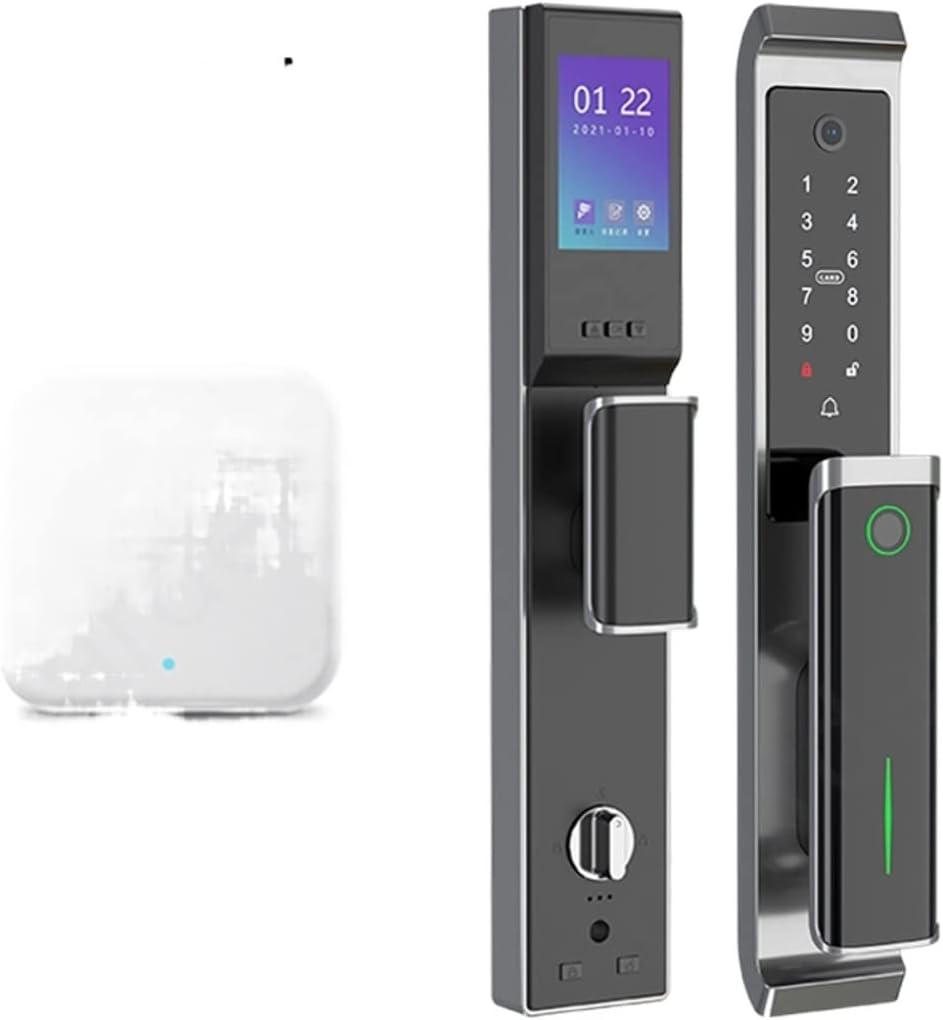
Figure 1: ZYSKABQ Smart Electronic Door Lock with accompanying gateway module.
2. Product Features
- Multiple Unlocking Methods: Supports biometric fingerprints, password, IC card, mechanical key, and multiple cell phone unlocking methods (facial recognition, application key).
- Integrated Smart Doorbell: Built-in smart doorbell automatically captures photos and videos when pressed.
- Automatic Unlocking and Locking: Fully automatic operation for ease of use.
- HD 1080P Smart Cat Eye Surveillance Camera: Built-in camera for real-time monitoring.
- Long Battery Life: Powered by a 7.4V 4200mAh rechargeable lithium battery, providing approximately 5 months of operation on a full charge.
- Emergency Power: Micro USB port for emergency charging.
- Low Battery Alarm: Alerts when battery power is low.

Figure 2: Overview of supported unlocking methods including fingerprint, mechanical key, IC card, smartphone, and password.

Figure 3: Detail of the integrated HD 1080P 160° wide-angle video surveillance camera.
3. Product Specifications
| Parameter | Value |
|---|---|
| Unlocking Methods | Facial recognition, Biometric fingerprint, Password, IC card, Key, Application |
| Fingerprint Capacity | 100 |
| Password Capacity | 100 |
| IC Card Capacity | 100 |
| Alarm Type | Low battery alarm / Lever door alarm |
| Backup Power | Micro USB |
| Power Supply | 7.4V 4200mA lithium battery |
| Operating Temperature | -20 to +50 °C |
| Working Humidity | 40% to 85% (No condensation) |
| Package Size | 393 x 70 x 27 mm |

Figure 4: Mechanical dimensions and internal components of the lock for installation reference.
4. Setup and Installation
Proper installation is crucial for the optimal performance and security of your smart lock. It is recommended to follow the detailed installation guide provided in the product packaging. Ensure all components are accounted for before beginning installation.
4.1 Pre-installation Checklist
- Verify door thickness and backset compatibility.
- Ensure all parts listed in the packing list are present.
- Gather necessary tools (screwdriver, drill, measuring tape, etc.).
4.2 Installation Steps (General)
- Prepare the door by drilling necessary holes according to the provided template.
- Install the mortise lock into the door edge.
- Mount the front panel of the lock, ensuring cables are routed correctly.
- Connect the cables to the rear panel and secure it to the door.
- Install the battery pack and cover.
- Perform initial setup and calibration as per the on-screen instructions.
Note: For detailed, step-by-step installation instructions, refer to the dedicated installation manual included in your product package. Professional installation is recommended if you are unsure about any steps.
5. Operating Instructions
Your ZYSKABQ Smart Electronic Door Lock offers multiple convenient ways to unlock and manage access.
5.1 Initial Setup and User Registration
- Upon first power-on, the lock will prompt for administrator registration. Follow the on-screen instructions to set up the initial administrator fingerprint, password, or IC card.
- Download the Tuya Smart application from your mobile app store.
- Register an account and add your smart lock device by following the in-app instructions. This typically involves scanning a QR code on the lock or entering a device ID.
- Once connected, you can add additional users, fingerprints, passwords, and IC cards through the lock's interface or the mobile application.
5.2 Unlocking Methods
- Fingerprint Unlock: Place your registered finger on the fingerprint sensor. The lock will automatically retract the bolt upon successful verification.
- Password Unlock: Enter your registered password on the keypad, followed by the '#' key.
- IC Card Unlock: Present your registered IC card to the card reader area on the lock.
- Application Unlock: Open the Tuya Smart application on your smartphone, select your lock, and tap the unlock button.
- Mechanical Key Unlock: In case of emergency or battery depletion, insert the mechanical key into the hidden keyhole and turn to unlock.
- Facial Recognition Unlock: Stand in front of the lock's camera for facial verification (if enabled and configured).

Figure 5: Illustration of the fully automatic unlocking mechanism, requiring no handle press.
5.3 Locking the Door
The lock features an automatic locking mechanism. After the door closes, the bolt will automatically extend to secure the door. You can also manually lock the door from the inside by pressing the lock button or turning the thumb turn (if applicable).
5.4 Emergency Charging
If the battery is completely depleted, connect a power bank or a Micro USB cable to the emergency charging port located at the bottom of the outdoor unit to temporarily power the lock and gain entry using a registered method.
6. Maintenance
Regular maintenance ensures the longevity and reliable operation of your smart lock.
- Cleaning: Wipe the lock surface with a soft, dry cloth. Avoid using abrasive cleaners, solvents, or harsh chemicals that may damage the finish or electronic components.
- Battery Replacement: Replace the 7.4V 4200mAh lithium battery when the low battery alarm is triggered. Ensure to use the specified battery type.
- Mechanical Check: Periodically check that all screws are tight and that the lock mechanism operates smoothly. Do not lubricate the internal electronic components.
- Software Updates: Keep the Tuya Smart application updated to the latest version to ensure optimal performance and access to new features.
7. Troubleshooting
| Problem | Possible Cause | Solution |
|---|---|---|
| Lock does not respond. | Battery depleted. | Connect a Micro USB power source for emergency charging or replace the battery. |
| Fingerprint not recognized. | Finger wet/dirty, sensor dirty, unregistered fingerprint. | Clean finger and sensor. Re-register fingerprint if necessary. Try another registered method. |
| Password not accepted. | Incorrect password, keypad issue. | Ensure correct password entry. Try another registered method. |
| App connection issues. | Bluetooth/Wi-Fi off, app not updated, network interference. | Ensure Bluetooth/Wi-Fi is on. Update app. Check network connection. Restart lock/phone. |
| Lock makes unusual noises. | Mechanical obstruction, internal issue. | Check for any obstructions around the bolt or latch. If problem persists, contact customer support. |
8. Warranty and Support
Your ZYSKABQ Smart Electronic Door Lock comes with a manufacturer's warranty. Please refer to the warranty card included in your product packaging for specific terms and conditions, including warranty period and coverage details.
For technical support, troubleshooting assistance, or warranty claims, please contact ZYSKABQ customer service through the contact information provided with your purchase or on the official ZYSKABQ website.
When contacting support, please have your product model number (ESi3XYrQ0CUxwbOBwy) and purchase date available.
Ask a question about this manual
Ask about setup, troubleshooting, compatibility, parts, safety, or missing instructions. Manuals+ will review the question and use this page’s manual context to help answer it.