
Introduction
Thank you for choosing the SWOFY D26 MP3 Player. This device combines advanced audio and video playback capabilities with the versatility of the Android 13 operating system, offering a comprehensive portable entertainment experience. This manual provides essential information for setting up, operating, and maintaining your device.
Product Overview
Key Features
- Android 13 OS: Powered by an MTK 8-core chip for fast and smooth operation.
- Pre-installed Apps: Includes Spotify, Deezer, Amazon Music, and access to the Play Store.
- High-Fidelity Audio: Powerful audio decoding chip for original sound quality, supporting MP3, WAV, FLAC, APE, OGG, M4A, AAC, WMA, and more.
- 4.7-inch HD Touchscreen: Full touch display with HiFi sound module for clear visuals, supporting RM, RMVB, FLV, MP4, DAT, MKV, MPG, MOV, TS video formats without conversion.
- Bluetooth 5.0 & Wi-Fi: Stable and fast two-way Bluetooth connection for headphones/speakers, and Wi-Fi for online streaming and app downloads.
- Large Storage: 160GB (32GB ROM + 128GB TF card) internal storage, expandable up to 1TB via external storage.
- Long Battery Life: 2500 mAh battery providing up to 50 hours of music playback or 8 hours of video playback.
Package Contents
The SWOFY D26 MP3 Player package typically includes the following items:
- SWOFY D26 MP3 Player (160GB)
- USB Charging Cable
- Wired Earphones
- Protective Case
- Screen Protector
- User Manual (this document)

Image: Contents of the SWOFY D26 MP3 Player package.
Setup
1. Charging the Device
Before first use, fully charge your SWOFY D26 MP3 Player. Connect the provided USB cable to the device's charging port and the other end to a USB power adapter (not included) or a computer's USB port. The battery indicator on the screen will show charging status. A full charge provides approximately 50 hours of music playback or 8 hours of video playback.
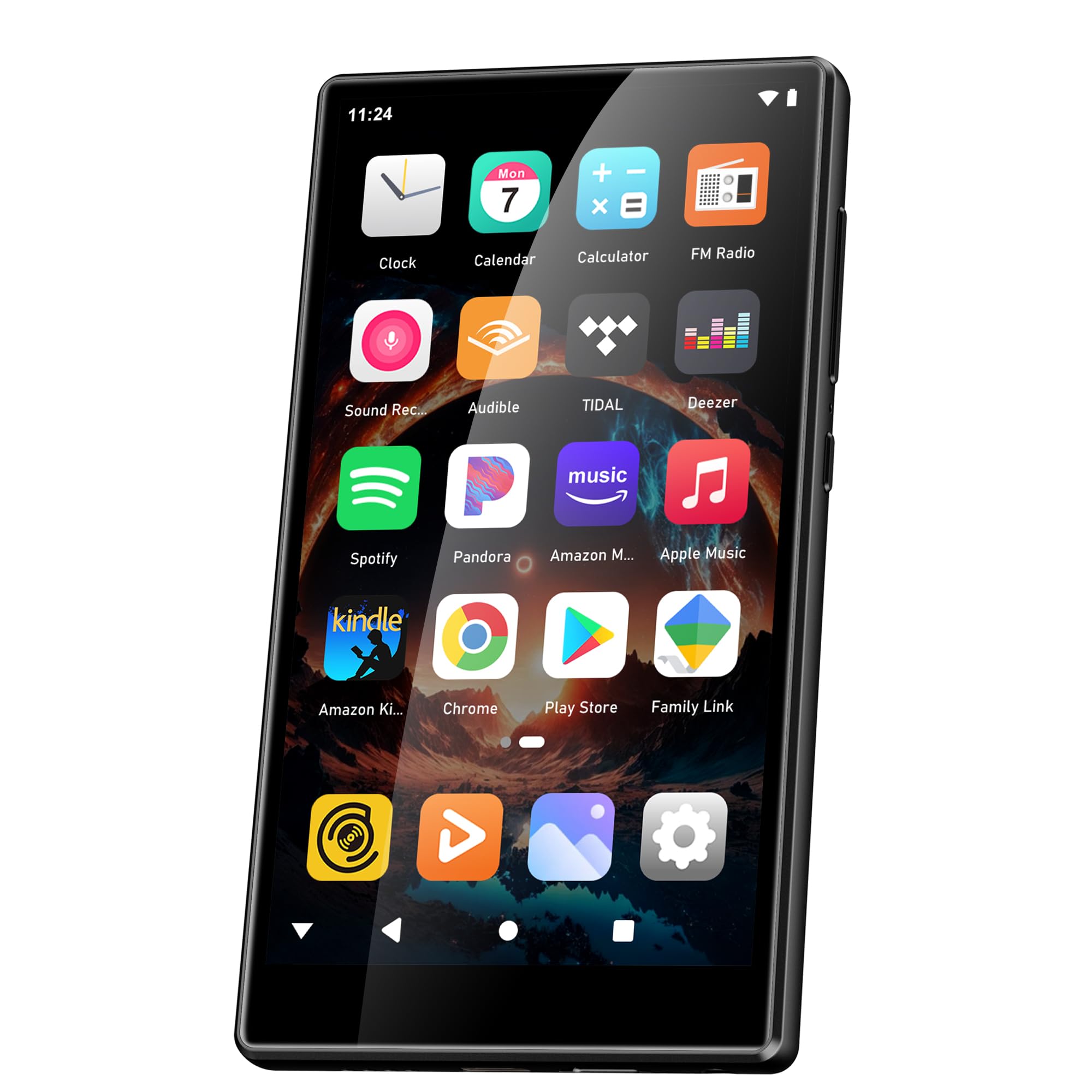
Image: Battery capacity and estimated usage times.
2. Power On/Off
- To Power On: Press and hold the Power button (usually on the side) until the screen lights up.
- To Power Off: Press and hold the Power button, then select "Power Off" from the options that appear on the screen.
- To Restart: Press and hold the Power button, then select "Restart" from the options.
3. Initial Configuration
Upon first power-on, follow the on-screen prompts to set up your device:
- Language Selection: Choose your preferred language.
- Wi-Fi Connection: Connect to a Wi-Fi network to enable internet access for app downloads and streaming.
- Google Account: Sign in with your Google account to access the Google Play Store and synchronize data.
4. Memory Expansion
The device comes with 160GB of storage (32GB ROM + 128GB TF card). You can expand the storage further by inserting a microSD card (up to 1TB) into the designated slot.

Image: Device screen showing app icons and storage capacity details.
Operating Instructions
1. Navigating the Touchscreen
The SWOFY D26 features a responsive 4.7-inch HD touchscreen.
- Tap: To open an app, select an item, or confirm an action.
- Swipe: To scroll through lists, switch between home screens, or navigate within apps.
- Pinch: To zoom in or out on images or web pages.

Image: The 4.7-inch HD touchscreen in operation.
2. Music Playback
The device supports various music formats including MP3, WAV, FLAC, APE, OGG, M4A, AAC, WMA.
- Local Music: Transfer music files to the device's internal storage or microSD card via USB. Use the pre-installed music player app to browse and play your library.
- Streaming Services: Open pre-installed apps like Spotify, Deezer, or Amazon Music. Log in to your accounts to stream music.
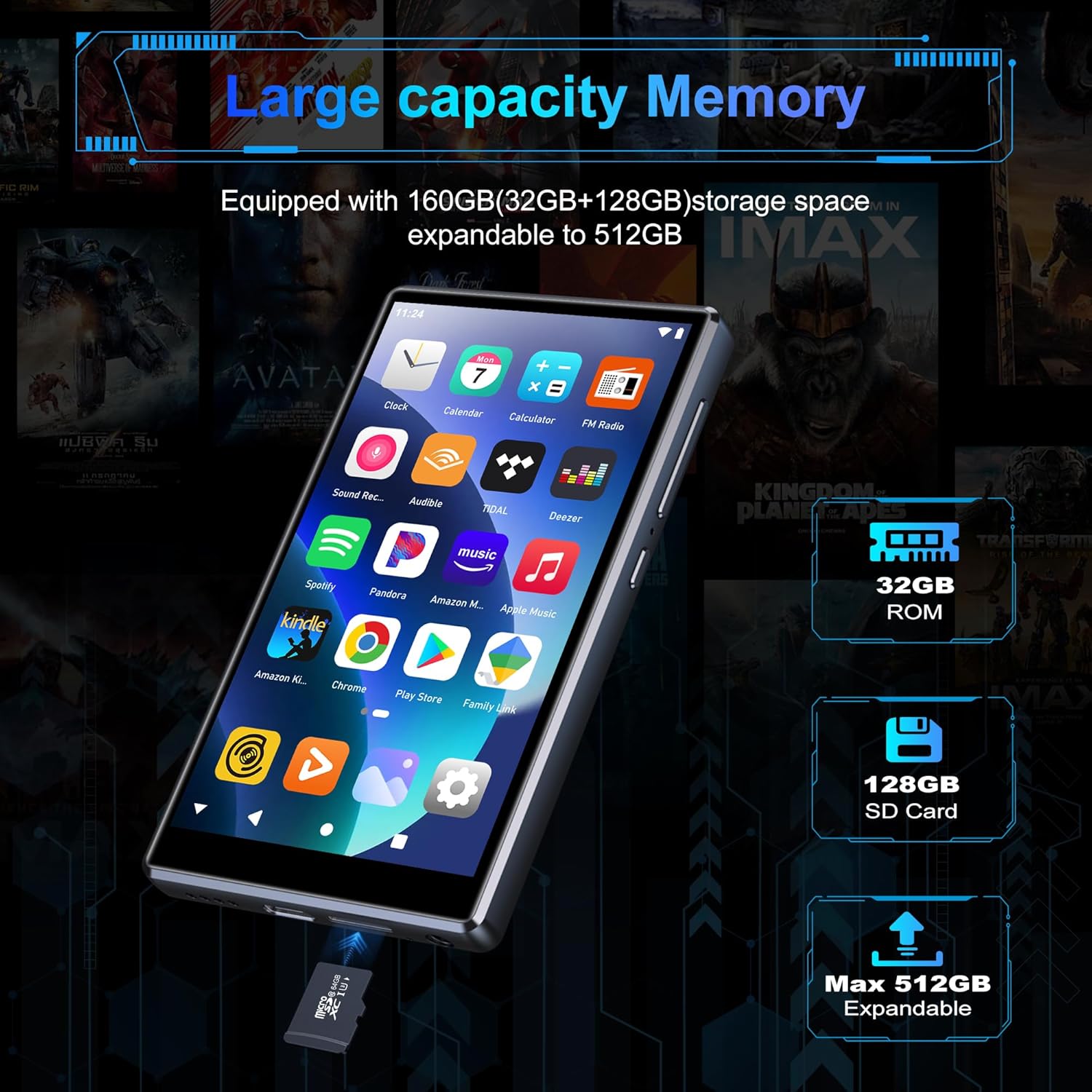
Image: Pre-installed popular applications on the device.
3. Video Playback
The SWOFY D26 supports video formats such as RM, RMVB, FLV, MP4, DAT, MKV, MPG, MOV, TS directly, without requiring conversion. Use the default video player app to watch your videos.
4. Bluetooth Connection
Connect your device to Bluetooth headphones, speakers, or other compatible devices using Bluetooth 5.0.
- Go to Settings > Connected devices > Bluetooth.
- Toggle Bluetooth On.
- Ensure your Bluetooth accessory is in pairing mode.
- Select your accessory from the list of available devices to pair.
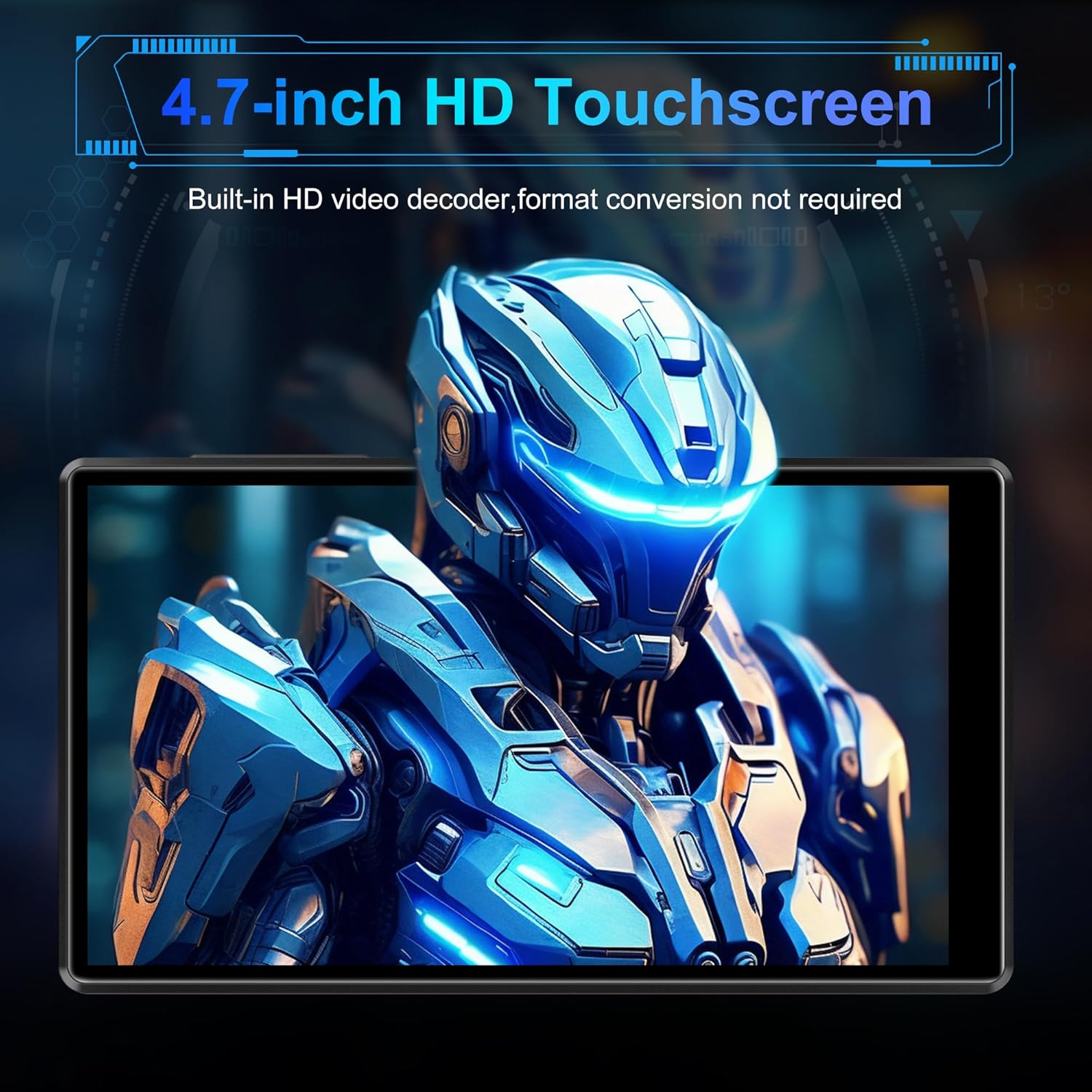
Image: Bluetooth connectivity with wireless earbuds.
5. Wi-Fi Connection
Connect to a Wi-Fi network to access the internet for streaming, app downloads, and web browsing.
- Go to Settings > Network & internet > Wi-Fi.
- Toggle Wi-Fi On.
- Select your desired Wi-Fi network from the list and enter the password if prompted.
6. App Installation
Utilize the Google Play Store to download and install additional applications.
- Ensure you are connected to Wi-Fi and logged into your Google account.
- Open the Play Store app.
- Search for the desired app and follow the on-screen instructions to install it.
7. File Transfer
Connect the SWOFY D26 to a computer using the provided USB cable to transfer music, videos, and other files.
- Connect the device to your computer.
- On the device, swipe down from the top of the screen to open the notification panel.
- Tap the "USB charging this device" notification, then select "File transfer" or "MTP".
- Your device will appear as a removable drive on your computer, allowing you to drag and drop files.
Maintenance
Cleaning
Use a soft, lint-free cloth to clean the screen and body of the device. Avoid using harsh chemicals or abrasive materials.
Software Updates
Periodically check for software updates to ensure optimal performance and access to the latest features.
- Ensure the device is connected to Wi-Fi.
- Go to Settings > System > System update.
- Follow the on-screen instructions to download and install any available updates.
Battery Care
To prolong battery life:
- Avoid extreme temperatures.
- Do not let the battery completely drain frequently.
- Unplug the charger once the device is fully charged.
Troubleshooting
Device Not Turning On
- Ensure the battery is charged. Connect the device to a charger for at least 30 minutes.
- Press and hold the Power button for 10-15 seconds to force a restart.
Cannot Connect to Wi-Fi/Bluetooth
- Ensure Wi-Fi/Bluetooth is enabled in Settings.
- Restart the device and try connecting again.
- For Wi-Fi, verify the password and ensure the router is working correctly.
- For Bluetooth, ensure the accessory is in pairing mode and within range.
Apps Crashing or Freezing
- Close and reopen the app.
- Clear the app's cache: Go to Settings > Apps > [App Name] > Storage & cache > Clear cache.
- Restart the device.
- If the issue persists, consider uninstalling and reinstalling the app.
Poor Audio Quality
- Check the volume settings on the device and any connected audio accessories.
- Ensure the audio files are not corrupted.
- Try different headphones or speakers.
Specifications
| Model Name | D26 |
| Operating System | Android 13 |
| Processor | MTK 8-core |
| Display | 4.7-inch HD Touchscreen (LCD) |
| Internal Storage | 160GB (32GB ROM + 128GB TF Card) |
| Expandable Storage | Up to 1TB (Micro SD) |
| RAM | 4GB |
| Battery Capacity | 2500 mAh |
| Music Playback Time | Up to 50 hours |
| Video Playback Time | Up to 8 hours |
| Connectivity | Bluetooth 5.0, Wi-Fi, USB |
| Supported Audio Formats | MP3, WAV, FLAC, APE, OGG, M4A, AAC, WMA |
| Supported Video Formats | RM, RMVB, FLV, MP4, DAT, MKV, MPG, MOV, TS |
| Special Features | Built-in speaker, Equalizer, FM Radio, Voice Recorder |
| Compatible Devices | Bluetooth headphones, Personal computer, Bluetooth speakers |
Warranty Information
Specific warranty details for the SWOFY D26 MP3 Player may vary by region and retailer. Please refer to the warranty card included with your purchase or visit the official SWOFY website for comprehensive warranty terms and conditions. Information regarding spare parts availability and software update guarantees is not provided in the product specifications.
Support
For further assistance, technical support, or inquiries regarding your SWOFY D26 MP3 Player, please visit the official SWOFY website or contact their customer service department.
Manufacturer: SWOFY