
1. Introduction
Thank you for choosing the CARE CASE ADS-316 8-in-1 Card Reader. This manual provides essential information for the proper setup, operation, and maintenance of your device. Please read it carefully before use to ensure optimal performance and longevity of the product.
2. Product Overview
The CARE CASE ADS-316 is a versatile 8-in-1 card reader designed for efficient data transfer between various memory cards and your devices. It features both Type-C and USB-A connectors, making it compatible with a wide range of smartphones, tablets, laptops, and personal computers. It supports multiple card formats and offers high-speed data transfer.
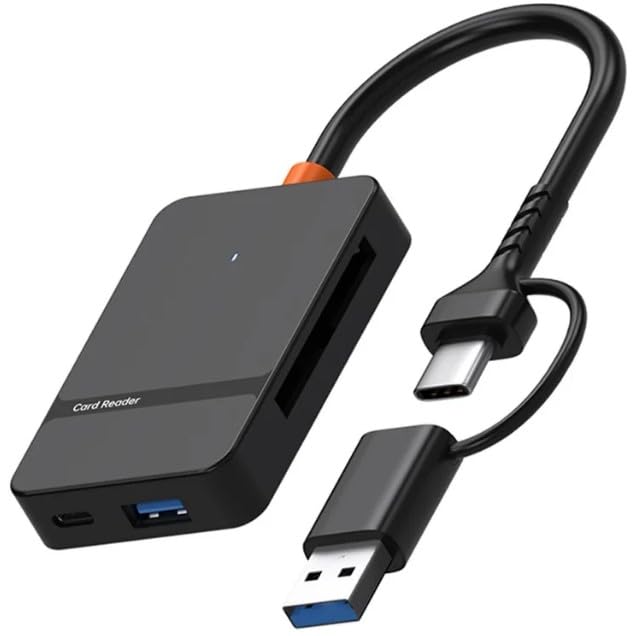
Figure 1: Front view of the CARE CASE ADS-316 8-in-1 Card Reader, showing its compact design and dual connectivity options (USB-A and Type-C).
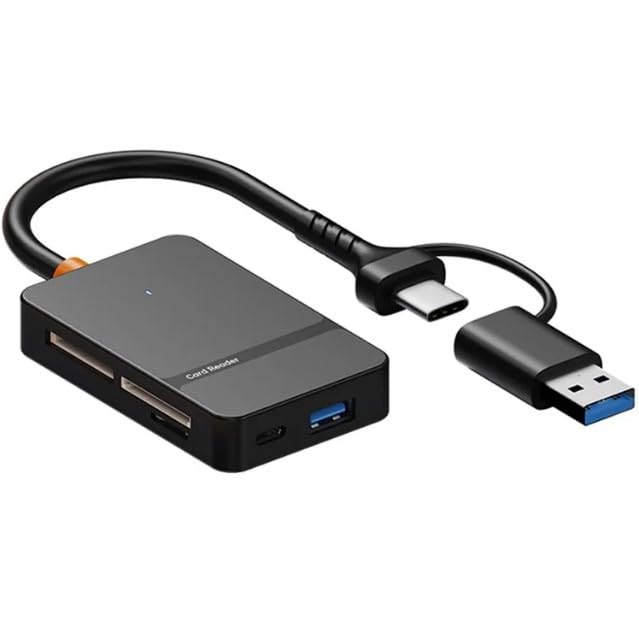
Figure 2: Angled view of the card reader, highlighting the various card slots for different memory card types.
3. Setup
The ADS-316 card reader is designed for plug-and-play functionality, requiring no additional drivers for most operating systems.
- Identify the correct connector: The card reader features both a USB-A connector and a Type-C connector. Choose the one compatible with your device (computer, laptop, smartphone, or tablet).
- Connect the card reader: Insert the appropriate connector into an available port on your host device.
- System Recognition: Your operating system should automatically detect the card reader. A notification may appear indicating that the device is ready for use.
4. Operating Instructions
This card reader supports direct reading of SD, TF (MicroSD), MS, CF1, and USB 3.0 U disk. Please note that it supports single card reading at a time and does not support simultaneous reading of multiple cards.
4.1 Inserting a Memory Card
- Ensure the card reader is connected to your host device.
- Locate the appropriate slot for your memory card type (SD, TF, MS, CF1). Refer to the markings on the card reader.
- Gently insert the memory card into its designated slot until it clicks into place or is fully seated. Do not force the card.
- Your host device should recognize the inserted card, and its contents will be accessible.
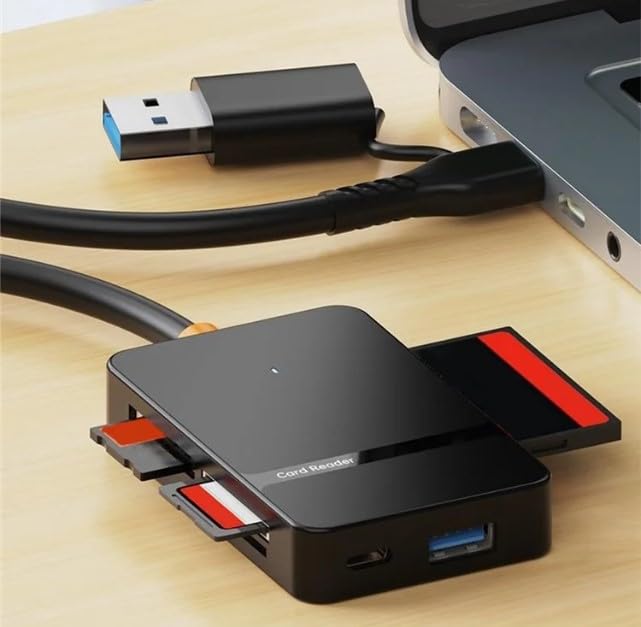
Figure 3: Illustration of various memory cards being inserted into their respective slots on the card reader.
4.2 Connecting a USB Drive
- Ensure the card reader is connected to your host device.
- Insert your USB 3.0 U disk (flash drive) into the USB-A port on the card reader.
- Your host device should recognize the USB drive, and its contents will be accessible.
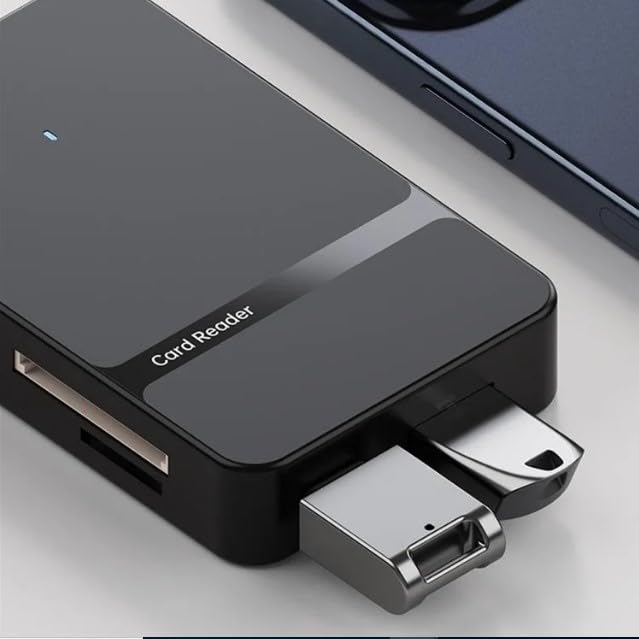
Figure 4: A USB flash drive connected to the USB-A port of the card reader, demonstrating its U disk reading capability.
4.3 Data Transfer
Once a card or USB drive is recognized, you can transfer files to and from your host device using standard file management operations (copy, paste, drag-and-drop).
- High-Speed Transfer: The card reader supports USB 3.0, offering data transfer rates up to 5 Gigabits Per Second (5Gbps).
- Maximum Capacity: It supports a maximum read capacity of 2TB for memory cards.
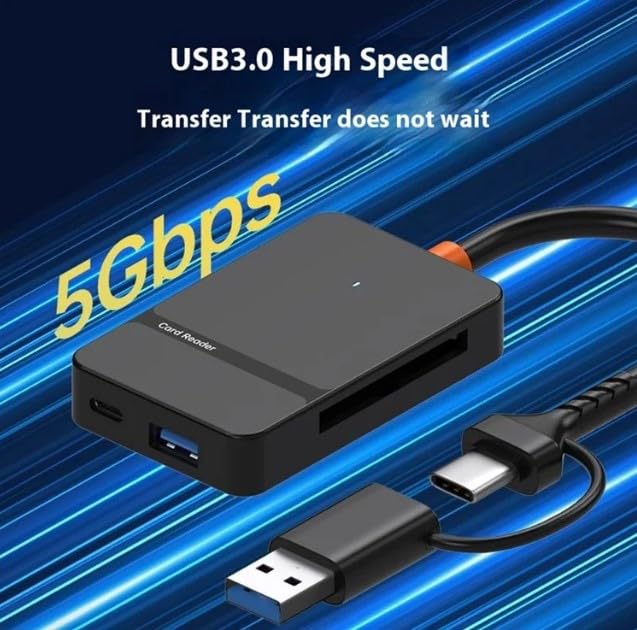
Figure 5: Visual representation of the card reader's USB 3.0 high-speed data transfer capability at 5Gbps.
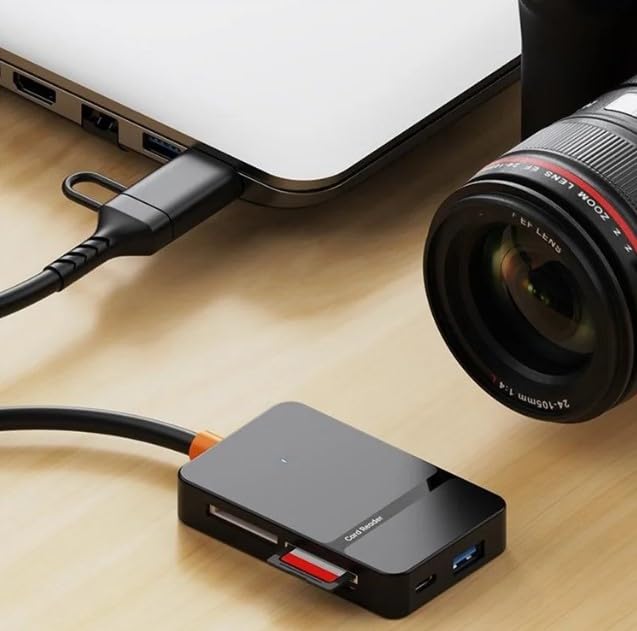
Figure 6: The card reader connected to a laptop, demonstrating its use for transferring data from camera memory cards.
4.4 Safely Removing the Device
Always safely eject the memory card or USB drive from your operating system before physically disconnecting the card reader or removing the card/drive. This prevents data corruption.
- Windows: Right-click on the drive icon in "This PC" or the taskbar icon, then select "Eject".
- macOS: Drag the drive icon to the Trash or click the Eject button next to the drive in Finder.
- Android/iOS (Type-C): Use the "Safely Remove Hardware" option if available, or simply disconnect after ensuring no data transfer is in progress.
5. Maintenance
- Cleaning: Use a soft, dry cloth to clean the exterior of the card reader. Avoid liquid cleaners or abrasive materials.
- Storage: Store the card reader in a cool, dry place away from direct sunlight and extreme temperatures.
- Handling: Avoid dropping the device or exposing it to excessive force, which could damage internal components or connectors.
- Connector Care: Keep the USB-A and Type-C connectors free from dust and debris.
6. Troubleshooting
If you encounter issues with your CARE CASE ADS-316 card reader, please refer to the following common problems and solutions:
- Device not recognized:
- Ensure the card reader is fully inserted into the USB or Type-C port of your host device.
- Try connecting the card reader to a different port on your device.
- Test the card reader on another computer or compatible device to rule out host device issues.
- Ensure your operating system is up to date.
- Memory card not detected:
- Verify that the memory card is correctly inserted into the appropriate slot.
- Check if the memory card itself is damaged or corrupted by testing it in another device.
- Ensure the card reader supports the specific type of memory card you are using.
- Remember that the reader supports single card reading only; remove any other cards.
- Slow data transfer speed:
- Ensure both the card reader and your host device support USB 3.0 for optimal speeds. If connected to a USB 2.0 port, speeds will be limited.
- The speed of the memory card itself can affect transfer rates.
- Avoid running multiple data-intensive applications during transfer.
- Card reader gets warm during use:
- It is normal for electronic devices to generate some heat during operation, especially during prolonged data transfer. If it becomes excessively hot, disconnect it and contact support.
7. Specifications
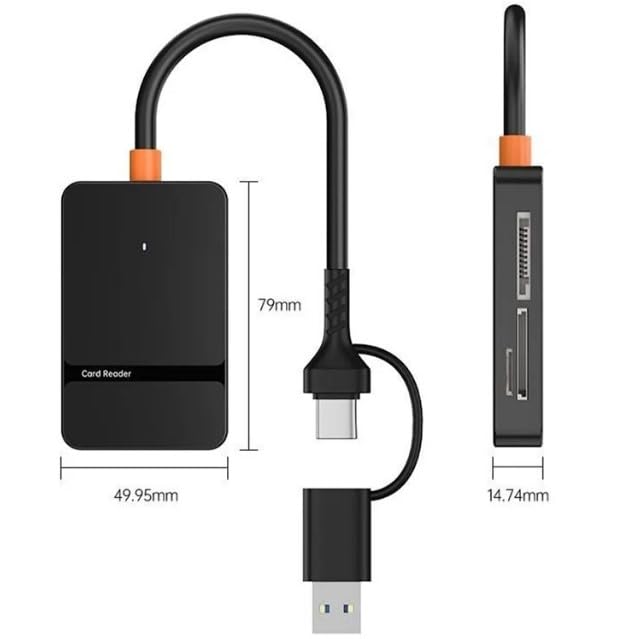
Figure 7: Dimensional drawing of the card reader, indicating its length, width, and thickness.
| Feature | Detail |
|---|---|
| Model | ADS-316 |
| Brand | CARE CASE |
| Product Interface | USB-A, Type-C |
| Supported Media Types | SD Card, microSD (TF), MS, CF1, USB Drive |
| Data Transfer Rate | Up to 5 Gigabits Per Second (USB 3.0) |
| Maximum Capacity | 2TB |
| Compatible Devices | Cameras, Dash Cams, Phones (Huawei, Xiaomi, OPPO, VIVO, Samsung, Meizu, iPhone 15 series), Tablets, Surveillance Systems, Drones, Mirrorless Cameras, Switch devices, Laptops (MacBook, Huawei MateBook, Lenovo, Dell, Microsoft, HP) |
| Special Features | Compact, Plug & Play |
| Product Dimensions | 5 x 3 x 8 cm (L x W x H); 150 g |
| Cable Length | 0.2m |
| Country of Origin | China |
8. Warranty and Support
For warranty information and technical support, please refer to the documentation provided at the time of purchase or contact the seller directly. The manufacturer's contact information for queries is:
Contact: 9769419930 (as per product specifications)
Please retain your proof of purchase for any warranty claims.


