
1. Introduction
Thank you for choosing the WOREGOO L211-EEA 10-inch Android 14 Tablet. This device is designed to provide a versatile and powerful user experience, featuring the latest Android 14 operating system, ample storage, and robust connectivity options. This manual will guide you through the setup, operation, maintenance, and troubleshooting of your new tablet to ensure you get the most out of its capabilities.
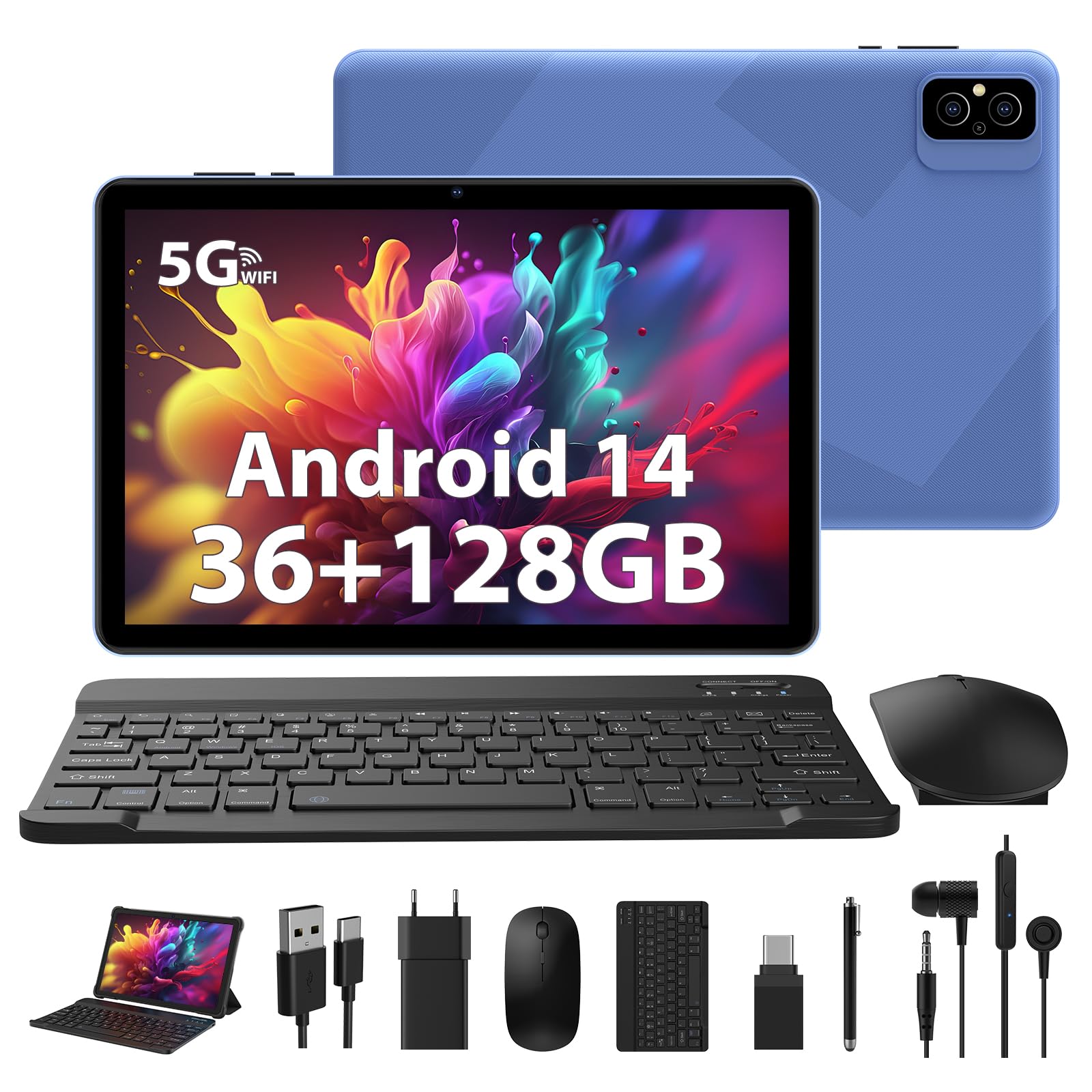
Image 1.1: Front and back view of the WOREGOO L211-EEA 10-inch Android 14 Tablet.

Image 1.2: Overview of the tablet's key features including Android 14, 8000mAh battery, Octa-Core processor, 5G WiFi, 36GB RAM + 128GB ROM, dual cameras, 10.1-inch screen, and Type-C port.
2. Package Contents
Please check the package for the following items:
- WOREGOO L211-EEA 10-inch Android 14 Tablet
- Bluetooth Keyboard
- Foldable Mouse
- Protective Case
- Stylus
- Earphones
- Charger
- USB Type-C Cable

Image 2.1: All items included in the WOREGOO L211-EEA tablet package.
3. Product Overview
The WOREGOO L211-EEA tablet features a 10.1-inch HD display, dual cameras, and a Type-C charging port. It is powered by an Octa-Core MediaTek processor for efficient performance.
3.1. Key Components
- Display: 10.1-inch HD screen (1280x800 resolution)
- Front Camera: 5MP for video calls and selfies
- Rear Camera: 8MP for capturing photos and videos
- Power Button: Located on the side for turning the device on/off and screen lock
- Volume Buttons: Adjust audio levels
- USB Type-C Port: For charging and data transfer
- Speaker: Dual speakers for immersive audio
- Microphone: For voice input
4. Setup
4.1. Charging the Tablet
Before first use, fully charge your tablet. Connect the provided Type-C cable to the tablet's charging port and the other end to the charger. Plug the charger into a power outlet. The battery indicator on the screen will show charging status.
4.2. Powering On/Off
- To Power On: Press and hold the Power button until the WOREGOO logo appears.
- To Power Off: Press and hold the Power button, then select 'Power off' from the options on the screen.
- To Restart: Press and hold the Power button, then select 'Restart' from the options.
4.3. Initial Setup
Upon first power-on, follow the on-screen prompts to complete the initial setup:
- Select your language.
- Connect to a Wi-Fi network.
- Sign in with your Google account or create a new one.
- Review and accept the terms and conditions.
- Set up screen lock (PIN, pattern, or password).
4.4. Connecting Accessories
The tablet comes with a Bluetooth keyboard and mouse for enhanced productivity.
- Bluetooth Keyboard/Mouse: Turn on the keyboard/mouse. Go to Settings > Connected devices > Bluetooth on your tablet. Turn on Bluetooth, scan for devices, and select the keyboard/mouse to pair. Follow any on-screen instructions.
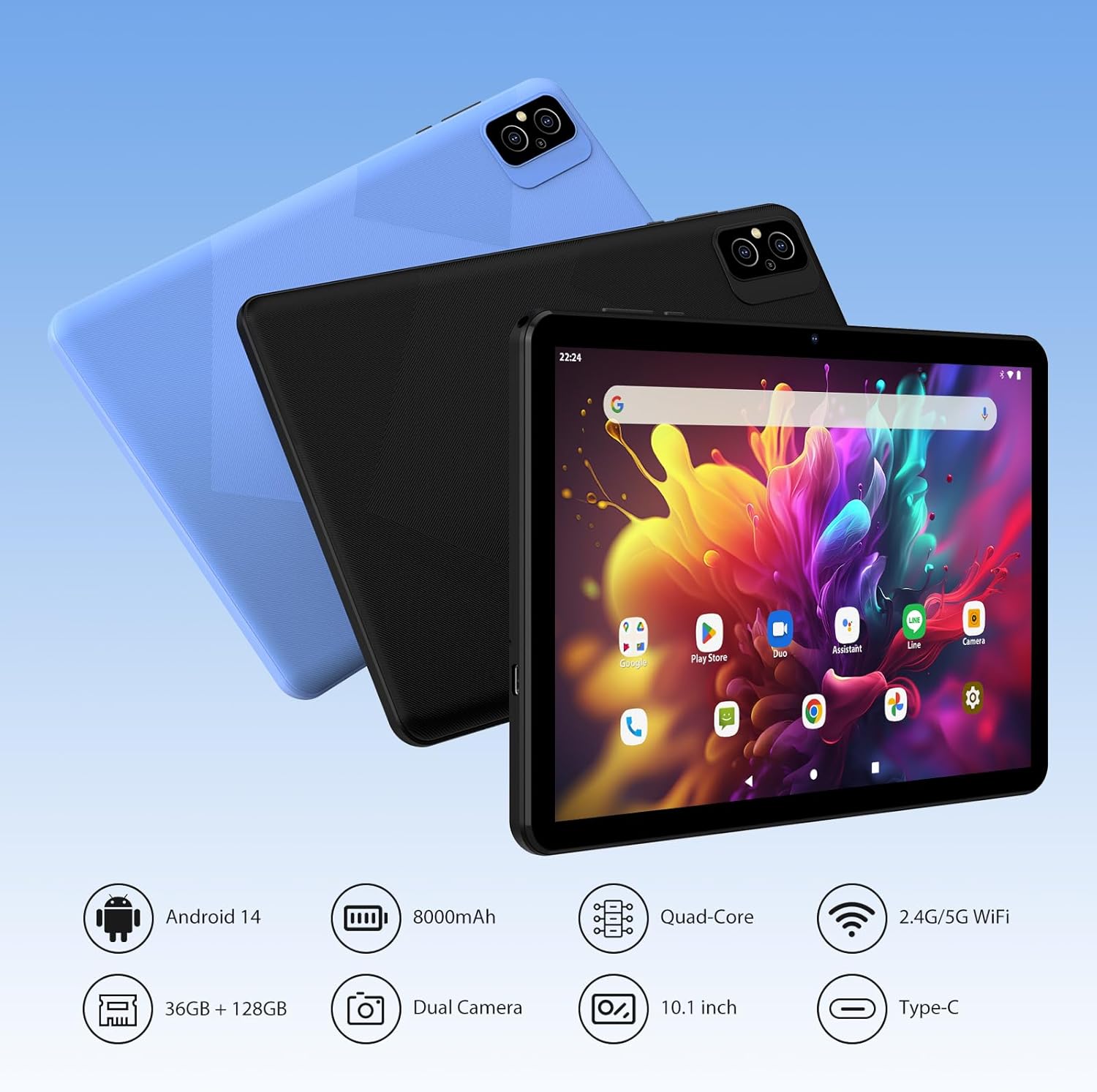
Image 4.1: The WOREGOO tablet connected to its Bluetooth keyboard and mouse.
5. Operating Instructions
5.1. Android 14 Operating System
Your tablet runs on Android 14, offering new features such as easier gesture navigation and a dimmed light mode for comfortable viewing. The tablet is Google GMS certified, allowing you to install and run your favorite third-party applications from the Google Play Store, including YouTube and TikTok.

Image 5.1: The tablet features Android 14 with GMS certification, ensuring access to Google services and privacy features.

Image 5.2: The Android 14 interface displaying various applications.
5.2. Storage and Performance
The tablet is equipped with 36GB of RAM and 128GB of internal storage (ROM), providing fast operation and ample space for your apps, photos, and files. The Cortex-A53 processor ensures efficient performance while minimizing heat generation.

Image 5.3: Illustration of the tablet's large storage capacity with 36GB RAM and 128GB ROM.
5.3. Cameras
Capture moments with the tablet's dual cameras:
- Front Camera: 5MP, ideal for video calls and self-portraits.
- Rear Camera: 8MP, suitable for taking high-definition photos and videos.
5.4. Connectivity
The tablet supports various connectivity options:
- 5G WiFi: Enjoy high-speed internet with stable signals and fast data transfer rates.
- Bluetooth 5.0: Connect wireless headphones, speakers, and other Bluetooth-enabled devices for an immersive audio experience.
- GPS: Utilize Google Maps and other navigation applications for precise location information and guidance.

Image 5.4: A user enjoying the tablet's 5G WiFi and Bluetooth 5.0 connectivity.
5.5. Using with Accessories
The included keyboard, mouse, and protective case enhance the tablet's functionality, making it suitable for work, study, and entertainment.

Image 5.5: The tablet being used in a work or study environment with the keyboard and mouse.
6. Maintenance
6.1. Battery Care
The tablet features an 8000mAh battery. To prolong battery life:
- Avoid extreme temperatures.
- Do not let the battery drain completely before recharging regularly.
- Use only the provided charger and Type-C cable.
- Optimize power settings in Android to conserve energy.
6.2. Cleaning
To clean your tablet:
- Use a soft, lint-free cloth.
- For stubborn marks, slightly dampen the cloth with water or a screen cleaner.
- Avoid harsh chemicals or abrasive materials.
6.3. Software Updates
Regularly check for and install software updates to ensure optimal performance, security, and access to new features. Go to Settings > System > System update.
7. Troubleshooting
If you encounter issues with your tablet, refer to the following common solutions:
| Problem | Solution |
|---|---|
| Tablet does not power on | Ensure the battery is charged. Connect the charger and wait a few minutes before attempting to power on again. If unresponsive, press and hold the Power button for 10-15 seconds to force a restart. |
| Slow performance or freezing | Close unnecessary background applications. Clear cache for frequently used apps. Restart the tablet. Ensure sufficient storage space is available. |
| Wi-Fi connection issues | Ensure Wi-Fi is enabled on the tablet. Restart your router. Forget the network and reconnect. Check if other devices can connect to the same network. |
| Bluetooth device not pairing | Ensure Bluetooth is enabled on both devices. Place devices close to each other. Make sure the accessory is in pairing mode. Restart both devices. |
| Battery drains quickly | Reduce screen brightness. Disable Wi-Fi, Bluetooth, and GPS when not in use. Close background apps. Check battery usage in settings to identify power-hungry apps. |
8. Specifications
| Feature | Detail |
|---|---|
| Brand | WOREGOO |
| Model Number | L211-EEA |
| Operating System | Android 14 |
| Processor Brand | MediaTek |
| Processor Speed | 2 GHz |
| Screen Size | 10.1 Inches |
| Screen Resolution | 1280 x 800 pixels |
| RAM Size | 36 GB |
| Storage Capacity | 128 GB |
| Connectivity Type | Wi-Fi (802.11ax, 802.11 ac/b/g/n) |
| Bluetooth | Yes (Version 5.0) |
| Battery Capacity | 8000mAh |
| Front Camera | 5MP |
| Rear Camera | 8MP |
| Weight | 420 Grams |
9. Warranty and Support
Your WOREGOO tablet comes with comprehensive after-sales support. If you encounter any issues or have questions regarding your product, please contact us promptly. We are committed to providing a solution within 24 hours.
Please refer to your purchase documentation for specific warranty terms and contact details.


