
WOREGOO L211-EEA
WOREGOO L211-EEA 10-inch Android 14 Tablet User Manual
Model: L211-EEA
1. Introduction
Welcome to your new WOREGOO L211-EEA 10-inch Android 14 Tablet. This manual provides essential information to help you set up, operate, and maintain your device. Please read this manual thoroughly before using your tablet to ensure proper functionality and longevity.
2. Package Contents
Verify that all items listed below are included in your package:
- WOREGOO L211-EEA 10-inch Android 14 Tablet
- Bluetooth Keyboard
- Foldable Mouse
- Protective Case
- Stylus
- Earphones
- Charger
- USB Type-C Cable

Image 1: The WOREGOO L211-EEA tablet displayed with its screen on, alongside all included accessories: a Bluetooth keyboard, a foldable mouse, a stylus, earphones, a charger, and a USB Type-C cable.
3. Product Overview
The WOREGOO L211-EEA tablet features a 10.1-inch HD display, dual cameras, and a durable metal body. It runs on Android 14 and is designed for versatile use.
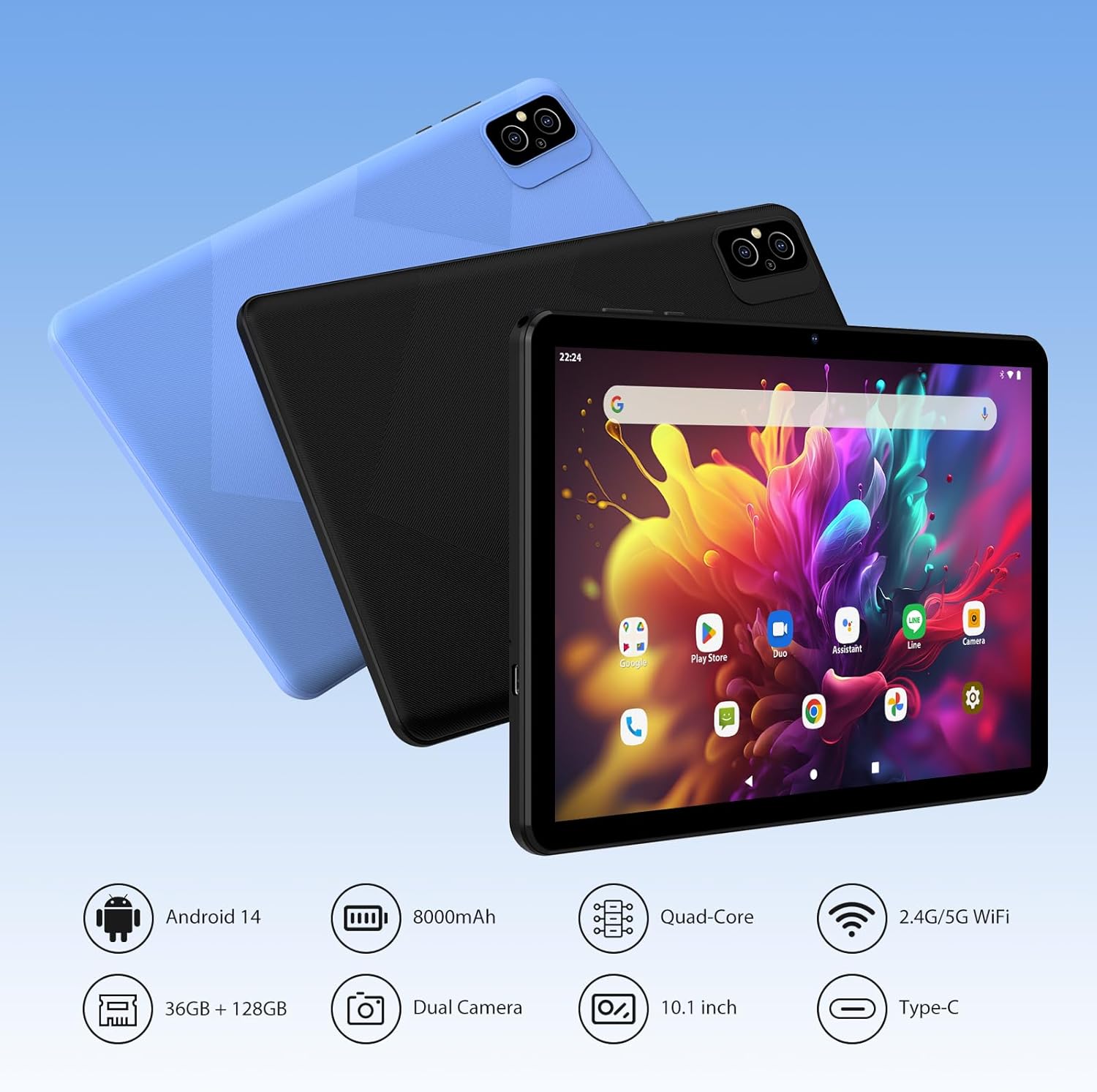
Image 2: Multiple WOREGOO L211-EEA tablets in black and blue, showcasing the device's design. Icons below highlight key features: Android 14, 8000mAh battery, Quad-Core processor, 2.4G/5G WiFi, 36GB RAM + 128GB ROM, Dual Camera, 10.1-inch screen, and Type-C port.
4. Setup
4.1. Charging the Tablet
Before first use, fully charge your tablet. Connect the provided charger to the Type-C port on the tablet and plug it into a power outlet. The battery indicator on the screen will show charging status.
4.2. Powering On/Off
- To Power On: Press and hold the power button located on the side of the tablet until the WOREGOO logo appears.
- To Power Off: Press and hold the power button, then select 'Power off' from the options that appear on the screen.
4.3. Initial Configuration
Upon first power-on, follow the on-screen instructions to set up your tablet. This includes selecting your language, connecting to a Wi-Fi network, and signing in with your Google account.
4.4. Connecting Accessories
Your tablet comes with several accessories to enhance your experience:
- Bluetooth Keyboard & Mouse: Turn on the keyboard/mouse and enable Bluetooth on your tablet via Settings > Connected devices > Pair new device. Select the accessory from the list to pair.
- Stylus: The stylus can be used for precise input on the touchscreen.
- Protective Case: Install the tablet into the protective case for added durability and protection.

Image 3: A two-panel image demonstrating tablet usage. The top panel shows the tablet in its protective case, used for a video call or presentation. The bottom panel shows a user typing on the Bluetooth keyboard and using the foldable mouse connected to the tablet.
4.5. Inserting a MicroSD Card
Locate the MicroSD card slot on the side of your tablet. Gently insert a MicroSD card (up to 512GB, sold separately) into the slot until it clicks into place. This expands your tablet's storage capacity.
5. Operating Your Tablet
5.1. Android 14 Operating System
Your tablet runs on the Android 14 operating system, offering new features such as easier gestural navigation and a dim light mode for comfortable viewing. The tablet is Google GMS certified, allowing full access to the Google Play Store and other Google services.

Image 4: The WOREGOO L211-EEA tablet shown from the front and back, highlighting its Android 14 GMS certification. Icons represent Android 14, Privacy features, and access to the Play Store.
5.2. Connectivity
- 5G WiFi: The tablet supports 5GHz Wi-Fi for stable and fast internet connections. Access Wi-Fi settings via the Quick Settings panel or the Settings app.
- Bluetooth 5.0: Connect wireless headphones, speakers, or other Bluetooth-enabled devices. Enable Bluetooth in Settings > Connected devices.

Image 5: A person using the WOREGOO L211-EEA tablet in a casual setting. The image emphasizes the tablet's 5G WiFi (supporting both 5GHz and 2.4GHz bands) and Bluetooth 5.0 capabilities, indicated by respective icons.
5.3. Storage and Performance
The tablet features 36GB of RAM and 128GB of internal storage (ROM). Storage can be expanded up to 512GB using a MicroSD card. The Octa-Core Cortex-A53 processor ensures smooth operation for various applications.

Image 6: Multiple WOREGOO L211-EEA tablets displaying various applications, illustrating the tablet's capability to handle multiple tasks. The image highlights the 'Large Capacity Storage' with 36GB RAM and 128GB ROM.
5.4. Cameras
Equipped with a 5MP front camera and an 8MP rear camera, the tablet allows you to capture photos and videos. Open the Camera app to utilize these features.
5.5. GPS Functionality
The integrated GPS allows for location services and navigation. Use applications like Google Maps for accurate positioning and route guidance.
6. Maintenance
6.1. Cleaning Your Tablet
Use a soft, lint-free cloth to clean the screen and body of your tablet. Avoid using abrasive cleaners, alcohol, or chemical solvents, as these can damage the device's surfaces.
6.2. Battery Care
To prolong battery life, avoid exposing the tablet to extreme temperatures. Charge the tablet regularly and avoid letting the battery completely drain frequently. The 8000mAh battery is designed for extended use.
6.3. Software Updates
Periodically check for software updates in Settings > System > System update. Keeping your tablet's software up-to-date ensures optimal performance, security, and access to the latest features. Please note that information regarding guaranteed software updates is not available.
7. Troubleshooting
If you encounter issues with your tablet, refer to the following common solutions:
| Problem | Solution |
|---|---|
| Tablet does not power on | Ensure the battery is charged. Connect the charger and wait a few minutes before attempting to power on again. |
| Wi-Fi connection issues | Check if Wi-Fi is enabled in settings. Restart your router and the tablet. Ensure you are within range of the Wi-Fi signal. |
| Bluetooth device not pairing | Ensure the Bluetooth device is in pairing mode and within range. Restart Bluetooth on both devices. |
| Slow performance or app crashes | Close unnecessary background applications. Clear app caches in Settings > Apps. Restart the tablet. |
| Screen unresponsive | Perform a forced restart by holding the power button for approximately 10-15 seconds. |
8. Specifications
| Feature | Detail |
|---|---|
| Brand | WOREGOO |
| Model Number | L211-EEA |
| Operating System | Android 14 |
| Processor Brand | Rockchip |
| Processor Speed | 2 GHz |
| Screen Size | 10.1 Inches |
| Screen Resolution | 1280 x 800 pixels |
| Installed RAM Size | 36 GB |
| Memory Storage Capacity | 128 GB |
| Expandable Storage | Up to 512GB via MicroSD card (sold separately) |
| Connectivity Type | 5G WiFi (802.11ax) |
| Wireless Technology Type | 802.11ax |
| Hardware Interface | 802.11 ac/b/g/n |
| Bluetooth Version | 5.0 |
| Battery Capacity | 8000mAh |
| Special Features | Metal Body |
| Color | Black |
| Device Compatibility | Keyboard, Mouse |
| Package Dimensions | 33.79 x 19.6 x 3.9 cm; 1.36 kilograms |
9. Warranty and Support
Your WOREGOO L211-EEA tablet comes with a warranty covering manufacturing defects. If you encounter any problems or require assistance, please contact WOREGOO customer support. We are committed to providing a solution within 24 hours of your inquiry. Please refer to your purchase documentation for specific warranty terms and contact information.
Spare parts availability information is not available.
Ask a question about this manual
Ask about setup, troubleshooting, compatibility, parts, safety, or missing instructions. Manuals+ will review the question and use this page’s manual context to help answer it.