
1. Introduction
Thank you for choosing the SUNVIE Smart Floor Can Light. This product is designed to provide versatile indoor accent lighting with smart control features. This manual will guide you through the setup, operation, and maintenance of your new smart lights.
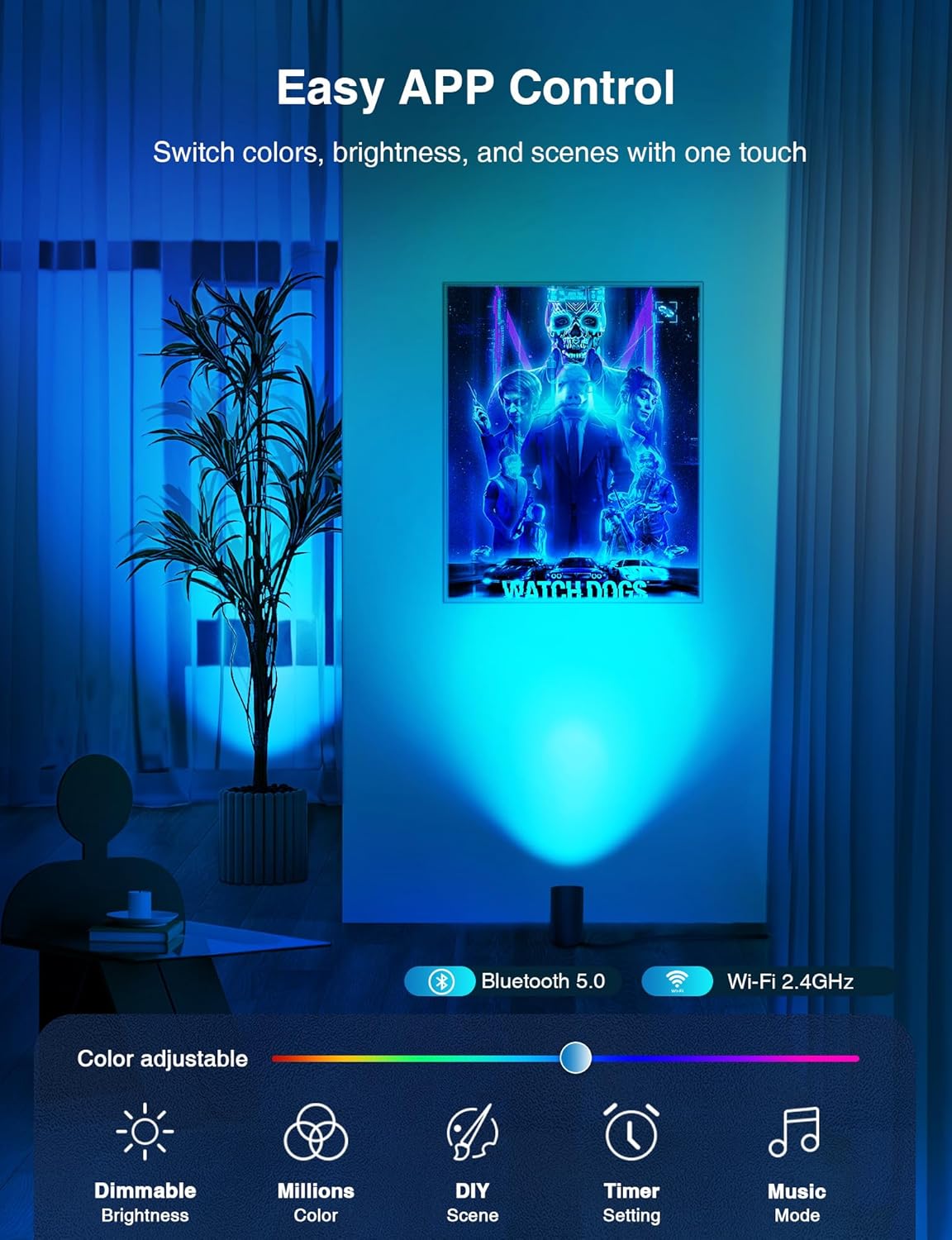
Image 1.1: SUNVIE Smart Floor Can Light in an indoor setting.
2. Product Features
- Upgraded RGBW Smart Floor Can Lights: Unique beveled cylindrical design for artistic ambiance. Features RGB color mode with 16 million colors for various atmospheres, and adjustable warm/cool whites (2700K-6500K) for diverse lighting needs.
- Timer Schedule and Stepless Dimming: Customize timing functions to turn lights on/off at set times. Offers 1%-100% stepless dimming for desired brightness. Includes a memory function to retain the last used or customized settings upon power-on.
- APP & Voice Smart Control: Control lights via the Smart Life APP (2.4Ghz WiFi Network Only) or with voice commands through Alexa or Google Assistant. Supports group control for managing multiple smart lights simultaneously.
- DIY Scene & Music Sync: Choose from 8 pre-set scenes or customize colors, sequence, switch method, and change speed. Music sync mode allows lights to change color with music rhythm.
- Durable & Quality Components: Constructed with high-quality components to ensure electrical safety and a long service life.

Image 2.1: Easy APP Control interface.

Image 2.2: Hands-Free Voice Control demonstration.
3. Specifications
| Specification | Detail |
|---|---|
| Model Name | FCL01B02SN |
| Brand | SUNVIE |
| Color | Black |
| Material | Aluminum |
| Light Source Type | LED |
| Wattage | 5 Watts |
| Brightness | 450 Lumen |
| Voltage | 120 Volts |
| Color Temperature | 2700K-6500K (Warm White, Cool White) |
| Bulb Base | GU10 |
| Control Method | App, Voice |
| Indoor/Outdoor Usage | Indoor use only |
| Product Dimensions | 3.05 x 3.45 x 8 inches |
| Item Weight | 2.31 pounds |
| Number of Items | 2 (Pack) |

Image 3.1: Product dimensions and components.
4. Package Contents
Each SUNVIE Smart Floor Can Light 2-Pack includes:
- 2 x Smart Floor Can Lights (with integrated GU10 bulbs)
5. Setup & Installation
The SUNVIE Smart Floor Can Lights require no complex physical installation. Simply place them in your desired indoor location and plug them into a standard electrical outlet. For smart functionality, follow the app connection instructions below.
5.1. Connecting to the Smart Life App
The Smart Life app is essential for controlling your SUNVIE Smart Floor Can Lights. Ensure your Wi-Fi network is 2.4GHz, as only this frequency is supported for connection.
- Download the Smart Life App: Open your device's App Store (iOS) or Google Play Store (Android), search for "Smart Life," and download the app.
- Register/Log In: Open the Smart Life app and either register a new account or log in with an existing one.
- Add Device: Tap the "+" icon or "Add Device" button in the app.
- Select Lighting: Choose "Lighting" from the device categories, then select "Light Source (Wi-Fi)" or similar option for smart bulbs.
- Pairing Mode: Power on the light. If it doesn't flash rapidly, power it off and on 3 times (on-off-on-off-on) until it enters pairing mode (rapid flashing).
- Connect to Wi-Fi: Confirm the light is flashing rapidly in the app, then enter your 2.4GHz Wi-Fi network name and password.
- Complete Connection: The app will connect to the device. Once connected, you can rename your light and start controlling it.
Video 5.1: Instructions on how to connect the SUNVIE Smart Floor Can Light to the Smart Life App.
5.2. Connecting to Google Home
Integrate your SUNVIE Smart Floor Can Lights with Google Home for voice control.
- Open Google Home App: Launch the Google Home app on your smartphone.
- Access Settings: Tap on the "Settings" icon.
- Add Device: Select "Add" then "Set up device" and choose "Works with Google".
- Search for Smart Life: Search for "Smart Life" and select it.
- Link Account: Follow the prompts to link your Smart Life account with Google Home. You will need to agree to permissions and log into your Smart Life account.
- Assign Device: Once linked, assign your SUNVIE lights to a specific room.
Video 5.2: Instructions on how to connect the SUNVIE Smart Floor Can Light with Google Home.
5.3. Connecting to Amazon Alexa
Integrate your SUNVIE Smart Floor Can Lights with Amazon Alexa for voice control.
- Open Amazon Alexa App: Launch the Amazon Alexa app on your smartphone.
- Access Skills & Games: Tap on "More" then select "Skills & Games".
- Search for Smart Life: Search for "Smart Life" and select the skill.
- Enable Skill: Tap "ENABLE TO USE" to enable the Smart Life skill.
- Link Account: Follow the prompts to link your Smart Life account with Alexa. You will need to agree to permissions and log into your Smart Life account.
- Discover Devices: Alexa will then discover your SUNVIE lights. Once discovered, you can assign them to groups or rooms.
Video 5.3: Instructions on how to connect the SUNVIE Smart Floor Can Light with Alexa.
6. Operating Instructions
Once your SUNVIE Smart Floor Can Lights are connected to the Smart Life app and/or your preferred voice assistant, you can utilize their full range of features.
6.1. App Control
Use the Smart Life app to manage your lights:
- Power On/Off: Toggle the light on or off directly from the app interface.
- Color Changing: Select from 16 million RGB colors to match your mood or decor.
- Brightness Adjustment: Adjust the brightness from 1% to 100% for optimal illumination.
- Color Temperature: Change the white light from warm (2700K) to cool (6500K).
- Scene Modes: Choose from 8 pre-set scenes or create your own custom scenes with specific colors, sequences, and speeds.
- Music Sync: Activate music sync mode to have the lights change color with the rhythm of your music.
- Timer & Schedules: Set custom schedules for the lights to turn on or off automatically at specific times.
- Group Control: Group multiple lights together to control them simultaneously with a single command.

Image 6.1: Adjusting brightness and color temperature via app.

Image 6.2: 8 Preset Scene & DIY options.

Image 6.3: Setting timers and schedules.
6.2. Voice Control
Use voice commands with Alexa or Google Assistant for convenient control:
- "Alexa, turn on [Light Name]."
- "Hey Google, dim [Light Name] to 50%."
- "Alexa, change [Light Name] to blue."
- "Hey Google, set [Light Name] to warm white."
7. Maintenance
- Cleaning: Ensure the light is unplugged before cleaning. Use a soft, dry cloth to wipe the surface. Do not use abrasive cleaners or solvents.
- Bulb Replacement: The integrated GU10 smart bulb is designed for long-term use. If replacement is necessary, ensure to use a compatible SUNVIE GU10 smart bulb.
- Storage: If storing the lights for an extended period, unplug them and store in a cool, dry place.
8. Troubleshooting
If you encounter issues with your SUNVIE Smart Floor Can Light, please refer to the following common solutions:
- Light not turning on: Ensure the power cord is securely plugged into a working outlet. Check if the light is switched on via the app or foot switch.
- Cannot connect to app:
- Verify your Wi-Fi network is 2.4GHz. 5GHz networks are not supported.
- Ensure your phone is connected to the same 2.4GHz Wi-Fi network during setup.
- Confirm the light is in pairing mode (rapidly flashing). If not, power cycle it 3 times (on-off-on-off-on).
- Move the light closer to your Wi-Fi router.
- Voice control not working:
- Ensure your Smart Life account is correctly linked to Alexa or Google Home.
- Check that your voice assistant device (Echo, Google Home speaker) is online and functioning.
- Use the exact device name you assigned in the Smart Life app or voice assistant app.
- Light is unresponsive: Try unplugging the light for 10 seconds and plugging it back in. If the issue persists, attempt to re-pair the device with the Smart Life app.
9. Warranty and Support
SUNVIE provides the following coverage for your Smart Floor Can Light:
- 30-Day Money-Back Guarantee: If you are not satisfied with your purchase, you may return it within 30 days for a full refund.
- 24-Month Limited Manufacturer's Warranty: Covers defects in materials and workmanship under normal use.
- Lifetime After-Sales Support: Dedicated support for any questions or issues you may encounter.
For any questions or assistance, please contact our professional team via Amazon email. We aim to reply to all inquiries within 24 hours.
