
Introduction
The FIYAPOO VR2 3D Virtual Reality Headset is designed to provide an immersive visual and audio experience using your compatible smartphone. This manual offers detailed instructions for setting up, operating, and maintaining your VR headset to ensure optimal performance and enjoyment.
Safety Information
- Avoid prolonged use. Take regular breaks to prevent eye strain and discomfort.
- Do not use the headset while operating machinery, driving, or engaging in activities that require full awareness of your surroundings.
- If you experience dizziness, nausea, or eye discomfort, discontinue use immediately.
- Keep the device away from direct sunlight, high temperatures, and moisture.
- This device is not a toy. Adult supervision is recommended for children using the headset.
Package Contents
Please verify that all items are present in your package:
- FIYAPOO VR2 3D Virtual Reality Headset
- Adjustable Head Strap (pre-attached)
- 3.5mm Audio Adapter (for smartphones without a 3.5mm jack)
- Cleaning Cloth
- User Manual (this document)

Image: The FIYAPOO VR2 3D Virtual Reality Headset, black with blue accents and integrated headphones.
Setup Guide
1. Inserting Your Smartphone
- Open the front cover of the headset by gently pulling it forward.
- Ensure your smartphone is between 4.7 and 6.6 inches in screen size.
- Place your smartphone into the designated tray, ensuring it is centered.
- Connect the headset's 3.5mm audio jack to your smartphone's audio port. If your phone does not have a 3.5mm jack, use the provided audio adapter.
- Close the front cover securely.

Image: A smartphone being inserted into the front compartment of the VR headset, showing the internal phone holder.
2. Adjusting the Head Strap
The headset features an adjustable head strap for a comfortable and secure fit.
- Place the headset on your head.
- Adjust the top strap and side straps to distribute the weight evenly and ensure the headset is stable without being too tight.
- The integrated headphones can be rotated and extended to fit comfortably over your ears.
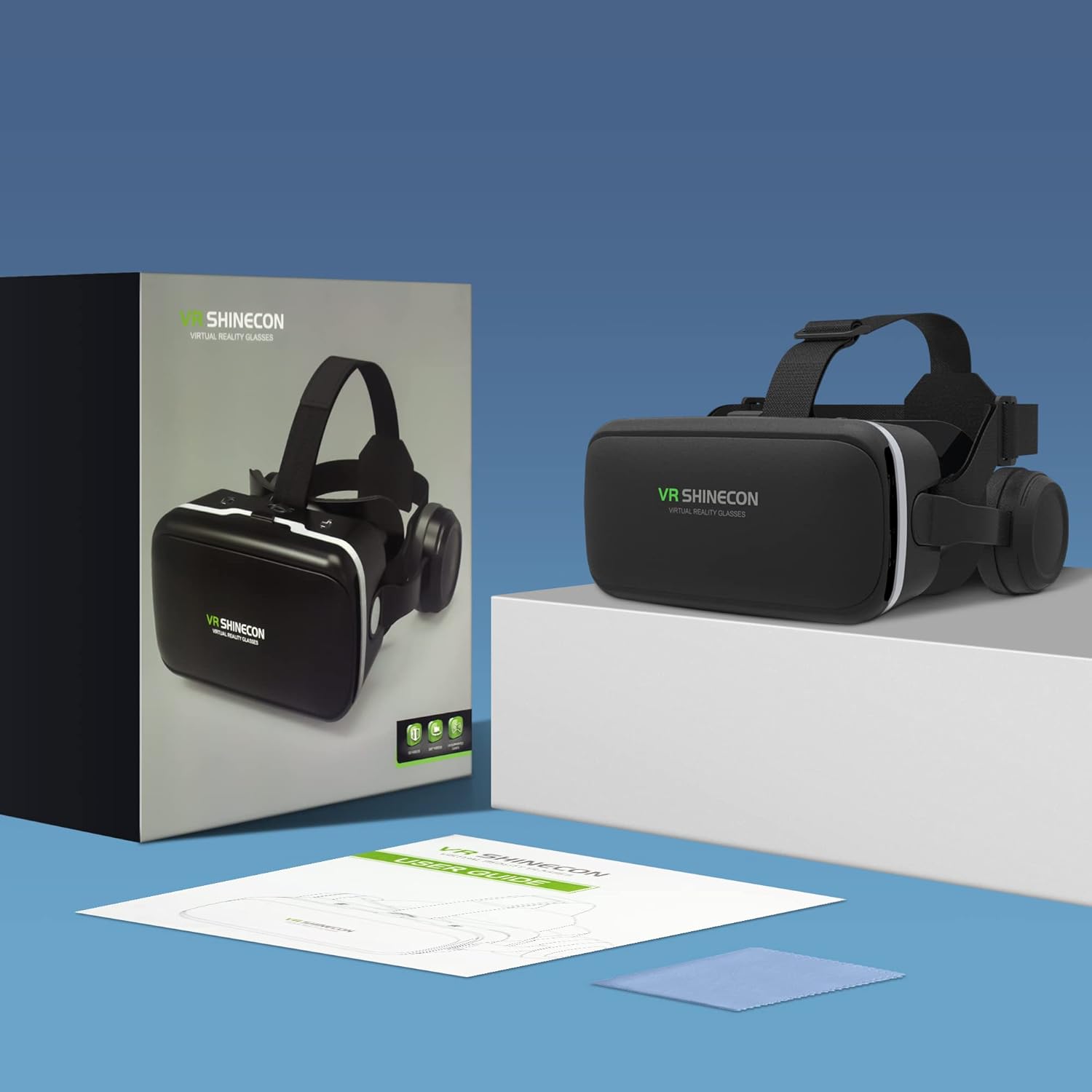
Image: A person wearing the VR headset, with diagrams highlighting the adjustable headset and headband components for ergonomic fit.
3. Lens Adjustment
Achieve optimal visual clarity by adjusting the lenses:
- Interpupillary Distance (IPD): Use the adjustment wheel on the top of the headset to move the lenses closer or further apart, aligning them with your eye distance (typically 60-70mm).
- Focal Length: Use the front and rear adjustment sliders to fine-tune the focus for each eye. This allows for clear viewing even for users with myopia up to 600 degrees.

Image: A close-up of the VR headset's top and front, showing the controls for adjusting lens position (left/right) and focal length (front/rear) for individual eye focus.
Operating Instructions
1. Finding VR Content
To begin your virtual reality experience:
- Open your smartphone's app store (Google Play Store for Android or Apple App Store for iOS).
- Search for "VR" to find compatible applications, games, and 360-degree videos.
- Download and launch your desired VR content.
2. Audio Controls
The headset features integrated Hi-Fi stereo headphones with 3D audio technology for an immersive sound experience. Controls are located on the headset:
- Volume Up/Down: Use the dedicated buttons to adjust the audio level.
- Play/Pause: A button is available to control media playback.

Image: A hand interacting with the volume up, volume down, and play/pause buttons located on the side of the VR headset.

Image: A close-up of the integrated headphones on the VR headset, showing sound waves emanating from them, indicating stereo audio.
3. Immersive Viewing Experience
The FIYAPOO VR2 headset offers a 100-degree field of view and high-quality PMMA optical lenses for a clear and expansive visual experience. The lenses also feature blue light reduction technology to minimize eye strain during extended use.

Image: A diagram illustrating how the VR headset's lenses filter harmful blue light, showing light waves being reflected and beneficial light passing through.
Maintenance
- Cleaning Lenses: Use the provided cleaning cloth to gently wipe the lenses. Do not use abrasive materials or chemical cleaners, as this may damage the optical coating.
- Cleaning Headset Body: Wipe the exterior of the headset with a soft, dry cloth. For stubborn marks, a slightly damp cloth can be used, followed by a dry cloth.
- Storage: Store the headset in a cool, dry place away from direct sunlight. Keep it free from dust and debris.
- Padding: The soft padding around the eyes and headphones can be gently wiped with a damp cloth if needed.

Image: A close-up of the soft, breathable padding surrounding the eye area of the VR headset, designed for comfort during use.
Troubleshooting
| Problem | Possible Cause / Solution |
|---|---|
| Blurry or Unclear Image |
|
| No Sound from Headphones |
|
| Smartphone Does Not Fit |
|
| Discomfort During Use |
|
Specifications
| Feature | Detail |
|---|---|
| Brand | FIYAPOO |
| Model Number | VR2 |
| Color | Black |
| Compatible Smartphone Size | 4.7 - 6.6 inches |
| Compatible Operating Systems | Android, iOS |
| Connectivity | 3.5mm Audio Jack |
| Field of View (FOV) | 100 degrees |
| Interpupillary Distance (IPD) Adjustment | 60 - 70 mm |
| Focal Length Adjustment | 37.5 - 46.5 mm |
| Diopter Adjustment | Supports myopia up to 600 degrees |
| Special Features | Integrated Hi-Fi Stereo Headphones with 3D Spatial Audio, Blue Light Reduction Lenses |
Warranty and Support
FIYAPOO products are designed for quality and durability. If you encounter any questions or issues with your VR headset, please contact FIYAPOO customer service for assistance. While specific warranty details are not provided in this manual, our support team is committed to offering an optimal solution.
For customer support, please refer to the contact information provided on the product packaging or the official FIYAPOO website.