
Introduction
This manual provides detailed instructions for the installation, operation, and maintenance of your ETLFUCyber Android Car Radio. This unit is designed for Ford Fiesta Mk5 models from 2002 to 2008, featuring a 9-inch touchscreen, wireless CarPlay, Android Auto, WiFi, GPS, FM RDS, and rear camera support. Please read this manual thoroughly before installation and use to ensure proper function and safety.
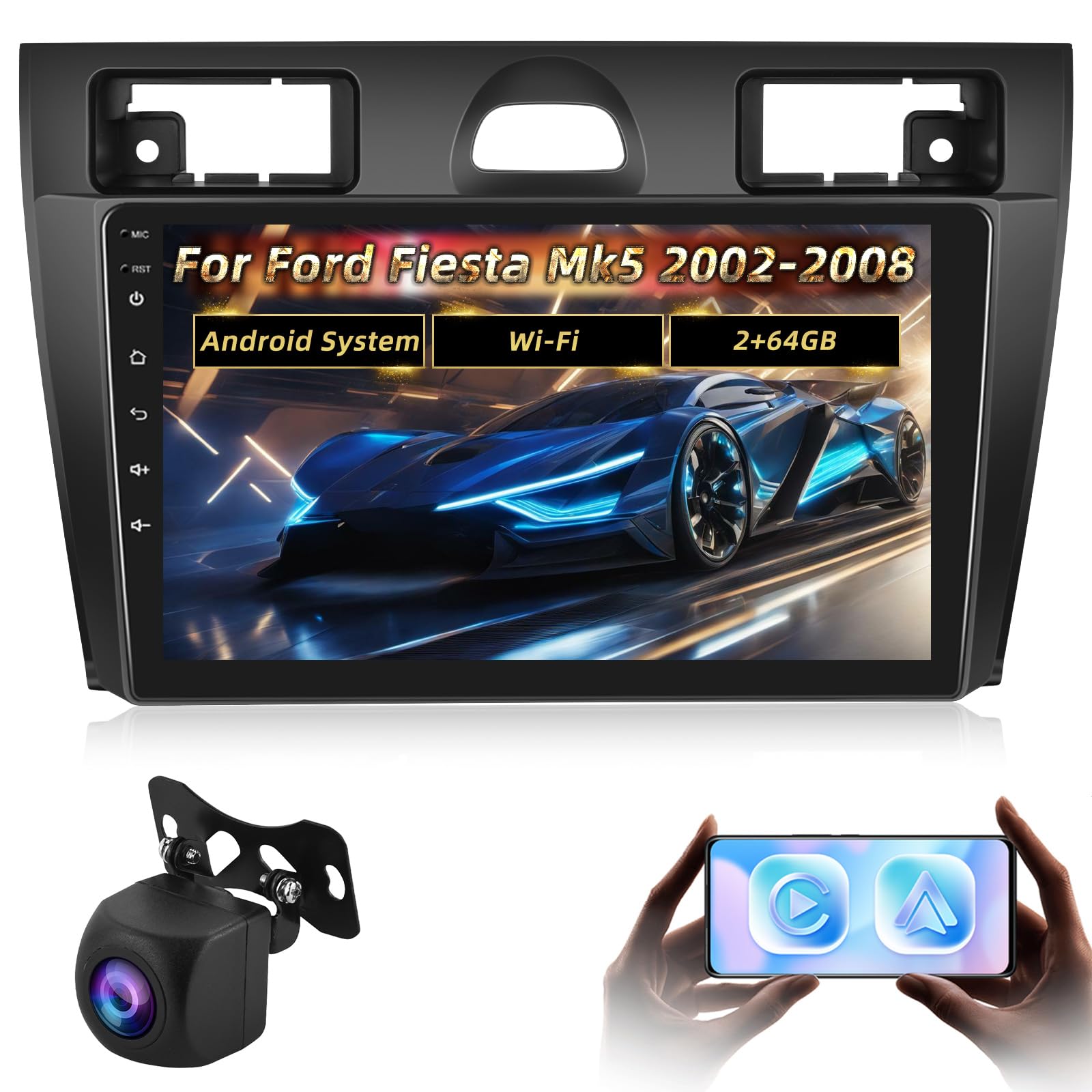
Image: Comparison of a Ford Fiesta Mk5 dashboard before and after the installation of the ETLFUCyber Android Car Radio, showing the integrated 9-inch display.
Important Compatibility Note
Before proceeding with installation, please verify the structure of your vehicle's center console. If the top and bottom sections of the frame around your car's center console are a single, unseparated piece, this product is not suitable for your vehicle. This unit requires a split frame design for proper fitment.

Image: Illustration highlighting the incompatibility of the car radio with a single-piece center console frame, showing a suitable split frame on the left and an unsuitable integrated frame on the right.
Packing List
Please check the contents of the package against the list below to ensure all components are present.

Image: A visual representation of the car radio unit's dimensions (273mm x 173mm x 50mm) and a grid of included accessories: Camera Input, 2* USB Cable, Original USB Cable, User Manual, GPS Antenna, RCA Cable, MIC, AHD Camera, Power Cable, and Installation Tool.
- Android Car Radio Unit (9-inch touchscreen)
- Power Cable
- GPS Antenna
- AHD Camera (Rear View Camera)
- RCA Cable
- Microphone (MIC)
- USB Cables (2 units)
- Original USB Cable
- Camera Input Cable
- Installation Tool
- User Manual (this document)
Setup and Installation
Professional installation is recommended. Ensure the vehicle's battery is disconnected before beginning any electrical work.
General Installation Steps
- Carefully remove the original car radio and trim panels.
- Connect the power cable, speaker wires, and other necessary cables to the new Android unit.
- Install the GPS antenna in a location with a clear view of the sky.
- Mount the new unit into the dashboard opening.
- Reconnect the vehicle's battery and test the unit.
- Reinstall trim panels.
Backup Camera Connection
Follow these steps to connect the included AHD backup camera:
- Red Cable: Connect the positive pole of the car reversing light cable.
- Black Cable: Connect the negative pole of the car reversing light cable.
- Cables Three and Five: These two cables must be connected together and then connected to the radio. This connection is crucial for Bluetooth and WiFi signal reception.

Image: A detailed wiring diagram illustrating how to connect the backup camera, showing connections for the red cable (positive reversing light), black cable (negative reversing light), and the combined connection of cables three and five to the radio for signal integrity.
Steering Wheel Control (SWC) Setup
After installing the car radio, you need to configure the steering wheel buttons. This allows you to control the radio functions directly from your steering wheel.
- Go to Settings on the car radio.
- Navigate to Car settings, then General.
- Enter the SWC setting interface.
- Follow the on-screen instructions to learn and assign functions to your steering wheel buttons. Note that existing button assignments may be cleared, requiring a fresh setup.

Image: A visual guide to the Steering Wheel Control (SWC) setup, displaying the radio's interface for assigning functions like Power, Home, Volume, Navigation, Bluetooth, Music, and Call controls to the vehicle's steering wheel buttons.
Operating Instructions
Wireless / Wired CarPlay and Android Auto
The radio supports both wireless and wired CarPlay and Android Auto. Once connected, you can access various smartphone functions directly on the car radio's display.
- Connection: Connect your iPhone via wireless CarPlay or a USB cable for wired CarPlay. For Android phones, use wireless Android Auto or a USB cable for wired Android Auto.
- Features: Access navigation maps, GPS, email, notifications, music, phone contacts, and other applications.
- Voice Control: Use voice commands (e.g., "Hey Siri" for CarPlay) to control functions, allowing you to maintain focus on driving.

Image: The car radio display showing active Wireless CarPlay and Android Auto interfaces, with examples of voice commands for navigation and music playback, and various app icons like Maps, Spotify, YouTube Music, and Phone.
FM RDS Radio
The FM/RDS radio function allows you to listen to broadcasts and receive station information.
- Frequency Range: Tune into FM stations within the standard frequency range.
- Presets: The unit offers 18 preset stations for quick access to your favorite channels.
- RDS Functionality: Receive additional information such as station name, program type, and traffic announcements (where available).

Image: The car radio screen showing the FM RDS radio interface with various frequency options (87.50, 90.50, 100.00, 108.00 MHz) and a visual representation of sound waves, indicating active radio playback.
GPS Navigation
The car radio is equipped with GPS navigation capabilities, supporting both online and offline maps.
- Online Maps: Connect to WiFi to use online navigation services.
- Offline Maps: Download maps for offline use, ensuring navigation even without an internet connection.
- Accuracy: Provides accurate positioning for reliable route guidance.

Image: The car radio display showing a GPS navigation map with a highlighted route, current vehicle position, and estimated travel time, indicating active navigation.
Bluetooth Hands-Free and Music Playback
Connect your smartphone via Bluetooth for hands-free calling and wireless music streaming.
- Hands-Free Calling: Make and receive calls directly from the radio interface, enhancing driving safety.
- Phonebook Download: Download your phone's contact list to the radio for easy access.
- Music Streaming: Play audio from your smartphone through the car's speakers.

Image: The car radio display showing the Bluetooth interface, with a phone call in progress on one side and music playback controls on the other, demonstrating hands-free communication and audio streaming capabilities.
EQ Settings (Equalizer)
Customize your audio experience with the built-in equalizer settings.
- Graphic Equalizer: Adjust multiple frequency bands to fine-tune the sound output.
- Preset Effects: Choose from a variety of pre-integrated music effects to suit different genres or preferences.
Image: The car radio screen displaying the EQ (Equalizer) settings, showing a graphic representation of adjustable frequency bands and options for sound balance and DSP (Digital Signal Processor) settings.
Maintenance
Proper maintenance ensures the longevity and optimal performance of your car radio.
- Cleaning the Screen: Use a soft, lint-free cloth to gently wipe the touchscreen. Avoid abrasive cleaners or solvents.
- Software Updates: Periodically check for and install software updates to ensure the system runs efficiently and has the latest features.
- Environmental Conditions: Avoid exposing the unit to extreme temperatures, direct sunlight for prolonged periods, or excessive moisture.
Troubleshooting
If you encounter issues, refer to the following common problems and solutions:
| Problem | Possible Cause | Solution |
|---|---|---|
| No Power | Loose power connection, blown fuse. | Check power cables and fuse. Ensure proper connection to the vehicle's power supply. |
| No Sound | Volume too low, incorrect audio source, loose speaker wires. | Increase volume, select correct audio source, check speaker connections. |
| GPS Not Working | GPS antenna not properly installed or obstructed, no internet for online maps. | Ensure GPS antenna has a clear view of the sky. Check WiFi connection for online maps or download offline maps. |
| Bluetooth Connection Issues | Bluetooth not enabled, device not discoverable, interference. | Ensure Bluetooth is enabled on both devices. Make the phone discoverable. Try restarting both devices. |
| Backup Camera Not Displaying | Incorrect wiring, camera malfunction. | Verify all camera connections as per the "Backup Camera Connection" section. Ensure the vehicle is in reverse. |
If the problem persists after attempting these solutions, please contact customer support.
Specifications
- Brand: ETLFUCyber
- Model: ETLFUCyber_AV_RECEIVER_1
- Compatible Devices: Smartphone, Tablet
- Special Features: Wireless/Wired CarPlay & Android Auto, Offline/Online GPS, WiFi-Hotspot, Rearview Camera Support, EQ Settings
- Audio Output Mode: Stereo
- Speaker Surround Sound Channel Configuration: 5.1
- Connectivity Technology: Bluetooth, WLAN (WiFi)
- Controller Type: Android
- Product Dimensions: 27 x 18 x 8 cm; 1.39 kg (approx. 10.7 x 7.1 x 3.1 inches; 3.06 lbs)
Warranty and Support
We provide professional technical support and excellent customer service for this product.
- Technical Support: Two years of technical support via email.
- Response Time: We aim to respond to all inquiries within 24 hours and provide a solution.
- Contact: For any questions or support needs, please contact us via email.